

Clean data automatically with blueprint rules
Default blueprint rules apply simple cleaning logic, such as date formatting, to help you prepare data
Objective
The Platform provides default "blueprint rules" which consist of simple cleaning logic (like dates formatting, thousands of separators, etc.) to help users run simple data preparation. You can choose from available transformations in the Platform store and apply them if the applied condition is met.
It is not mandatory to use blueprint rules when using the platform. If used, the rules will be added automatically to the Data Processing Engine Load actions you will define to ingest the data inside your dataset.
How a rule works
A rule applies to each line independently and allows several things.
If a condition is specified, the rule will apply only under certain conditions expressed in condition and condition_value(s).
If a transformation is filled, the transformation action on each line will be performed, otherwise, it is considered to be a filtering rule (keep).
If no condition is filled, the one set by default is ALL, which allows any line.
If no transformation nor condition is filled, then we consider it to be a default transformation. Otherwise, if no transformation is filled and there is one condition, the action by default is keep. The action applies only to lines that respond to the rule defined by condition.
Fields
Configure a blueprint rule
Rules require 3 steps to be configured:
- Information: Name of the attribute
- Transformation: If the condition is confirmed, which transformation action to apply to the data (can be chosen from the Platform store)
- Condition: which rule to apply for the condition
To add a rule on an attribute, on the relevant field, click on the following button:
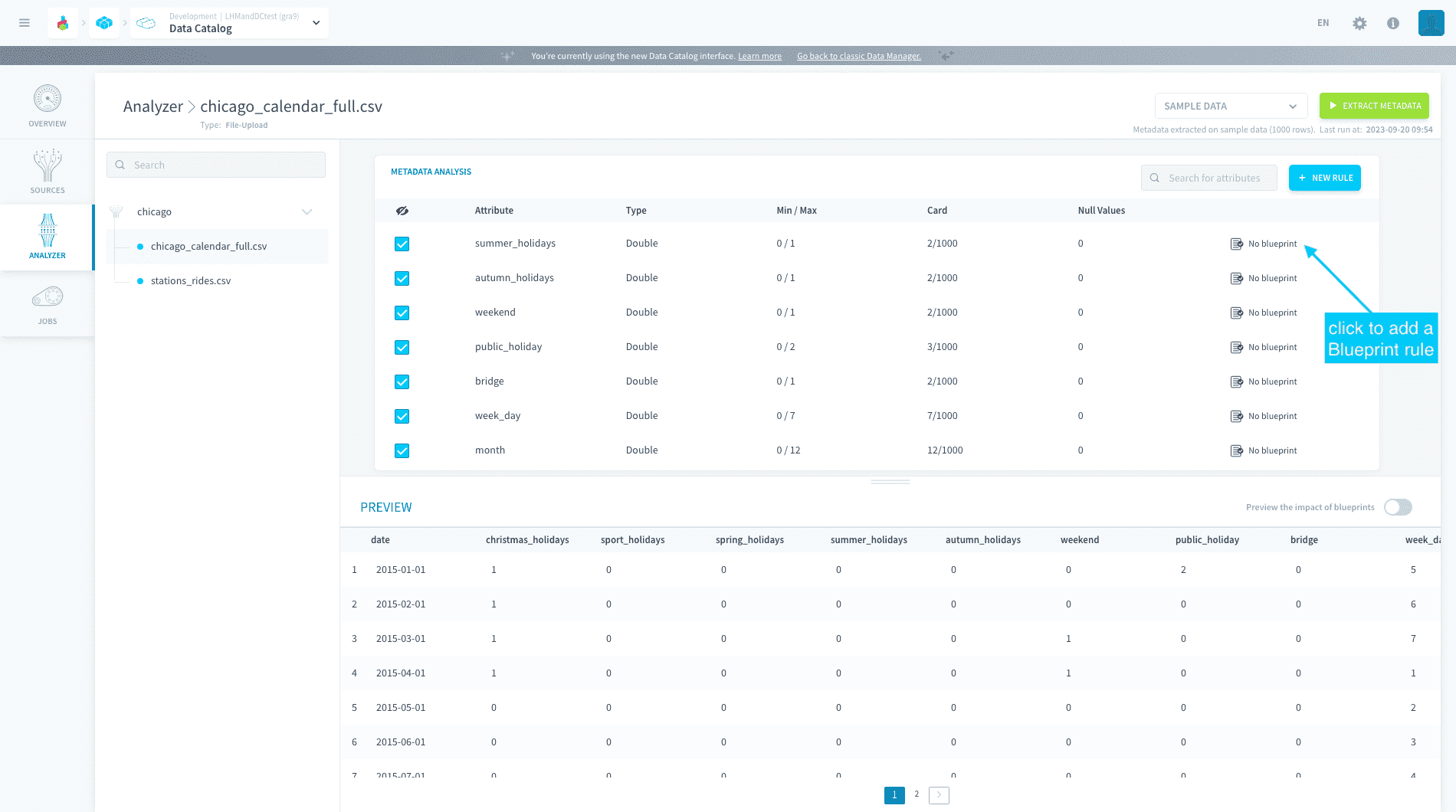
Transformations
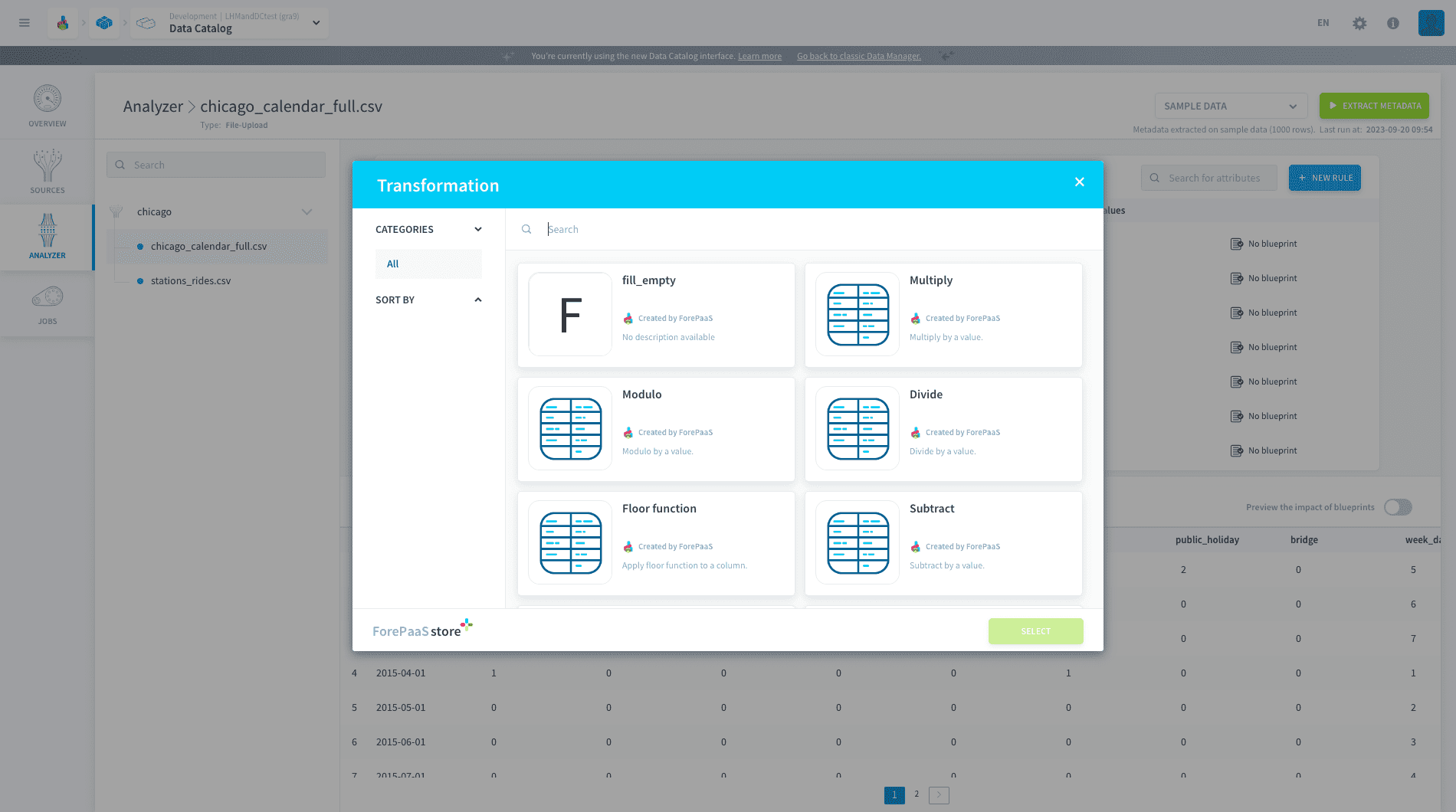
Different transformations are available in the Platform store:
-
Replace by: Replaced values by a single value
-
Substring: Values will be truncated
-
Date format: Replace date formats
-
Keep line: Keep matching values
-
Skip line: Skip matching values
-
Throw error: Matching values will trigger an error
-
Replace substring: Replace matching substrings
-
Apply regexp: A new regexp will be applied to matching values
-
Stop workflow: Stop the ongoing workflow
Conditions
Different conditions are available:
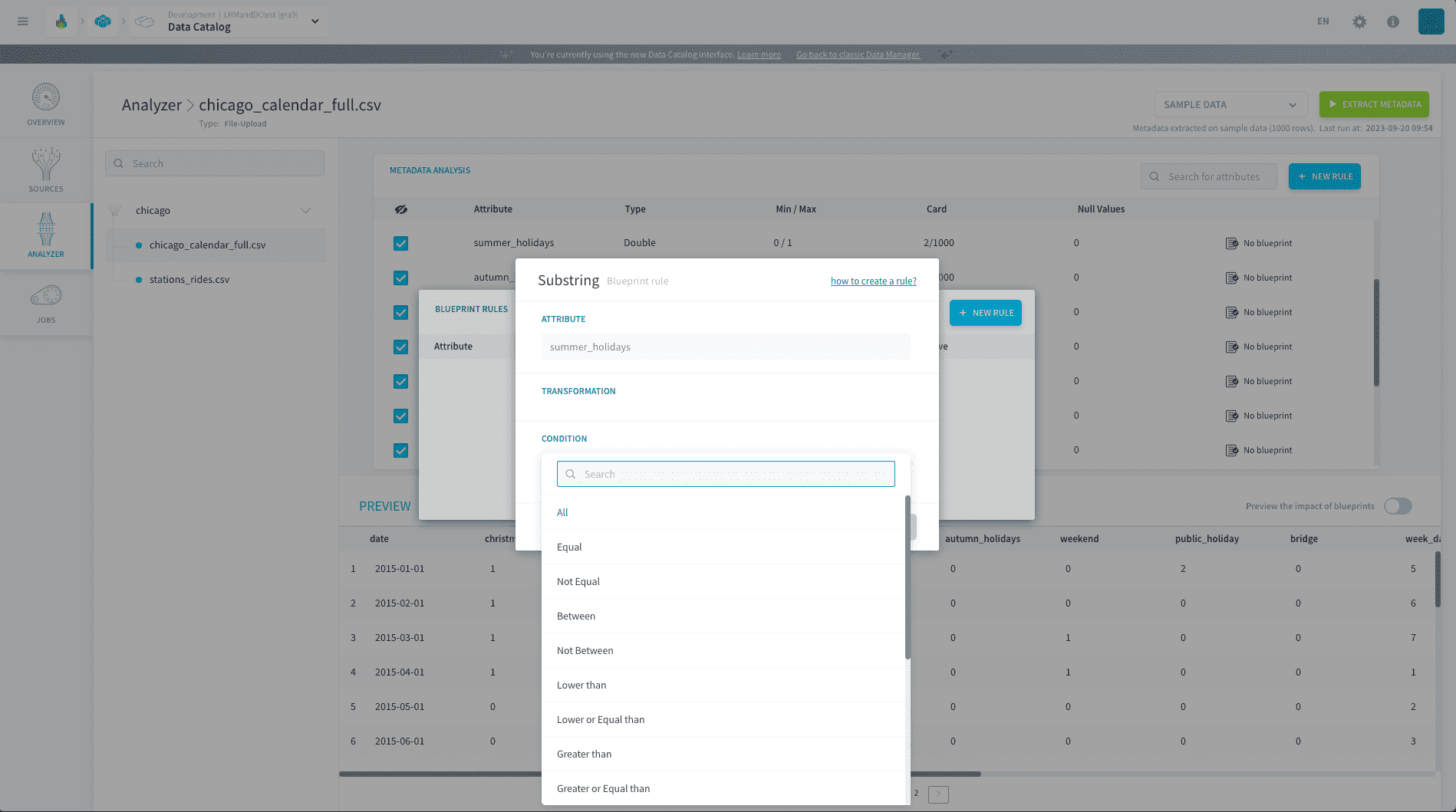
The Platform provides you a variety of Conditions you can apply to your chosen transformation. The list includes the following: Equal, Not Equal, Between, Not Between, Lower than, Lower or Equal than, Greater than, Greater or Equal than, REGEXP, NOT REGEXP, Is a number, Is not a number, Is a date, Is not a date, Is null, Is not null
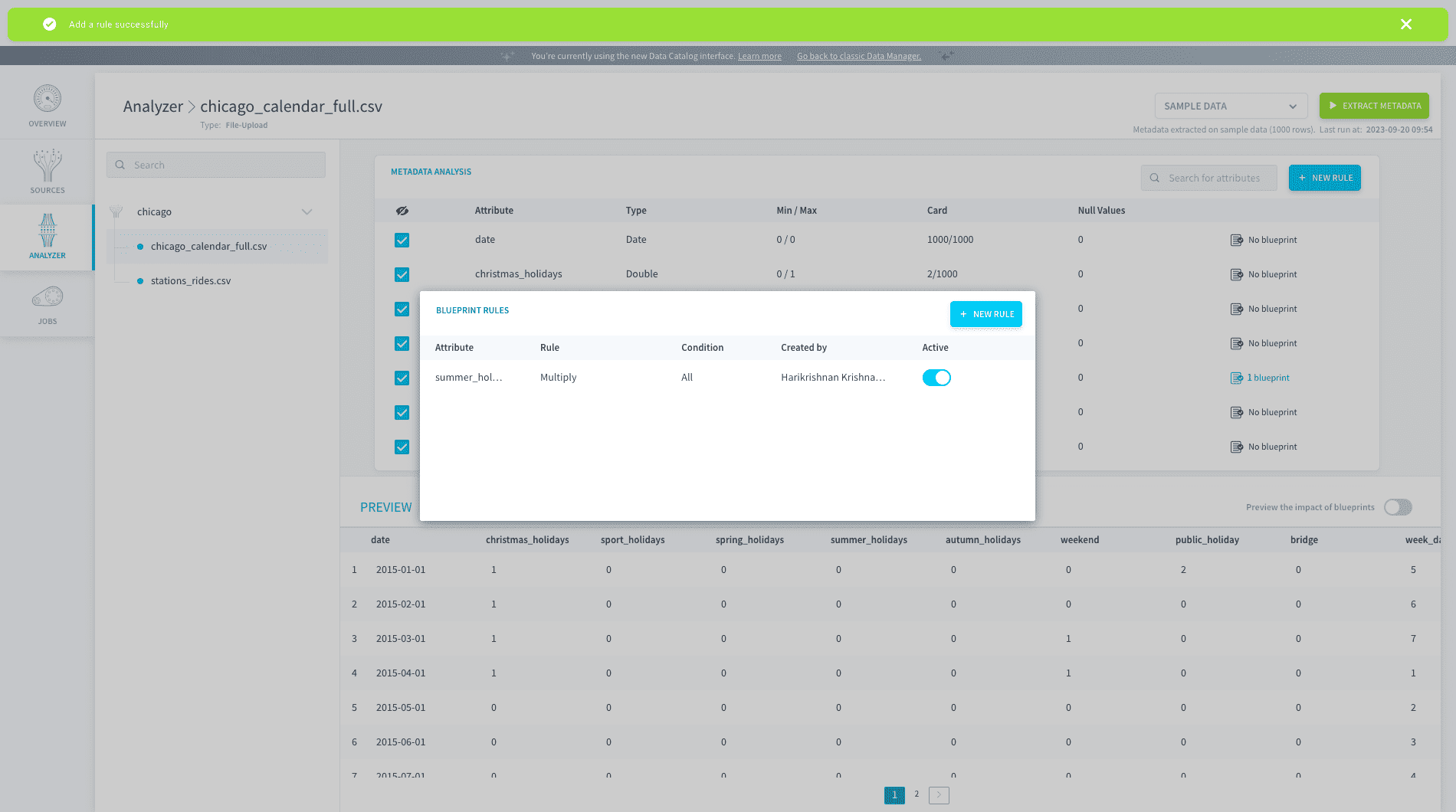
Once the transformation and condition are set, the rule will be applied to the selected attribute.
Reference
The names below are the values written in the rule itself, so they are the ones you use when you edit rules as JSON, for example in the Load advanced mode or the Aggregate advanced mode.
Condition list
Transformation list
-
keep: Keep the line
-
skip: Skip the line
-
default: Replace the value by action_value. For dates, there is:
$todayreturns yyyy-mm-dd$nowreturns yyyy-mm-dd hh:mm:ss$yesterdayreturns yyyy-mm-dd
-
regexp_replace: Replace the value corresponding to regexp action_values[0] by action_values[1]
-
replace: Replace the value corresponding to action_values[0] by action_values[1]
-
substring / substr:
-
If action_values[0] >= 0: Starts at the *action_values[0]*th character
-
If action_values[0] < 0: Only takes into account the action_values[0] last characters
-
If action_values[1] is filled: The 2nd figure represents the max number of characters wanted
-
-
date_replace: Replace the date format action_values[0] by action_values[1]. Examples for action_values:
["%d/%m/%Y", "%Y-%m-%d"]- See the date format directives below
-
add: Add several fields or hard numbers, automatically detecting if for each value of action_values it is an attribute available in the line, otherwise it is considered to be a number. Examples for action_values:
["ca_ht", "taxes"]["nb_clics", 1]
-
sub: Substract action_values[0] from all the other data present in action_values
-
mul: Multiply action_values[0] by action_values[1]
-
div: Divide action_values[0] by action_values[1]
-
mod: Modulo action_values[0] by action_values[1]
-
concat: Concatenate one or several fields with hard strings. Each element of action_values detects if it is the name of a column available in the line, if not we consider it to be a string of hard characters. Examples for action_values:
["site_name", " - ", "country"]["civilite", " name", "lastname"]
-
ceil: Rounded up action_value
-
floor: Rounded down action_value
-
disaggregate / split: Used to create multiple lines if a field contains multiple values that should be split into separate lines. There can only be one disaggregate rule per DPE action, and this rule always applies last. The field is split on the character action_value, and for each split element only non-empty values are kept.
-
action_error: Leads to an error in the action, and consequently considers that all the lines are false
-
stop_workflow: Stop the workflow
Date format directives
Rule examples
Replace a date format:
Add 1 to the year attribute, only on the lines where it is 2015 or 2016:
Set year to 2015 on the lines where it is lower than 2015:
Set the date attribute to today's date:
Convert a temperature from Kelvin to Celsius:
Normalise a timestamp:
Go further
For training or technical assistance implementing our solutions, contact your sales representative or visit our Professional Services page to request a quote and have your project analysed by our experts.
Ask questions, give your feedback and interact directly with the team building the Data Platform on the dedicated Discord channel.
If you need support with your OVHcloud services, create a request in our Help Centre.
Join our community of users.