

Define, analyze and clean your data sources
In this step, you will learn how to connect your first data source to your Project
Objective
In this step, you will learn how to connect your first data source to your Project, analyze and clean it in a consistent way so that relations between your data can be understood at a glance.
This step assumes a project is open. If you do not have one yet, create a project first.
The Connectors is the first component you should use when starting out on your Project. It is the component that controls:
- Data sources collection
- Data analysis & cleaning
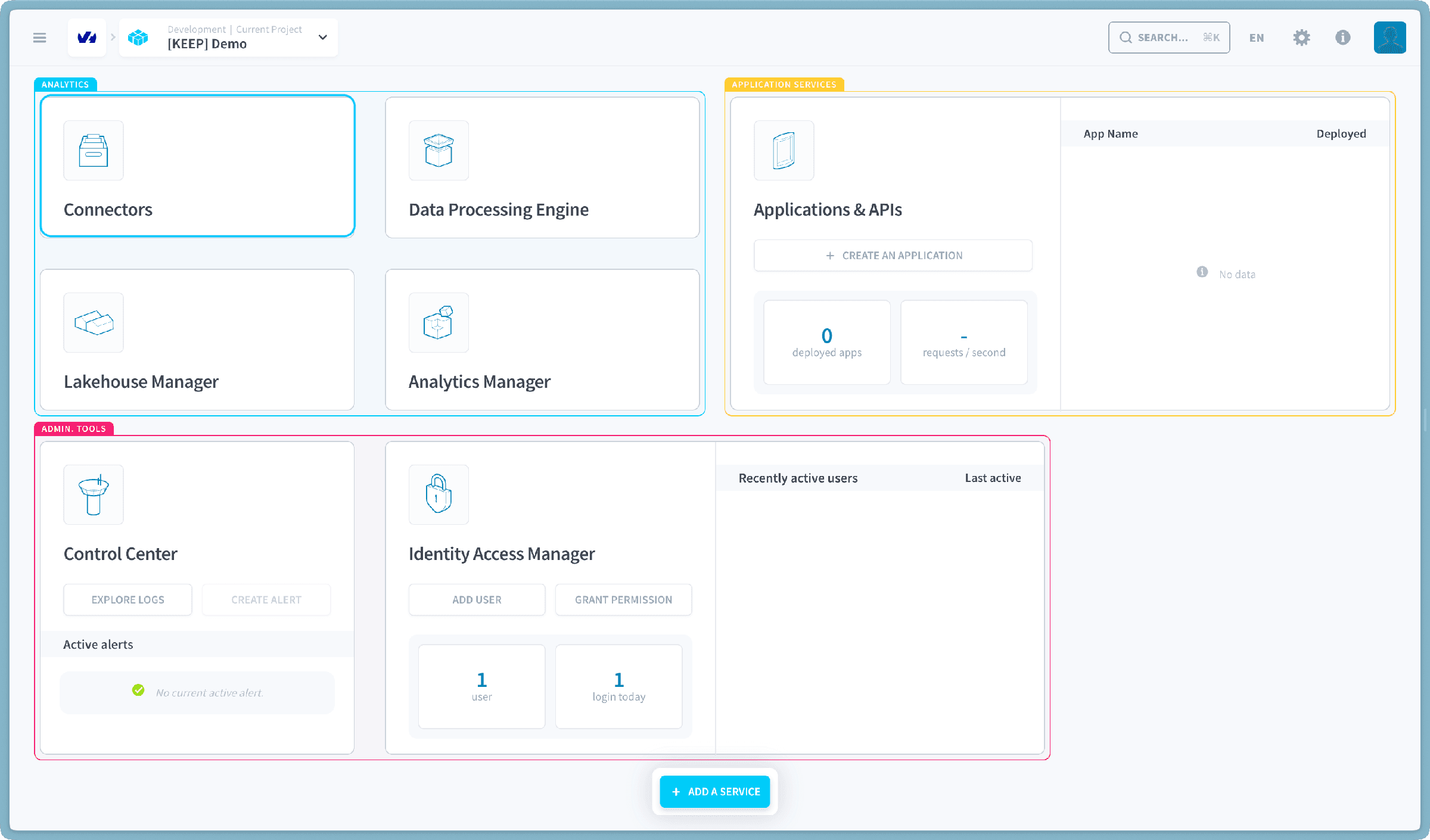
The data source consists of two CSV files containing data about Chicago weather and public transport.
Connect your first source
Let’s go get your data!
To get your data, download the following files here. Once unzipped, you will find 2 .csv files:
- chicago_calendar_full.csv - a table with weather conditions by day where each row represents a day.
- station_rides.csv - a table with railway usage information per station per day where each row represents a day on a given station.
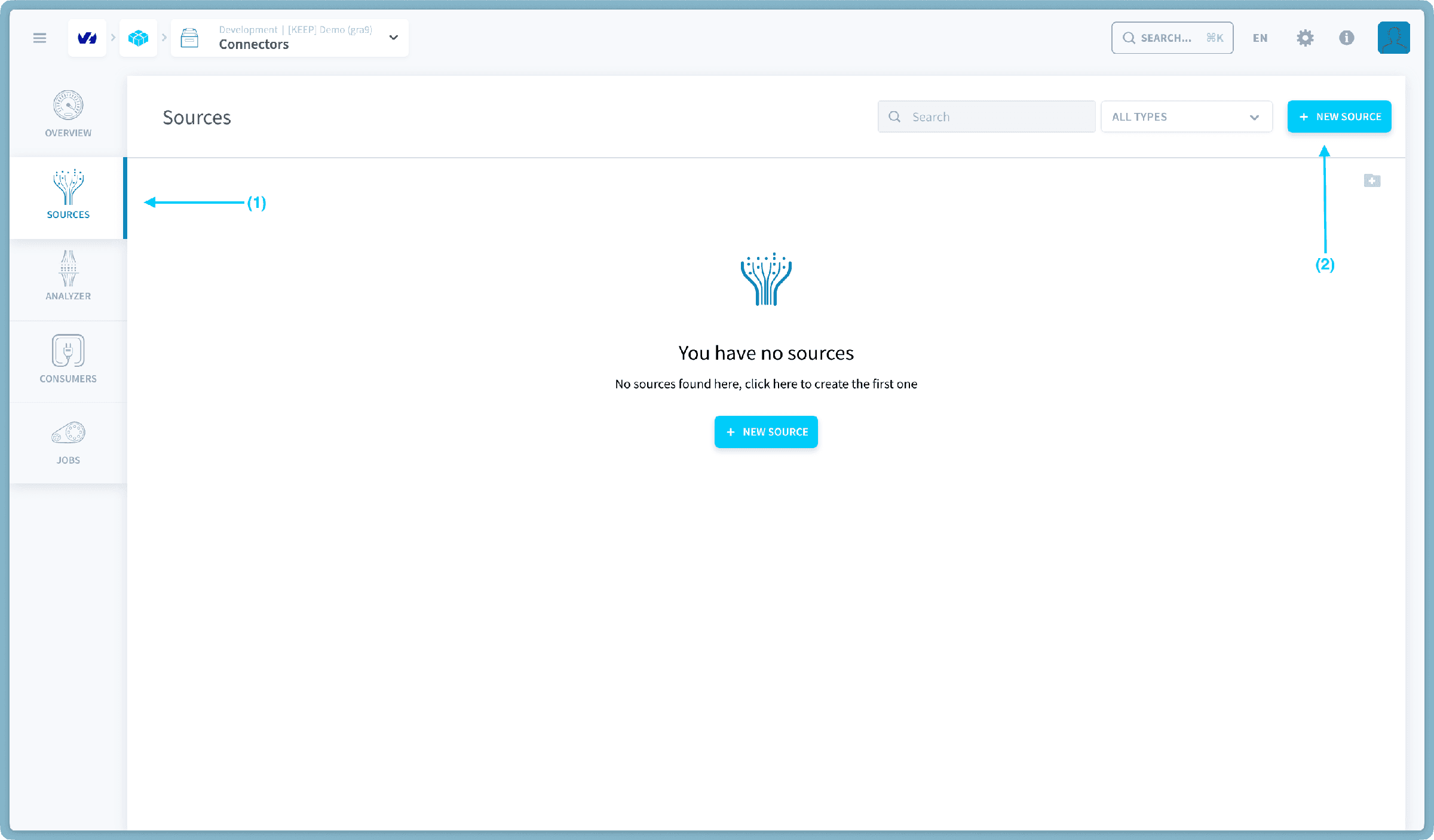
Inside the Connectors, go to the menu Sources (1) and click on the New Source (2) button on the top right-hand corner to connect your very first data source.
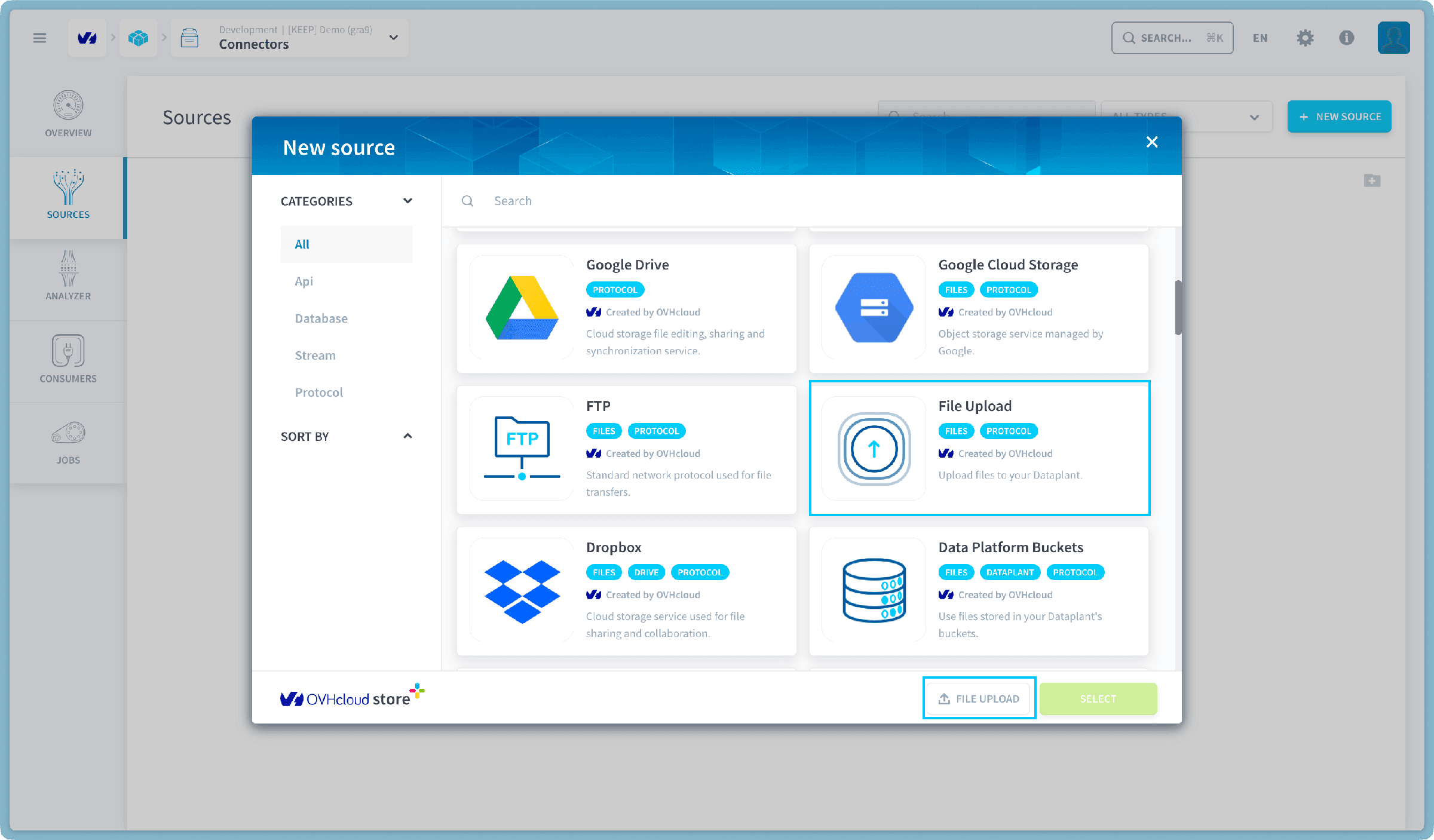
There are many connectors supported by the Platform. In this tutorial, you will use a simple file upload.
Look for File upload in the search bar, click on the icon and then click on the green Select button or you can quickly click the File Upload button on the bottom right.
Give a name to your source: for example chicago_files.
Then you can drag & drop or upload the 2 files provided at the beginning of the tutorial, and click on Create.
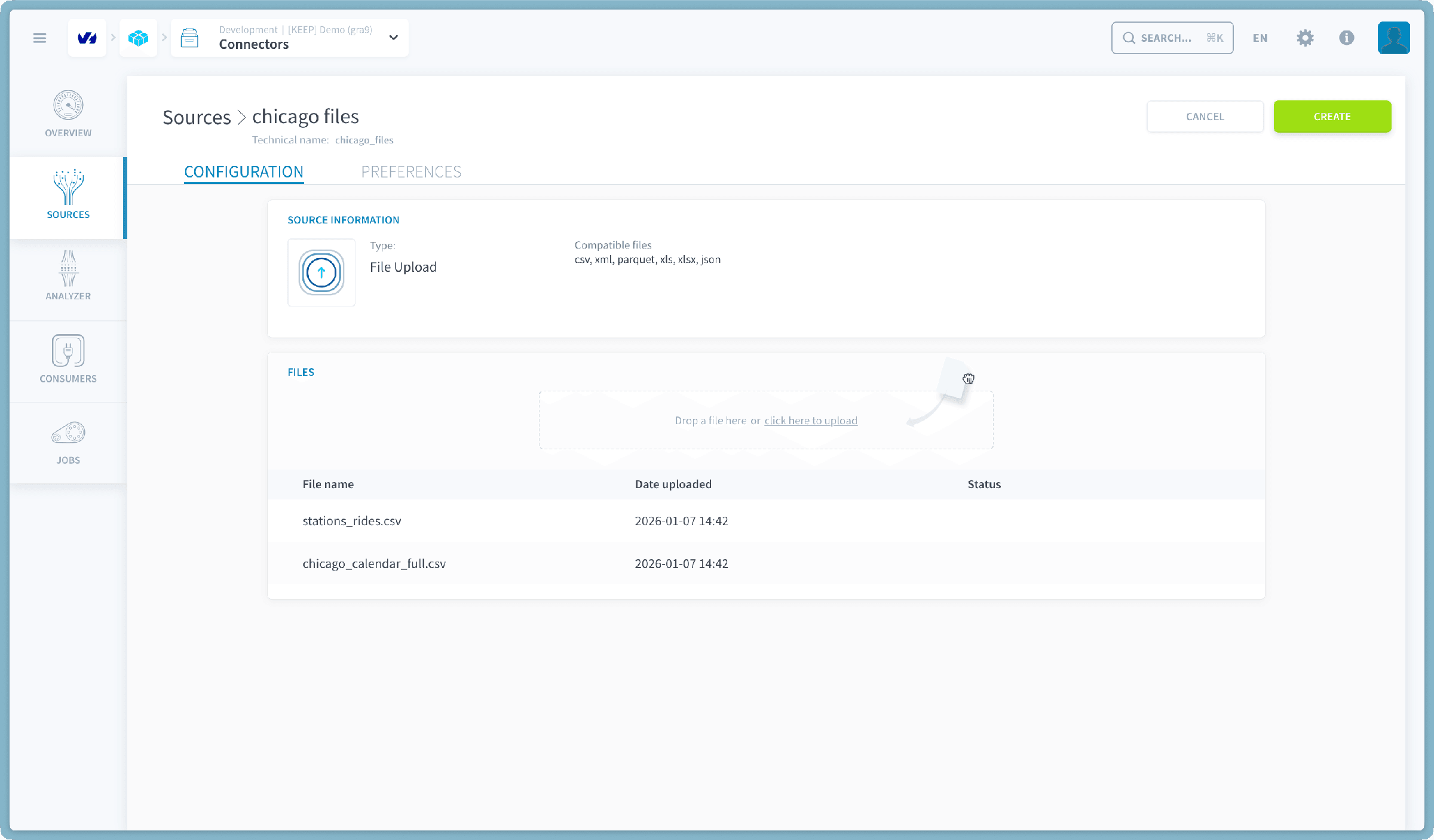
Your files are now loaded to a bucket!
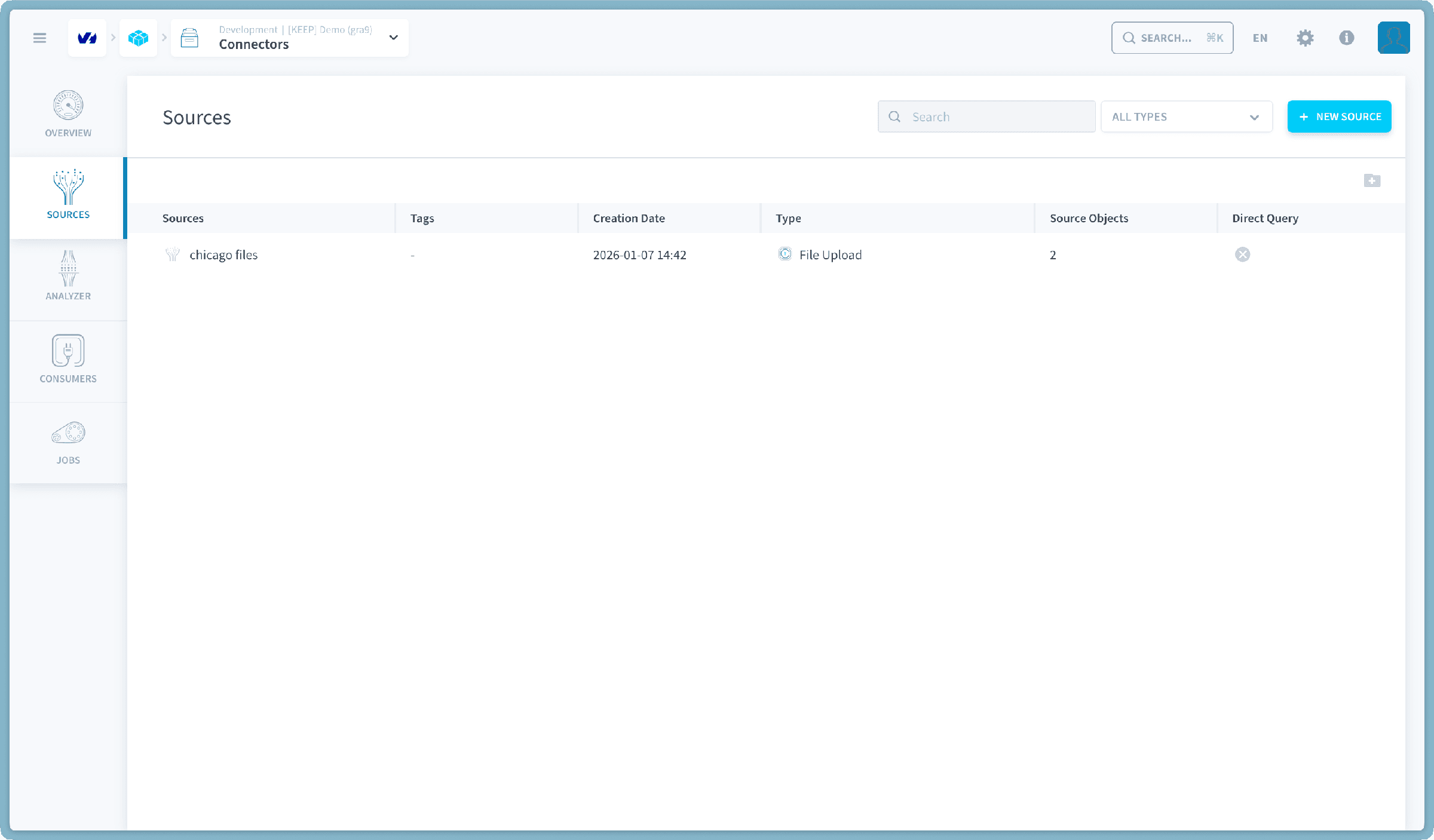
Now, let's move on to extracting their metadata.
Analyze your source data
You should still be inside the Connectors component. Click on Analyzer from the left-hand menu. Here you will extract metadata (i.e. information about your data) from your sources and choose which columns you want to display.
The two source files you just uploaded appear on the sidebar. Click on the respective source name (i.e. chicago_files) to expand it. Then, click on each of the files to automatically launch a metadata extraction.
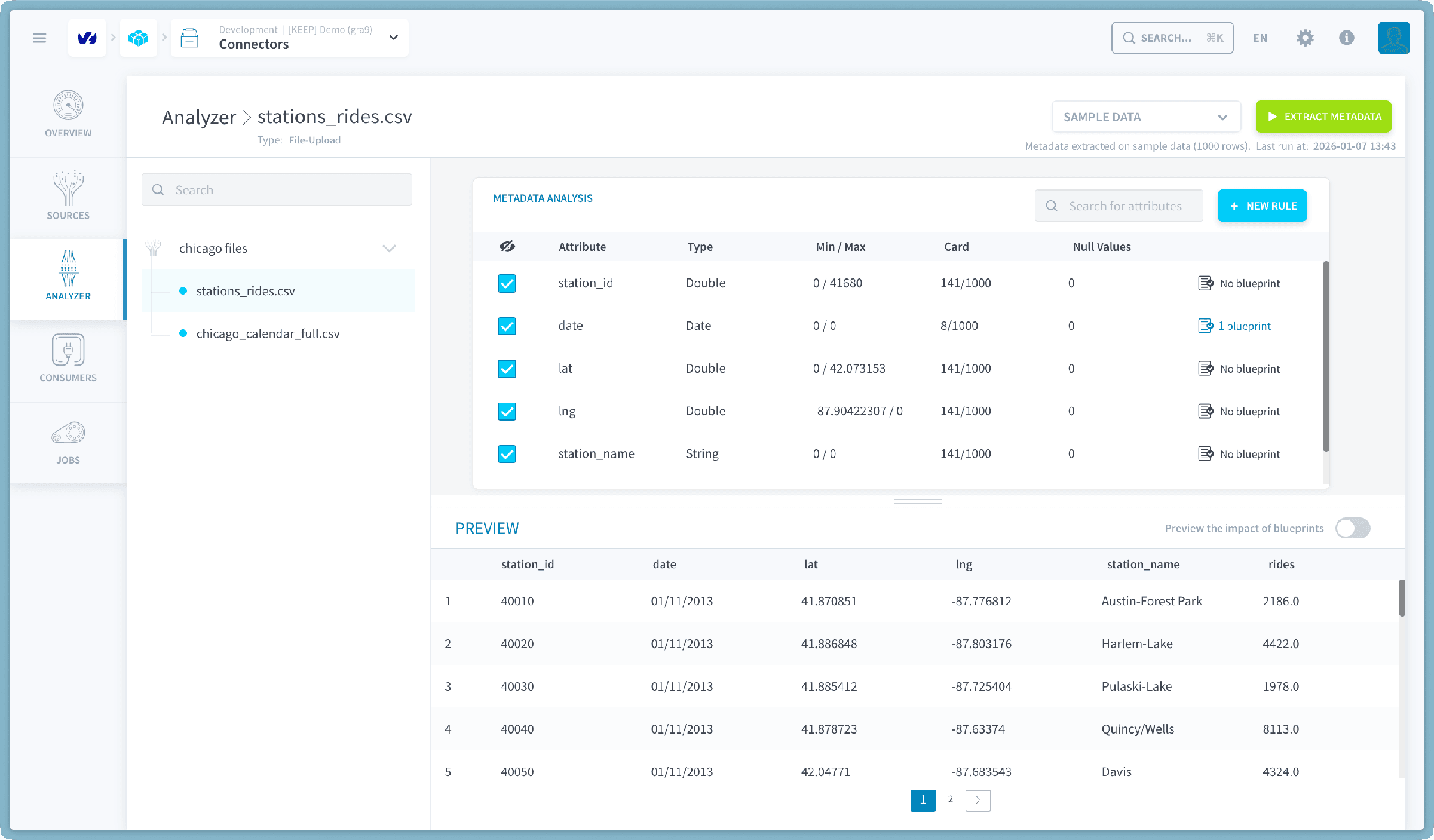
The metadata extraction should take around 30 seconds.
The Analyzer is also where you can add blueprint rules (by clicking on the blue button New Rule). The Platform automatically applies a formatting transformation on dates to set them in a standard yyyy-mm-dd format.
It's time to head to the Lakehouse Manager to see what's next.
Create and Build your data models
Go further
For training or technical assistance implementing our solutions, contact your sales representative or visit our Professional Services page to request a quote and have your project analysed by our experts.
Ask questions, give your feedback and interact directly with the team building the Data Platform on the dedicated Discord channel.
If you need support with your OVHcloud services, create a request in our Help Centre.
Join our community of users.