

Orchestrate ETL pipelines with Data Platform workflows
Workflows are basically your orchestrated ETL and data processing pipelines on the Platform
Objective
Workflows are basically your orchestrated ETL and data processing pipelines on the Platform. A workflow is an organizational structure in the Data Processing Engine which represents a sequence of actions which can be:
- Run manually or through an API call
- Scheduled to run at a given time (CRON)
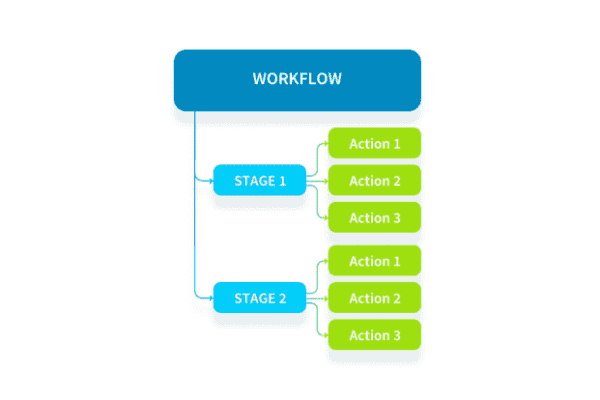
When creating workflows, you can organize actions into stages to customize the processing of your data, as stages are run sequentially and actions in parallel.
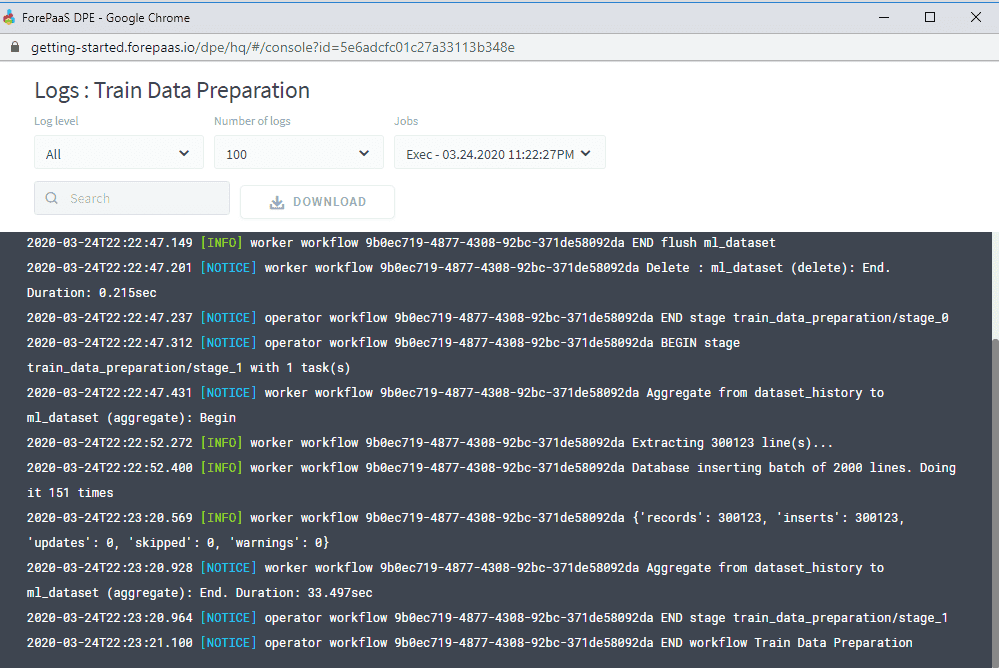
Each time a workflow is launched, you can monitor the execution of a workflow by reviewing the logs.
Create a workflow
The Platform offers a simple point-and-click interface to orchestrate your actions into scheduled workflows. The creation of the workflow has 2 main steps:
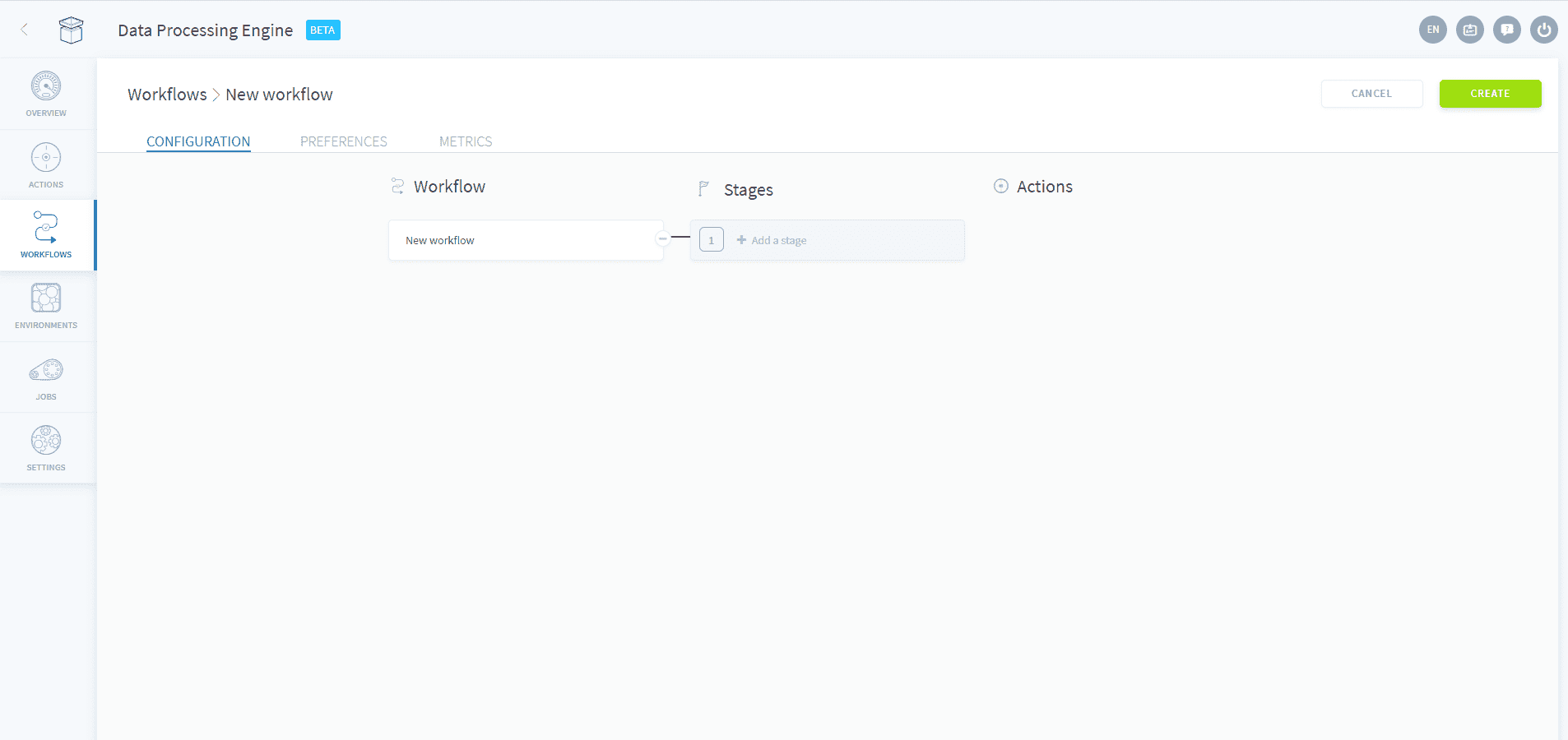
- Stages: Configure the workflow's successive stages, actions in the respective stages can be either added upon the creation of the workflow or later on.
- Preferences: Users can define various parameters and information about the workflow
Stages
Within a workflow, actions are organized in sequential stages. Within stages, actions are run in parallel (meaning they can run in parallel on multiple instances)
If a workflow contains actions with multiple language versions, it will be executed with the latest language version it contains. You can override this behavior from the workflow's preferences
At the moment, a single workflow cannot contain both PySpark actions and normal actions.
A workflow must contain at least one action before it can be started. Empty workflows cannot be run.
Preferences
The preferences tab allows the user to give the workflow a name, a description and tags; and to define several execution parameters.
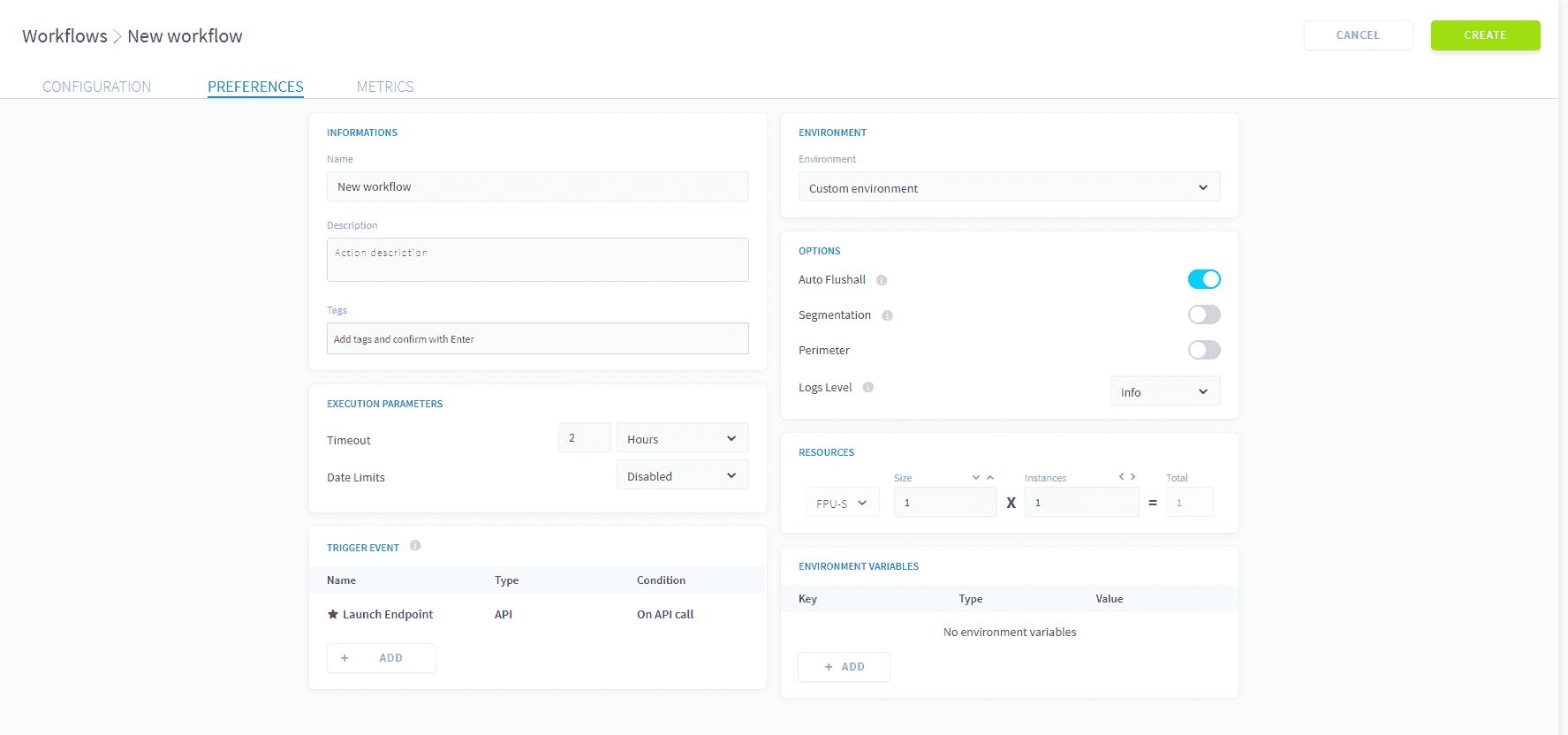
What does the "Auto Flushall" do? The platform stores the output of the queries in cache (in other words they are "pre-computed") for better performance when using an application. By running the "Flush all" the queries are re-run and the data in the app refreshed. It is therefore activated by default & usually adds an additional 5-10s of processing time to your workflow. For complex successive data processing workflows, you might want to deactivate it and run it only once at the end as a separate workflow.
Advanced mode
You can also go under the hood by using our integrated IDE in the Advanced mode: the advanced tab is available to further customize your workflow using the JSON config files.
Learn how to configure a workflow using the Advanced mode
Manage workflows
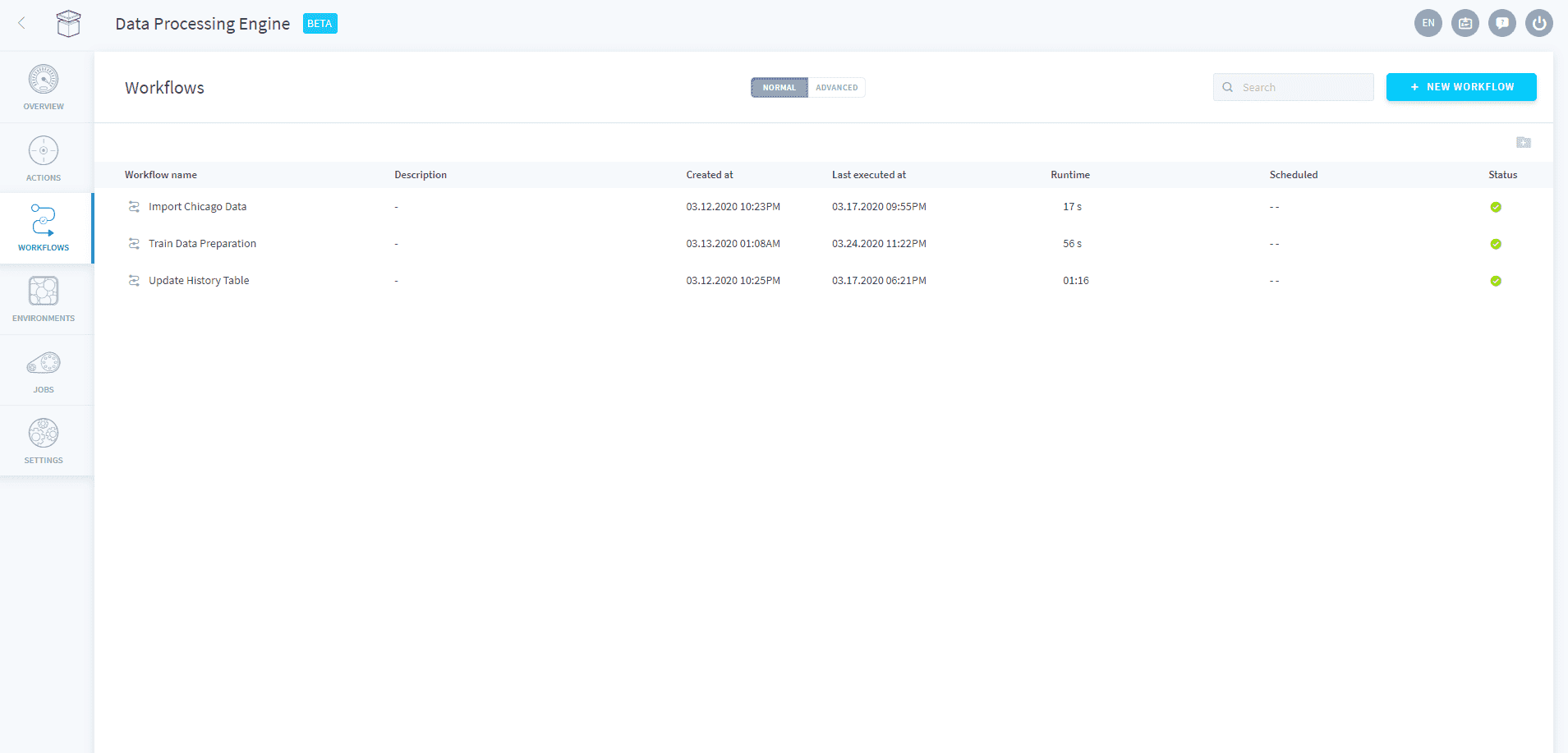
In the workflows screen, you can quickly see which workflows are being run, have successfully ran or have encountered errors during their execution.
By hovering on the More icon (i.e. "...") on each line of a workflow, you can also easily:
- Delete a workflow
- Edit an existing workflow
- Run a workflow
- Inspect the logs of a workflow

When the number of workflows increases, you can organise the view using Folders or look for a specific workflow using the search bar on the top right of the screen. To add workflows into folders, simply drag & drop a workflow inside a given folder.
Monitor a workflow
Logs
To monitor a workflow's progress, it is possible to open its logs by clicking on the Console icon. This will open the Control Center Logs Explorer in a new window.
Note that in the preferences of a workflow, you can define a level of information available in the logs (debug, info, notice, warning, error, critical).
Alerts
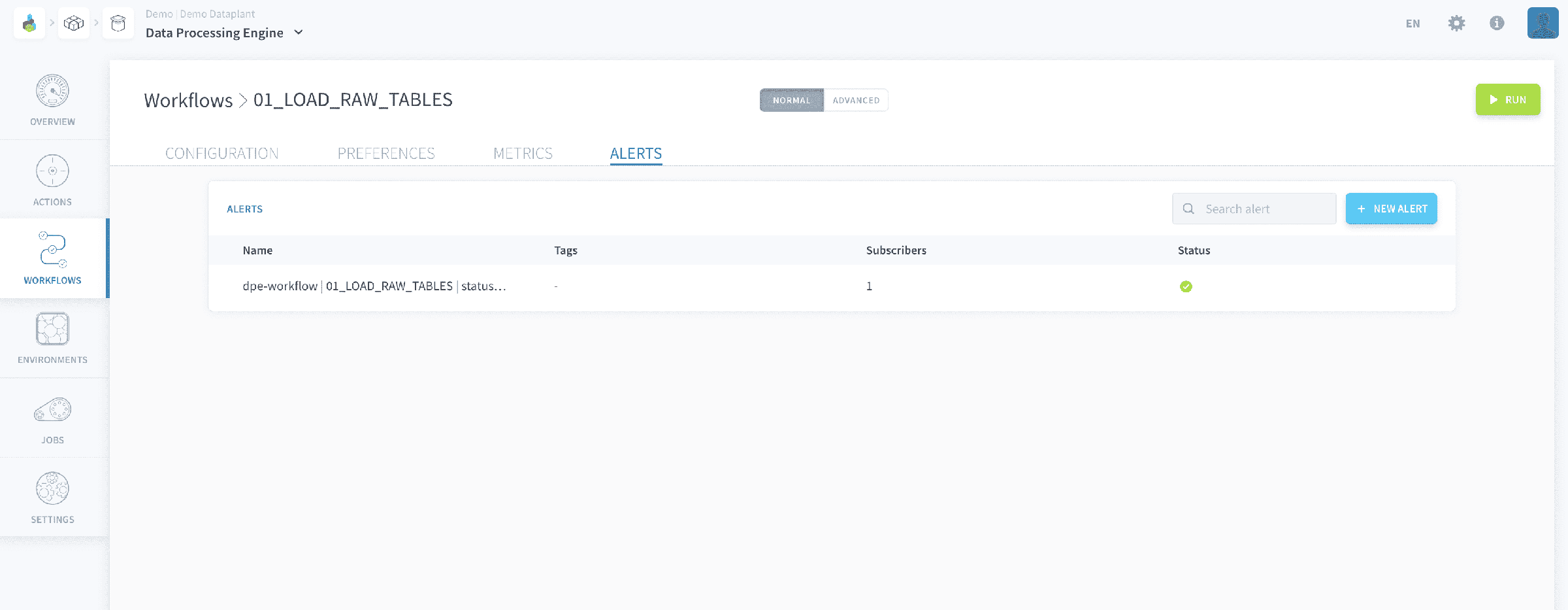
Just like for actions, you can monitor the execution of a workflow by setting alerts on some key execution metrics (like job success, runtime, memory used, etc.). This will create an alert in the Control Center.
Go further
For training or technical assistance implementing our solutions, contact your sales representative or visit our Professional Services page to request a quote and have your project analysed by our experts.
Ask questions, give your feedback and interact directly with the team building the Data Platform on the dedicated Discord channel.
If you need support with your OVHcloud services, create a request in our Help Centre.
Join our community of users.