

Use the SQL editor
The Analytics Manager SQL editor lets you use SQL to write query statements on either your databases, or directly on sources
Objective
The Analytics Manager SQL editor lets you use SQL to write query statements on either your databases, or directly on sources. SQL queries can join data located on multiple different datasets or sources.
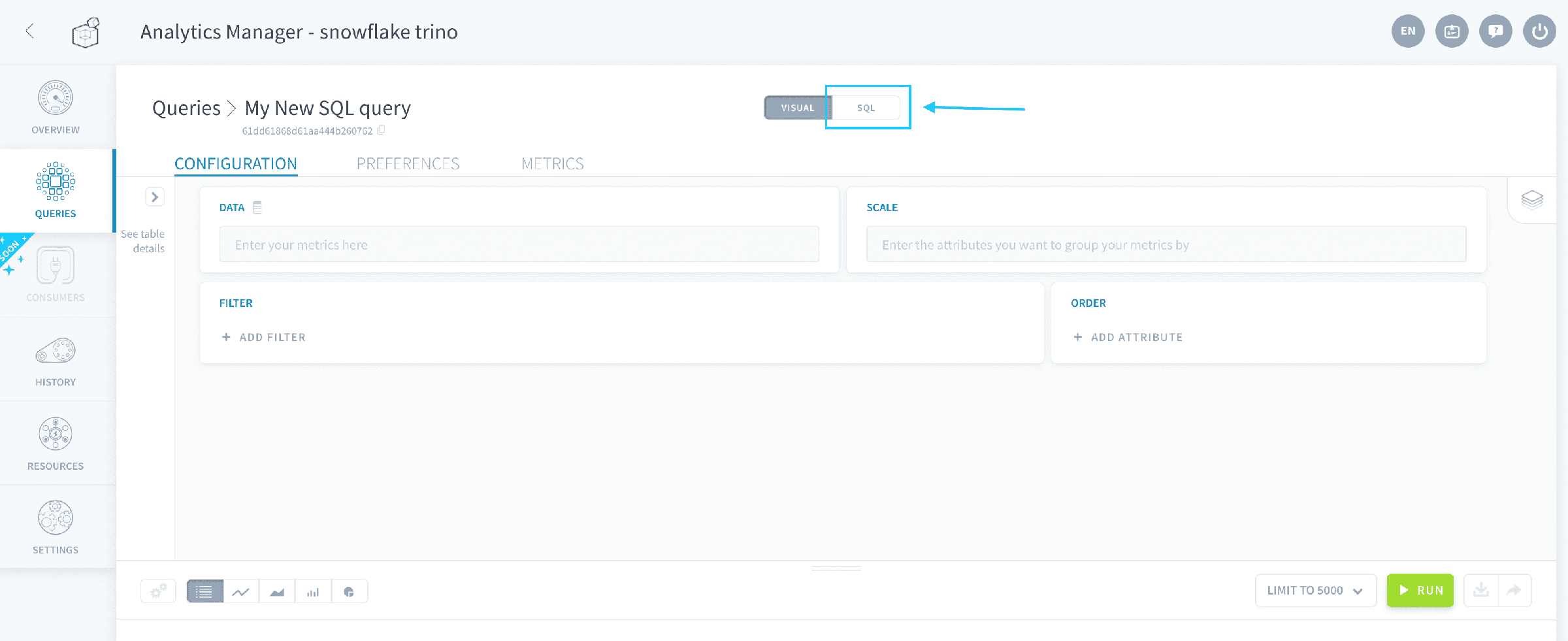
To use the SQL editor, click on SQL in the header of a query.
After you switch a query to the SQL mode, it is impossible to switch it back to the visual mode.
At the moment, SQL editor can only return results in table format. It cannot be used for charts.
Write queries in the SQL editor
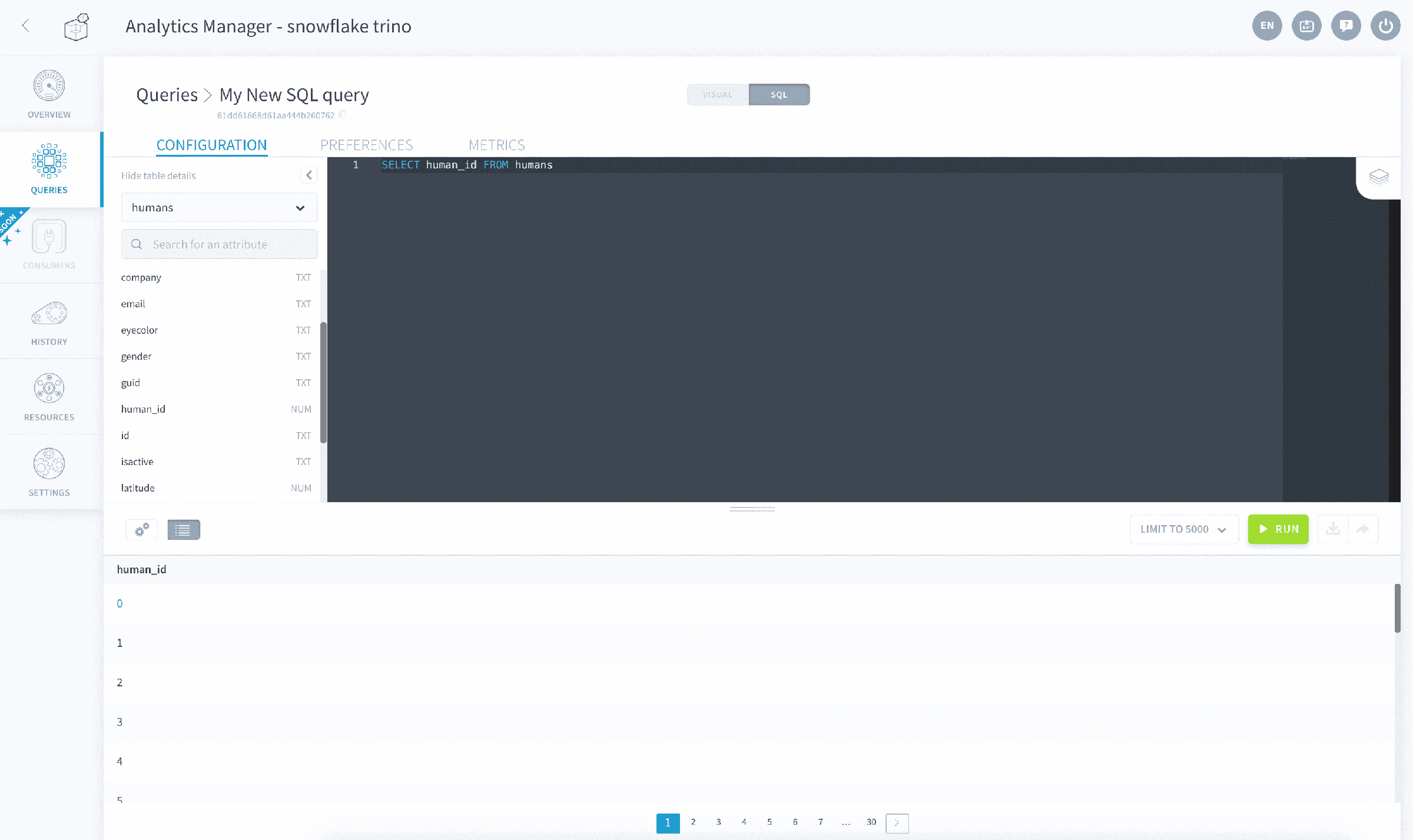
The SQL editor only supports statements written in ANSI-compliant SQL syntax, that start with a SELECT clause.
As you type, the editor suggests SQL keywords, ready-made snippets for common statement shapes, and every Trino function available to your queries, each with a short description of what it does. Pick a suggestion to insert it at the cursor.
Query stored databases
To query data stored in your Project's tables, use standard SQL statements to refer to the attributes and tables you want to select:
To reference a table, simply use its name as entered in the Lakehouse Manager.
To reference an attribute, simply use its name as entered in the Lakehouse Manager.
You can use the widget on the left of the screen to find and copy the exact name of tables and attributes.
Query data sources directly
The Analytics Manager can execute queries on your connected data sources with Direct Query mode activated, without importing the data on Data Platform.
To reference a table from a source, use the technical name of the source as entered in the Connectors preceded by db_{projectID}_ and followed by a dot, followed by the schema for this data source (usually the schema name or database name from your connector), followed by a dot, followed by the name of the table/object at it is in the source.
To reference an attribute, simply use the name it has in the source object.
If the source object's name doesn't also exist in the Lakehouse Manager Tables, you can simply reference it by name (as if it was stored in the Platform database). However, if there is a table with the same name in the platform, it is necessary to write the source technical name and the schema as explained.
Discover the response format
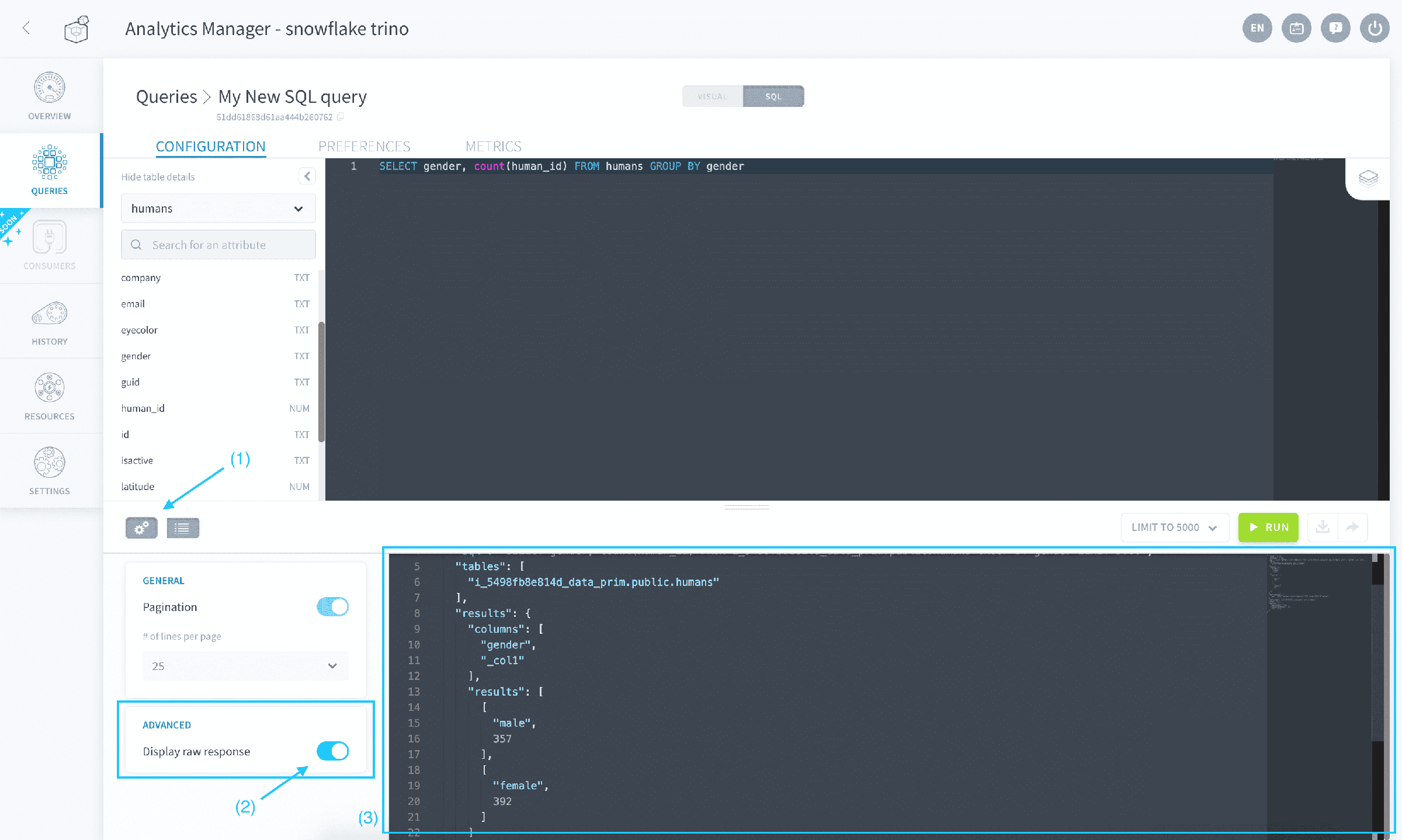
When a query is executed through the SQL mode, the results are returned using the following compact format.
To view the raw response sent by the Analytics Manager when your query is executed, click on the gear icon and activate Display raw response.
Working with large result sets
Queries execute asynchronously: that is how Trino works natively, and the Analytics Manager relies on it. A slow or large query is therefore not a browser-timeout problem.
What can hurt is the volume of rows returned to the browser: when a result set is very large, the page tries to load it all into memory at once and may become unresponsive. This is unrelated to the complexity of the query itself. A statement with many CASE WHEN clauses runs fine; it is the number of rows displayed that matters.
Best practice: narrow the result set before returning it. Add filters, aggregate, or use LIMIT. This keeps the editor responsive.
Go further
For training or technical assistance implementing our solutions, contact your sales representative or visit our Professional Services page to request a quote and have your project analysed by our experts.
Ask questions, give your feedback and interact directly with the team building the Data Platform on the dedicated Discord channel.
If you need support with your OVHcloud services, create a request in our Help Centre.
Join our community of users.