

Navigate the platform
Upon logging-in, you will arrive at the Platform Home (or Homepage). From any page in the platform, including the Home
Objective
Upon logging-in, you will arrive at the Platform Home (or Homepage). From any page in the platform, including the Home, you have access to the two main ways to quickly move around: the Sidebar and the Header.
- The Homepage is the central hub of the platform where you can see all your Projects and easily go anywhere in the platform.
- The Sidebar allows you to navigate per service: select which service you want to go to and then the Project you want to open it in. You can also find your Favorites in the Sidebar.
- The Header allows you to navigate per Project: select which Project you want to go to and then the service you want to open within the Project.
Homepage
As long as you are part of an Organisation that has Projects, everytime you log-in to the Platform you will be welcomed into the platform at the Homepage (shown below).
This page is the central hub that shows all the your Projects within an organisation and allows you to easily navigate to any service in the platform.
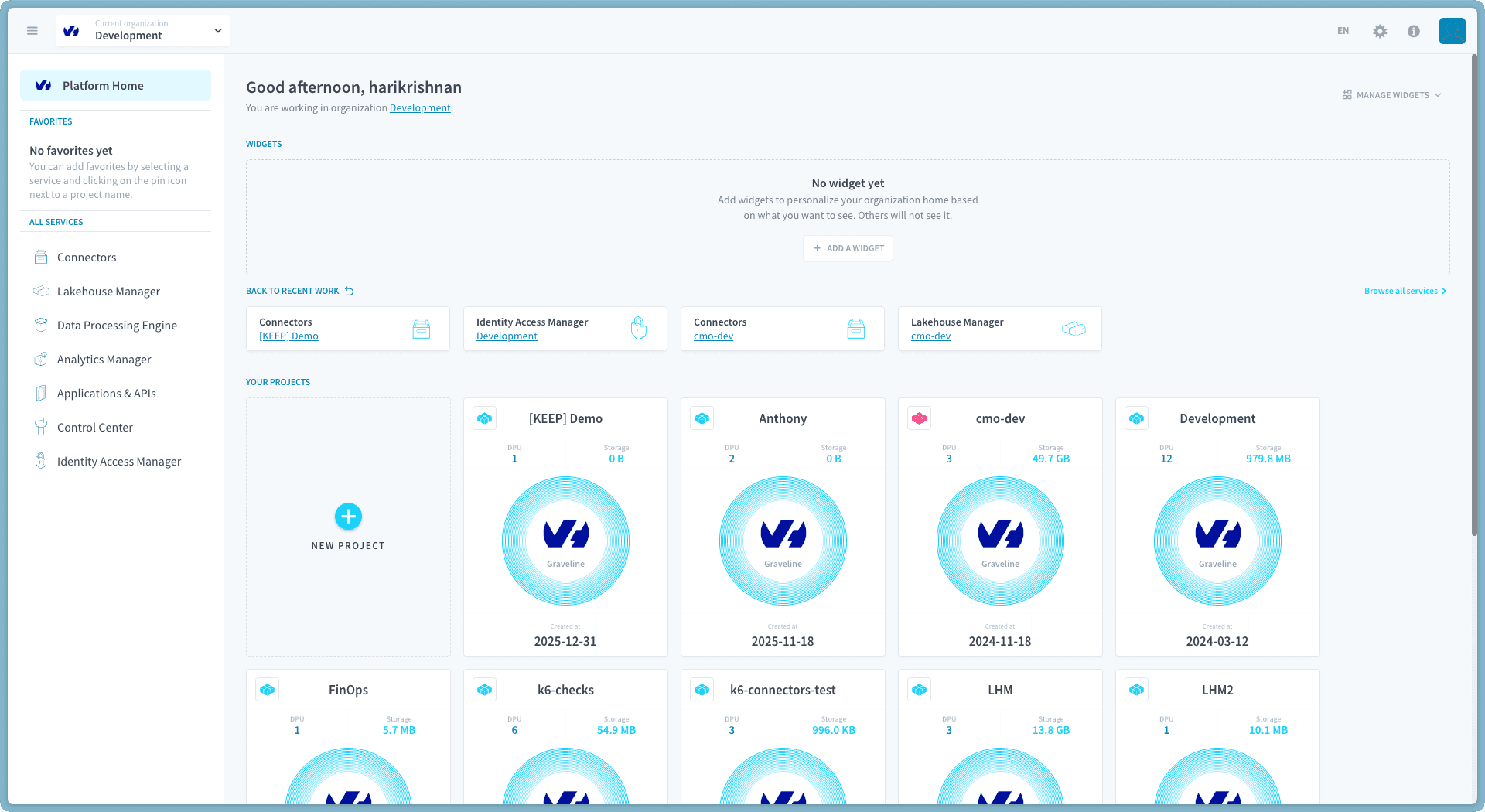
The Homepage is specific to a single organisation and if you are a part of multiple organisations, you will have one homepage per organisation. You can swap organisations in the Header and upon logging-in you will arrive at the homepage of the last organisation you accessed.
Widgets

Widgets are snippets of data about your organisation and Projects shown to you here so you can be sure to catch critical information such as compute and storage consumption without having to look for it. They are specific to your user account and not your organisation so any change you make to your widgets will not affect your teammates' widgets.
Manage Widgets
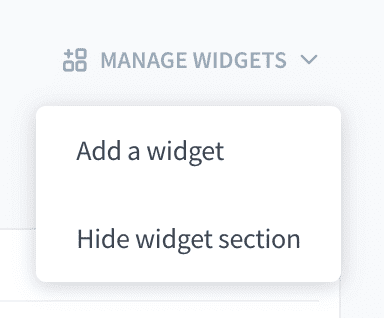
Via the Manage Widgets menu you can add new wigets or hide the widget section entirely if you do not wish to see them.
Back to recent work
Services that you accessed recently appear in this section along with their project. The list is updated everytime you access a new service.
Browse all services
Clicking in this link will redirect you to the All Services page which details the entirety of Platforms' service portfolio and what each service can do for you.
Your Projects list
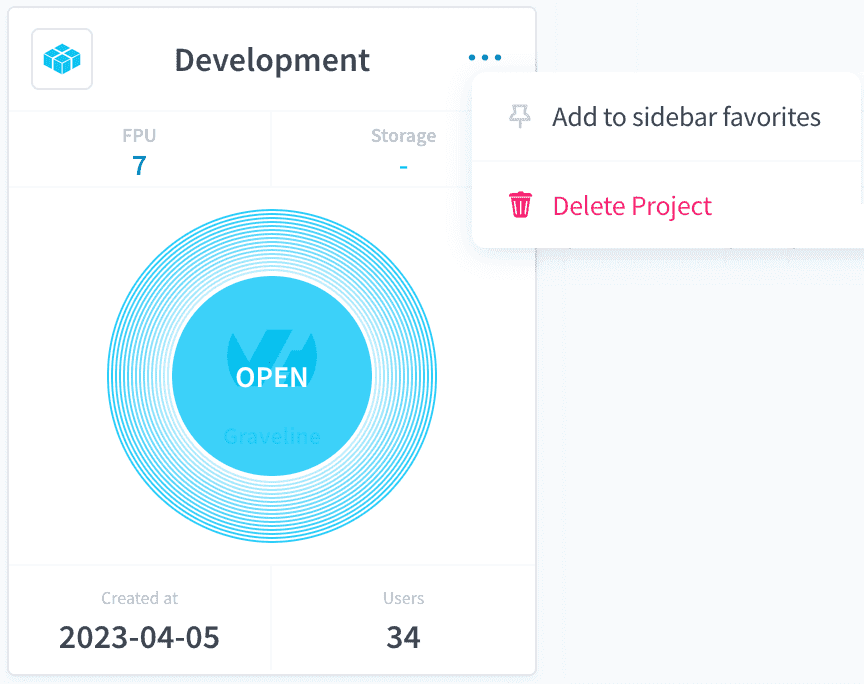
All Projects of the organisation that you have access to will be displayed here in the form of a Project Card:
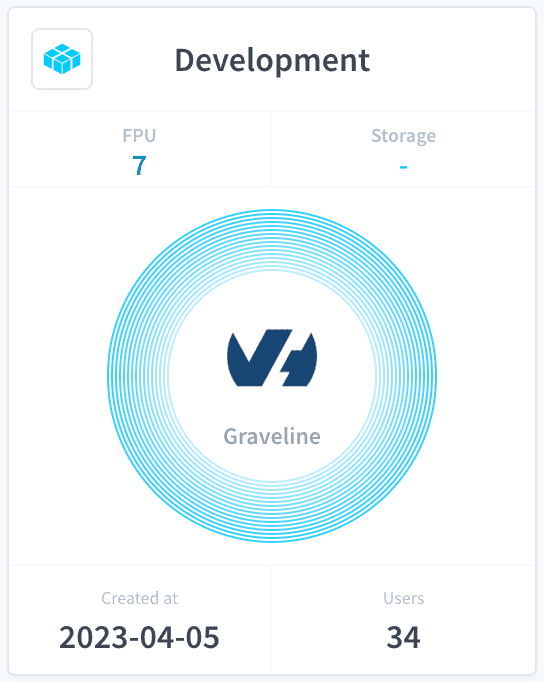
Each card contains:
- Project name
- Project icon
- DPU consumption
- Amount of data stored
- Cloud provider icon and deployment site name
- Creation date
- Number of users with access to the Project
Change a Project's icon
The Project icon can be changed by clicking on it which will display the options:
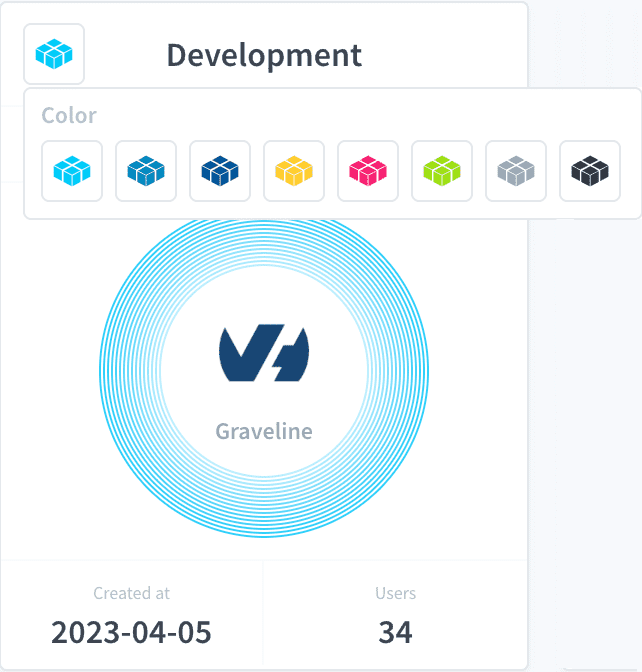
Bear in mind that changing the icon will change it for all other user as well, not only for you.
Add Project Homepage to the Sidebar's favorites
By clicking on the top-right corner menu that appears upon hovering you over the card, you can add your Project Homepage to the Sidebar's Favorites section.
Delete a Project
By clicking on the top-right corner menu that appears upon hovering you over the card, you can also delete your Project.
New Project button
You can also easily create a Project from the Organisation Button by clicking on this button which will open the Project Creation page.
Sidebar
The sidebar offers a quick way to move around the platform. It is accessible from all platform pages and opens by default whenever you open the Homepage. It is particularly useful to quickly navigate to a service you need or to access your favorites.
It opens automatically in all Platforms' pages with the exception of when you are within a service. You can open or close it in the header and clicking outside it will close it automatically.
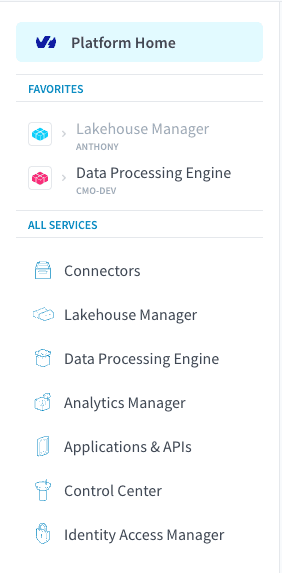
Platform Home button
At the top there is the Platform Home button. Clicking on it will send you back to the Homepage.
Favorites
The Favorites section can be used to easily access your recurrent services and Projects.
You can add two types of favorites:
- Service in Project
- Project Home (service name displayed as Home)
Clicking on service in Project favorites will bring you back to that service in the specific Project you configured while clicking in the Project home favorite will open the respective Project's homepage.
Clicking on the Project icon of a favorite will bring you to the Project's homepage regardless of the type of favorite you added.
Adding Favorites
You can add service in Project by clicking on the pin icon that appears when hovering over a Project in the Open Service in Project menu.
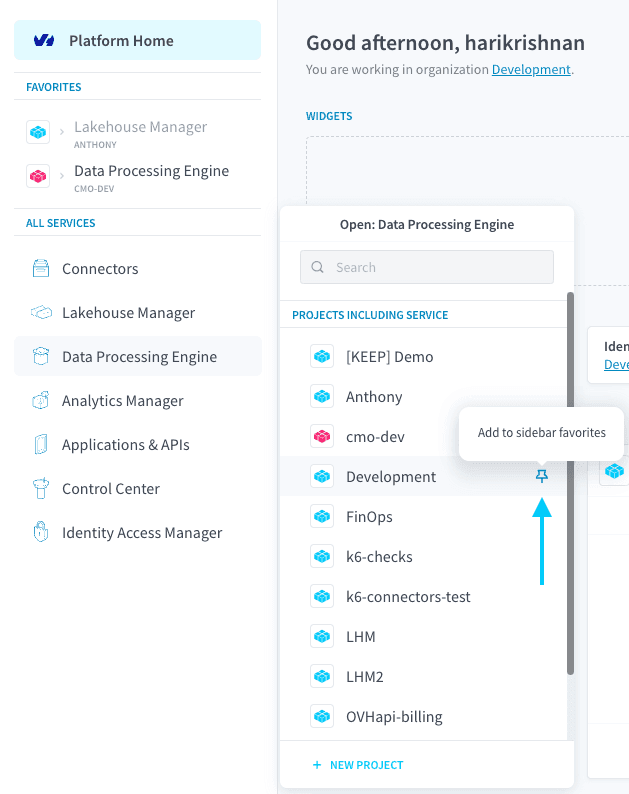
The pin icon appears filled if you have the service/project combination in your favorites or unfilled if you do not (it is unfilled in the screenshot).
Project Home favorites are added directly via the Homepage.
All services
The entirety of the Platform service portfolio is listed here so you can quickly access them in any Project you want. Hovering over a service will display the Open Service in Project menu while clicking on the service once will keep the aforementioned menu open for that service.
The Billing Explorer and Storage Engines services are tied only to an Organisation and not to a specific Project, therefore you do not have to select Projects when opening them.
Open Service in Project menu
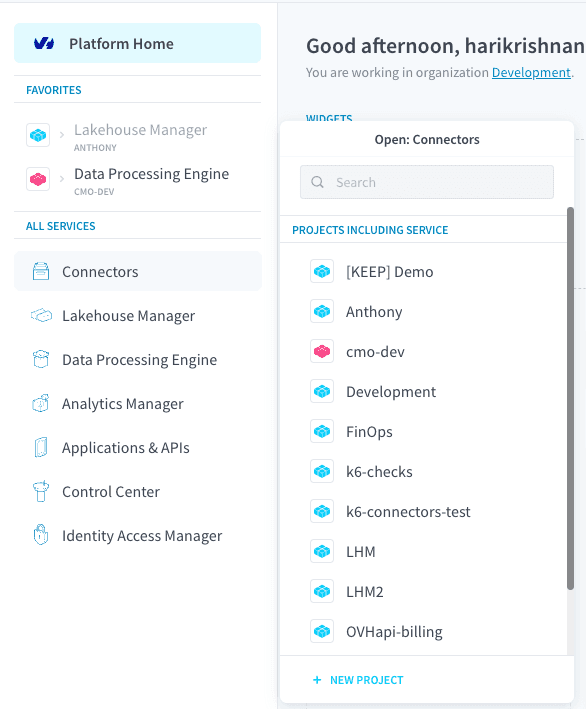
This menu allows you to select in which Project you will open your service. There are three options (as shown in the screenshot above):
- Open service in a Project that already includes it.
- Open service in a Project that doesn't include it (Other Projects in the screenshot).
- Open service in a new Project (New Project button in the screenshot).
Choosing the first option (Projects including this service) will simply redirect you to that service's page within the Project you selected.
The second option (Other Projects) will activate the service in the selected Project and then you will be redirected (may take a few seconds).
The third option (New Project) will open the Project creation page so you can create a new Project with that service.
Header
The header is always displayed no matter where you are in the platform. With it you can:
- Open or close the sidebar
- See where you are in the platform.
- Quickly navigate to other Projects and organisations.
- Change organisation and move to another organisation's Homepage.
- Access your profile settings.
- Access your organisation settings from any page on the Platform.
- Change language.
- Log-out.

Open or close Sidebar
This button allows you to open or close the Sidebar no matter in which page you are.
Organisation, Project and service panels
These panels can be displayed in icon or panel form depending on where you are in the platform. Hovering over an icon will make it turn into a panel.
From left to right, there is the:
- Organisation panel
- Used to change organisation.
- Project panel
- Used to change Project within an organisation.
- Service panel
- Used to change service within a Project.
Other settings
In this part of the header you can:
- Change the platform language
- Access your Organisation Settings
- Check general useful information (components' status, roadmap, support, etc)
- Acess your Profile Settings
Maintenance banner
When the Data Platform is undergoing scheduled maintenance, a banner is displayed in the header for the entire duration of the maintenance window. The banner is visible to all users in every organisation and Project.
While the banner is displayed, the platform enters a read-only mode:
- Allowed: running existing jobs, workflows, queries, deployments and viewing resources.
- Blocked: creating, updating or deleting any resource (connectors, tables, actions, workflows, dashboards, IAM entities, etc.).
The banner is removed automatically once maintenance ends, and normal write operations resume immediately. No action is required on your side.
Go further
For training or technical assistance implementing our solutions, contact your sales representative or visit our Professional Services page to request a quote and have your project analysed by our experts.
Ask questions, give your feedback and interact directly with the team building the Data Platform on the dedicated Discord channel.
If you need support with your OVHcloud services, create a request in our Help Centre.
Join our community of users.