

Delete Bucket Action
You can choose to delete the entire bucket contents or target specific paths for deletion
Objective
The Delete Bucket action allows you to remove data from a bucket, including both folders and files. You can choose to delete the entire bucket contents or target specific paths for deletion.
Configure a Delete Bucket action
To create a new action, navigate to the Action tab of the Data Processing Engine (DPE), click on New Action and select the Delete Bucket action.
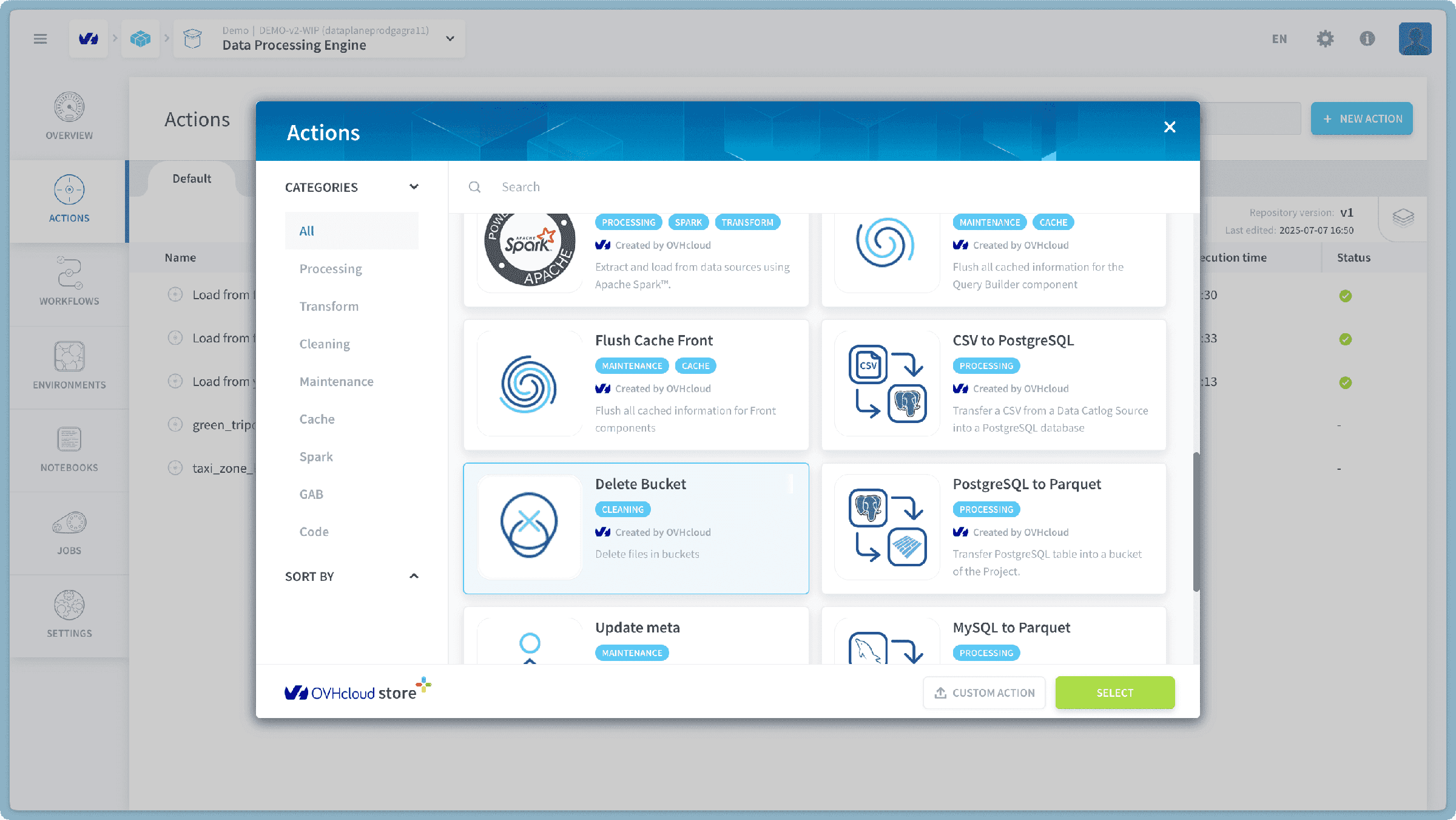
Choose items for deletion
Upon selecting the Delete Bucket action, you will be presented with a list of your Project buckets on the left side of the screen. This panel allows you to browse and select the data you wish to delete.
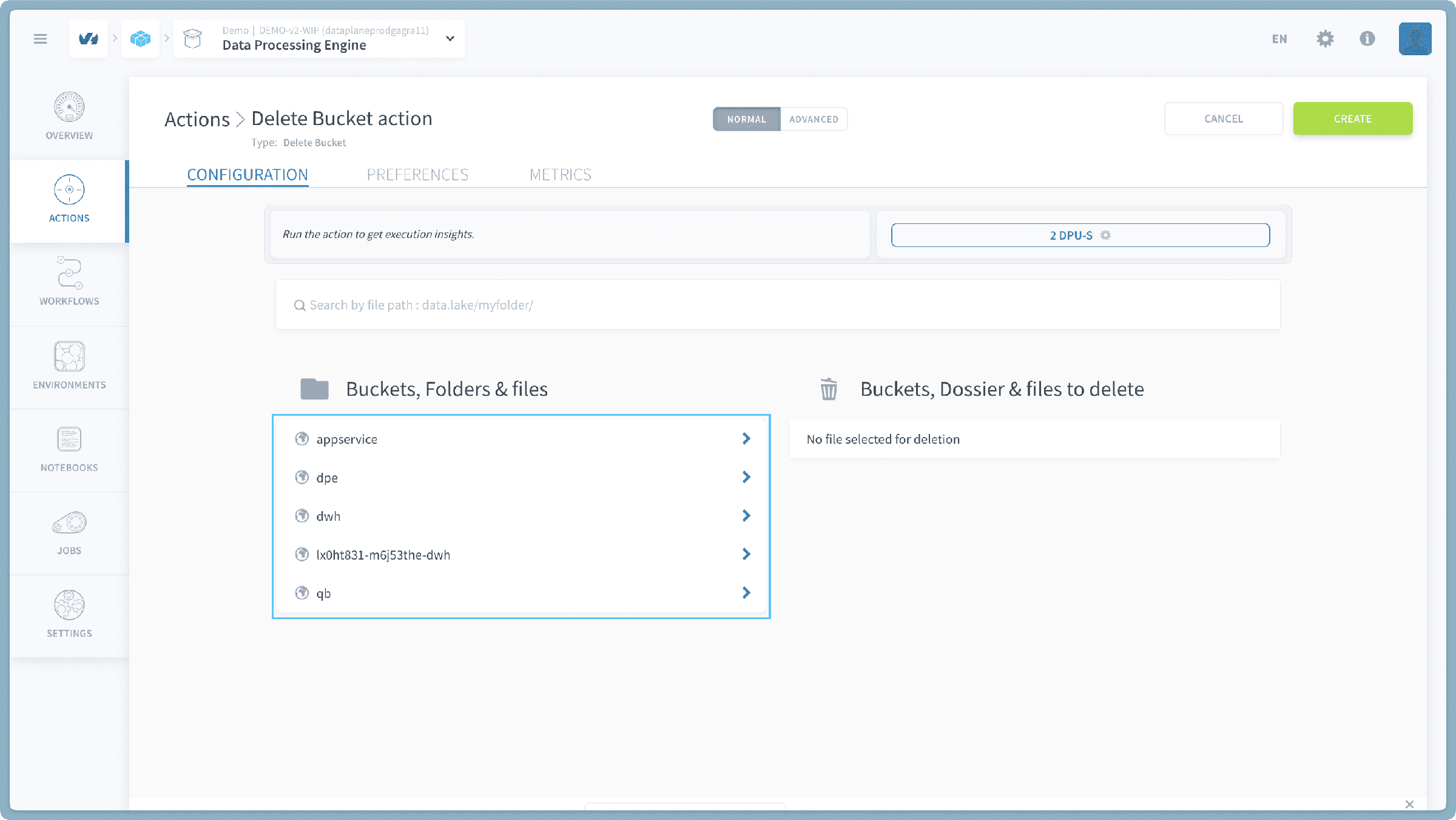
- Select the target bucket: Locate the bucket from which you want to delete data.
- Expand bucket contents (optional): To see the folders and files inside a bucket, click on the name of the bucket. This will expand the view, showing its contents.
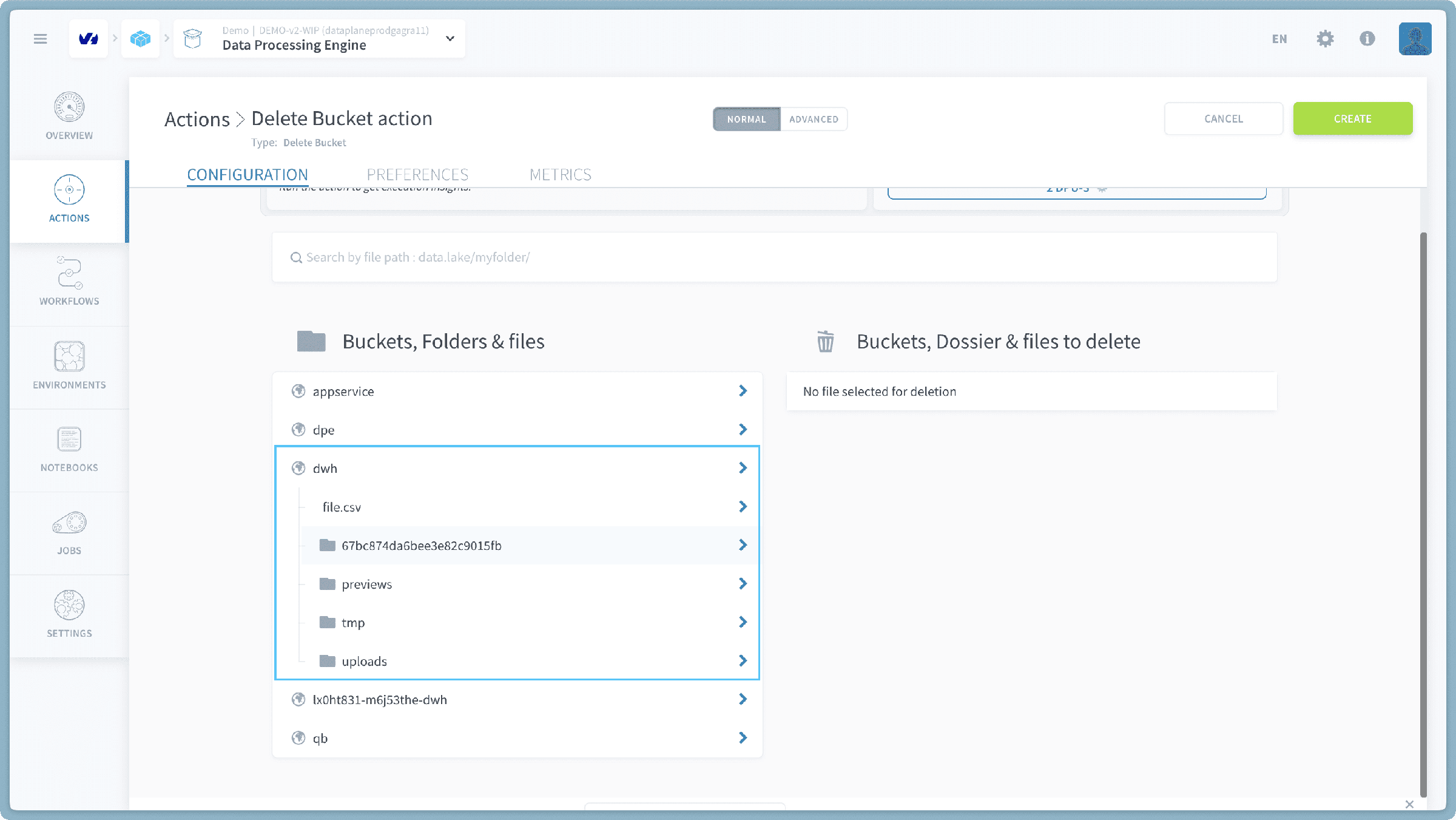
- Choose items for deletion:
- To delete an entire bucket and all its contents, click the right arrow icon (▶) next to the bucket's name.
- To delete a specific folder (and all its contents), navigate into the bucket and click the right arrow icon (▶) next to the desired folder's name.
- To delete an individual file, navigate into the bucket and folder where the file resides, then click the right arrow icon (▶) next to the file's name.
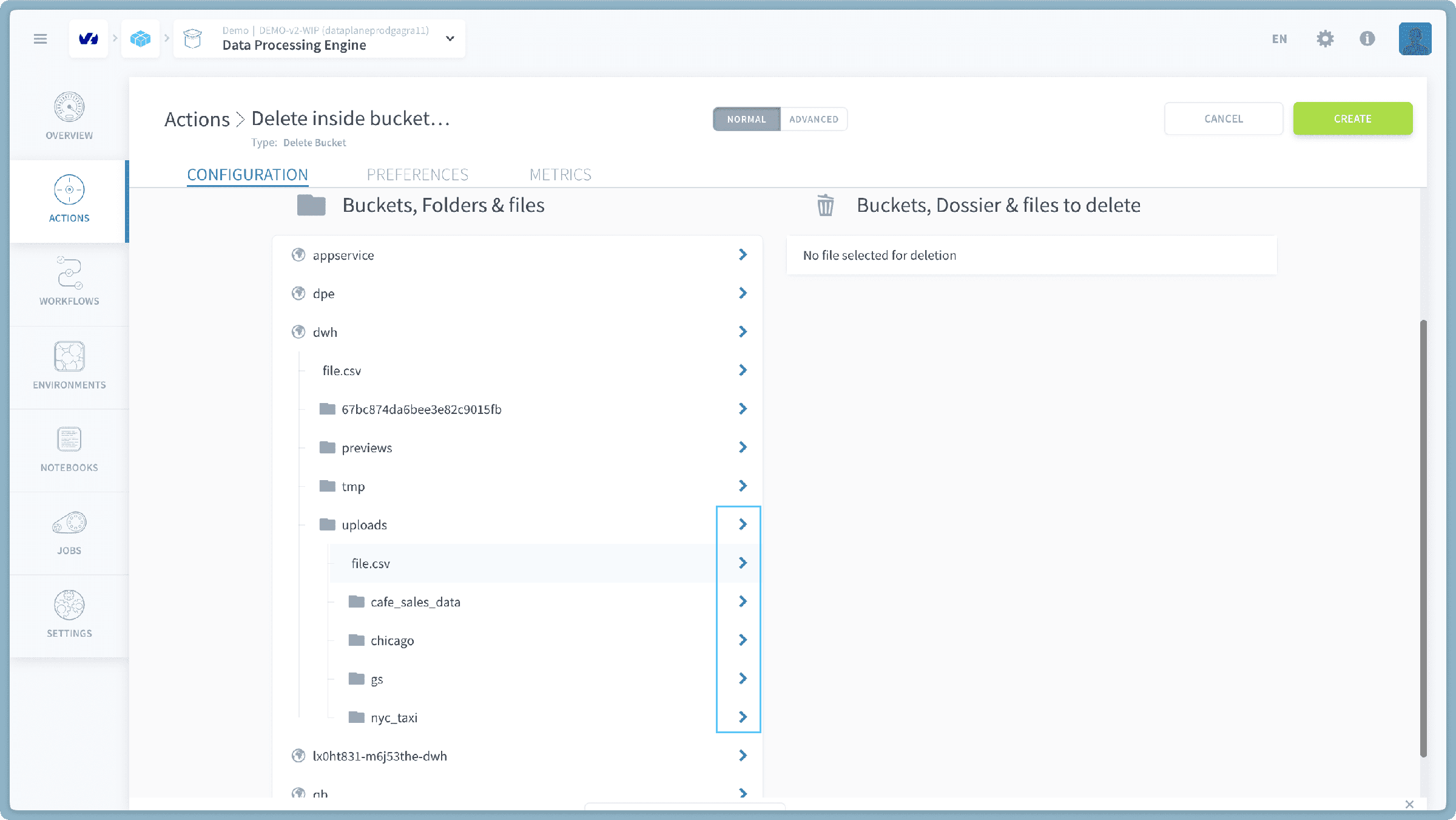
- Review selected items: As you click the right arrow, the selected buckets, folders, or files will be moved to the right column. This column indicates all items that are currently marked for deletion.
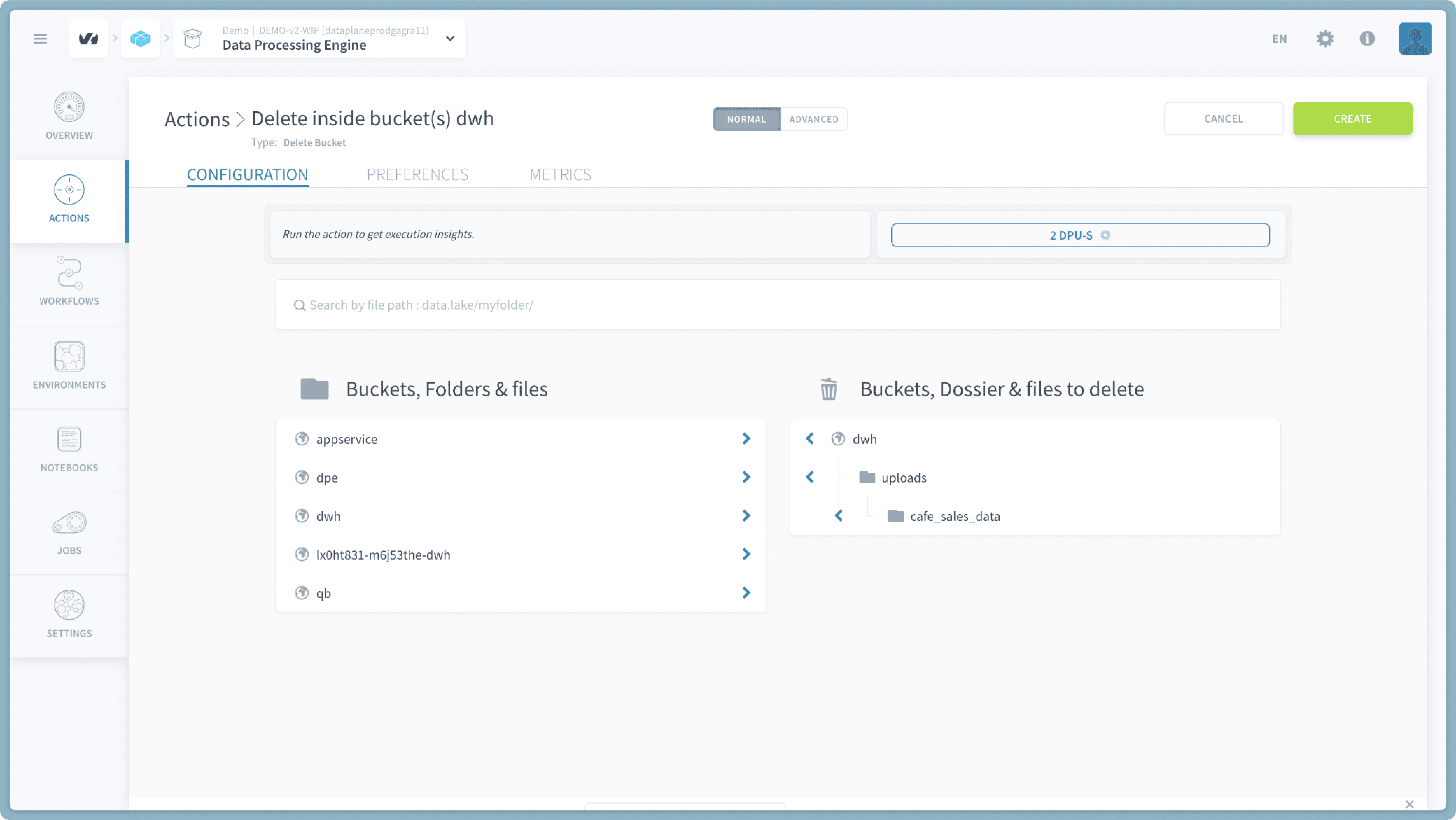
Carefully review the items in the right column to ensure you are deleting only what is intended. Once satisfied with your selection, proceed with the final steps as prompted by the DPE interface to confirm the deletion. Be aware that deletion actions are permanent and cannot be undone.
Go further
For training or technical assistance implementing our solutions, contact your sales representative or visit our Professional Services page to request a quote and have your project analysed by our experts.
Ask questions, give your feedback and interact directly with the team building the Data Platform on the dedicated Discord channel.
If you need support with your OVHcloud services, create a request in our Help Centre.
Join our community of users.