

MySQL to Parquet Action
The data from your MySQL table will be stored in a highly efficient Parquet file format within your chosen object storage bucket
Objective
The MySQL to Parquet action provides a streamlined way to transfer a table from a MySQL source, configured in your Connectors, directly into a Project bucket. The data from your MySQL table will be stored in a highly efficient Parquet file format within your chosen object storage bucket.
Configure a MySQL to Parquet action
To create a new MySQL to Parquet action, follow these steps within the Data Processing Engine (DPE):
- Navigate to the Action tab within the Data Processing Engine (DPE) interface.
- Click on the "New Action" button.
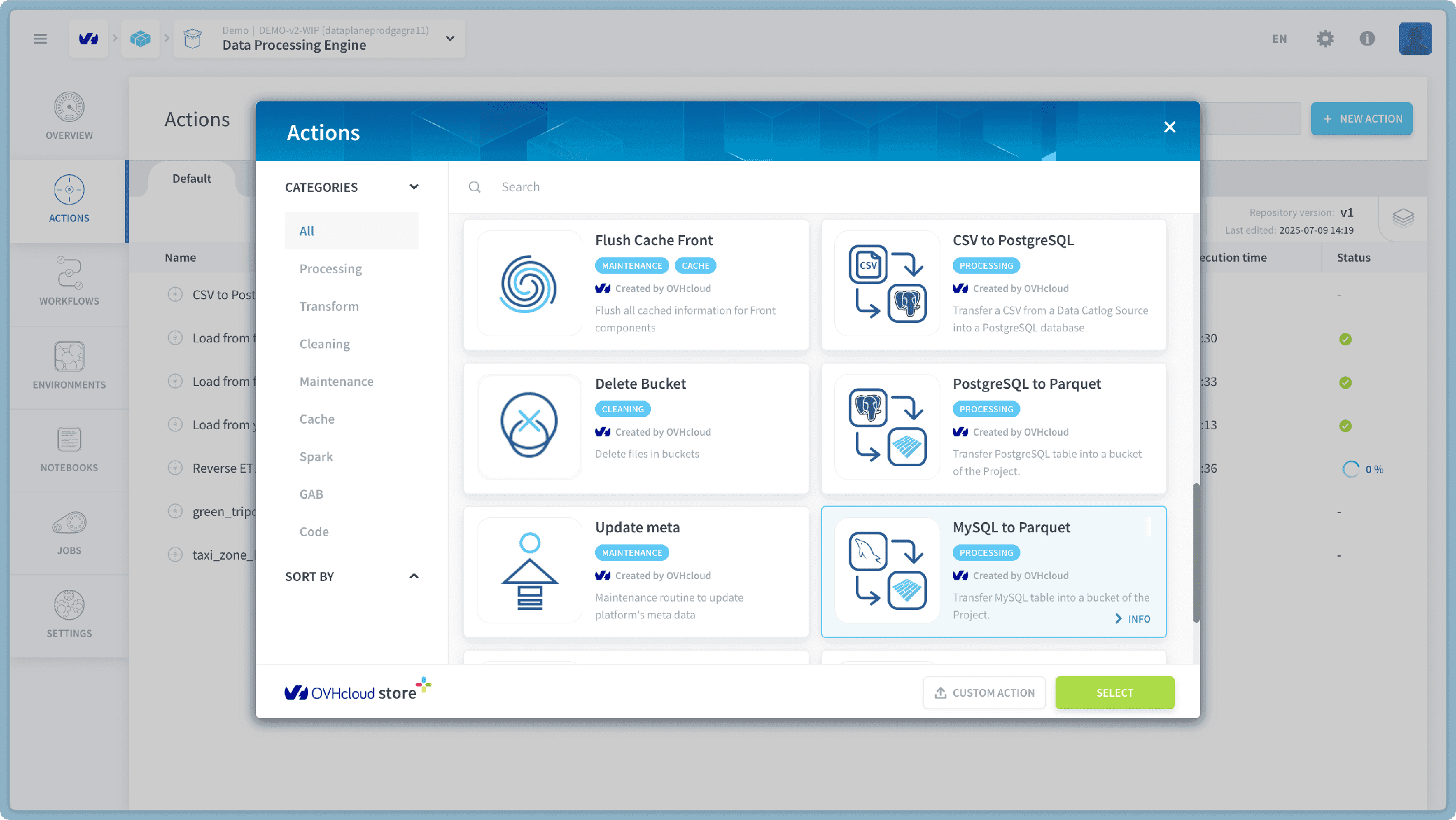
- From the list of available actions, select "MySQL to Parquet".
Choose a MySQL Table
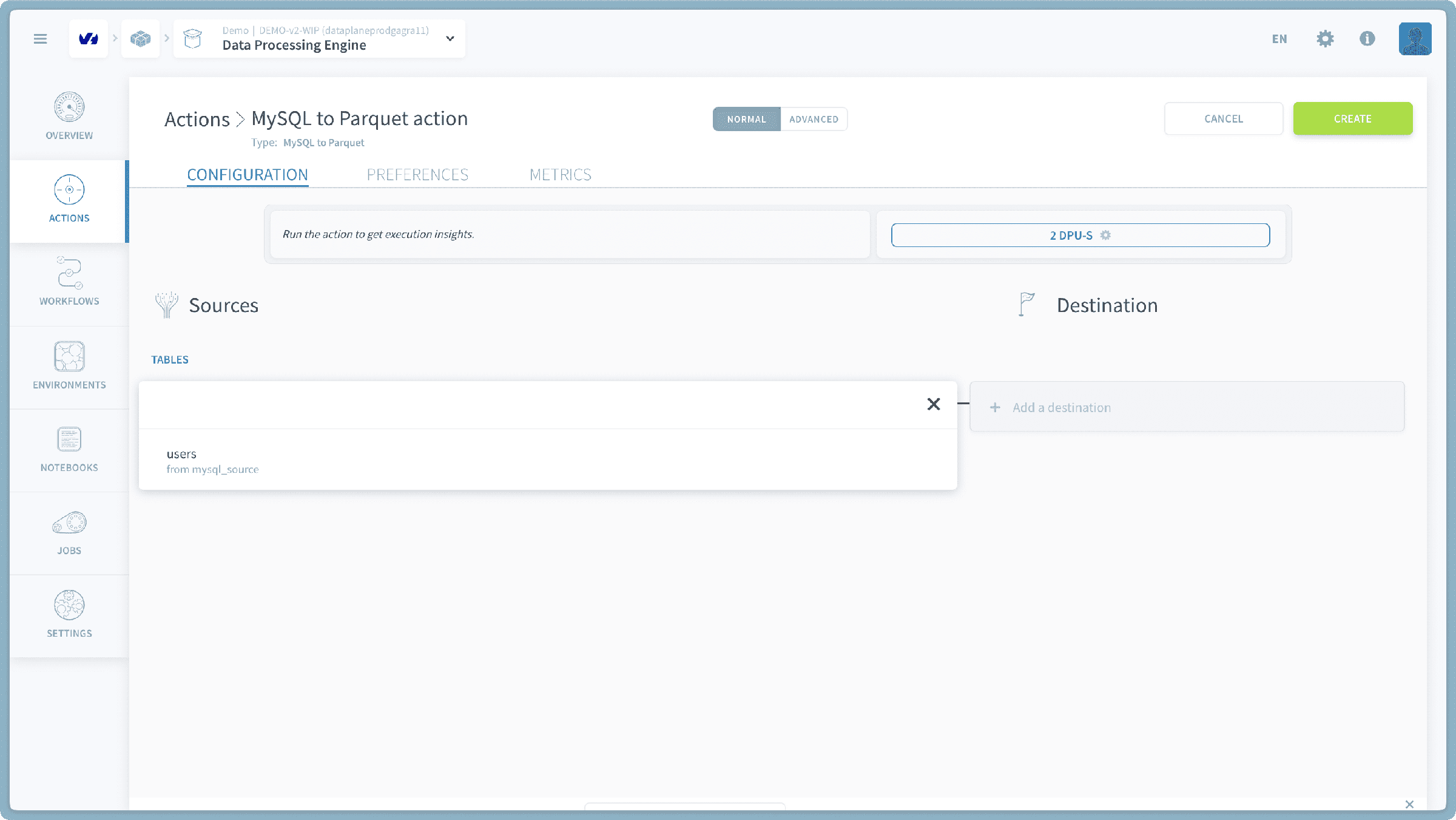
First, you need to select the specific MySQL table you wish to transfer.
- A list of available tables from your connected MySQL sources in the Connectors will be displayed.
- Important: If this list is empty, it means you do not have any MySQL sources connected or configured in your Connectors. Please ensure you have added and connected your MySQL database as a source before attempting to use this action.
- Select the desired MySQL table from this list.
Select Destination Bucket and Path
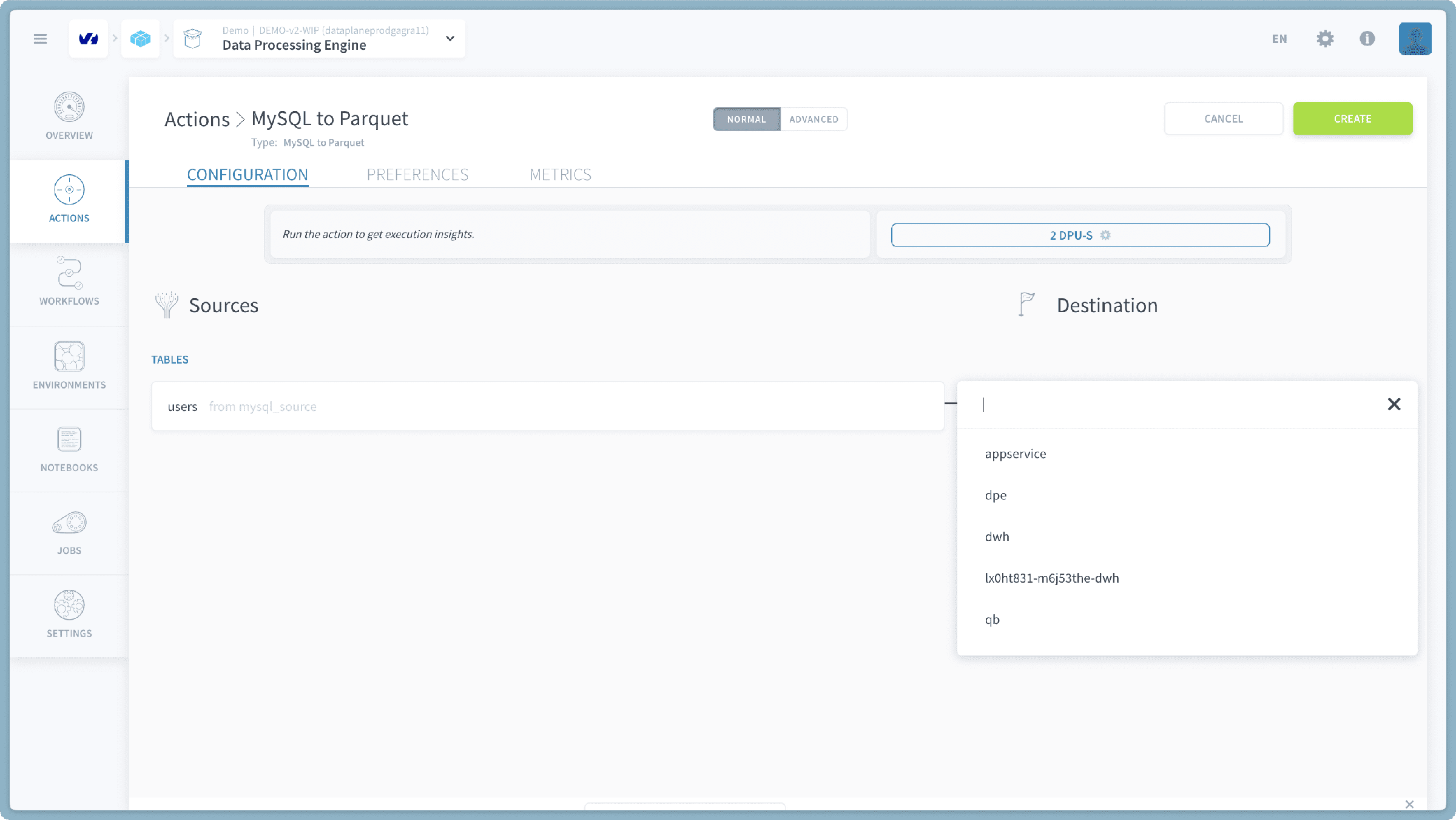
Next, you will define the destination bucket and the folder path where your Parquet file(s) will be stored.
- Choose Destination Bucket: Select an available Project bucket from the list where your Parquet file(s) will be stored.
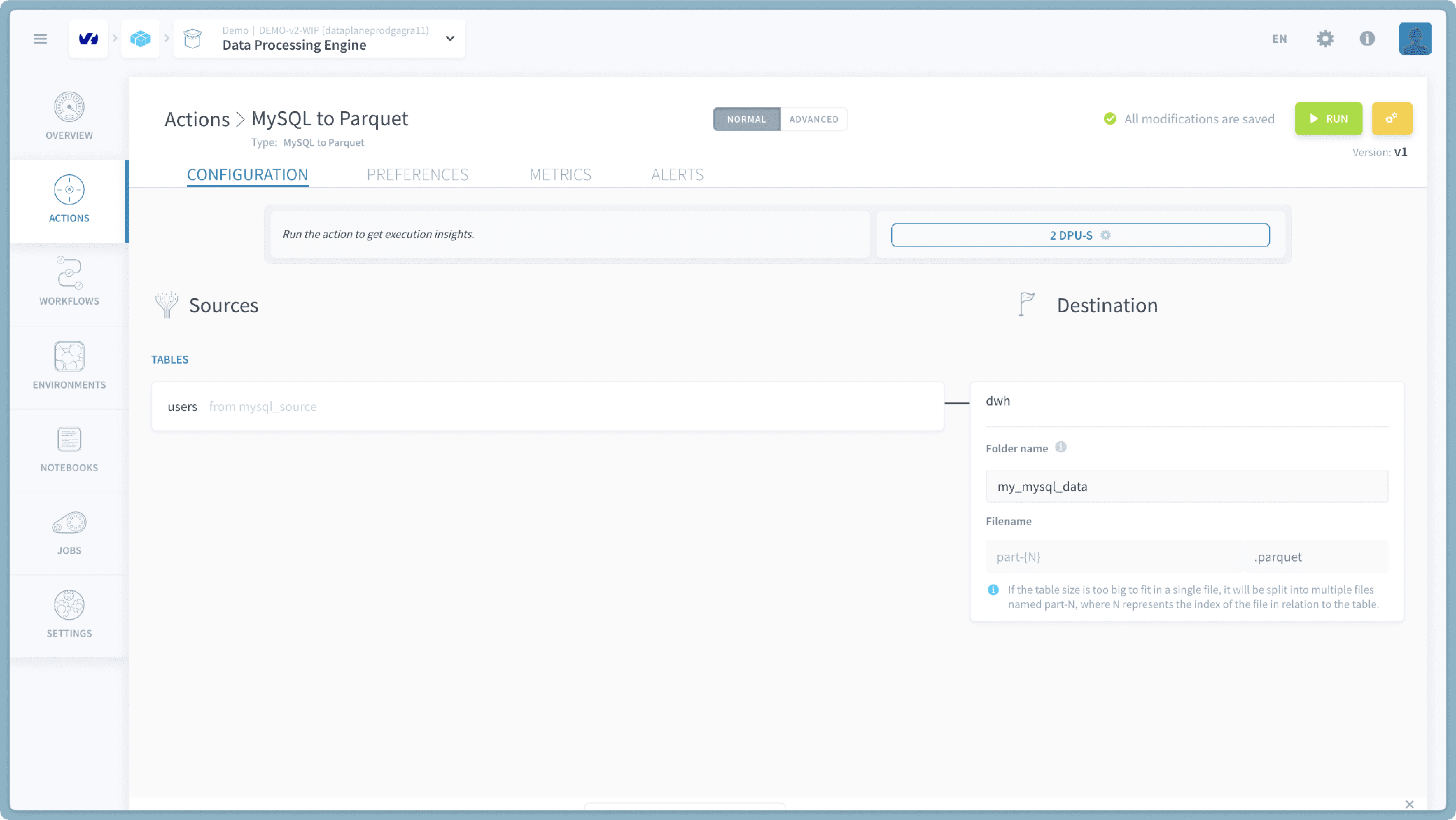
- Specify Folder Path: In the field below the destination bucket selection, you will specify the desired folder path within the bucket.
- Example: If you want your data to be stored in a folder named
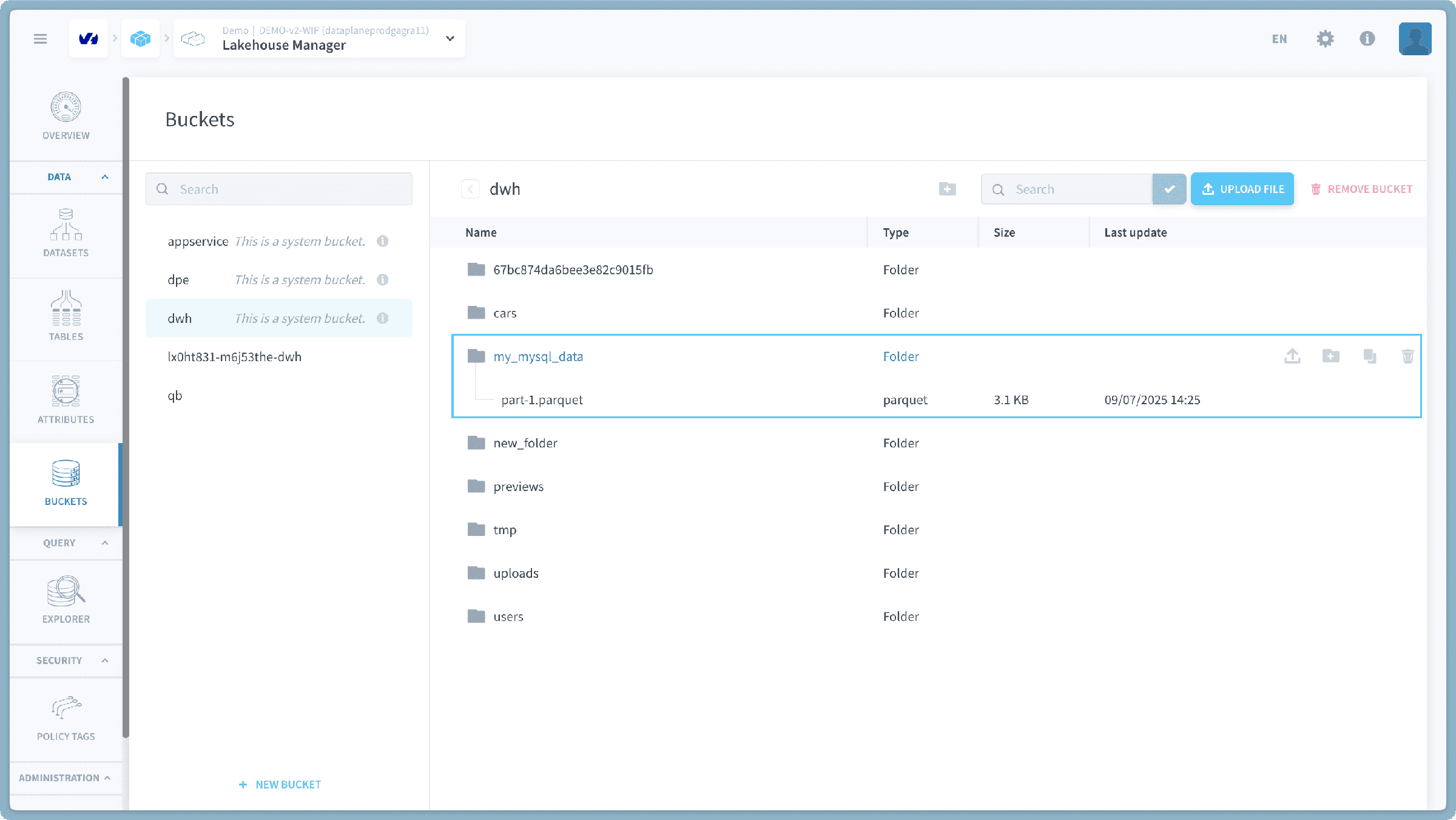
my_mysql_datainside araw_datadirectory, you would enterraw_data/my_mysql_data/. - The system will automatically create any necessary folders if they don't already exist in the specified path.
- File Naming Convention: The exported data will always be stored in one or more files named
part-1.parquet,part-2.parquet, and so on, depending on the size of your table. - Default Behavior: If you leave the folder path empty, the action will, by default, create a folder named after the MySQL table you selected (e.g., if your table is named
users, it will create ausers/folder at the root of the bucket). Within this default folder, the data will be stored aspart-1.parquet,part-2.parquet, etc.
- Example: If you want your data to be stored in a folder named
- Run the Action: Once both your MySQL table and destination are configured, click the "Run" button to initiate the transfer.
Verify Your Transfer
After the MySQL to Parquet action completes successfully, you can visually confirm the transfer by navigating to the Buckets section within the Lakehouse Manager. Here, you will find your new Parquet file(s) at the specified path within your destination bucket.
Go further
For training or technical assistance implementing our solutions, contact your sales representative or visit our Professional Services page to request a quote and have your project analysed by our experts.
Ask questions, give your feedback and interact directly with the team building the Data Platform on the dedicated Discord channel.
If you need support with your OVHcloud services, create a request in our Help Centre.
Join our community of users.