

Run custom Python scripts with the Custom action
This article is about actions that use the Data Platform's Python data processing engine. To use Apache Spark clusters, see Custom PySpark action
Objective
This article is about actions that use the Data Platform's Python data processing engine. To use Apache Spark clusters, see Custom PySpark action.
A Custom action allows you to execute custom Python scripts in a scalable cloud cluster environment.
Using our Software Development Kit (SDK) to easily interact with the different components of the platform, Custom actions can be used to implement a variety of use-cases such as:
- Execute a manipulation algorithm or ETL job on your data warehouse
- Execute a simple data analysis or machine learning algorithm
- Extract data from data sources not available on the Data Platform marketplace without having to create connectors for it
- Extract real time data (like MQTT, Kafka, etc..)
Custom actions benefit from the whole Data Processing Engine's feature-set, typically the power of the segmentation to parallelize the execution of your algorithm or the orchestration within workflows triggered immediately or on a scheduled basis.
Configure a Custom action
In the Data Processing Engine of your Project, go in the Actions tab and click on the New Action button. Choose the action type Custom.
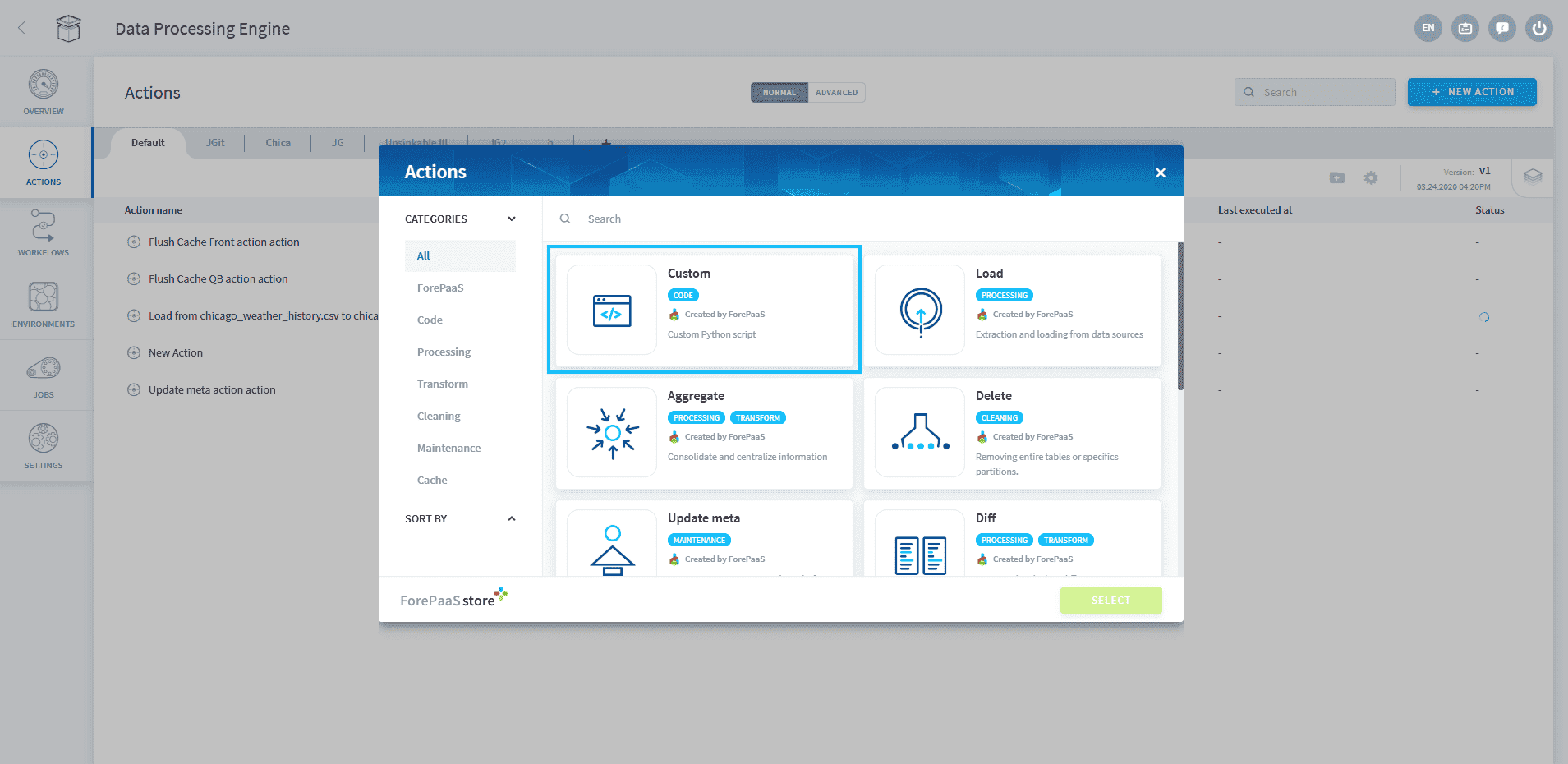
Drag and drop your .py script onto the "Drag and drop" section.
Alternatively, select the Start with a boilerplate option to get started directly on the Platform's Python interface with example code snippets.
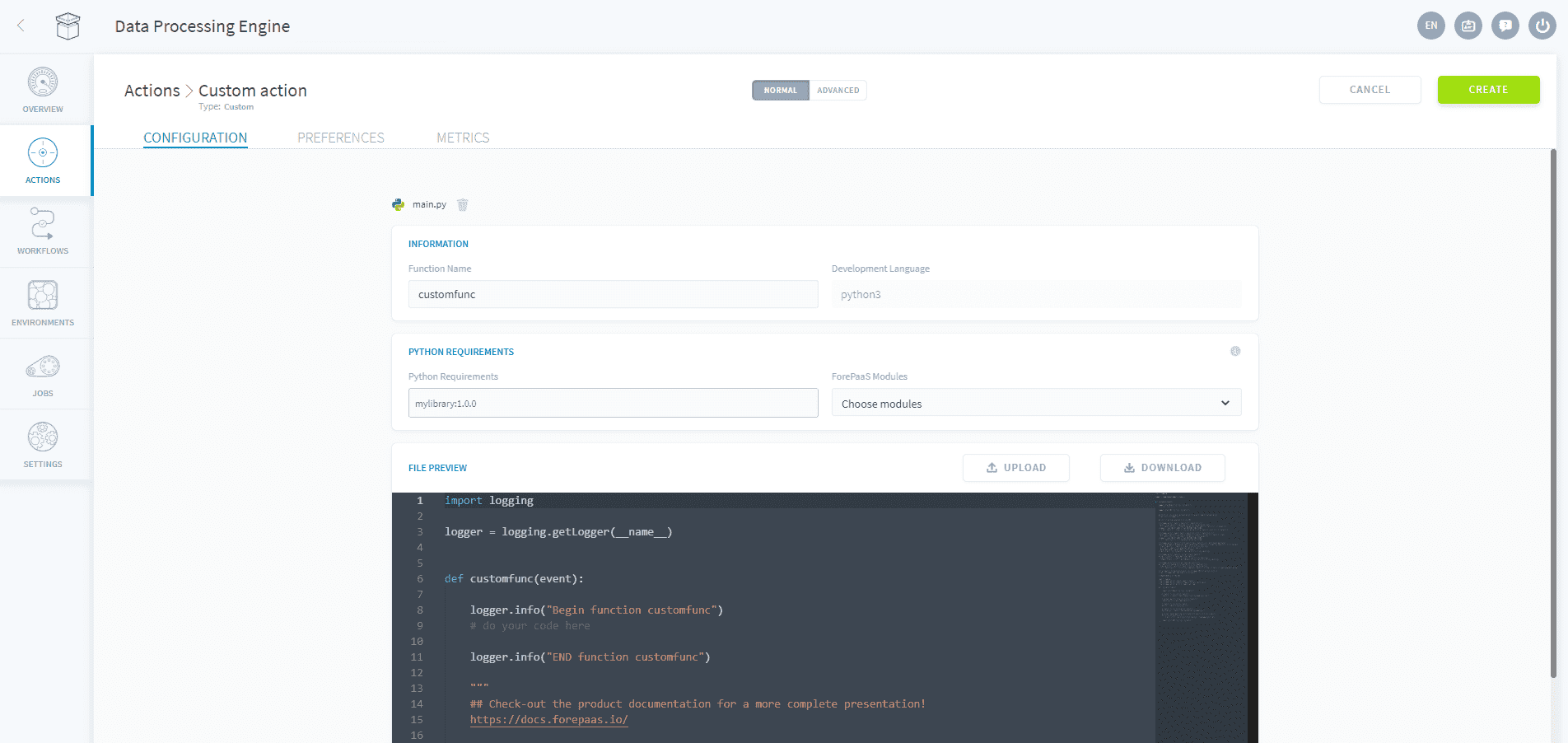
The name of the function to be executed must be entered manually at the top of the screen in the Information panel (here and by default: "customfunc").
You will be able to edit your source file directly in the editing interface or drop a new file if needed. When you are developing your own custom actions you can use any functions provided in the Software Development Kit (SDK). to easily interact with other components of the platform.
To read more about all the available SDK functions check out the article below:
Everything your script writes to standard output or standard error, including plain print() calls, appears in the job logs alongside the messages emitted through the logging module.
Use the helper panel
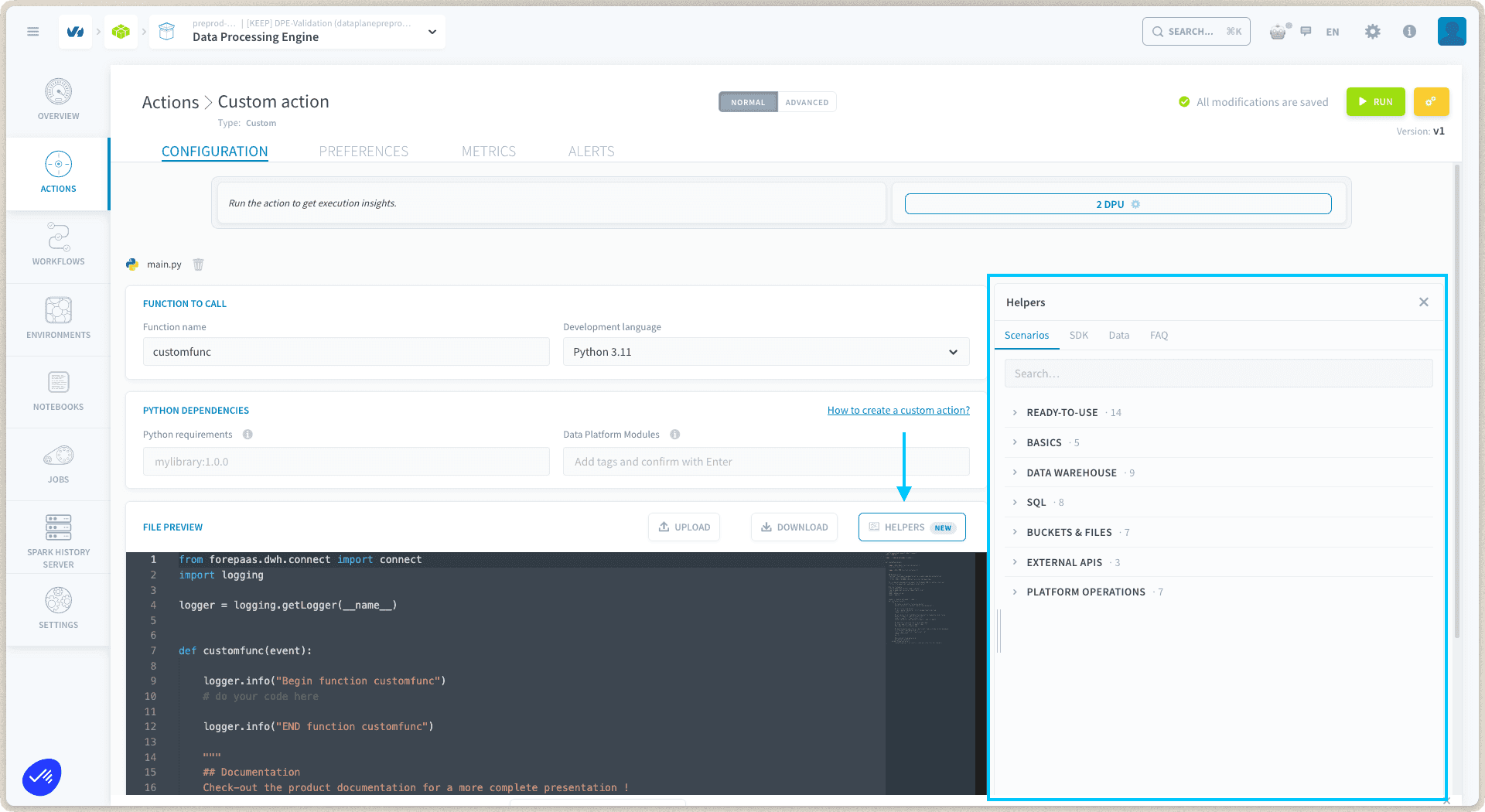
The Custom action editor includes a helper panel, so you can find guidance without leaving your script:
- Scenarios: ready-to-use action scripts organized by category, to copy and adapt to your use case.
- SDK guides: documentation for the SDK methods you can call from your script.
- Data: browse your project's data directly from the editor, to check names and structures while you write your code.
- FAQ: answers to common Custom action questions.
The helper content is the same live catalog that powers the Data Platform Extension in notebooks, so it is always up to date.
Manage dependencies
Setting language version
You can choose the Python version of your custom action among the following:
- Python 3.11
- Python 3.9 (default option)
Workflows cannot be executed with multiple versions at once.
We are regularly updating the available versions to provide you with a best-practice development framework. Your existing work is not migrated to a new version as long as its language version is still supported.
Installing Python packages
You might need to install specific packages not included by default. You can add them in the "Python Requirements" field respecting the format used in a basic requirements file for "pip" (Python package manager) then press "ENTER" on your keyboard.
This is what it should looks like once you pressed "ENTER":

When working with a Custom Action in an Always-up execution environment, updating dependencies triggers a redeployment of the environment to put the changes into effect.
Installing packages from a Git repository
You can install Python packages directly from a GitHub or GitLab repository using the git+ prefix in your requirements:
To pin a specific version, add a tag or commit hash:
Auto-install the latest release
To always install the most recent published release without manually tracking version tags, use @latest:
The platform detects the git+ prefix and @latest suffix, then automatically resolves and substitutes the latest release tag before installing.
After adding or modifying a Git dependency, click Force Build to reinstall. You no longer need to manually update the tag or commit hash each time a new version of your module is published, but note that the latest release is not picked up automatically at runtime, a manual Force Build is always required.
Default list of dependencies
Data Platform blocks the minors of the versions allowing bug fixes to be installed. If you need a more recent version of a library you can override it manually by adding the same package with the new version in the "Requirements" field.
Here is the list of all the packages and their version (as you could find them in a requirements file for pip) shipped with the Data Processing Engine workers:
Discover all default Python packages
Examples of sample scripts
Example of the extraction of a file followed by loading it into the default dataset
Example of a data transfer between two datasets
Go further
For training or technical assistance implementing our solutions, contact your sales representative or visit our Professional Services page to request a quote and have your project analysed by our experts.
Ask questions, give your feedback and interact directly with the team building the Data Platform on the dedicated Discord channel.
If you need support with your OVHcloud services, create a request in our Help Centre.
Join our community of users.