

How to set a role condition on a specific bucket
The Data Platform Identity Access Manager (IAM) allows you to set fine-grained conditions in your Project
Objective
The Data Platform Identity Access Manager (IAM) allows you to set fine-grained conditions in your Project:
- on resources properties
- on users properties
- on data, through Advanced Data Access Control
The purpose of this tutorial is to show how to give users in your Project restricted access to only the Lakehouse Manager bucket called my_bucket.
Requirements
You will need:
- an IAM role that grants access to the resource
bucket(such as the default "DataStore Editor" role)
Tutorial
To restrict access to specific buckets in your Lakehouse Manager, you must set a condition on the technical name when binding a role granting access to Data Store buckets.
Data Store is the original name of the buckets on Data Platform.
Bind such a role to the group/user of your choice.
Then, add a condition to the role binding.
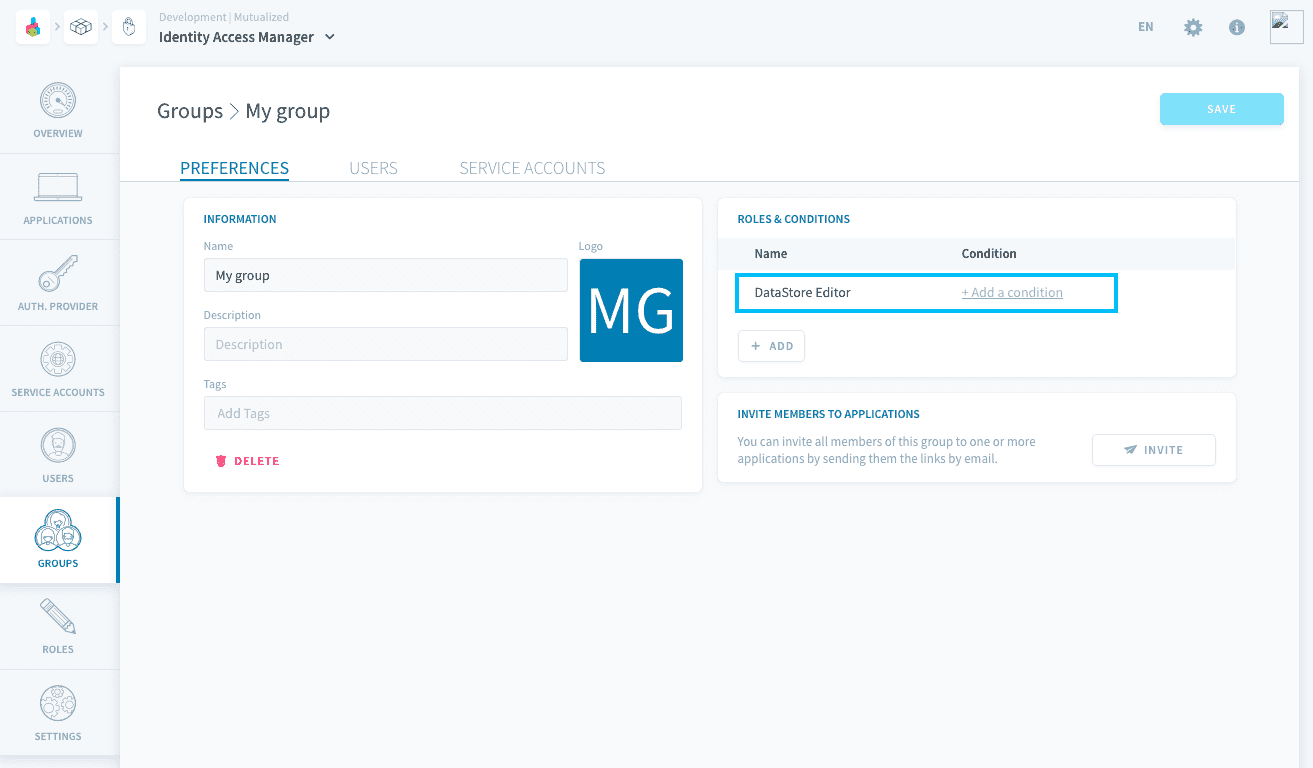
The condition must be set on the technical name of the resource, which intuitively would look like the following:
However, just adding this condition would filter the entire role to the resources called "my_bucket", including resources that are not buckets (like queries, dashboards, pipelines, etc..). In other words, if your role gives access to any other resource, they will be filtered just like buckets.
Consequently, it is recommended to set conditions as follows.
Using the visual builder
If your initial role grants access to other resources, it is important to start by adding a first rule which will allow access to all resources that are not buckets which are planned by the role.
Through conditions, you cannot give access to resources/actions that were not initially permitted by the role. Conditions can only filter a role further.
- Field: Resource
- Operator: Not equals
- Value: Bucket
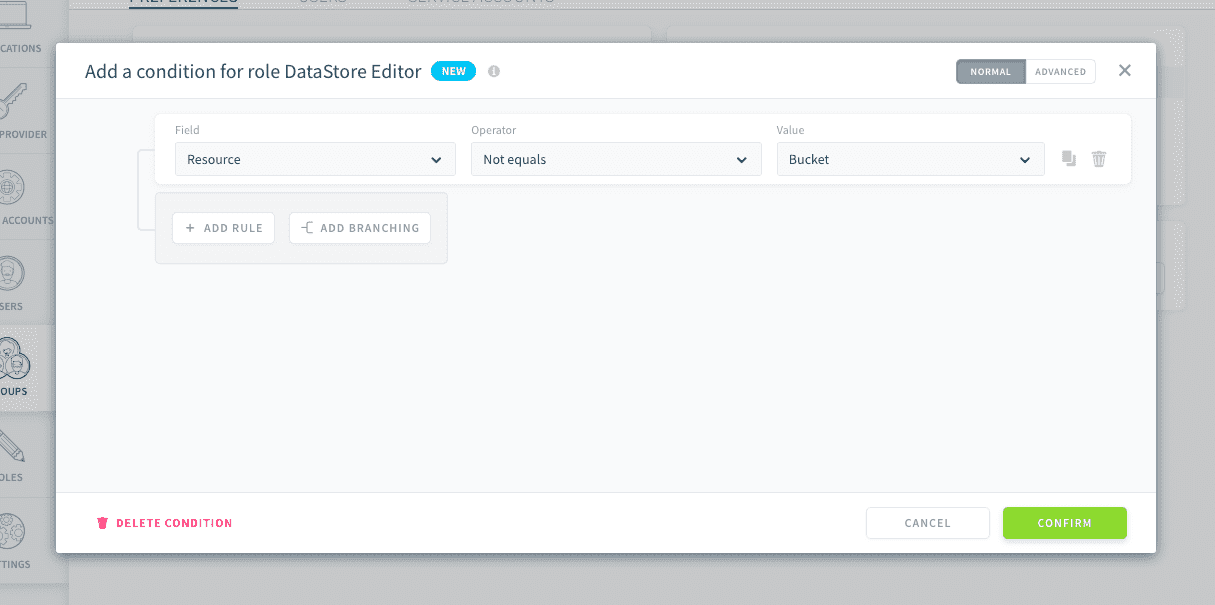
Then, add a branching with an OR operator.
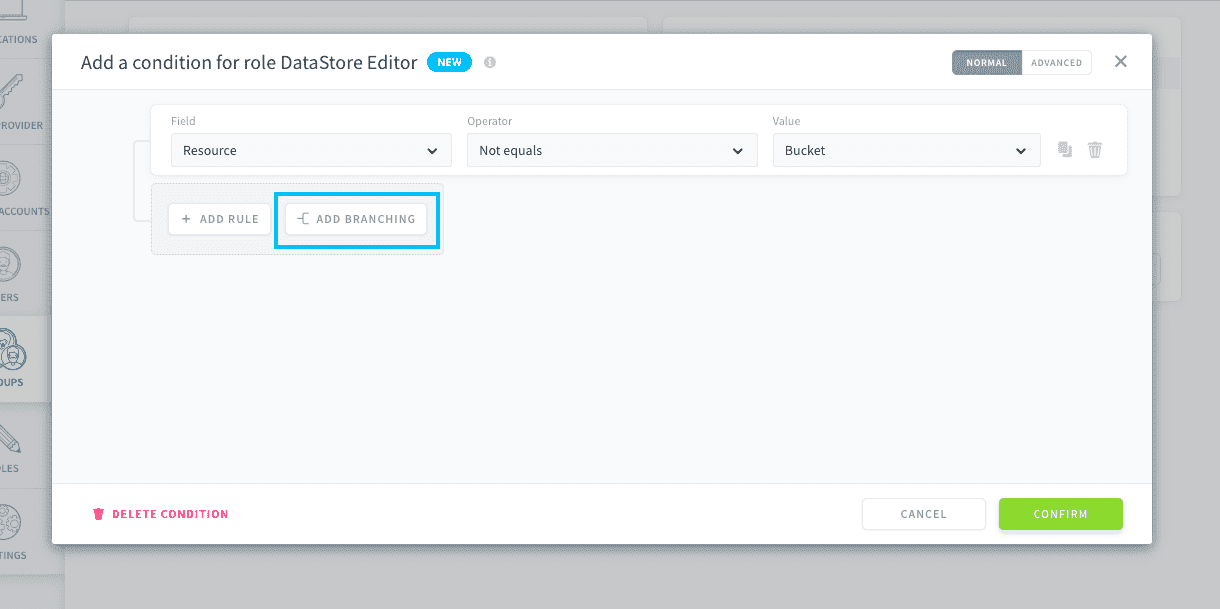
In the branching, add two rules linked by an AND operator.
First rule:
- Field: Resource
- Operator: Equals
- Value: Bucket
Second rule:
- Field: Technical name
- Operator: Equals
- Value: my_bucket
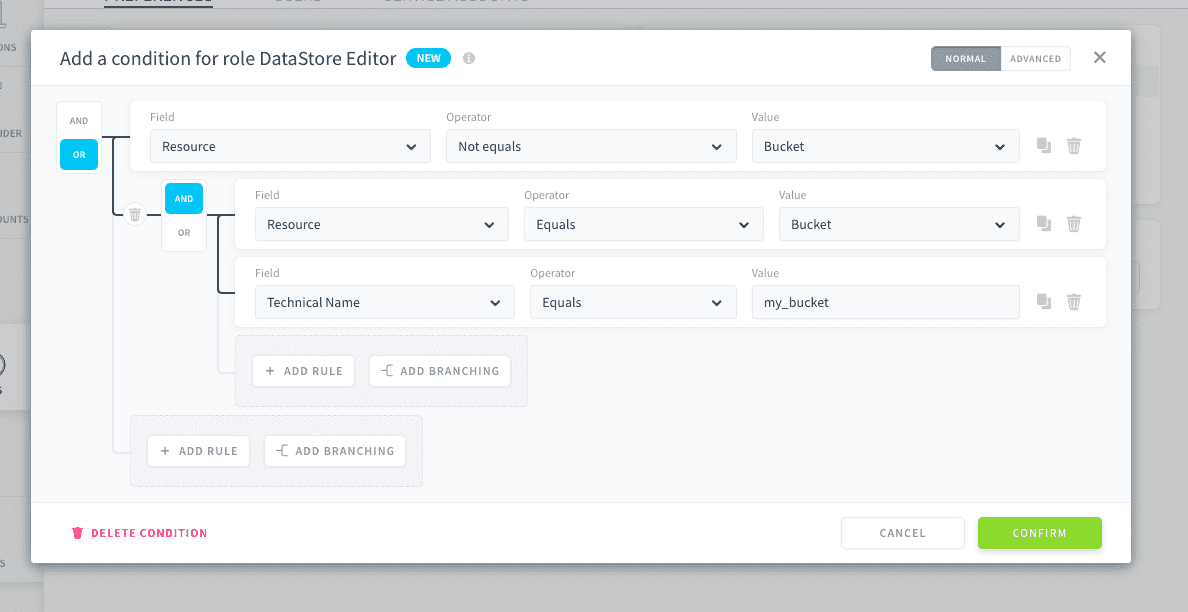
Press Confirm. The user/group will now have access only to the bucket "my_bucket", and access to all other resources contained in the role.
This branching system can also be used to restrict write/delete access to only some objects (for example, the ones that have the tag "dev") while allowing read access to the remaining objects.
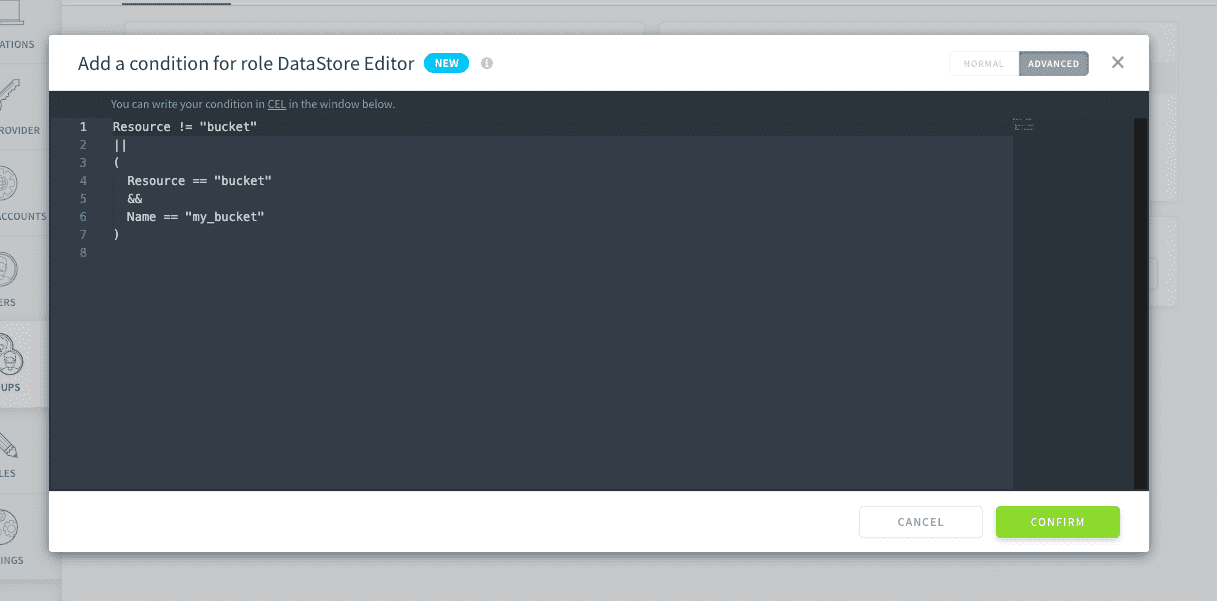
Using the CEL editor
In CEL, the condition would be the following:
To go further, see the customization capabilities of the Identity Access Manager in our documentation.
Learn more about roles and conditions
Also, don't hesitate to get in touch if you need anything, our support & product team is dedicated to helping you deliver faster any AI applications you have in mind.
Go further
For training or technical assistance implementing our solutions, contact your sales representative or visit our Professional Services page to request a quote and have your project analysed by our experts.
Ask questions, give your feedback and interact directly with the team building the Data Platform on the dedicated Discord channel.
If you need support with your OVHcloud services, create a request in our Help Centre.
Join our community of users.