

Configure your connector
The platform connectors allow you to import any data type, regardless of its source or format, into your platform
Objective
The platform connectors allow you to import any data type, regardless of its source or format, into your platform, in order to leverage and cross-reference it within analytics applications, APIs, or predictive models.
Read the following tutorials on featured pre-configured connectors of the Connectors to learn how to connect your data in a few clicks.
Managing sources
Data sources are organized in a hierarchical way through a tree view consisting of:
-
Folders for logical grouping of your sources
-
Sources specifying the access to smaller source objects (which can be tables, files, or endpoints)
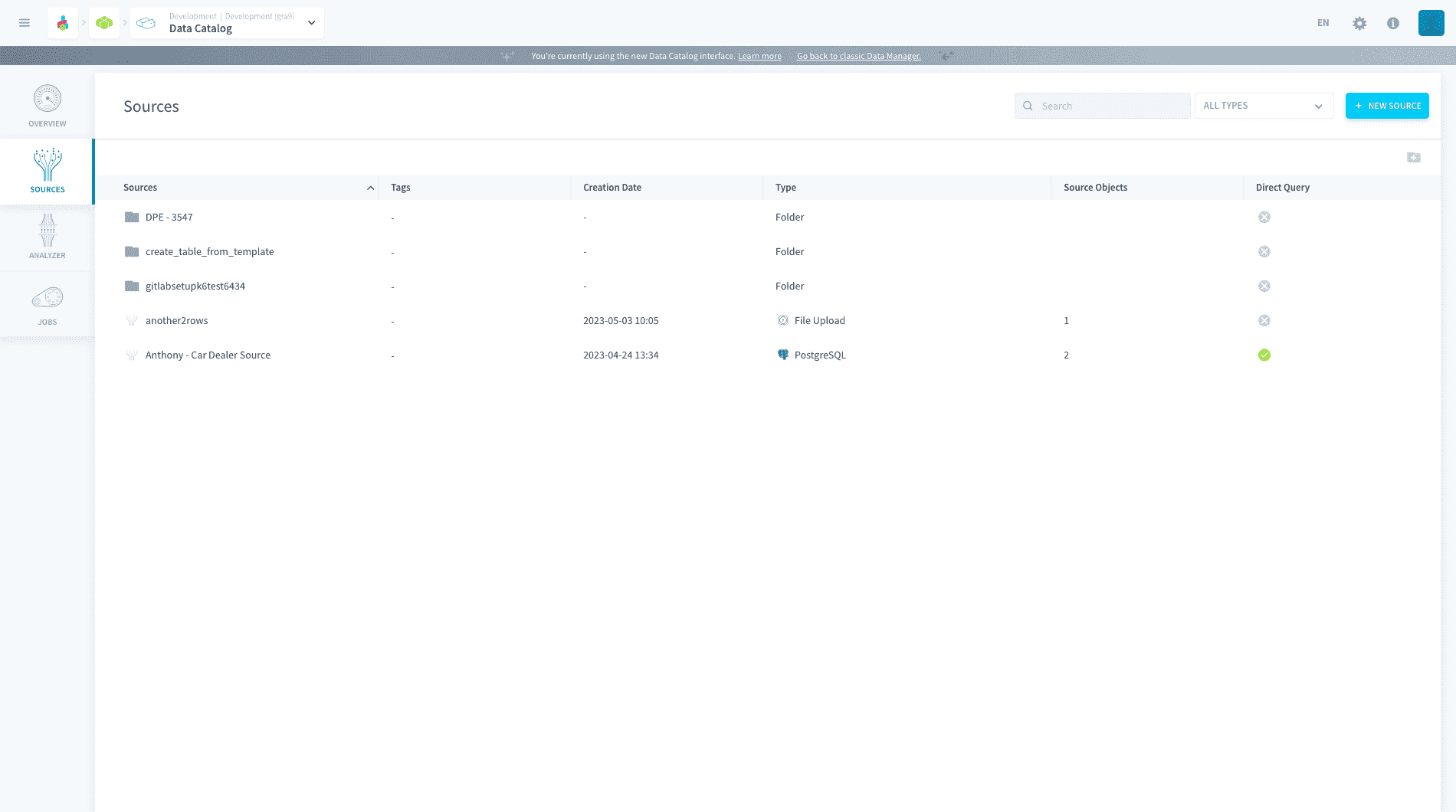
For better readability, it is recommended to group sources into folders.
Each time you add a source, a new line will be added to this dashboard. The basic actions that you can perform on the Source menu dashboard includes:
- Creating a new source
- Searching for an existing source
- Grouping sources by folder
- Adding, duplicating, deleting sources within an existing folder

Creating a new source
Under Sources click on New Source and you will see all available connectors in the Platform Store. You can find a connector by either typing the name of the desired connector in the search bar, filtering by a specific category on the left-hand side of the Store or scrolling down the connector list
Data Platform currently supports the following sources:
Some of the connectors mentioned below have been deprecated and we are working on updating the list. Please reach out to the support team in case of any issues faced.
-
Files storage systems: Amazon S31, Dropbox, Google Drive, Azure Blob Storage, Microsoft OneDrive, Google Cloud Storage, Shadow Drive
-
Database engines: PostgreSQL, MySQL, SQLServer, MariaDB, Cassandra, Google BigQuery, Amazon Redshift, ElasticSearch, Heroku Postgres, Clickhouse, SingleStore, MongoDB, Oracle, Snowflake, Trino, OpenSearch, Prometheus, M3DB, CockroachDB, InfluxDB
-
Network protocols & Open Data: FTP, HTTP Files, SFTP, HTTP REST, Open Weather
-
Real-time & IoT: Apache Kafka, Amazon Kinesis, MQTT, RabbitMQ, Apache Druid
-
Social media: Pinterest, Facebook, LinkedIn, Twitter, YouTube, Weibo, Instagram
-
Analytics: Google Analytics, Appfigures, Hubspot, MailChimp
Once you have found it in the Platform Store, click on it and then on Select to proceed to the connector configuration screen.
Learn how to configure your connector
Make your data source directly queryable
In the Preferences of your source, you can activate the option Direct Query to mark it as directly queryable.

If you mark a source as directly queryable, you will be able to execute SQL queries on its source objects (for example, the tables in your Amazon Redshift source) from the Analytics Manager, without having to import the data in the Platform first.
This option is currently only available in SQL queries.
The following sources are compatible for direct queries:
- Amazon Redshift
- BigQuery
- Cassandra
- ClickHouse
- ElasticSearch
- Google Sheets
- Amazon Kinesis
- MongoDB
- MySQL
- Oracle
- PostgreSQL
- Redis
- SingleStore
- Snowflake
- SQL Server
Featured connector guides
- OVHcloud API
- Apache Kafka
- Dropbox
- File Upload
- Data Platform Buckets
- FTP
- Google Analytics
- HTTP Files
- HTTP REST
- HubSpot
- Microsoft Azure Blob Storage
- MySQL
- Odoo
- Salesforce
- SFTP
- Shopify
- SQL Server
- Stripe
- Trino
- FHIR
Data Platform IP Whitelisting for External Database Access
To ensure secure access to your external database from our platform, it may be necessary to authorize specific IP addresses. You can whitelist the following IP address in your database configuration to allow seamless and secure communication:
IP Address to Whitelist:
51.210.213.114
Steps to Whitelist:
-
Access Database Configuration:
Log in to your database management or security settings where you manage network access. -
Locate the IP Whitelisting Section:
Find the section for managing authorized IP addresses, often under "Security" or "Firewall" settings. -
Add the IP Address:
Enter51.210.213.114into the list of allowed or trusted IP addresses. -
Save and Apply Changes:
After adding the IP address, save your changes and apply them to ensure proper access.
By whitelisting this IP, you enable secure communication between the platform and your database while maintaining robust security measures.
Go further
For training or technical assistance implementing our solutions, contact your sales representative or visit our Professional Services page to request a quote and have your project analysed by our experts.
Ask questions, give your feedback and interact directly with the team building the Data Platform on the dedicated Discord channel.
If you need support with your OVHcloud services, create a request in our Help Centre.
Join our community of users.
1: S3 is a trademark of Amazon Technologies, Inc. OVHcloud's service is not sponsored by, endorsed by, or otherwise affiliated with Amazon Technologies, Inc.