

Manage authentication for deployed applications
When an application is deployed on the platform, it is automatically created in the Identity Access Manager as a separate entity for which you can manage
Objective
When an application is deployed on the platform, it is automatically created in the Identity Access Manager as a separate entity for which you can manage the authentication protocols. Applications include:
-
Your analytics applications: individual applications that can be deployed from the APP Manager, as well as consumers that you can connect in the Connectors. This typically includes user-friendly interfaces to expose the data such as dashboards, reporting, or alerting tools.
-
Identity Access Manager: accessible as an independent URL,
https://project-name.eu.dataplatform.ovh.net/iam, the Identity Access Manager external application is used when you need users (say the administrator of a given application) to manage its user base without having to access the Platform.
For each deployed application, the platform lets you configure the application information, the authentication modes that are visible on the sign-in page, and the style of that sign-in page.
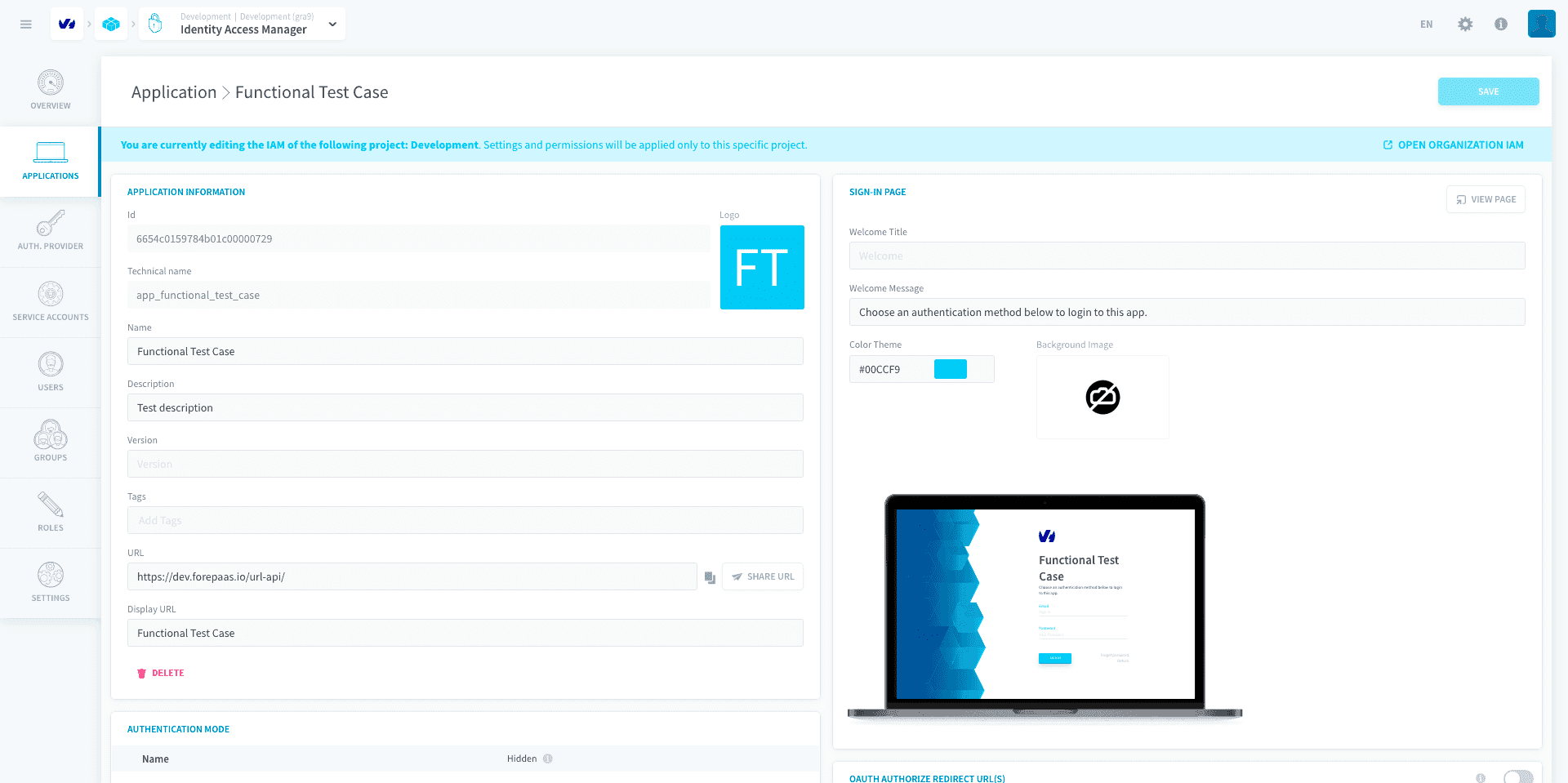
Application information
- ID: the ID of the application in the IAM
- Name: the name of the application shown by default in its login page
- Version: version of the application currently deployed (not required, only for custom use cases)
- Description: description of the application
- Tags: tags of the application
- URL: Base URL of the application.
- "Share URL" button: Send by email the URL of the application to the selected users or groups of users.
Please note that you can edit the template in the Identity Access Manager Settings > Email > Application invitation > Edit
- Display URL: Title of the application used in the email sent by the "Share URL" button
Authentication Mode
The authentication page is an important part of your Platform application: it is the page on which users will log in in order to reach the content of the app.
The Authentication Mode list allows you to manage which authentication methods are displayed on the sign-in page of the application. The Auth. Provider tab in your IAM lets you configure which authentication methods can be used in your Project, and those methods can then be displayed or hidden to visually customize your login page.
This is a pure visibility configuration and not a way to avoid users from logging into the application through certain authentication modes.
Display an authentication provider on an application login page
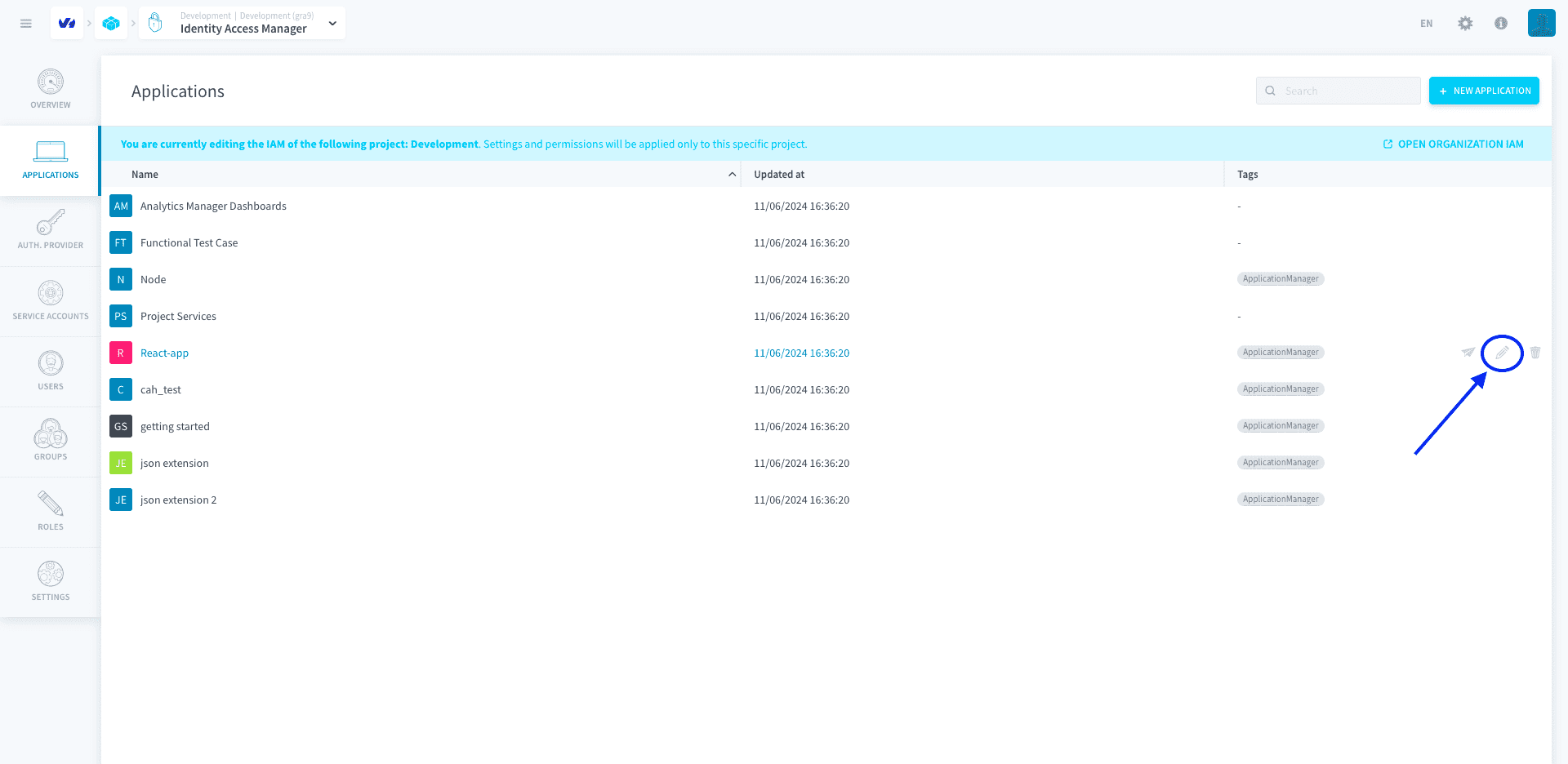
Click on Applications and edit the desired application.
Locate the panel Authentication Mode
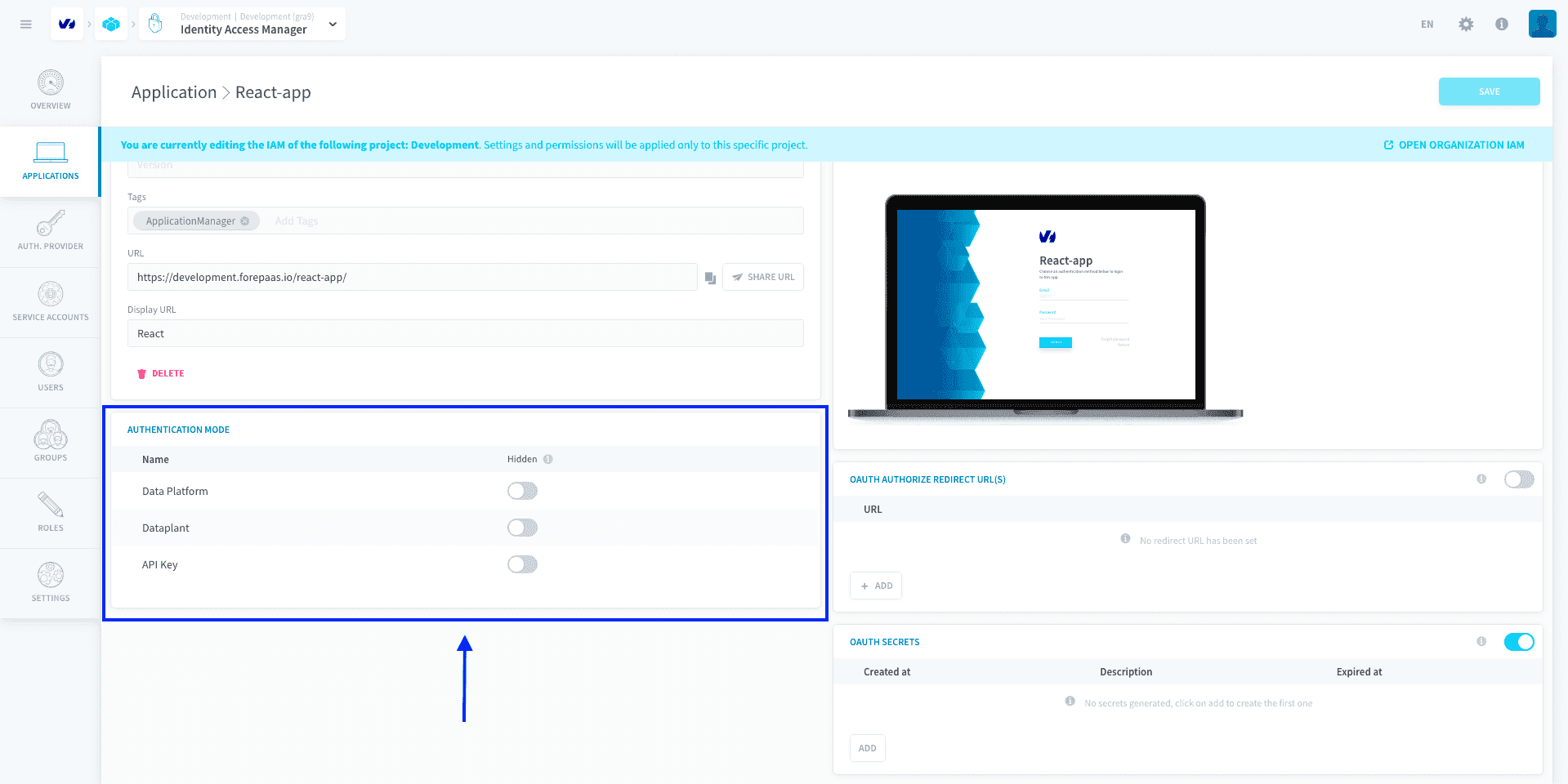
Add your new provider if it doesn't appear automatically. Make sure the authentication providers of your choice are not set as hidden. Those who are will not be visible from the application's login page.
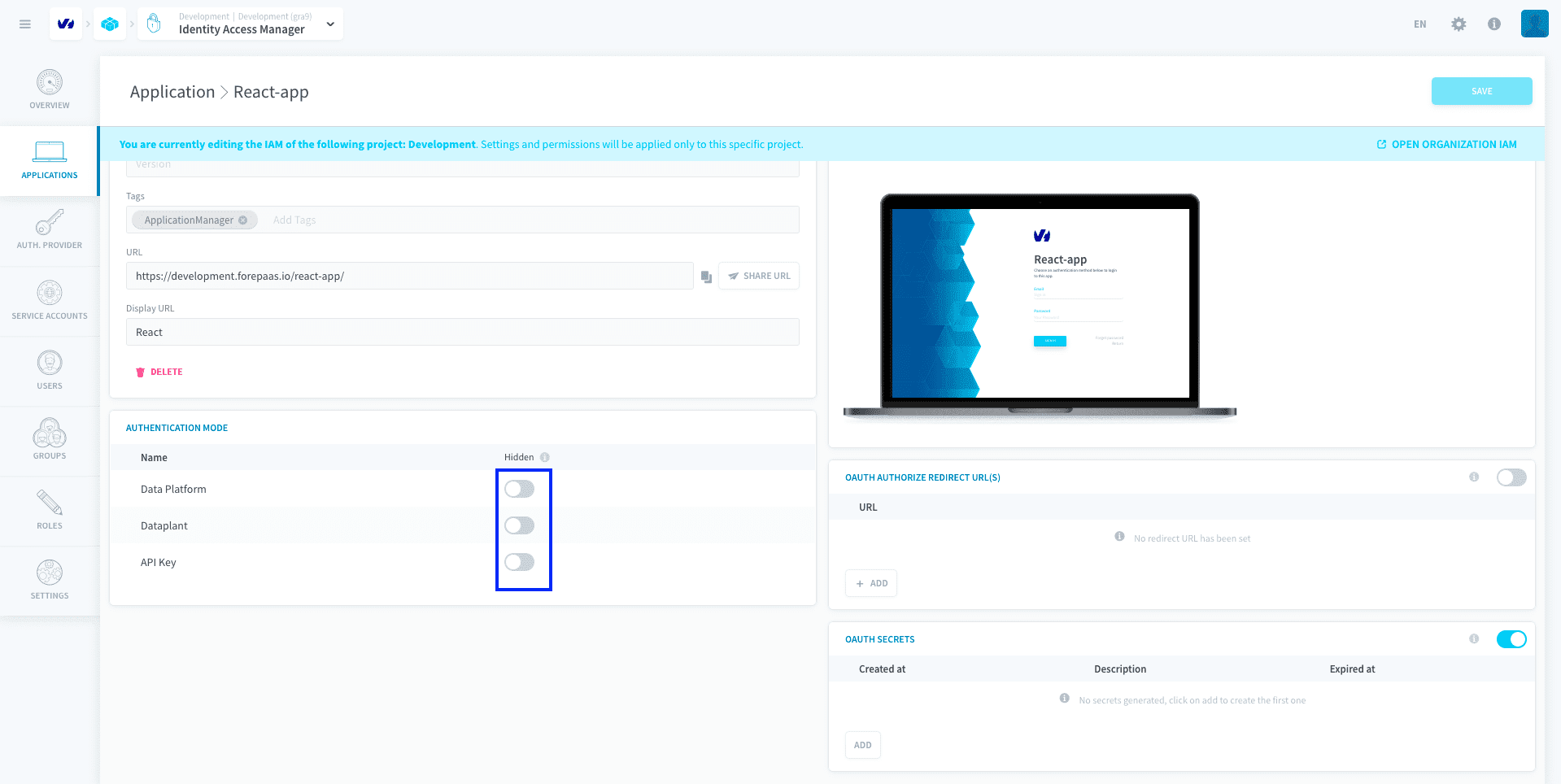
It is not possible to deactivate an authentication provider for a specific application. For instance, a user who is already logged in through Azure AD will still be able to access the application even if Azure AD is set as hidden on the application login page.
Link to a specific authentication provider
You can generate URL links to reach a specific authentication page for your application, even if you have several authentication providers active on your Project. You will need:
- your app URL
- your authentication method's ID
You can get your app URL in the IAM settings of your application:
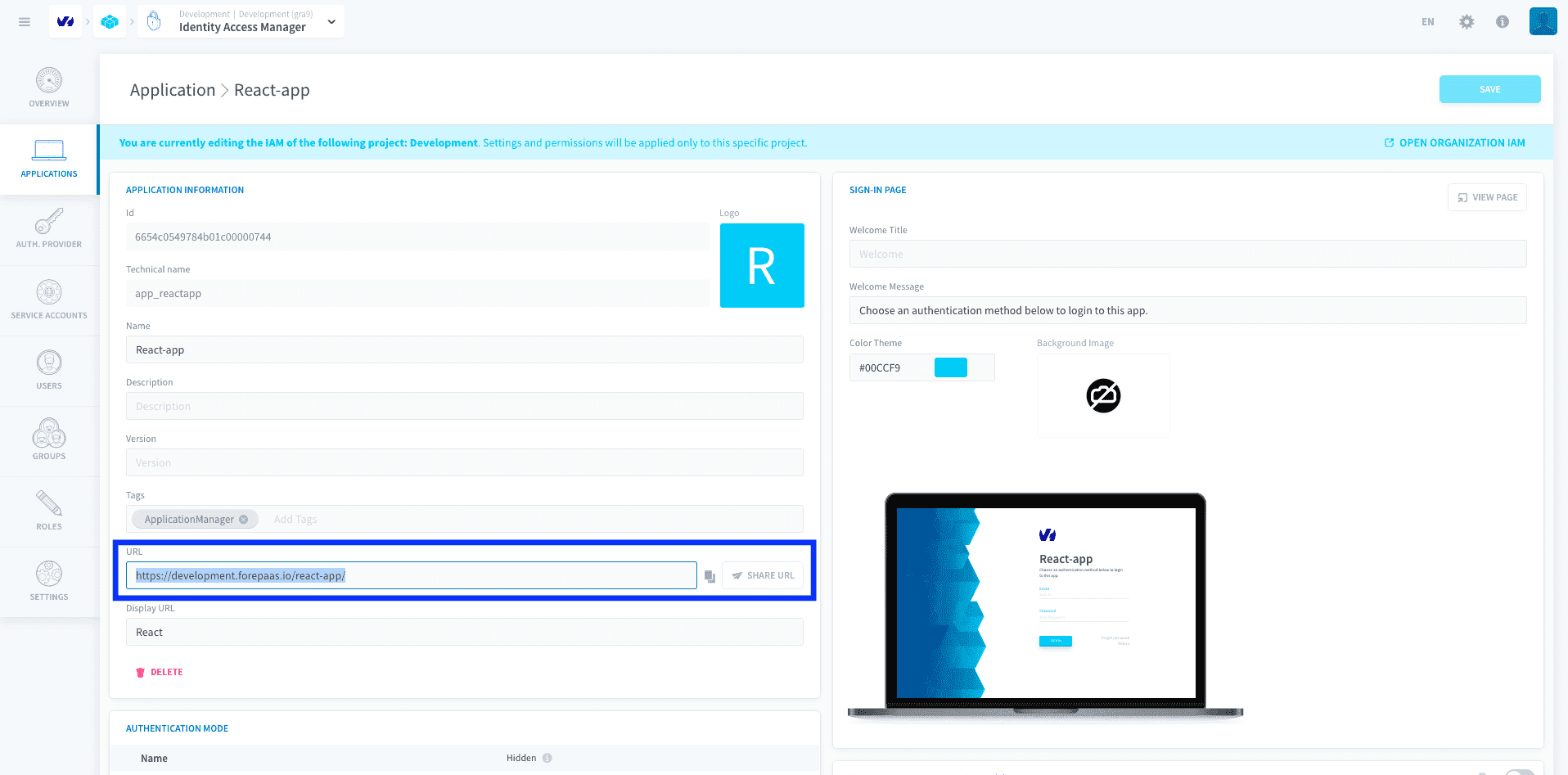
You can get your authentication provider's ID by going to its settings page in the IAM and looking at the URL:
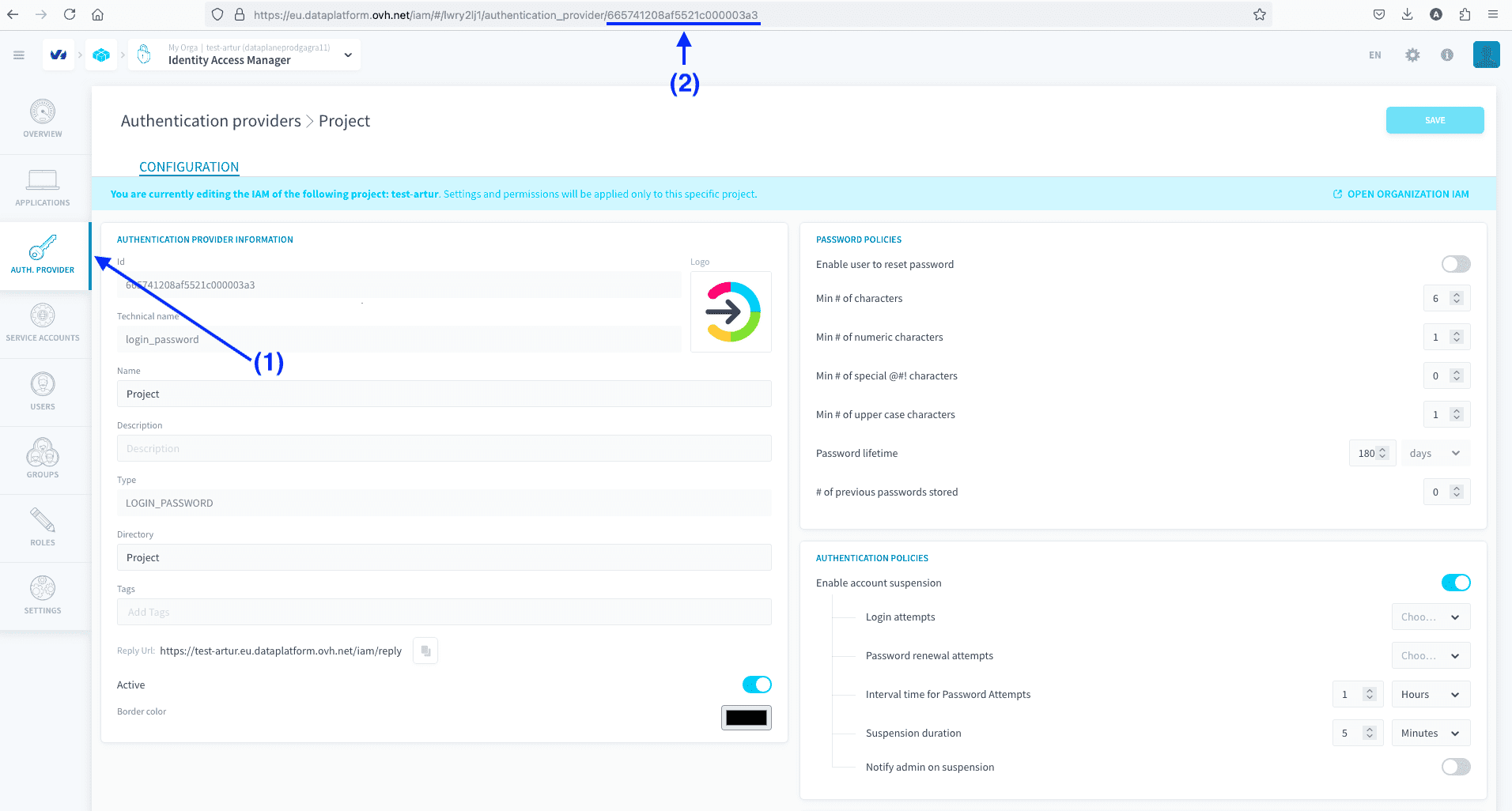
To reach a specific authentication page for your application, use the URL link:
your-app-URL#/?auth_mode_id=your-auth-method-ID
This link is currently only valid for applications created from Application Services, not for the 'Project' application.
Shortcuts:
- Another ID for the the platform account authentication method is
king - Another ID for the Project authentication method is
password
Customize the sign-in page
The visual style of your sign-in page includes the following elements:
- Welcome title: edit the welcome message on the sign-in page. if empty, it will show the application name instead.
- Welcome message: the message under the welcome title
- Color Theme: default primary CSS color for the sign-in page
- Background image: adds a background image to the sign-in page.
Go further
For training or technical assistance implementing our solutions, contact your sales representative or visit our Professional Services page to request a quote and have your project analysed by our experts.
Ask questions, give your feedback and interact directly with the team building the Data Platform on the dedicated Discord channel.
If you need support with your OVHcloud services, create a request in our Help Centre.
Join our community of users.