

Configure authentication providers for your Project
The Identity Access Manager (IAM) lets you configure the authentication methods used to login to your Project and your applications
Objective
The Identity Access Manager (IAM) lets you configure the authentication methods used to login to your Project and your applications.
You can set any authentication provider as active or inactive. Setting an authentication provider as inactive means that it can no longer be used to authenticate to a Project or an application.
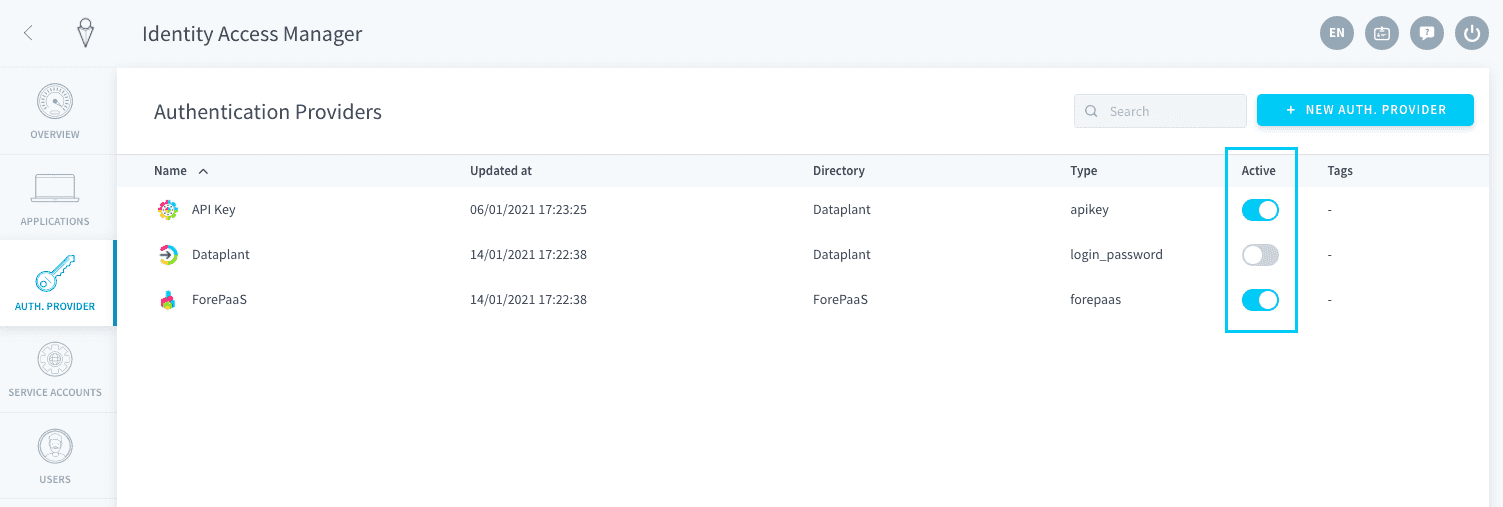
Default Data Platform authentication providers
Data Platform offers 3 default authentication providers in every Project: Data Platform, Project, and API key.
Data Platform
This is the main authentication provider for the Data Platform. It lets you use your Data Platform account that you created when you first joined the platform.
It is hosted in the Cloud Management Platform, which serves all organizations and Projects that you are part of.
Project
This is a simple sign-in-by-email method provided by the Project IAM for all applications deployed on this Project. It provides an easy method to invite end-users to your applications without having them create an account on Data Platform.
It is hosted in the Project itself, which means all user information is stored within the Project itself and not shared with other Projects.
API key
API keys are usually used to let users connect using API and secret keys. Their main purpose is for advanced or custom configuration using Data Platform APIs.
This authentication method must be active for external users or applications to connect to the Project via API.
Add an authentication provider
Click on the +New auth. provider button.
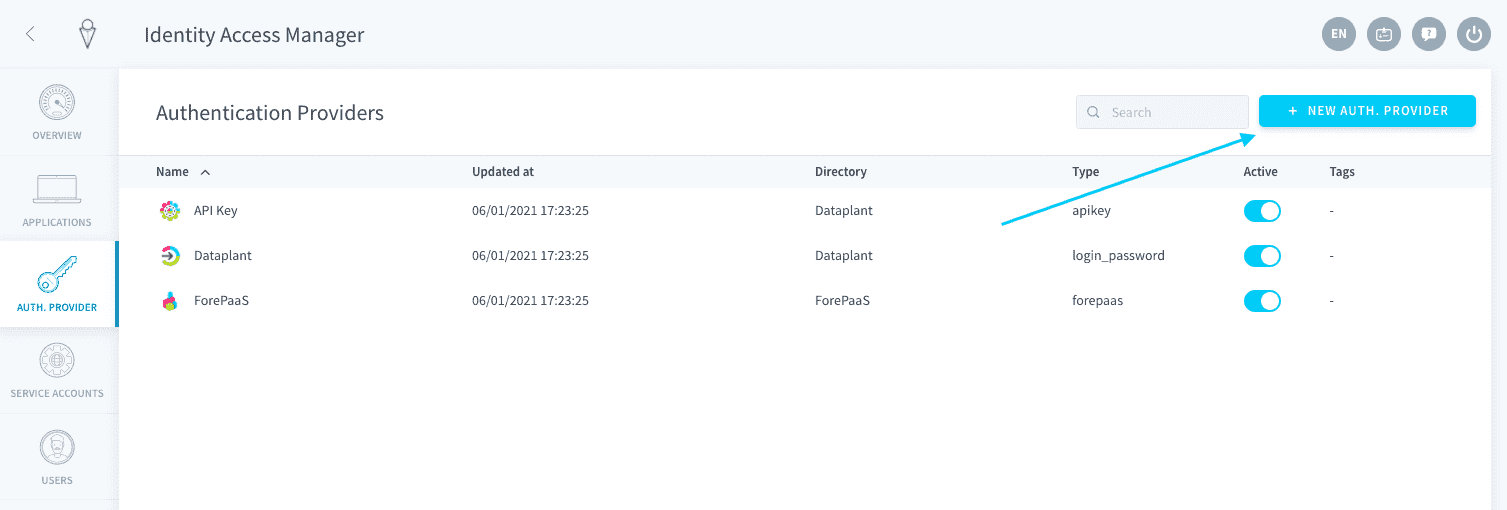
List of authentication providers
Data Platform supports 7 external single sign-on providers:
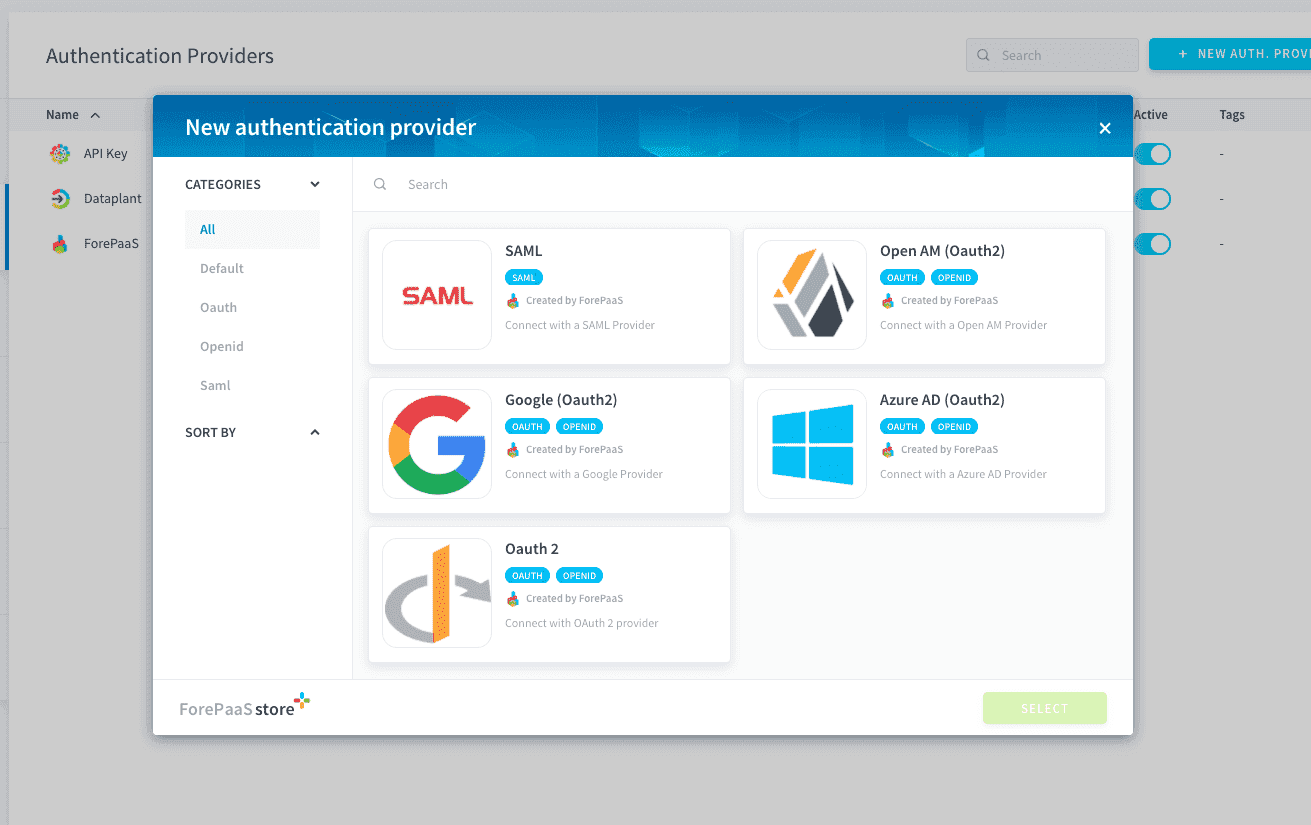
You can then configure your new authentication provider. The configuration depends on the provider.
Automatically map roles/groups from your authentication provider
Automatically map groups or roles on Data Platform using permissions that were already set up in your authentication provider.
Configure custom mapping of groups/roles
Troubleshoot authentications from your external authentication provider
This feature is only available for external authentication providers, and for the Data Platform authentication provider.
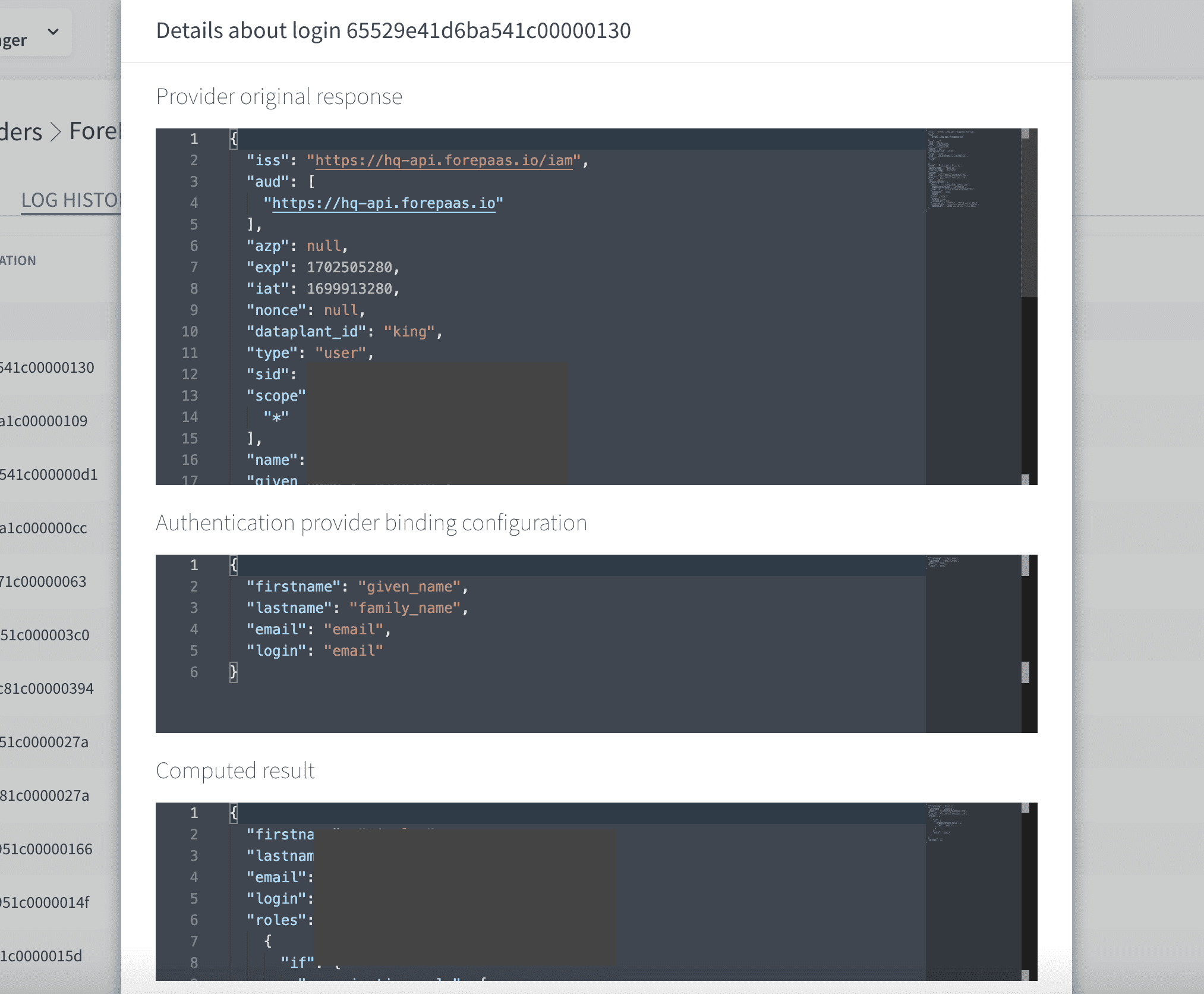
It is possible to troubleshoot the external authentication provider configuration by logging the requests to the external server and the responses received from the server. By viewing what the identity provider sends back for each login request and how it is interpreted by Data Platform, this allows you to detect errors in a configuration such as the user information or the mapping.
Login logs are available in the Log history tab of an existing authentication provider.
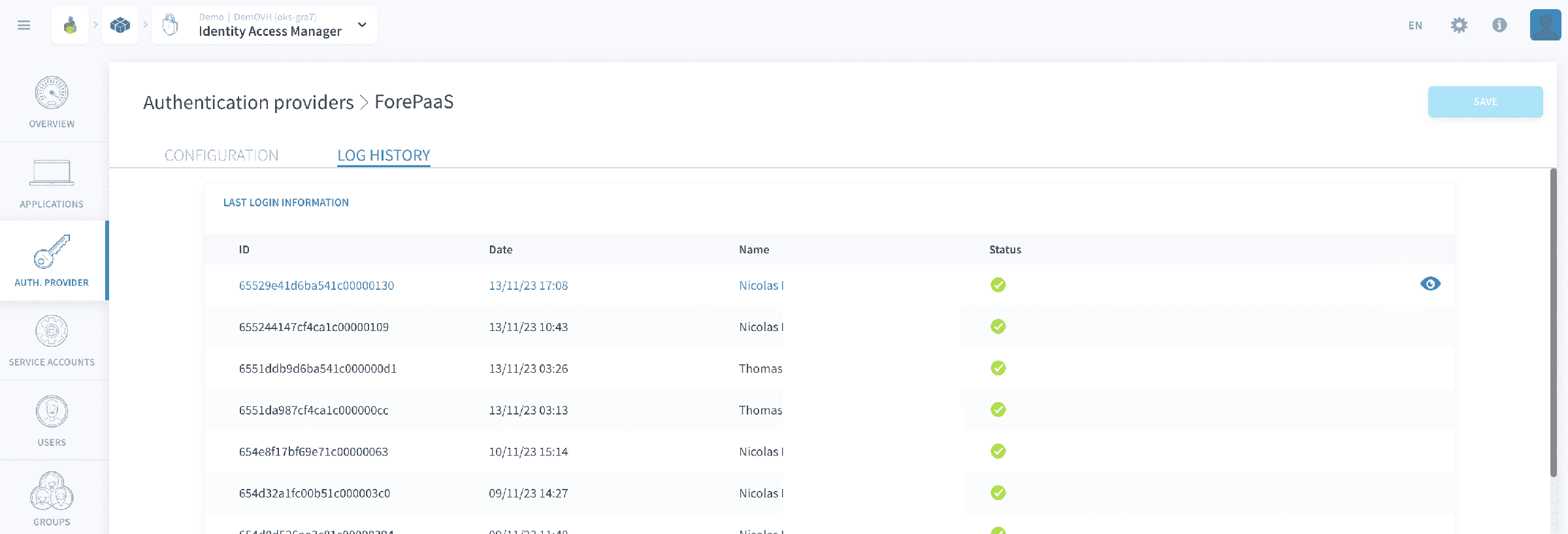
Opening a specific login will display:
- the raw response received from the external authentication server
- the configuration used by Data Platform to map user information to data sent by the external server
- the result that is interpreted using the two aforementioned payloads: this is the final user information in the IAM as computed from the external authentication server.
Authentication Policies
This section describes how to configure the authentication policies for account suspension due to multiple failed attempts. The settings are designed to enhance the security of user accounts by defining thresholds and actions to take when those thresholds are exceeded.
Enable multi-factor authentication (MFA)
Multi-factor authentication (MFA) is a feature which forces users to go through a second method of authentication in addition to their usual method. The available authentication methods are:
- a code sent by email
- a code sent by SMS
- a code retrieved on a two-factor app (e.g. Google Authenticator, Microsoft Authenticator, etc..)
MFA enforcement at project-level is only available for the Project authentication method. In other words, if the user is logged in through their Data Platform account (Data Platform ID) (or any other registered authentication provider in the project) they will bypass the MFA requirement in the project (as the MFA enforcement should be delegated to the third-party system in this case).
It is possible for an admin of an organization to enforce MFA on the Data Platform ID authentication method for a whole organization, by turning on the option in the organization settings. For single sign-on from other authentication providers, the MFA enforcement should be delegated to the third-party system.
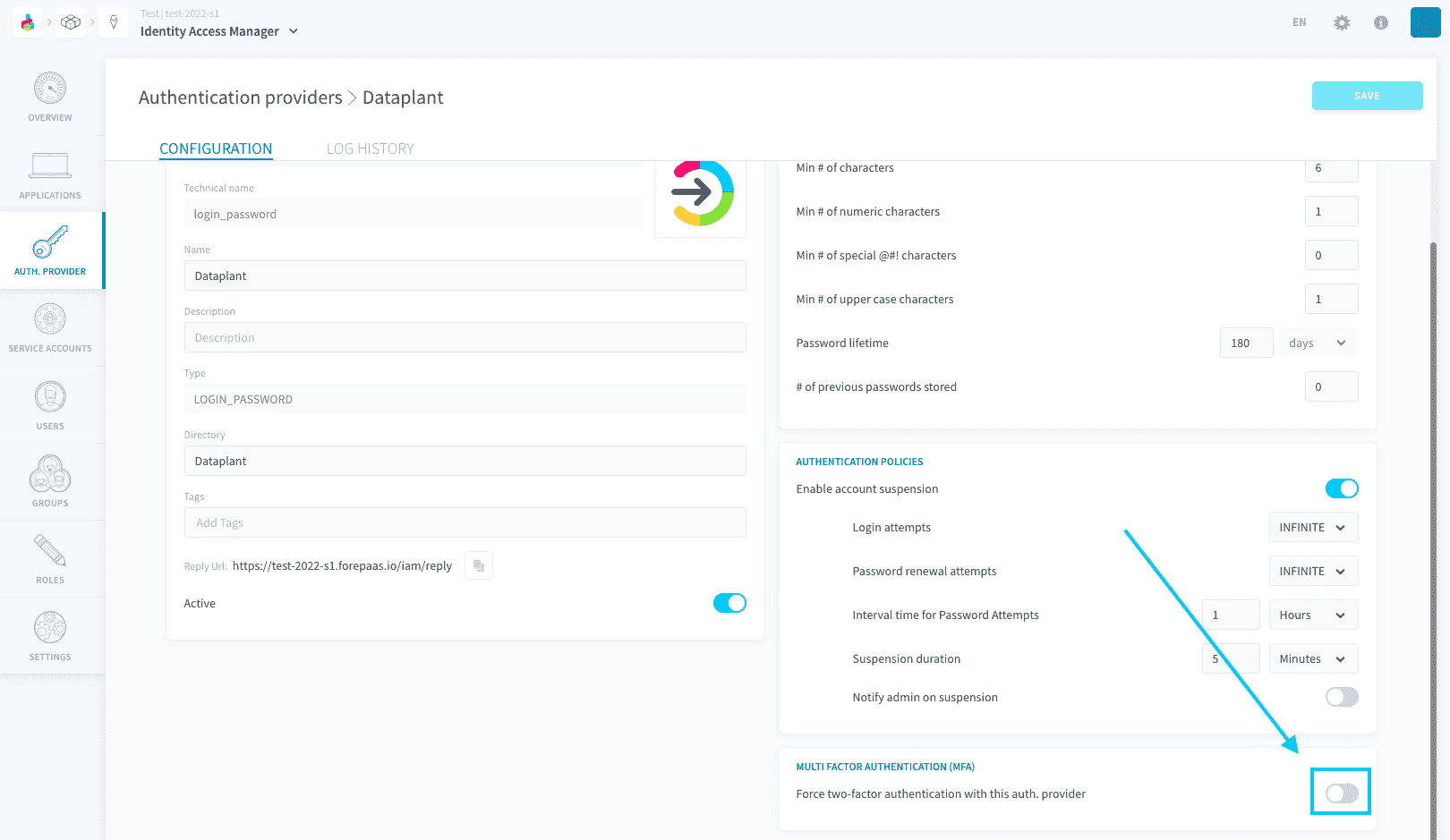
To enforce MFA in your Project for the Project authentication method, open the Project authentication provider, find the panel "Multi factor authentication (MFA)" and turn it on.
Choose the methods you will allow your users to authenticate with.
Methods have the following requirements:
- Email: none
- SMS: a phone number must be registered on the user's page for this option to be enabled
- External two-factor apps: a 2FA app code must be generated by an administrator from the user's IAM page for this option to work. Users will NOT be able to self-generate a code from the app they are logging to.
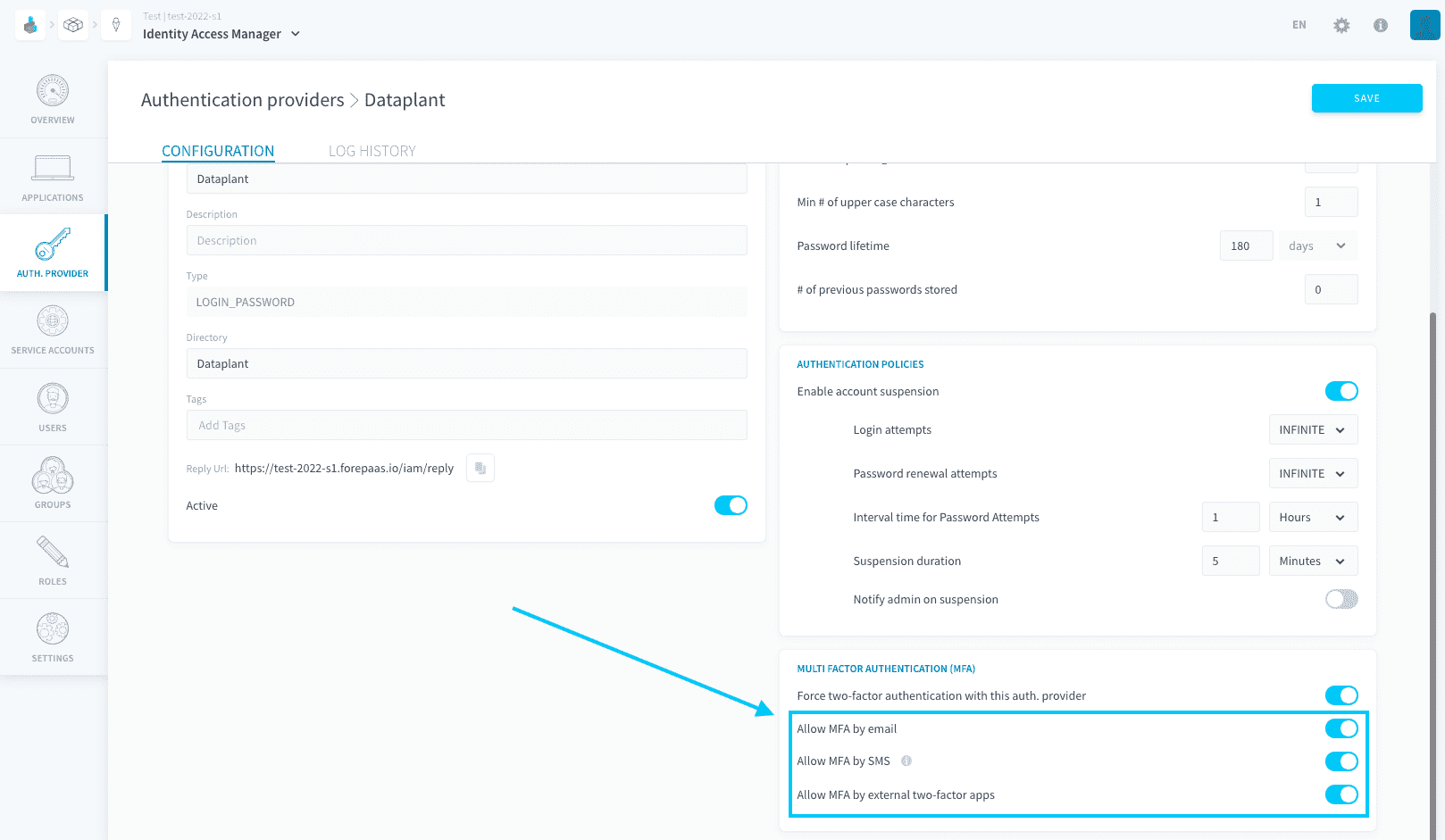
After you save, any user logging in via the Project authentication method will always need to authenticate through a second method.
If the Project authentication method is used for one or more Data Platform apps, you must update the CAM/IAM extension of all your apps or your users will no longer be able to login.
Migrate an app to IAM 1.4.0
1 - Update the version of client-authority-manager module
-
Open
./config/forepaas.jsonfile (root level of app) -
Edit "client-authority-manager" : "XXX" to "client-authority-manager" : "1.4.0"
-
Reload modules in the application's Overview, above Versions. If you work locally, use
command `npx git+https://gitlab.forepaas.com/open-sources/fppm.git install -f`` -
Check version update by opening
./config/forepaas/client-authority-manager/forepaas.jsonand looking atversion
2 - Add new translation to i18n configuration
- Edit
./config/i18n/en.json - Add these lines:
- Edit
./config/i18n/fr.json - Add these lines
Go further
For training or technical assistance implementing our solutions, contact your sales representative or visit our Professional Services page to request a quote and have your project analysed by our experts.
Ask questions, give your feedback and interact directly with the team building the Data Platform on the dedicated Discord channel.
If you need support with your OVHcloud services, create a request in our Help Centre.
Join our community of users.