

Configure a job execution alert
Alerts can be set to monitor job execution metrics on the Platform, such as the status of the job execution or the average CPU usage during it
Objective
Alerts can be set to monitor job execution metrics on the Platform, such as the status of the job execution or the average CPU usage during it.
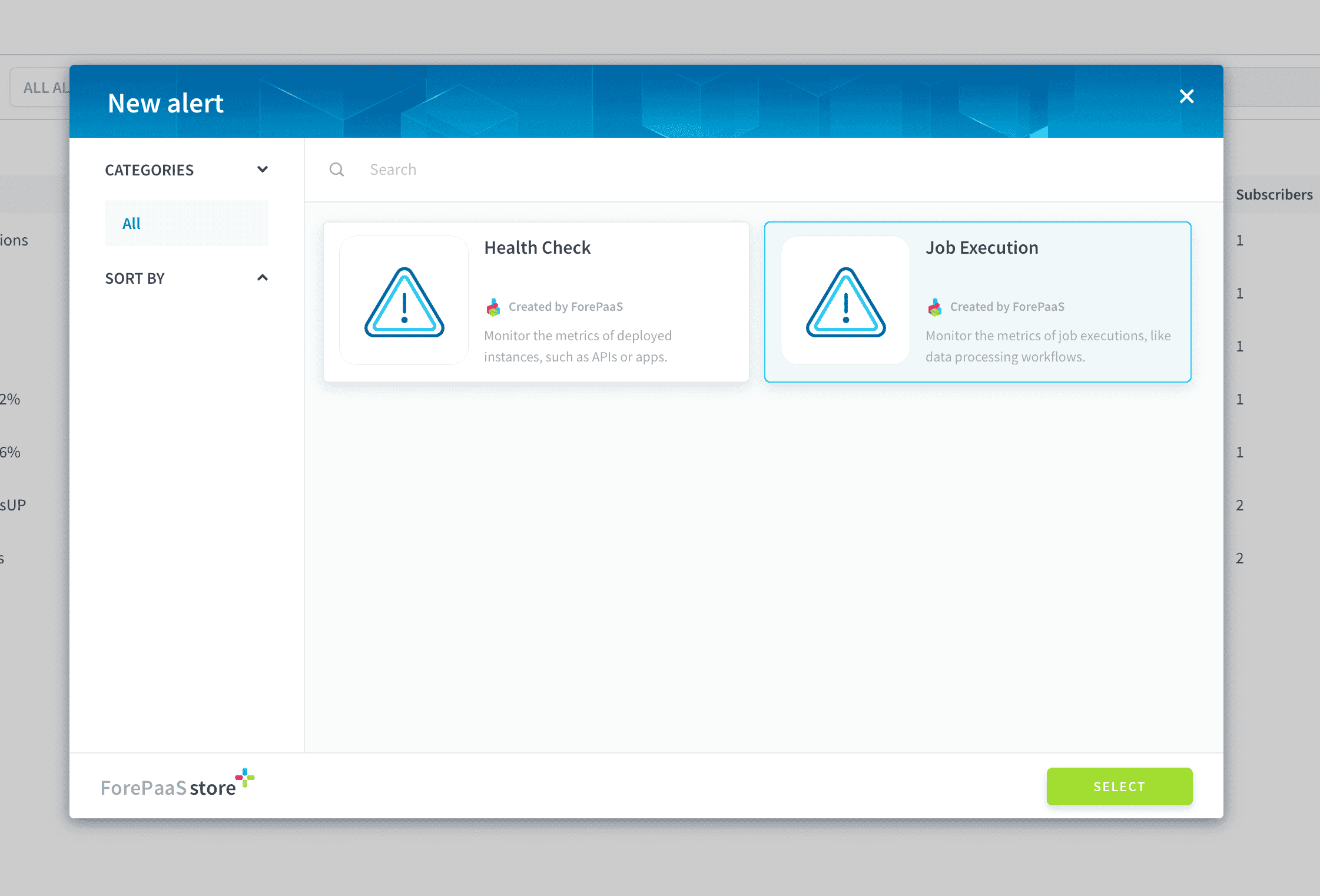
A job execution alert is configured by specifying a target as well as trigger conditions and triggering options.
Configure the target of the alert
When creating a new job execution alert, it is necessary to choose the type of job to monitor. The following types are available:
- Data Processing Engine actions job executions
- Data Processing Engine workflows job executions
- Lakehouse Manager physical build jobs
If not done already, you also need to choose the Project in which to create the alert.
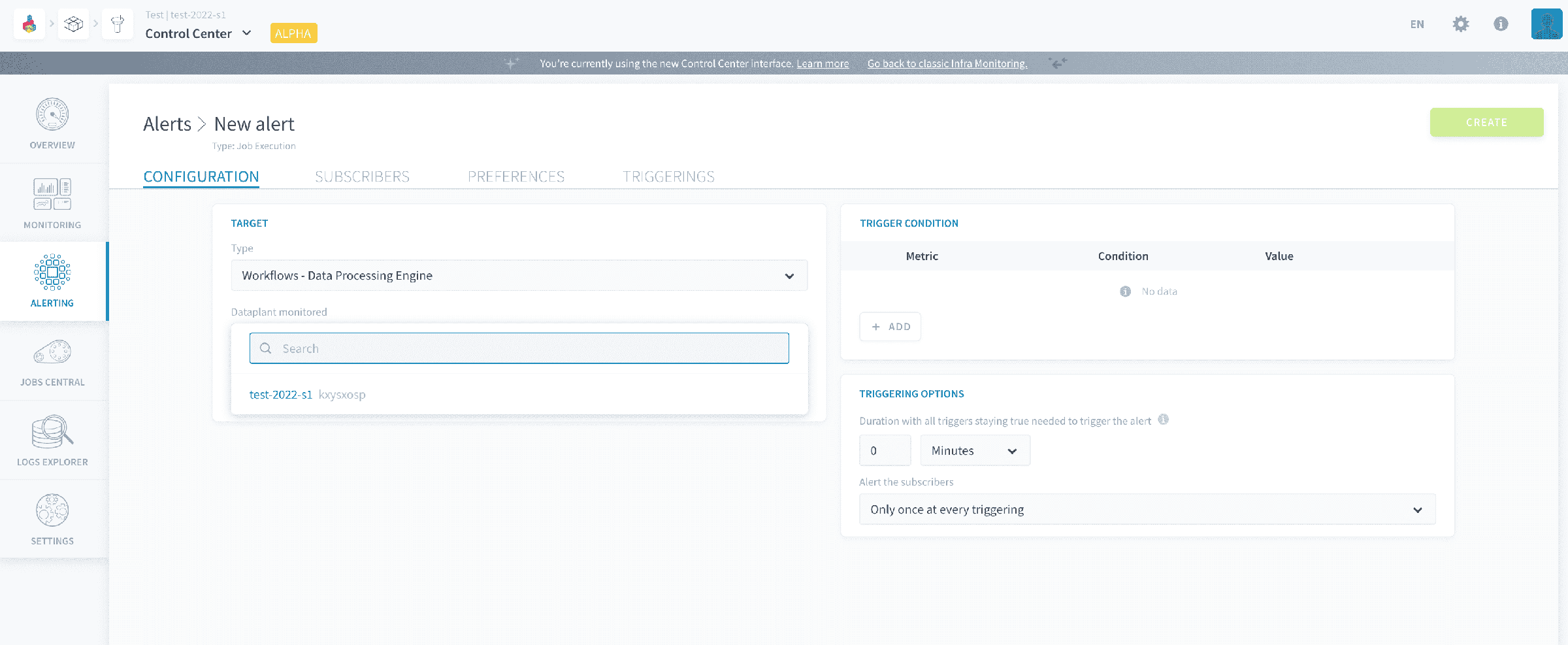
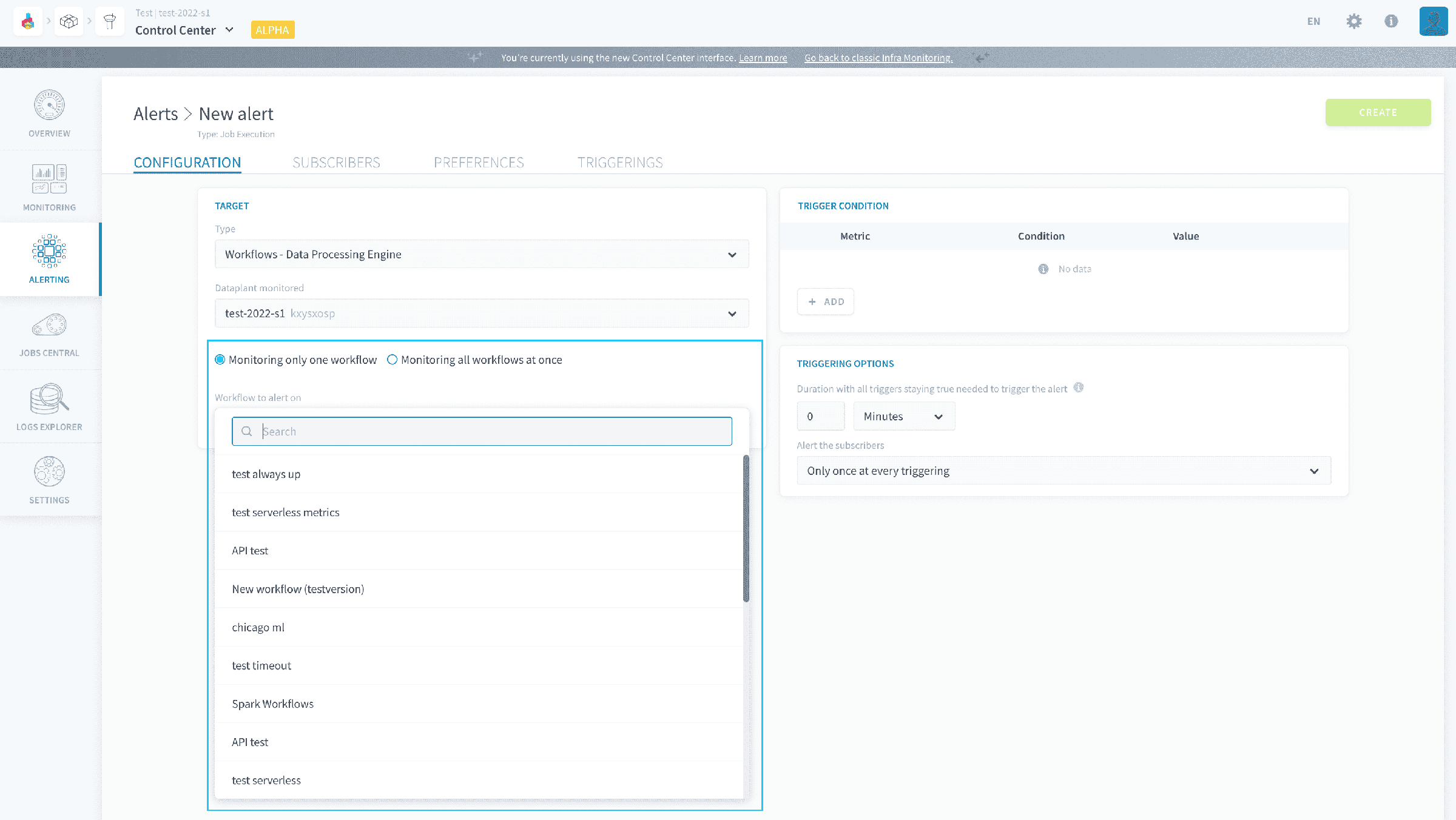
Except for alerts set on Lakehouse Manager physical build jobs, it is possible to either target one specific object (workflow, action, etc..) or set the alert to monitor all of them at once.
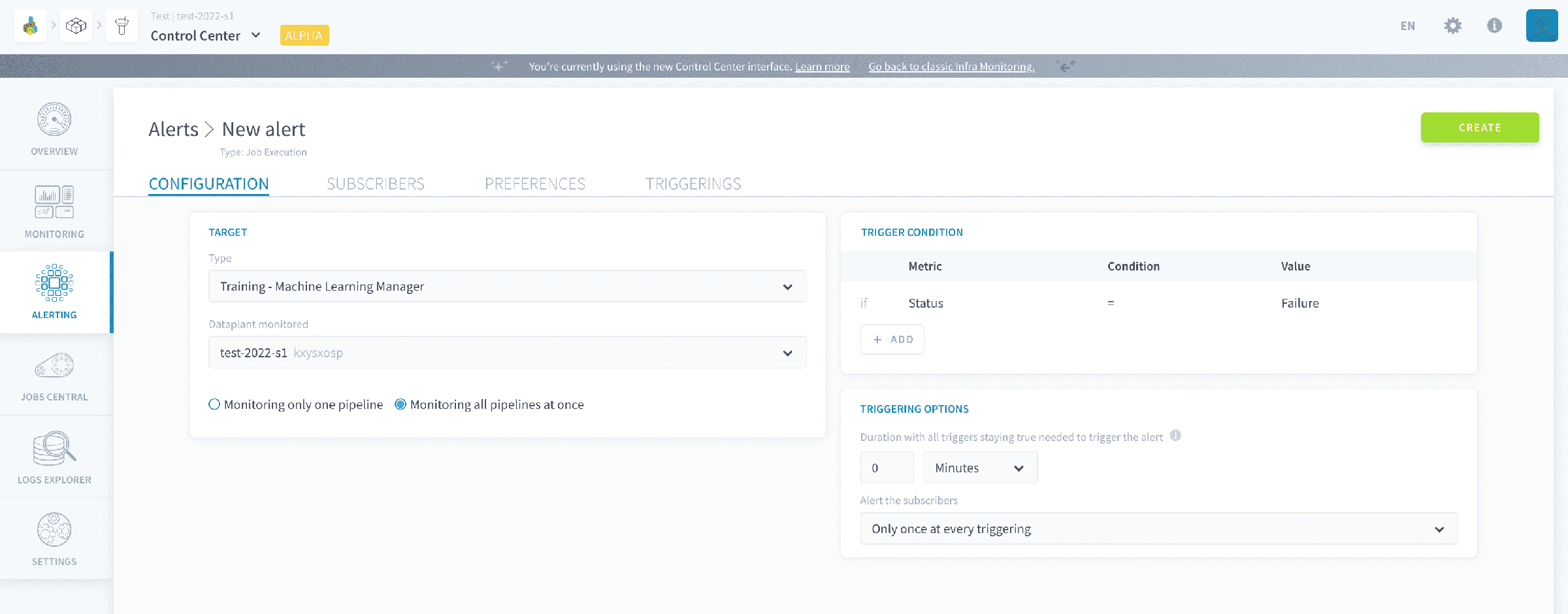
If you choose to monitor all of them at once, the alert will be triggered every time a job execution of the aforementioned type matches the trigger conditions.
For example in the screenshot below, the alert will be triggered every time any Data Processing Engine workflow job execution fails.
If you choose to monitor one specific object, the alert will only be triggered if the job execution of that object meets the trigger conditions.
For example in the screenshot below, the alert will only be triggered if the execution of workflow "chicago ml" lasts for more than 10 minutes (600s).
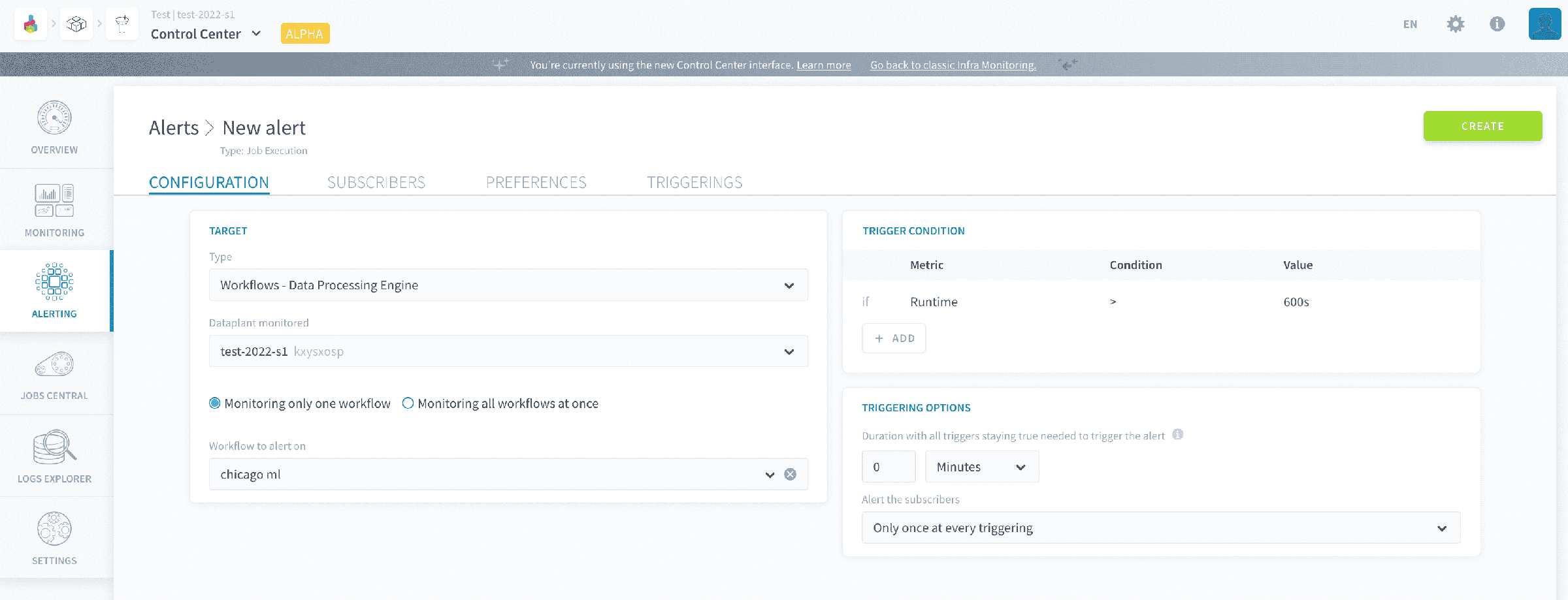
Finally, it is possible to set the alert to be triggered only if the trigger condition is met during a CRON-scheduled execution of the job. This is useful to manually test your actions/workflows/pipelines while developing without receiving an alert every time.
Configure the trigger conditions of the alert
A trigger condition on an alert is a logical statement made of a metric, an operator, and a value. Multiple conditions can be added to the same alert: in that case, they will be combined with an AND condition. At each evaluation loop - occurring every minute - the Platform runs the expression defined in each alert trigger. The alert's status is thus changed to active if all trigger conditions are and stay true for longer than the waiting period of the alert (configurable downstream in the process).
To add a new trigger condition, press Add in the corresponding panel.
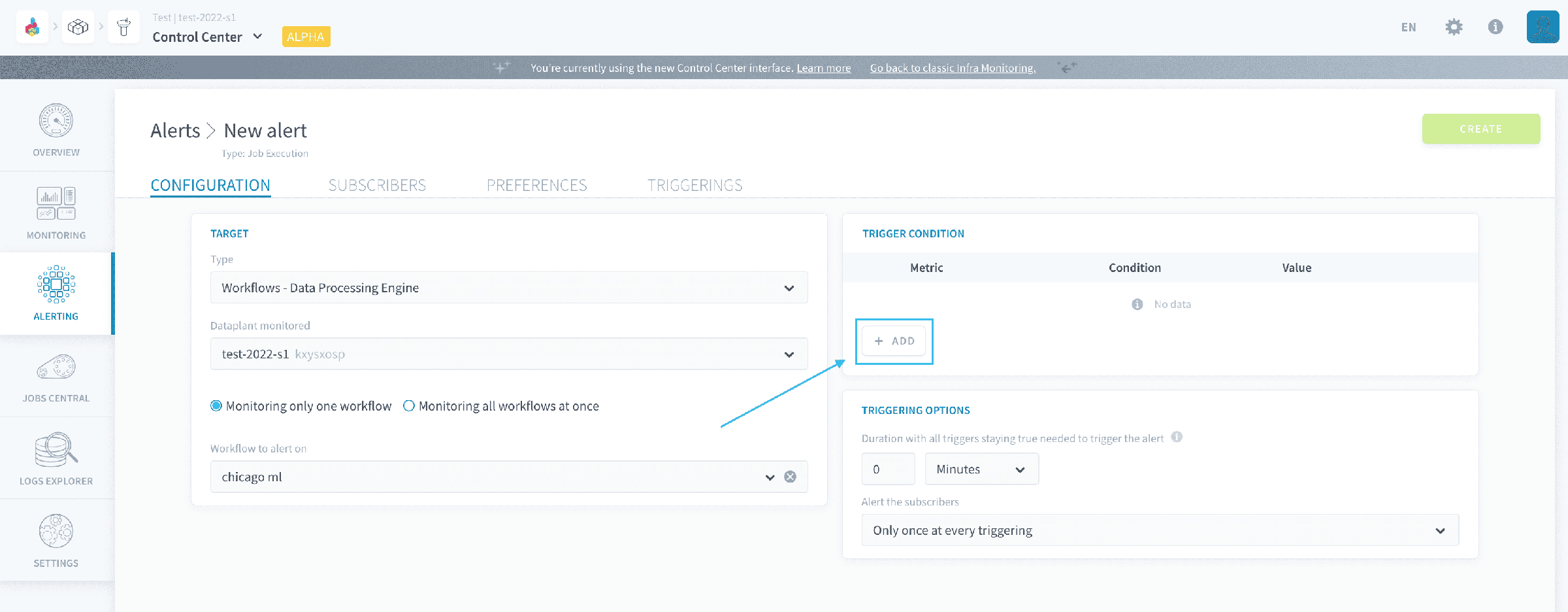
Triggers can be set on the following metrics for job execution:
- Status: note that failure and timeout are two different values: an execution that times out will not trigger an alert set on status = failure
- Maximum CPU usage (in %)
- Average CPU usage (in %)
- Maximum RAM usage (in %)
- Average RAM usage (in %)
- Runtime (in s)
- Log detection (coming soon!)
Configure the triggering options of the alert
The triggering options are used to specify how exactly is the alert triggered, based on the trigger set above, and how are notifications sent to subscribers.
Specify the waiting period for the alert
The waiting period is the duration during which the alert's triggers must stay true for the alert to be effectively triggered.
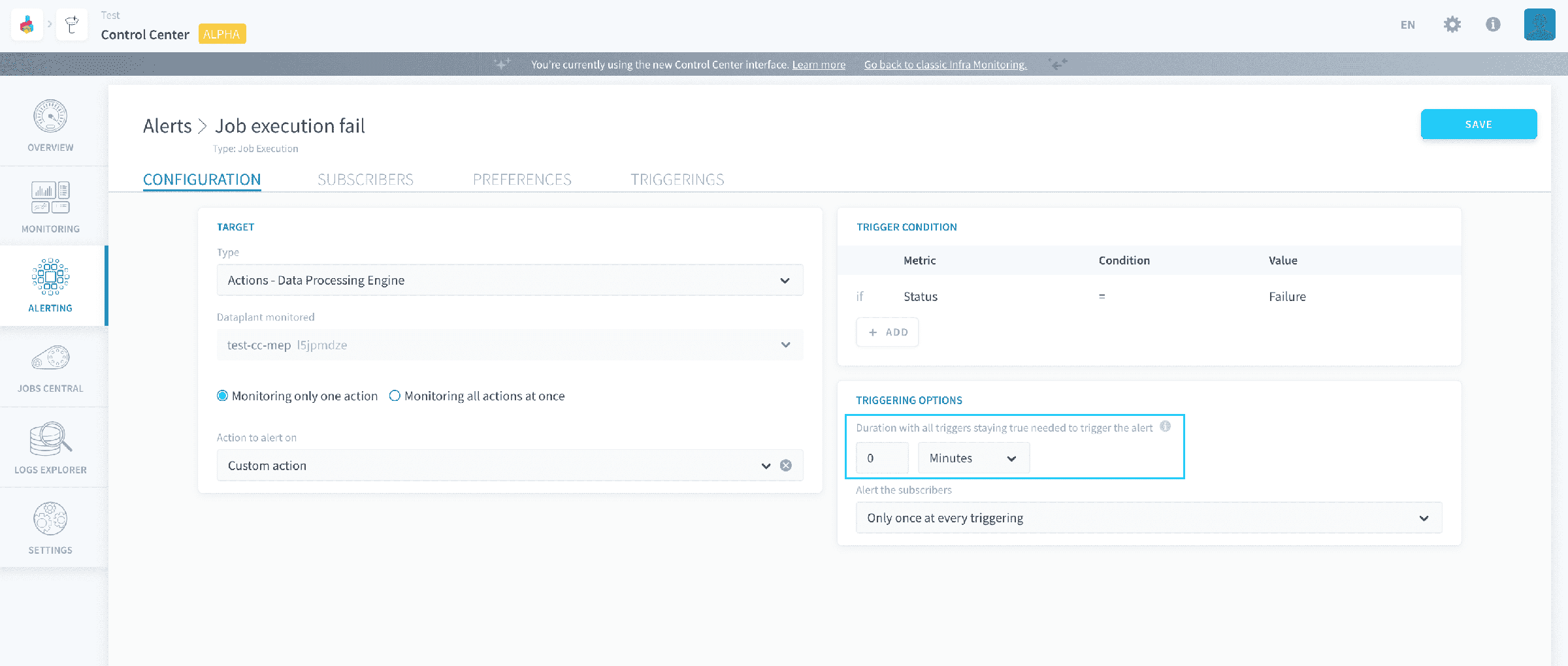
This optional parameter causes the Platform to wait for a certain duration between first meeting the trigger condition of the alert (like a failed execution) and counting the alert as active.
If this duration is 0 (default value), the alert will immediately be triggered to an active status as soon as an execution validating the trigger conditions finishes.
If it is higher than 0, the alert will stay in watching status for the whole duration after the first execution. If all executions occurring in this timeframe validate the trigger condition, the alert will be triggered to an active status
Since the Platform only evaluates trigger conditions every minute, it may take a few more seconds (up to one minute) of delay on top of the waiting duration before the system effectively acknowledges the alert has being triggered.
Let's take the example of a workflow, which is scheduled to run every 15 minutes. You set an alert on it with a waiting duration of 1 hour. On the first execution that matches the trigger condition, the alert won't be activated but a silent countdown of 60 minutes will begin. If all executions within the 1-hour timeframe validate the condition, the alert will be triggered. In other words, you essentially allow the execution to match the trigger conditions 3 times in a row, before transitioning the alert to active at the 4th execution if it still matches the conditions.
Specify the notification frequency
For each alert, it is possible to either:
- notify the subscribers only once at the moment of triggering (when the alert transitions to active state). Subscribers won't be notified again until the alert is resolved and triggered again.
- notify the subscribers regularly as long as the alert is active. You can set the frequency of notification per alert.
It is also possible to activate resolution notifications. This will send a notification to all subscribers when the alert is resolved - which happens automatically as soon as the evaluated trigger condition is no longer verified.
Go further
For training or technical assistance implementing our solutions, contact your sales representative or visit our Professional Services page to request a quote and have your project analysed by our experts.
Ask questions, give your feedback and interact directly with the team building the Data Platform on the dedicated Discord channel.
If you need support with your OVHcloud services, create a request in our Help Centre.
Join our community of users.