

Manage your organization settings
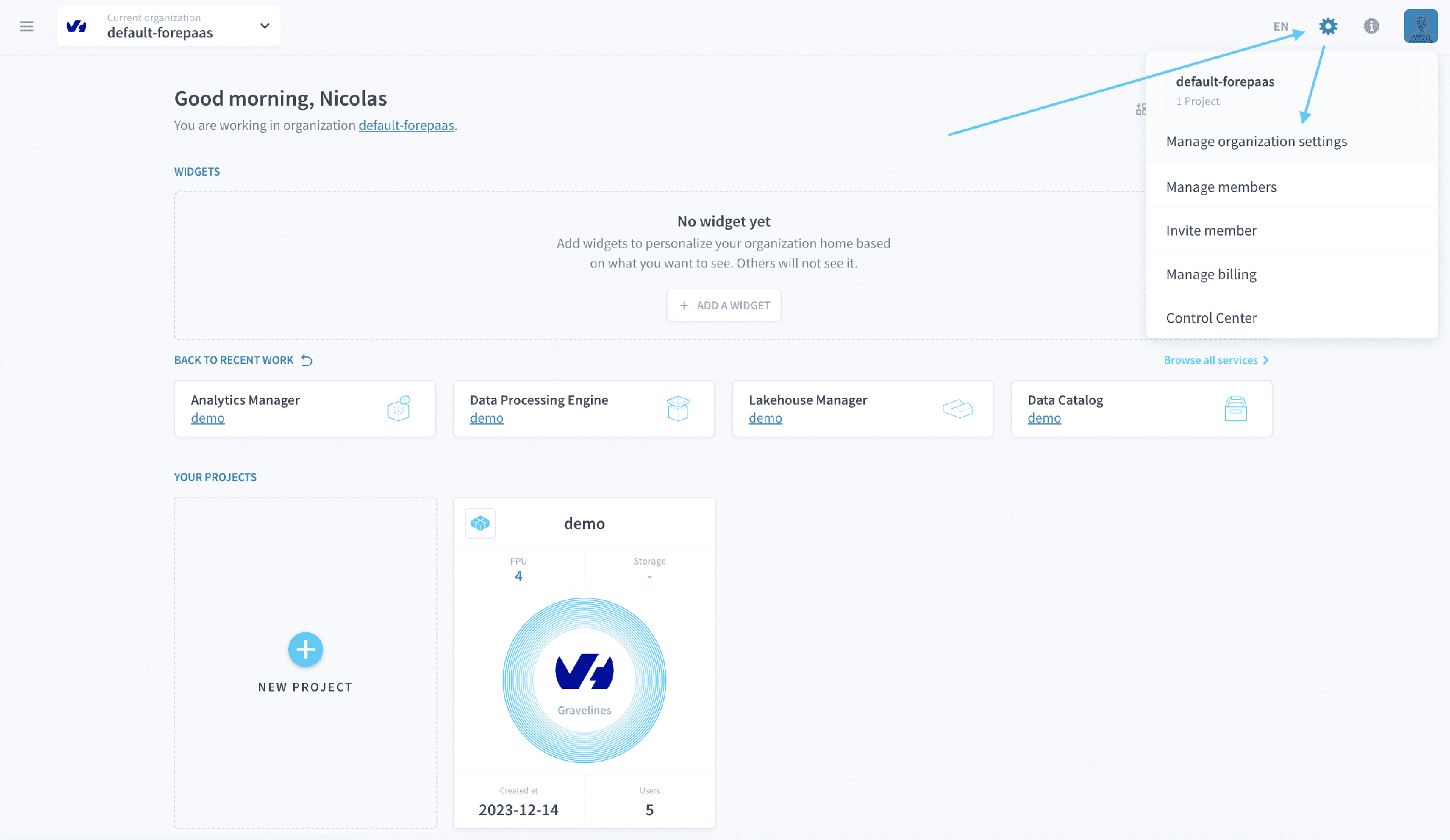
To open the settings of an organization, navigate to the top right of the screen and hover over the gear icon
Objective
To open the settings of an organization, navigate to the top right of the screen and hover over the gear ⚙️ icon. Click on Manage organization settings.
Overview
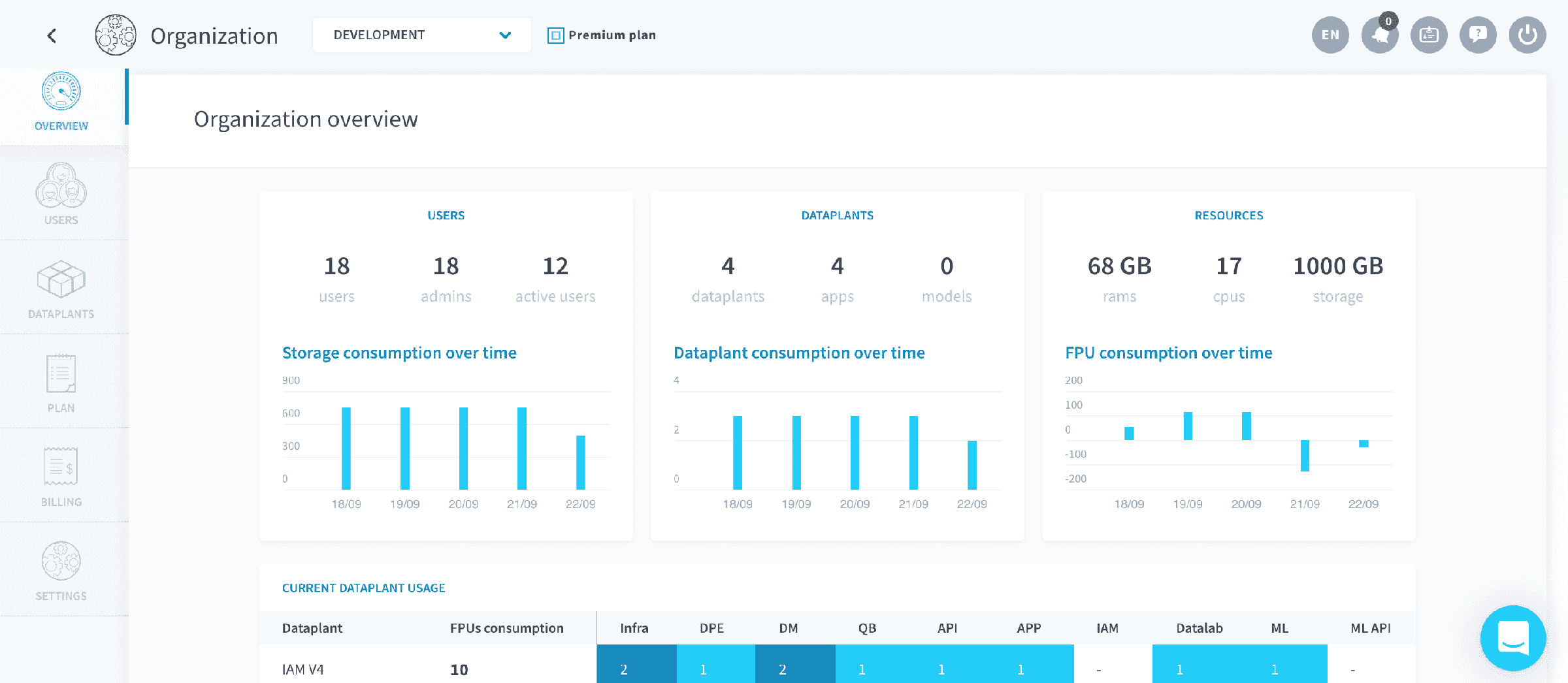
Landing on your organization dashboard, you have access in the blink of an eye to the main information of your organization on the platform:
- Number of members and admins (Now moved to the organization IAM)
- Projects activity
- Resource consumption
You can also see the main metrics usage of your Project(s).
Members (DEPRECATED)
This page has been deprecated and organization members (also known as team-members) are now managed at the Organization IAM Users tab.
Note that these are your organization's members, which are different from the Project's users you'll find in the Identity Access Manager (IAM).
Manage Project users in the IAM
Projects
The Projects tab gives you an overview and direct access to all the Projects created inside the organization you're currently in.
Quotas
Quotas are now live and available!
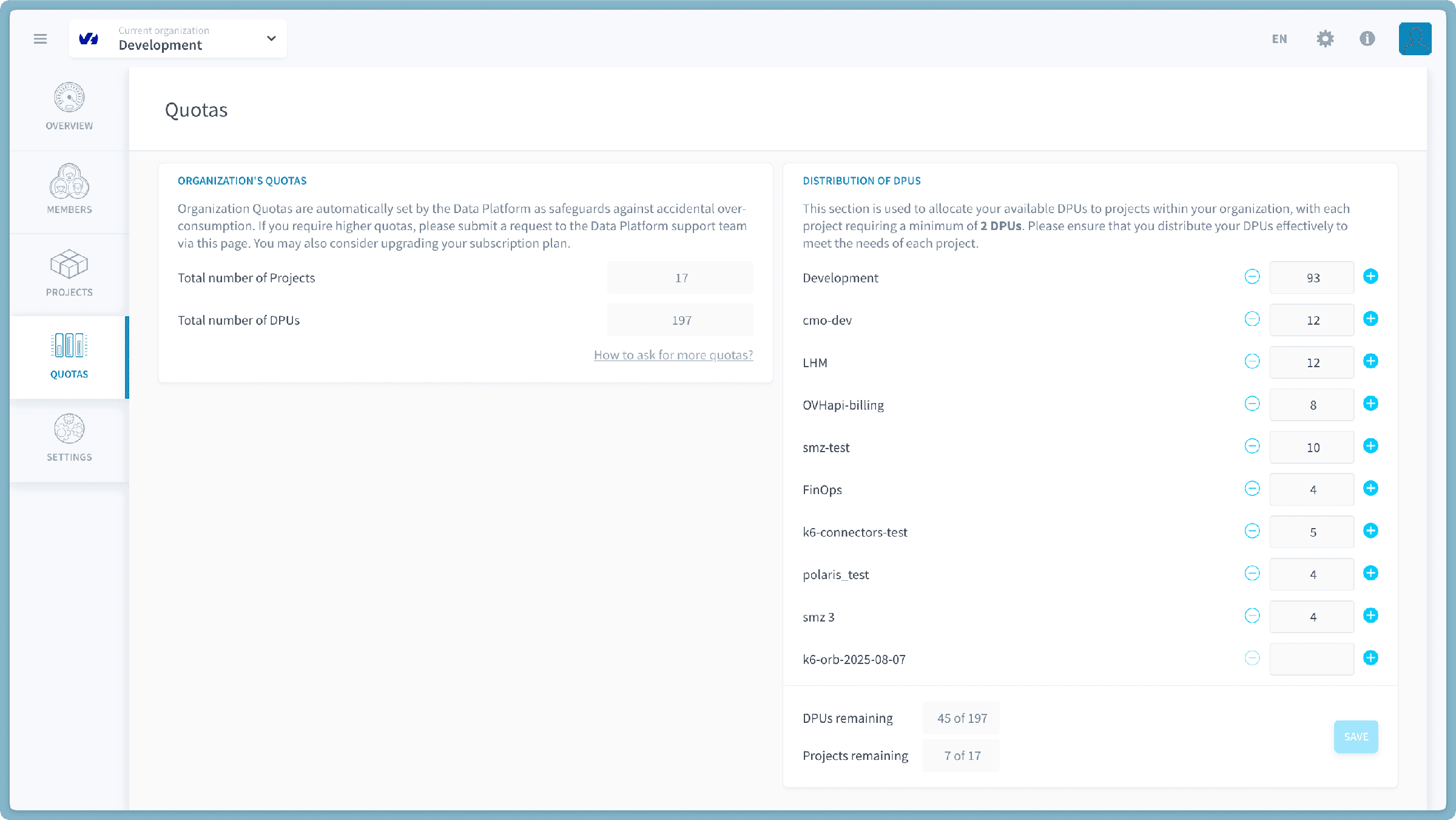
Quotas are automated restrictions applied to all organizations, serving as safeguards against unintended over-consumption. These are standard impositions by all cloud providers. They can be compared to weekly withdrawal or payment limits set by a bank.
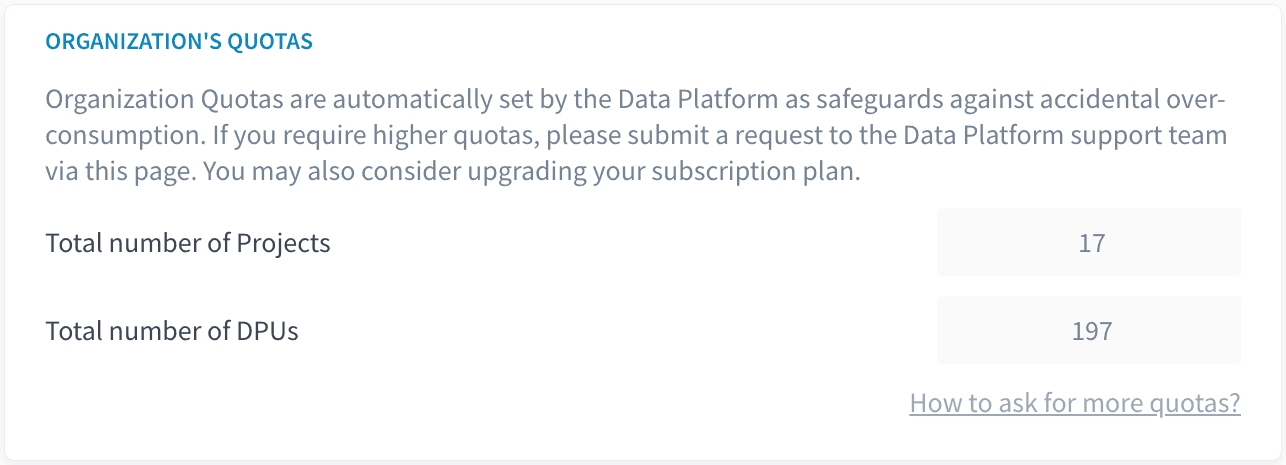
The Organization Quotas section, located on the left side of the page, displays the total number of projects and DPUs available to your organization. These quotas are automatically set by the Data Platform as safeguards against accidental over-consumption. As an administrator, you have the ability to increase or decrease the number of projects and DPUs to prevent over-consumption. By default, each organization starts with 5 projects and 20 DPUs, with each project typically requiring 2 DPUs. If you require higher quotas, please submit a request to the Data Platform support team via this page. You may also consider upgrading your subscription plan.
On the right side of the screen, the Distribution of DPUs section allows you to distribute the total number of DPUs you have across each project within your organization. At the bottom of this section, you will see the total number of DPUs remaining to be allocated.
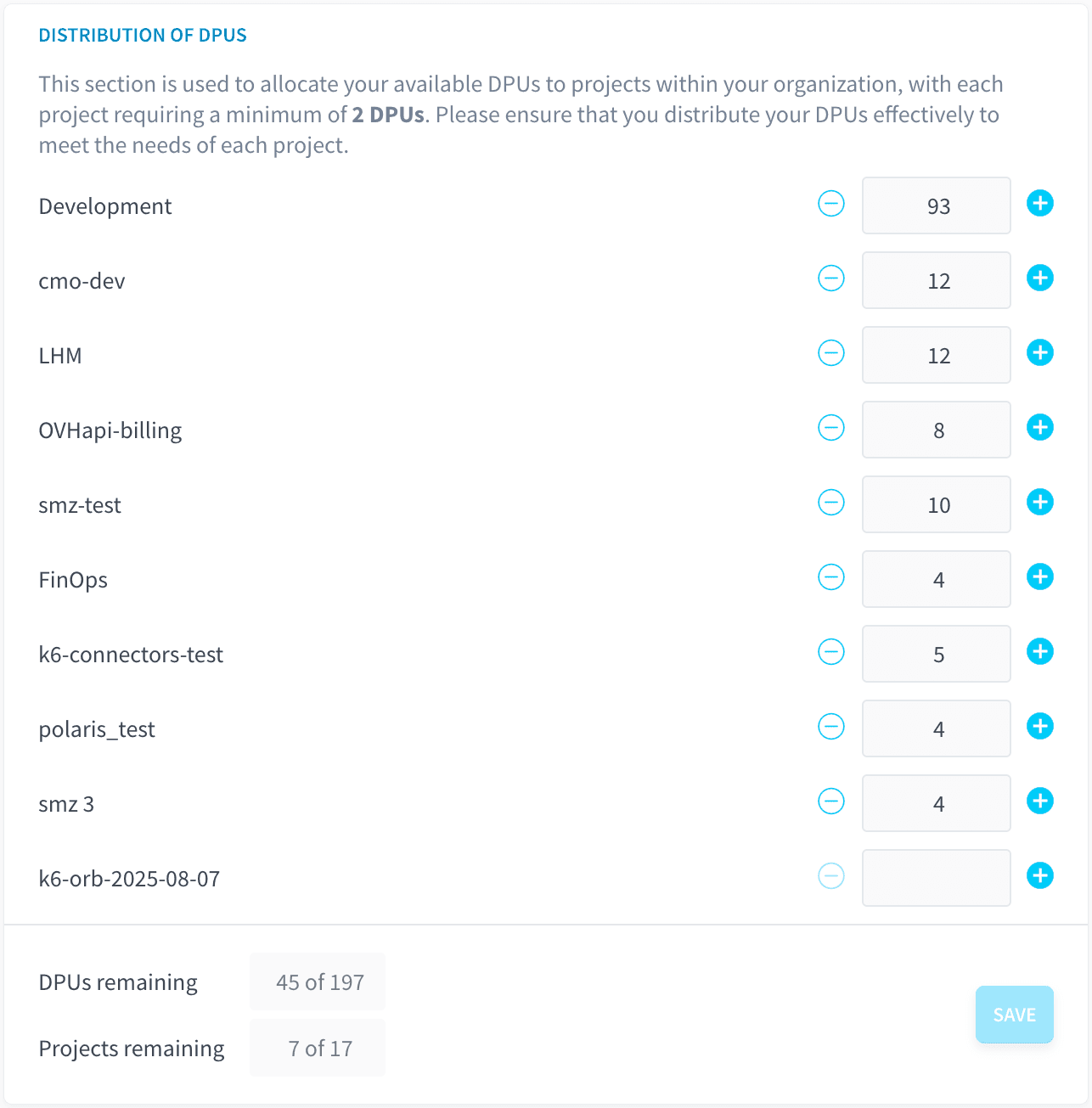
Furthermore, if any projects have pre-allocated resources for critical actions or workflows, this will be explicitly displayed underneath the respective project's DPU allocation, for example:
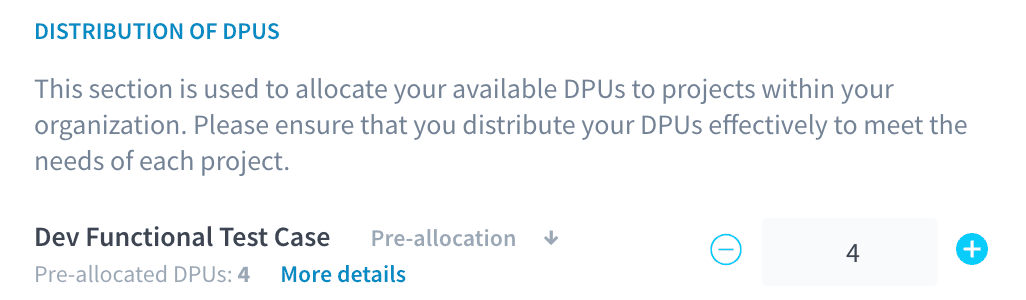
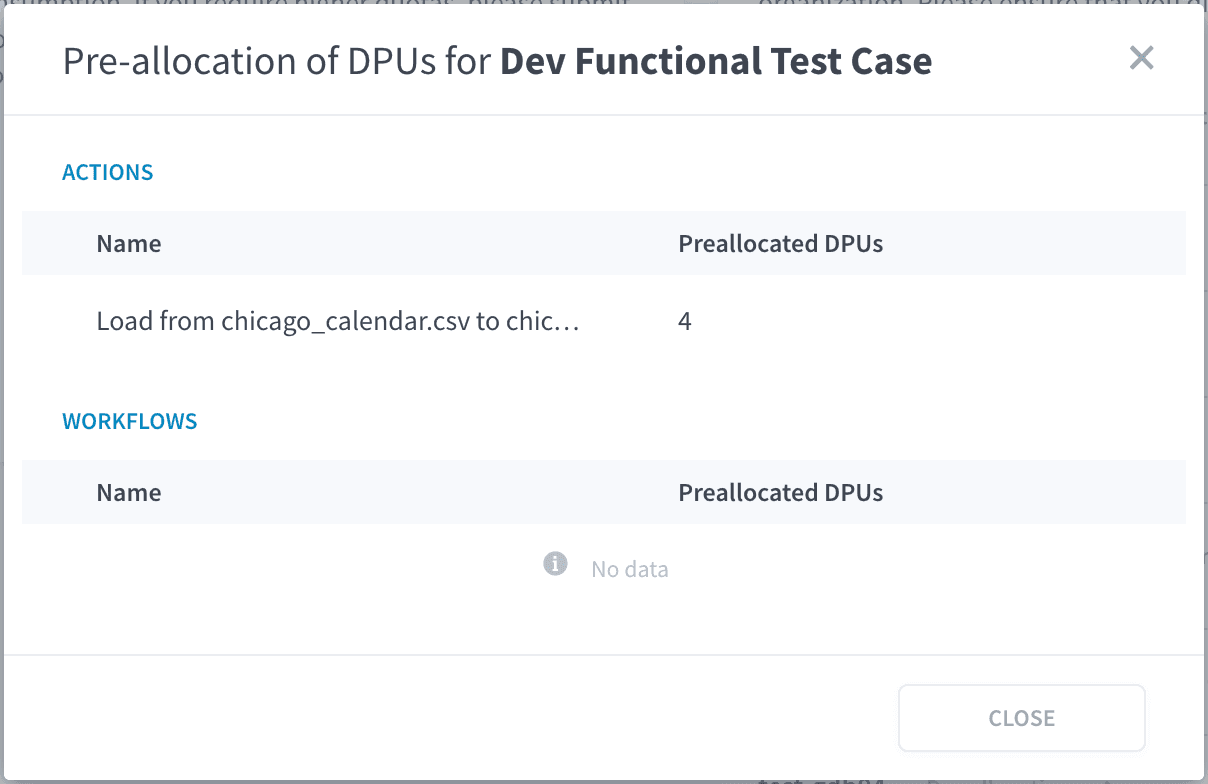
DPU Pre-allocation for Actions and Workflows
Within the Data Processing Engine (DPE), certain actions and workflows can be critical and require consistent DPU allocation to ensure uninterrupted operation. To address this, we introduce the pre-allocation feature for actions and workflows.
When pre-allocation is enabled for a serverless action or workflow, a chosen number of DPUs will be permanently allocated to it. This guarantees that during runtime, the action or workflow will always have the necessary resources, preventing failures or performance issues due to resource scarcity.
This differs from the always-up mode. While always-up also ensures continuous resource availability, the key distinction is that in this mode, resources are continuously consumed, even when the action or workflow is not actively running. In contrast, pre-allocation for serverless actions/workflows only reserves the DPUs for when the action is actually executed, making it a more efficient approach for ensuring critical operations without constant consumption.
If there are any projects with pre-allocated resources, that too will be seen under the distribution of DPUs sections
Settings
The Settings tab is the place where you'll manage:
Basic information about your organization: name, description, multi-factor authentication requirements, and plan cancellation. This is also where you can manage the option to let users with the same email domain as people in your organization to request to join it.
When Force multi-factor authentication is enabled, organization's members will need to go through a second authentication method whenever they try to sign in to the platform using their account login/password.
Infrastructure options: domain name and certificates. You can customize domain names for your applications deployed on the platform, and create SSH certificates to access your secure domain names. Adding your certificate, you'll need a server certificate (.crt file) or key (.key).
Go further
For training or technical assistance implementing our solutions, contact your sales representative or visit our Professional Services page to request a quote and have your project analysed by our experts.
Ask questions, give your feedback and interact directly with the team building the Data Platform on the dedicated Discord channel.
If you need support with your OVHcloud services, create a request in our Help Centre.
Join our community of users.