

Integrating OVHcloud Data Platform with External Tools using Trino
This guide provides a comprehensive walkthrough for creating a Trino integration to be used in a third-party tool
Objective
Looking for the quick way? You can now generate a ready-to-use Trino connection string in a few clicks with a Trino consumer. This guide covers the manual method: useful when you want to set up the service account, role, and connection string yourself, or need fine-grained control over the catalog and permissions.
This guide provides a comprehensive walkthrough for creating a Trino integration to be used in a third-party tool. You will generate the necessary credentials and construct a connection string to access your data via Trino.
Steps to Establish a Trino Connection
Step 1: Create a New Service Account
- Log in to the Data Platform.
- Navigate to IAM (Identity and Access Manager).
- Go to the Roles section and click New Role.
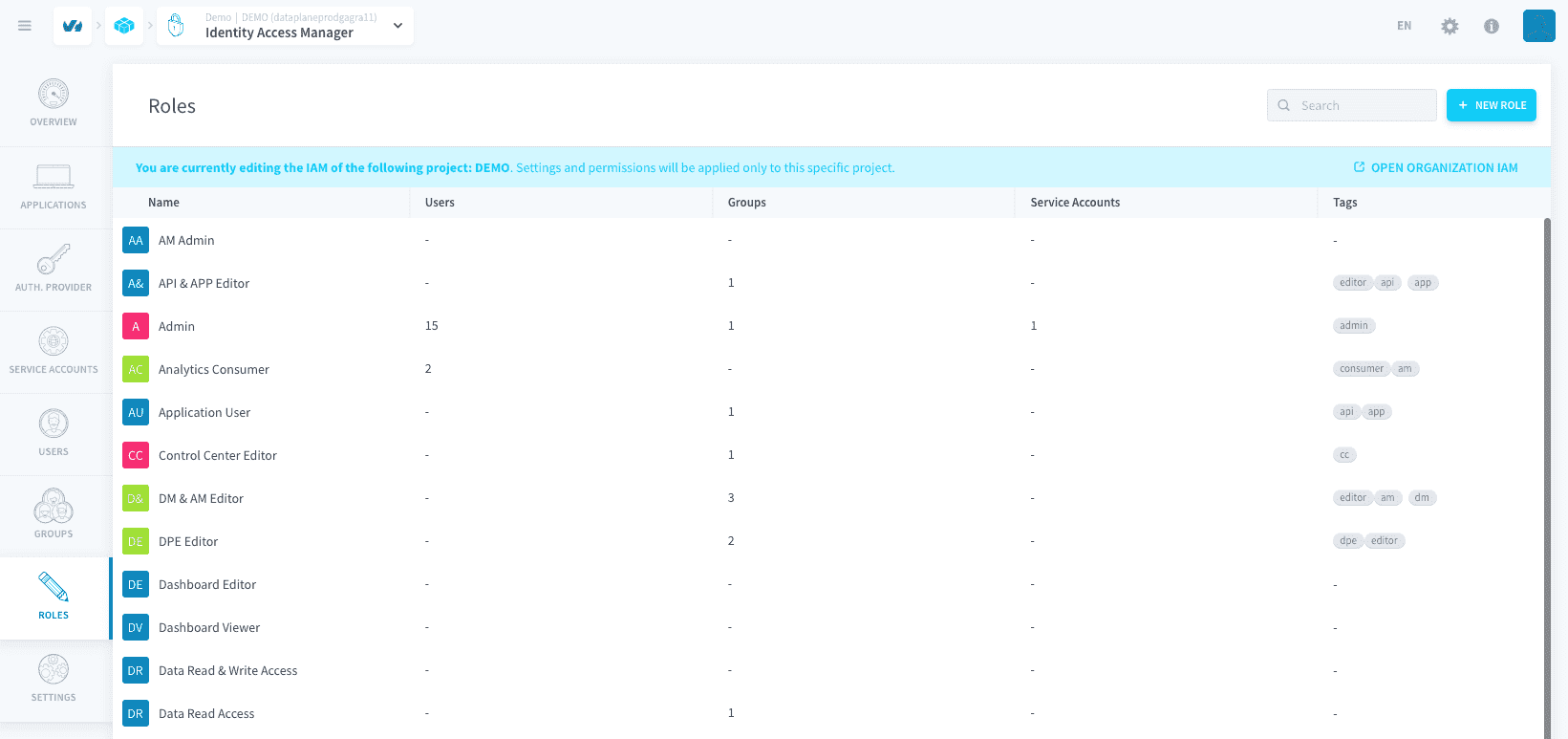
- Provide a name for the role (e.g.,
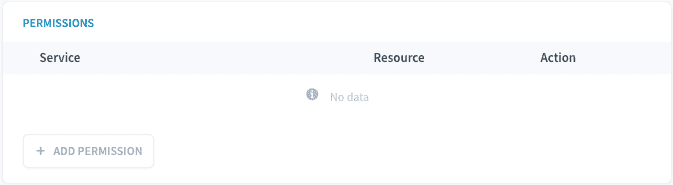
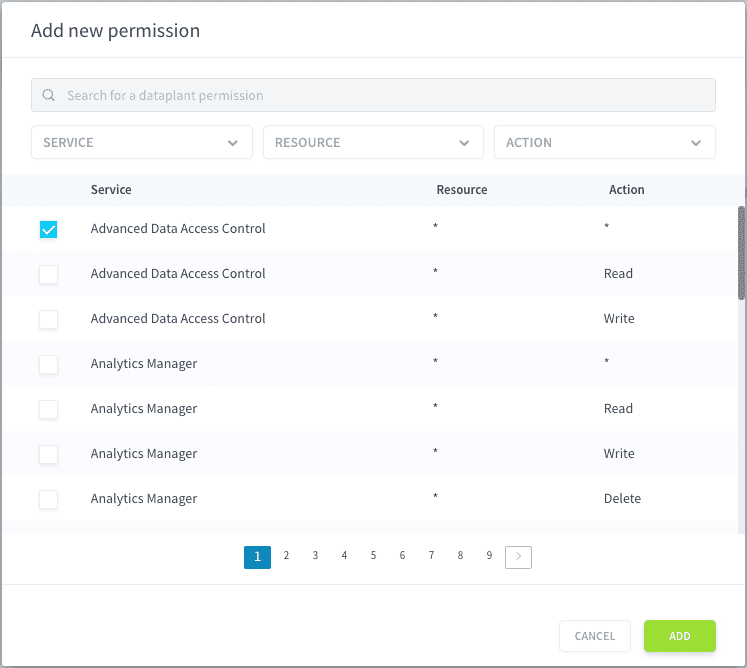
TrinoServiceAccountRole). - Assign the Advanced Data Access Control permissions to this role. This role will be assigned to your service account to grant the necessary Trino access.
- Go to Service Accounts.
- Create a new Service Account and give it a name (e.g.,
Apache Superset Service AccountorMetabase Service Account) and an email address.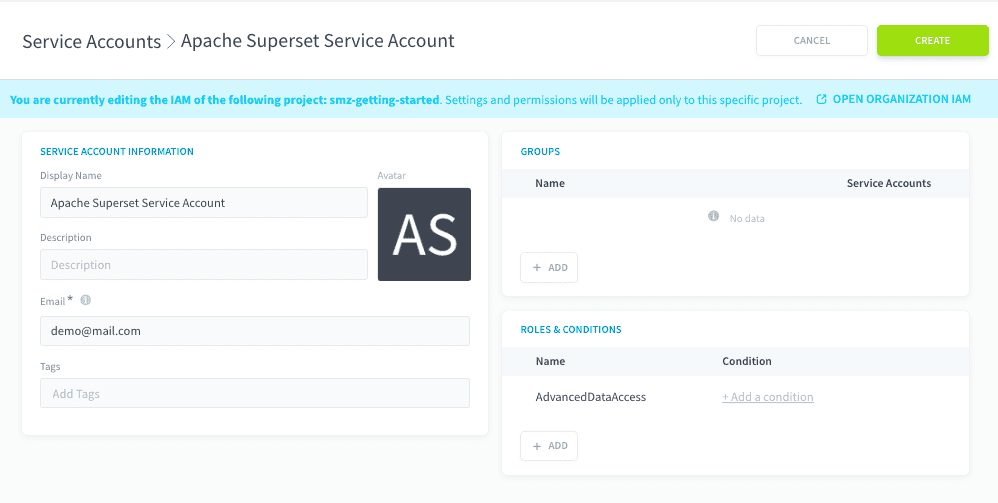
- Assign the newly created role (
TrinoServiceAccountRole) to this account. - Click Create.
For better security and access management, create a dedicated service account when allowing external tools to access your data.
Step 2: Generate an API Key and Secret Key
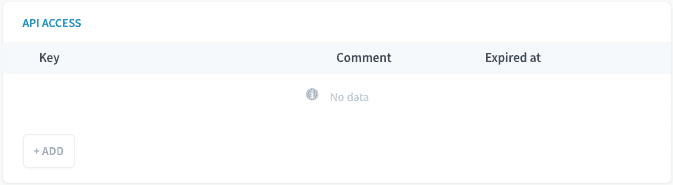
- Once you have created the Service Account, you will see the section for API Access. Click on + ADD.
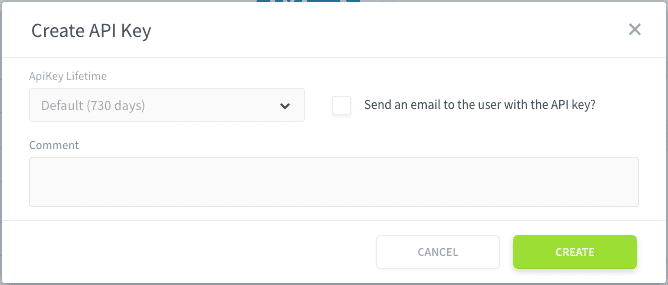
- Here you can modify the duration of the keys and also if you want to send a copy to your registered email.
- Critical: Once the modal is closed, the keys cannot be retrieved again. Be sure to save them immediately in a secure location, such as a password manager. These API Key and Secret Key will serve as your
UsernameandPasswordfor the Trino connection.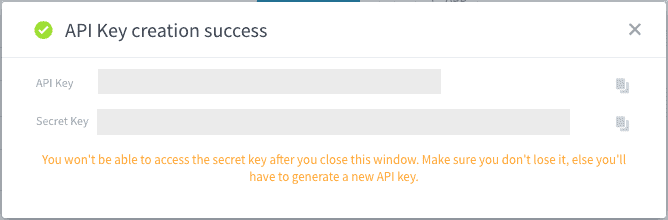
Step 3: Prepare the connection string
The connection string you will be able to use in your third-party tools will be as follows:
- Project: Replace
{Project}with your specific project name. You can find this name by navigating to any of your existing projects, then clicking the Information icon represented by ℹ️ in the top right corner of the interface. Your project name will be displayed there. - Port: Replace
{Port}with the default Data Platform port (443) or a custom port provided by your setup. - Catalog: Replace
{Catalog}with the catalog you want to query. You can find the catalog you want by executing this SQL command in the explorer of the Lakehouse Manager:SHOW CATALOGS.- Example
SHOW CATALOGSoutput:In this example,db_m8obb5ch_default_datasetis a valid catalog name.
- Example
- Username: Use the API Key generated earlier from IAM in Step 2.
- Password: Use the Secret Key generated earlier from IAM in Step 2.
Example:
Step 4: Use the connection string in your third-party tool
Once you have prepared your connection string, you can use it to connect your preferred third-party tool (e.g., Apache Superset) to Trino on OVHcloud Data Platform.
Returning to a Specific Tool Guide?
- If you came from the Apache Superset integration guide, click here to continue.
- If you came from the Metabase integration guide, click here to continue.
Go further
For training or technical assistance implementing our solutions, contact your sales representative or visit our Professional Services page to request a quote and have your project analysed by our experts.
Ask questions, give your feedback and interact directly with the team building the Data Platform on the dedicated Discord channel.
If you need support with your OVHcloud services, create a request in our Help Centre.
Join our community of users.