

Send OpenLineage Events
It reads lineage events recorded by the platform and pushes them to your lineage backend using the OpenLineage standard
Objective
The Send OpenLineage Events action forwards data lineage events from your Data Platform project to an external lineage solution connected via the OpenLineage consumer. It reads lineage events recorded by the platform and pushes them to your lineage backend using the OpenLineage standard.
Before using this action, you must configure an OpenLineage consumer in the Connectors to define where events should be sent.
Requirements
- You have an external lineage solution with an OpenLineage-compatible HTTP API (e.g. Marquez).
- You have configured an OpenLineage consumer with the endpoint URL and auth token of your lineage backend.
Create a Send OpenLineage Events action
- Navigate to the Actions tab in the Data Processing Engine.
- Click New action.
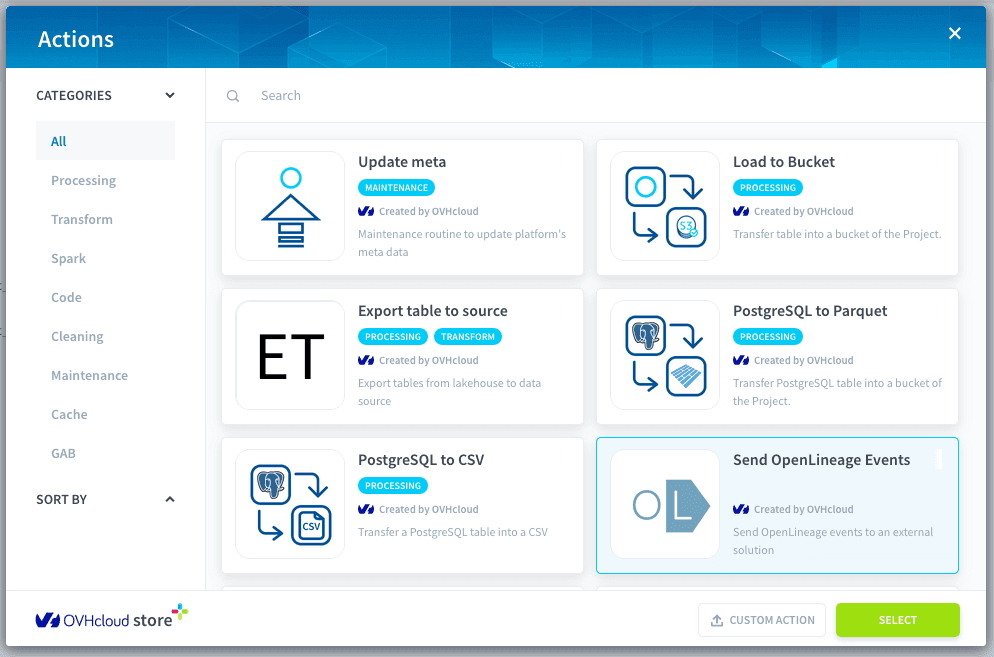
- Select Send OpenLineage Events from the action store.
This action requires no additional configuration. It automatically reads the endpoint and authentication token from your OpenLineage Consumer settings and uses them to forward events.
How it works
Once triggered, the action processes all events stored in the queued/ folder of the DWH Bucket and sends them to the configured OpenLineage endpoint.
File handling
-
Successful sends:
- If
keep eventsis set totruein the OpenLineage Consumer, successfully sent files are moved to thesuccess/folder in the DWH Bucket. - Additionally, a summary log file is created under
openlineage/events/success/log/.
- If
-
Errors:
In case of failure, the events are moved to theerror/folder, and a detailed log file is generated undererror/logs/containing more information about the error.
Execution modes
You can run the Send OpenLineage Events action in two ways depending on how frequently you want your lineage solution to be updated.
Cron job
Schedule the action to run at a fixed interval using a cron expression. This is the recommended mode for most use cases where near-real-time lineage is not required.
To configure a cron schedule, open the action's Settings tab and set the trigger to Cron. Enter your desired cron expression (e.g. 0 * * * * for every hour).
See Time-Based Trigger configuration for more details on scheduling jobs.
Always-up
Set the action to run continuously as a long-running process. In this mode the action stays active and forwards lineage events as soon as they are produced, keeping your lineage solution in near real time sync with Data Platform.
To enable always-up mode, open the action's Settings tab and set the trigger to Always up.
Always-up actions consume compute resources continuously. Use this mode only when near real-time lineage is a requirement.
Go further
For training or technical assistance implementing our solutions, contact your sales representative or visit our Professional Services page to request a quote and have your project analysed by our experts.
Ask questions, give your feedback and interact directly with the team building the Data Platform on the dedicated Discord channel.
If you need support with your OVHcloud services, create a request in our Help Centre.
Join our community of users.