

Generate a Trino connection string for external tools
A Trino consumer generates a ready-to-use Trino connection string in a few clicks
Objective
A Trino consumer generates a ready-to-use Trino connection string in a few clicks. Previously, connecting an external tool to your project over Trino meant creating a service account, generating API keys, and assembling the connection string by hand. A Trino consumer does all of that for you.
You'll find them in the Connectors service, under the Consumers tab, in the Trino consumers section of Registered consumers.
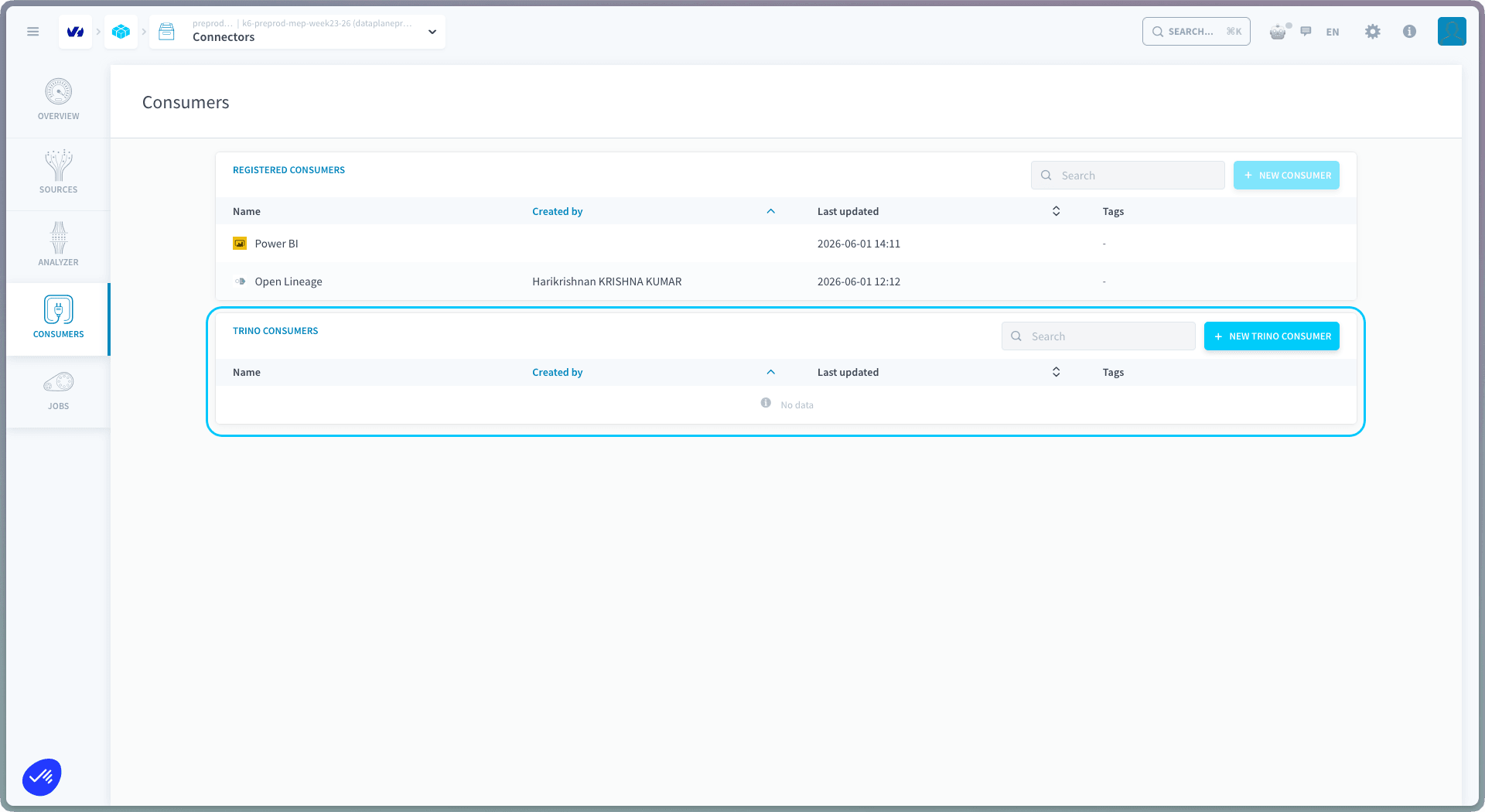
Unlike the PowerBI and OpenLineage consumers (which you connect once), you can create as many Trino consumers as you need. Each with its own name, permission level, and credentials.
Create a Trino consumer
-
In the Trino consumers section, click + New Trino consumer.

-
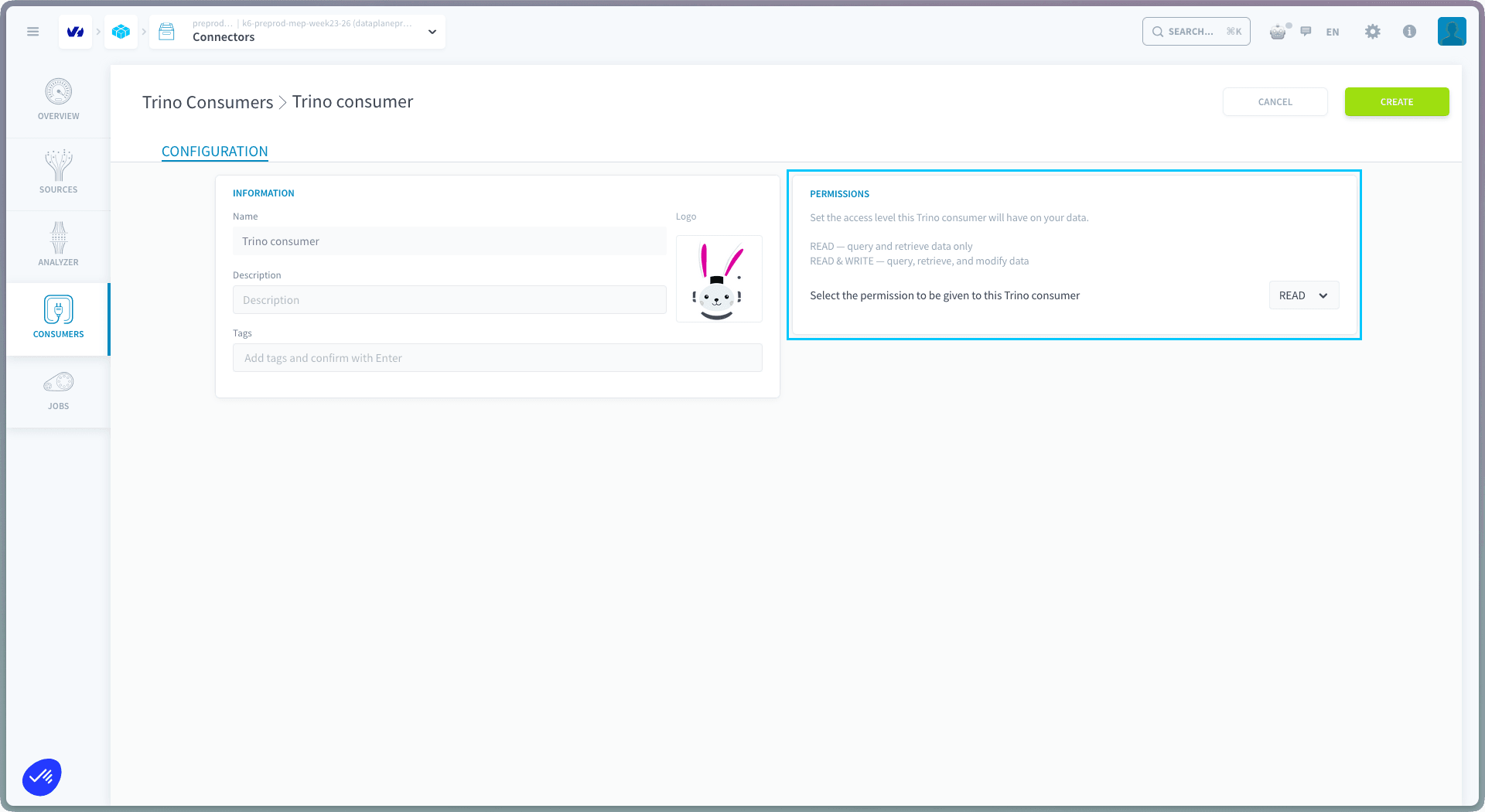
Give it a name, an optional description, and optional tags.
-
Set the permission: the access level this Trino consumer has on your data:
-
Click Create.
-
Your Trino connection string appears.
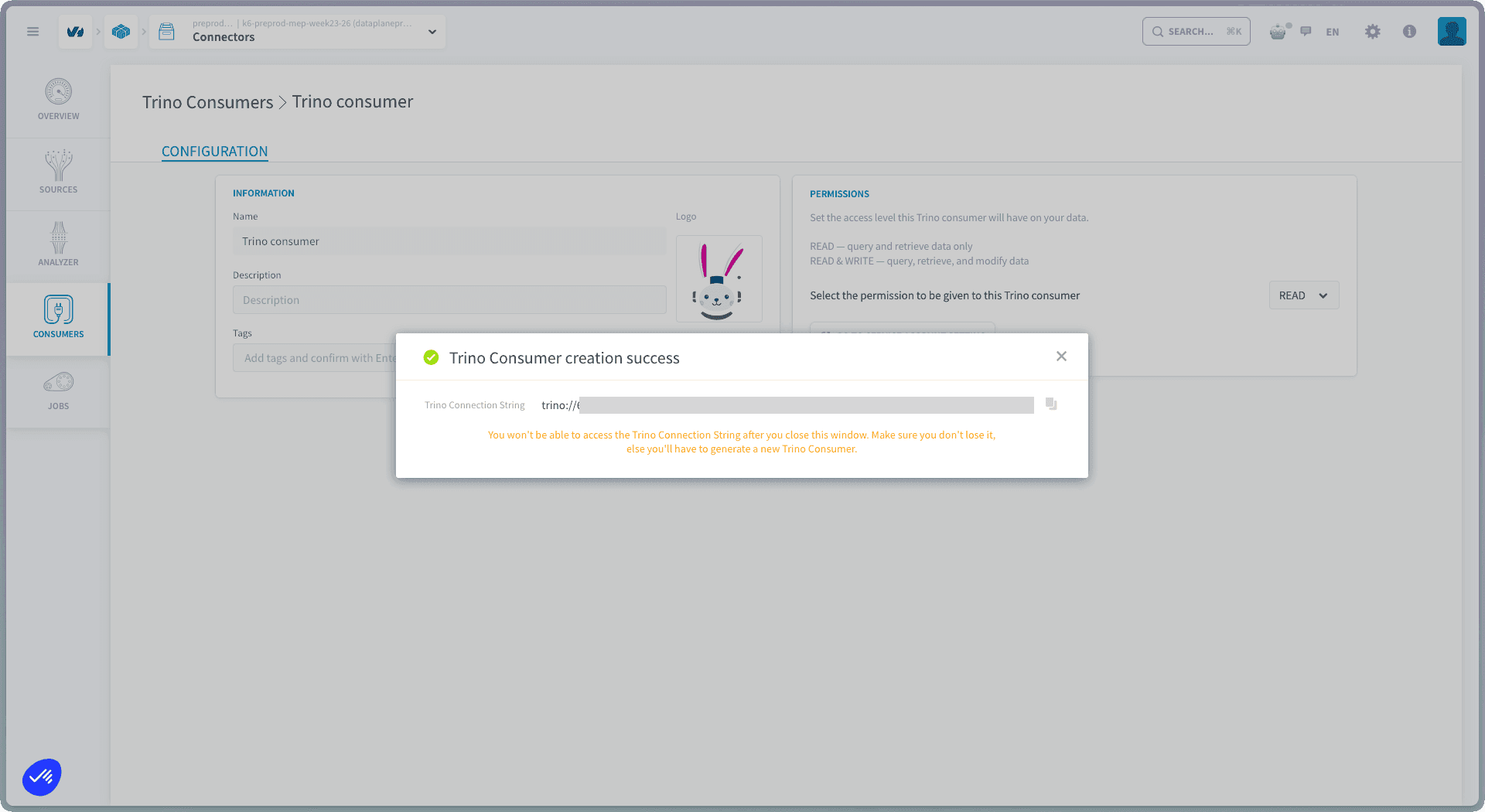
Copy the connection string now and store it somewhere safe (for example, a password manager). You can't view it again after you close this window, if you lose it, you'll have to create a new Trino consumer.
Manage the linked service account
Each Trino consumer has a dedicated service account in your project's Identity Access Manager. After you create the consumer, click Go to service account settings to view and manage it.
The project admin also receives an email containing the Trino connector credentials.
Use the connection string
The connection string is ready to paste into any external Trino-compatible client or BI tool. It embeds the credentials and follows this shape:
Plug it into your tool of choice, for example:
Connect Metabase to Data Platform via Trino
Any user connecting through a Trino consumer accesses data according to the consumer's permission and the project's IAM roles and groups. Treat the connection string like a password.
Query a different catalog
By default, the connection string targets your project's default dataset catalog (the trailing /<catalog> segment, e.g. db_<project>_default_dataset).
To query a different catalog in the project, replace that trailing /<catalog> segment of the connection string. To list the available catalog names, run the following in the Lakehouse Manager Explorer:
For the full breakdown of the connection string and how to build one by hand, see Integrating Trino with External Tools.
Writing data through Trino sometimes requires an explicit CAST. See Trino data types and casts for the mapping between Lakehouse types and Trino types, and for troubleshooting TYPE_MISMATCH errors.
Go further
For training or technical assistance implementing our solutions, contact your sales representative or visit our Professional Services page to request a quote and have your project analysed by our experts.
Ask questions, give your feedback and interact directly with the team building the Data Platform on the dedicated Discord channel.
If you need support with your OVHcloud services, create a request in our Help Centre.
Join our community of users.