

Set up custom mapping for authentication provider
Assign Data Platform groups and roles automatically to users signing in through an authentication provider
Objective
Custom mappings allow you to automatically assign existing Data Platform groups or roles (or auto-create them if they don't exist) to users signing in through that authentication provider.
In the Log History section, JSONPath formatting can be used to select from the response object returned after a successful authentication, and configure the custom mappings below.
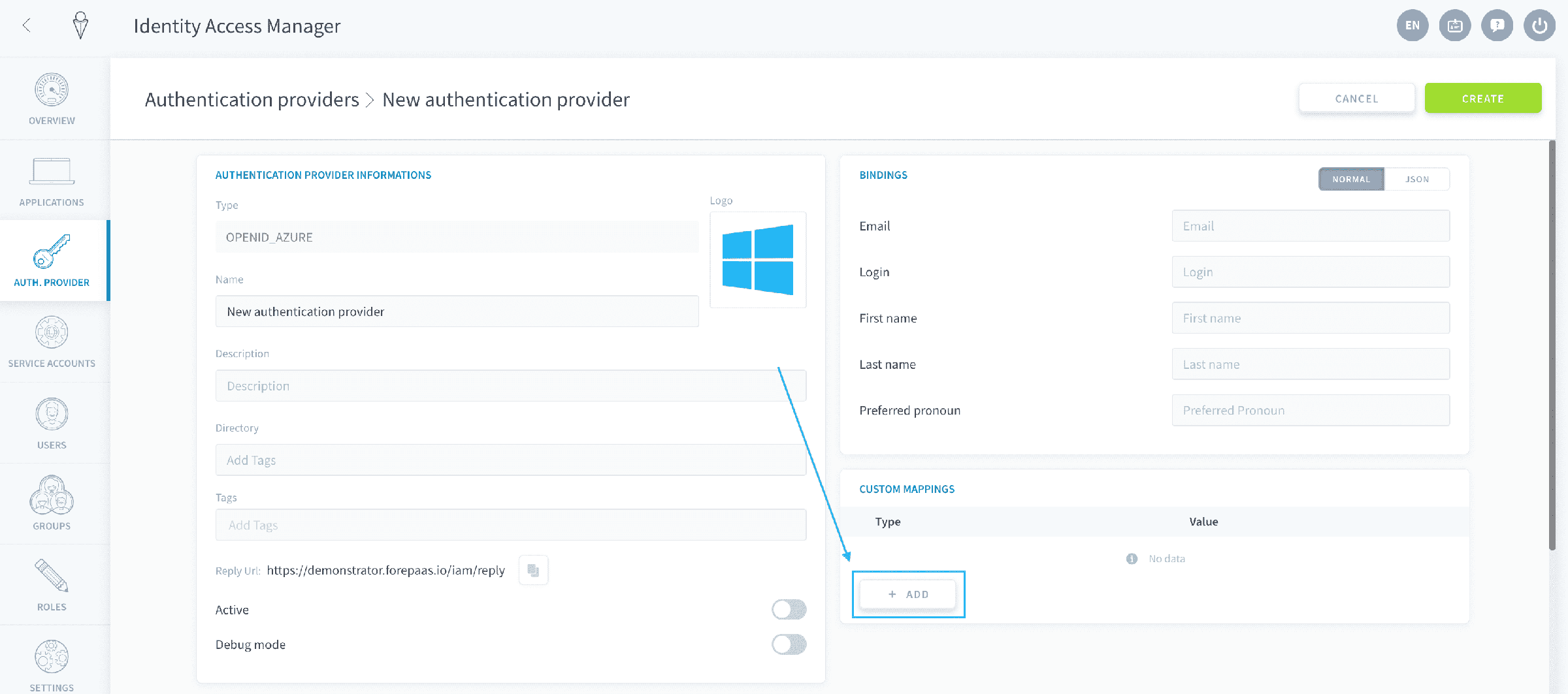
Click on Add in the Custom Mapping panel to set up a new mapping.
Normal mode
With the normal mode, you can assign existing groups or roles to users signing in from the authentication provider.
To do this, choose between Role and Group, and select the role/group from the selection.
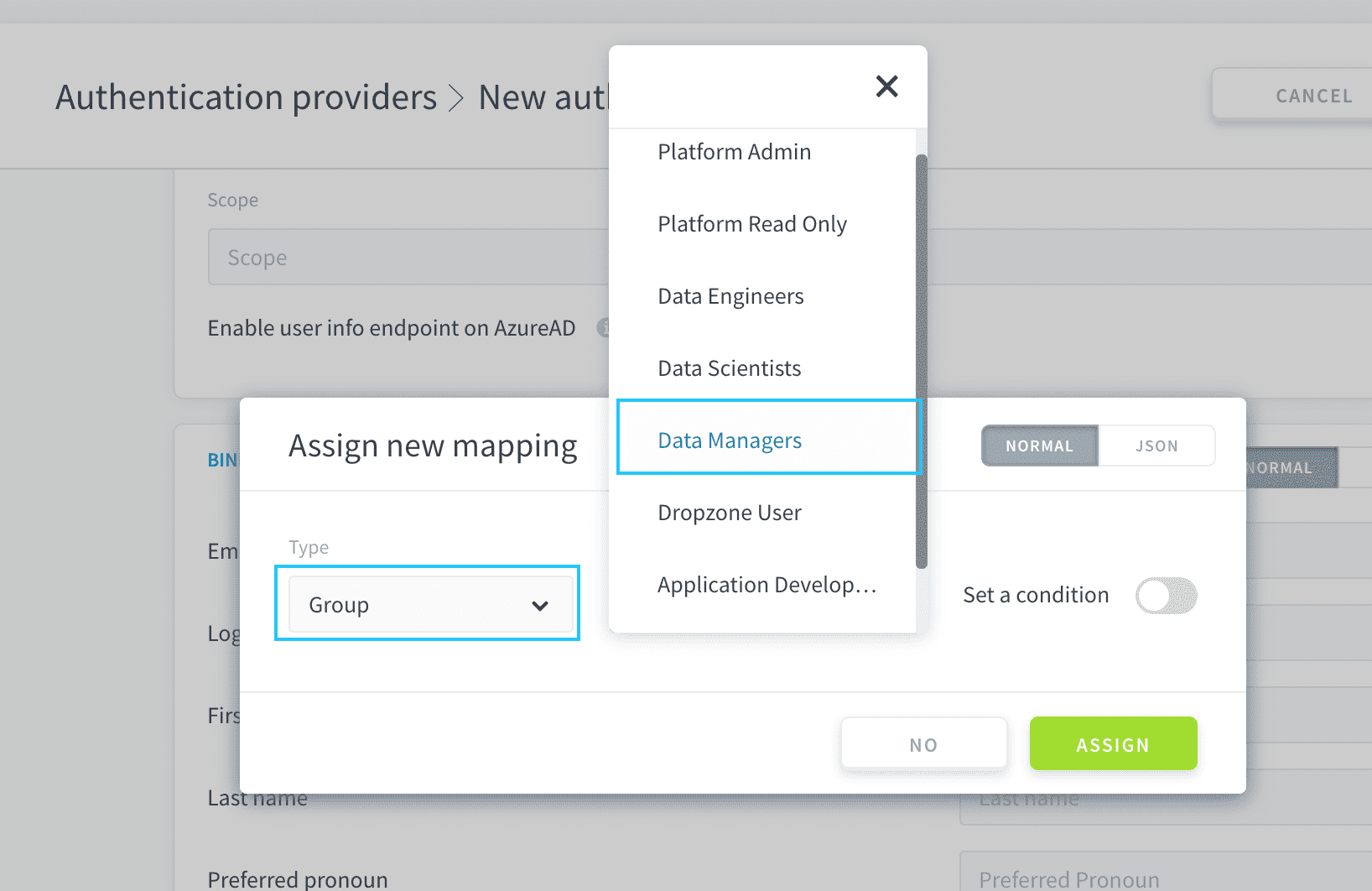
By default, it will assign the role/group to all new users imported from the authentication provider, but you can set a condition on the binding.
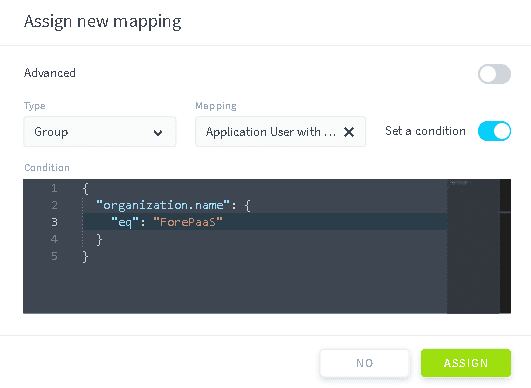
Conditions are based on fields coming from the authentication providers response.
An example of condition is:
This condition will look the field user.jobTitle in the authentication response for any new user signing in from the authentication provider, and check if the value is equal to Admin. If true, it will bind the role/group to that user, otherwise it won't.
Conditional operators are:
eq: Equal to the valuene: Not equal to the valuein: In the set of valuenin: Not in the set of valuelt,lte,gt,gte: Lower than, Lower or equal to, Greater than, Greater or equal toregexp: Will try to match the auth response field with the value (regex)
JSON mode
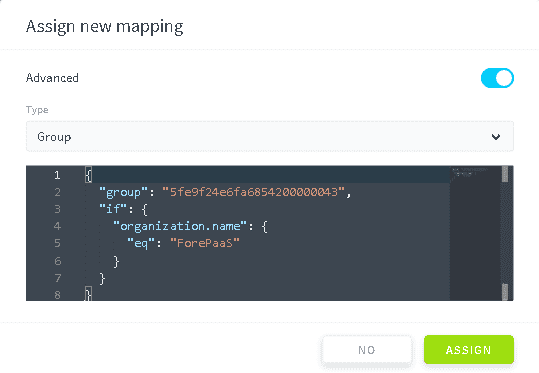
With the JSON mode, you can dynamically assign or create groups or roles for users signing in from the authentication provider. Switch to the JSON mode in the header of the window to activate it.
Assign existing roles/groups
The binding of existing groups/roles with conditions is carried out using the if keyword.
Dynamically find or create roles/groups
You can dynamically define bound resources using the option bind. It takes in 5 possible parameters:
upsert: false/true- if true: It will autogenerate groups/roles if they don't already existing in the Identity Access Manager
- if false: It will only bind to existing groups/roles
input: It's a JSON path accessor to get the list of "resources to bind"split: In some cases, you could have such a field in the answer: "group1,group2,group3". By inputting "," it will automatically split the list using the commas as separatormatch: see belowreplace: see below
Use the match parameter
You can take only some groups matching a specific regex pattern.
For example, if the authentication provider has the following groups: PRIVATE_ADMIN, IAM_APP_GROUP1, IAM_APP_GROUP2, then the following configuration will only create the 2 groups starting by "IAM_APP".
With that configuration I will only get the 2 group starting by IAM_APP
Use the replace parameter
The replace parameter can only be used if there is a "match" pattern set. It allows you to rename the groups created, using regex capturing groups:
In the previous example, it will create groups called "GROUP1" and "GROUP2" in the Identity Access Manager instead of the full name.
Three examples
For instance, you can bind organizations' name to IAM groups:
This configuration will automatically create new groups from user's memberships:
This example configuration:
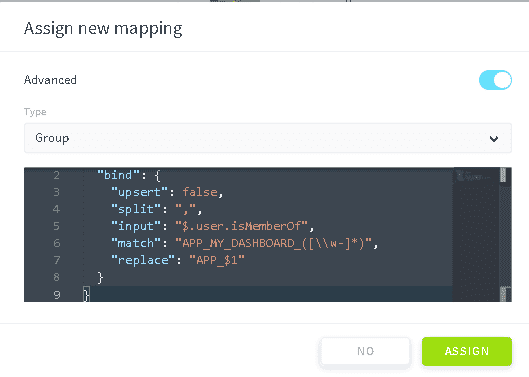
- looks for
$.user.isMemberOffield - splits values using comma (
,) - for each value:
- checks if it matches a regular expression starting with
APP_MY_DASHBOARD_and capturing the end - replaces by
APP_and the captured value - as
upsertis false, checks whether that group does exist in IAM and bind users to that group
- checks if it matches a regular expression starting with
Go further
For training or technical assistance implementing our solutions, contact your sales representative or visit our Professional Services page to request a quote and have your project analysed by our experts.
Ask questions, give your feedback and interact directly with the team building the Data Platform on the dedicated Discord channel.
If you need support with your OVHcloud services, create a request in our Help Centre.
Join our community of users.