

Configure job execution preferences
Each action or workflow in the Data Processing Engine has several configuration settings which can be managed via the Preferences tab
Objective
Each action or workflow in the Data Processing Engine has several configuration settings which can be managed via the Preferences tab.
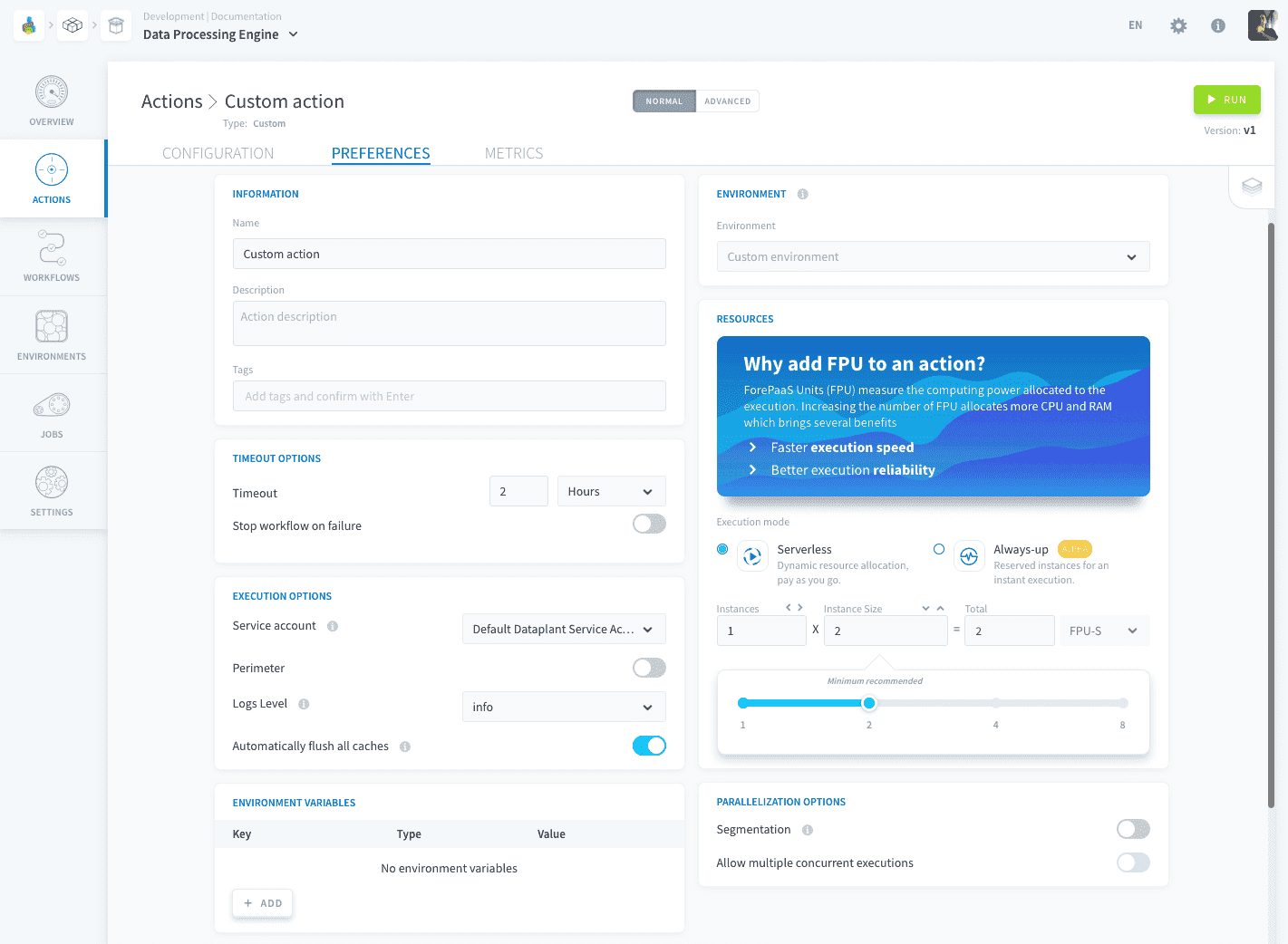
When an action is executed, it will use those preferences to run.
When a workflow is executed, its preferences will override the preferences of all the actions it contains. If a certain preference option is deactivated at workflow level (such as segmentation or perimeter) it will fall back to each action's preferences during the workflow's execution.
Those preferences can be templated to be re-used in one click every time by saving them in an environment.
Environments
Environments on the Platform are a set of pre-defined preferences that you can quickly assign to your actions or workflows, so you don't need to configure it every time.
Timeout options
Timeout options are not templated in an environment, and are to be configured in the preferences in each action/workflow
Timeout
Timeout is an execution runtime duration after which your job is stopped and reported with the TIMEOUT status. Timeout duration includes the resource provisioning time, the build time, and the actual code execution duration.
The maximum timeout duration that you can set is 24 hours, except for the following types of jobs where you can set it at null, meaning infinite (no timeout will be enforced):
If a job execution times out, it is flagged in the jobs list with the TIMEOUT status, which differentiates it from other sources of failure.
Stop workflow on failure
If the action is executed as part of a workflow, and fails throwing a CRITICAL error (which will be displayed in the logs), activating this option will interrupt the workflow's execution and the next stages or actions will not be run.
Execution options
Service account
Each action, workflow or environment has a service account associated to it, which the action/workflow impersonates as it is executed. This service account acts as the identity of the running job, and controls the access level of the job through the service account's roles.
Even if you launch a job manually, its execution will be authenticated by the associated service account.
Perimeter
This parameter is not available for Custom PySpark actions.
When executing a data processing job, when you reach large volumes of data to process, you may need to filter the execution of an action. The perimeter parameter allows you to define a field on which to filter the data processing scope.
There are several perimeter modes available depending on the data source and the type of action you are performing.
The scope serves in particular to:
- Apply a processing filter on a column;
- Make the execution of actions faster;
- Relieve the requested workload of certain data sources;
- In a workflow that is scheduled daily, do not process the data from the entire history, but only from the last X days.
How to configure the perimeter
Logs level
The logs level defines the list of logs that will be stored during the action's or workflow's execution. The different levels range from debug to critical. All the logs above the one selected (included) will be stored.
For PySpark actions, you set the log level of your own libraries and the Spark log level separately.
Automatically flush all caches
When this parameter is activated, the components' caches will automatically be flushed after each execution of the action/workflow.
Learn more about caches in this article.
Write strategy
This option is only available for the Load, Aggregate, Load PySpark, and Aggregate PySpark actions.
The write strategy defines how the action writes new data into the destination table when rows match existing ones. Matching is based on the table's identifier fields.
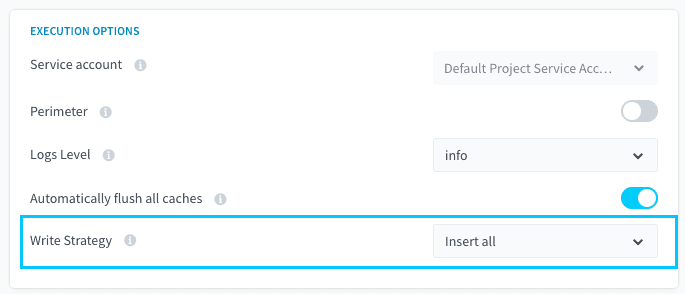
There are three strategies:
- Upsert: the action matches new data against existing data using all identifier fields. If a new row has the same identifier fields as an existing one, the existing row is updated. Otherwise, the new row is added.
- Insert when not matched: if a new row matches an existing row (using identifier fields), nothing is done. Otherwise, the new row is added.
- Insert all: all new rows are inserted into the table, even if some match existing rows on their identifier fields. This may create duplicates.
Load and Aggregate actions default to Insert all. Select Upsert (or Insert when not matched) manually in the action preferences if you want matching behavior.
Example
Consider the following users table:
We run the action with this new data, using Firstname + Lastname as identifier fields:
The result depends on the write strategy.
Upsert: Alice matches an existing row and is updated; Charles is new and added:
Insert when not matched: Alice matches an existing row, so nothing is done; Charles is new and added:
Insert all: both new rows are inserted as-is, leaving a duplicate Alice:
Environment variables
This is only available for Custom actions, workflows, and environments.
Environment variables are key-value pairs that you can template and inject into your custom actions, to avoid hardcoding the values in your custom script. They are saved in the PARAMS dictionary object of the forepaas.core.settings package (available in the SDK).
A code-snippet for a typical use case is available at this page.
Environment variables do not go through a KMS lifecycle and as such should not be used to store and inject secrets and credentials.
Triggers
Triggers are not templated in an environment, and are to be configured in the preferences in each action/workflow.
With triggers, you can set your jobs to run automatically. Typical usages include launching the job by accessing an API endpoint, or by scheduling time-based triggers (e.g. to run your jobs every day at midnight).
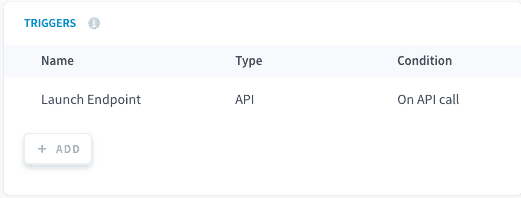
API endpoint trigger
This endpoint lets you trigger the job via API.
It is always available to you through the trigger named Launch API Endpoint. Click on it to see the endpoint details.
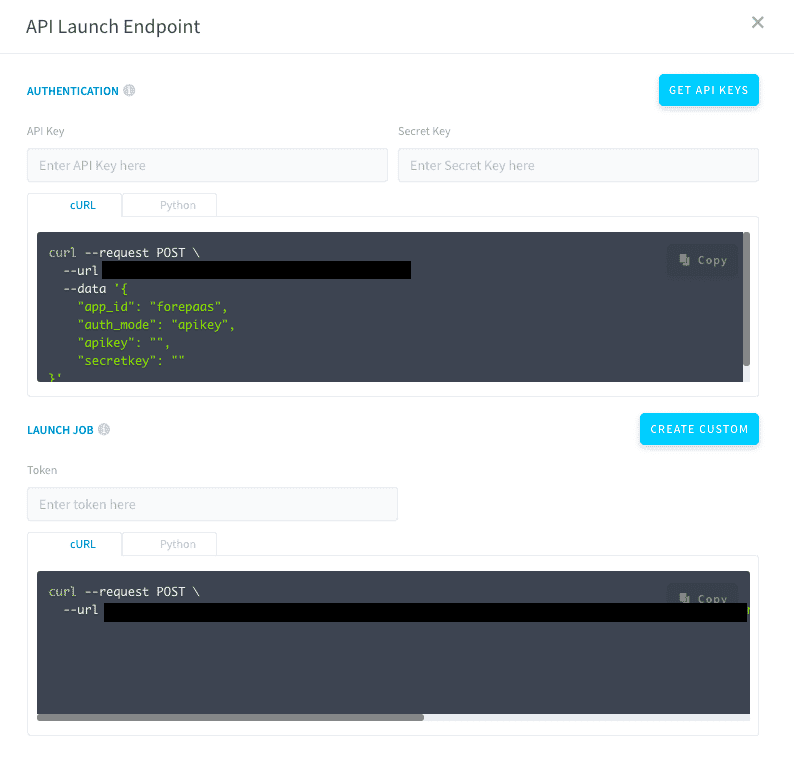
In order to trigger your job, you will have to authenticate first with the Authentication endpoint and then trigger the job with the Launch Job endpoint.
- You have to input your API and Secret keys in trigger details and then copy the Authentication endpoint text. Once you login, you will get a token.
- Input this token in the Launch job endpoint and then access it to launch your job.
Time-based trigger
Use the CRON triggers to schedule executions of your action or workflow every pre-defined time period.
You can either use the Complete mode to set the configuration visually or use the Advanced mode for custom CRON expressions. The Advanced mode configuration follows the CRON syntax (described in detail here).
You can deactivate a cron trigger to pause scheduled runs, or activate it again when you want scheduling to resume, without losing the trigger configuration.
Resources
Execution modes
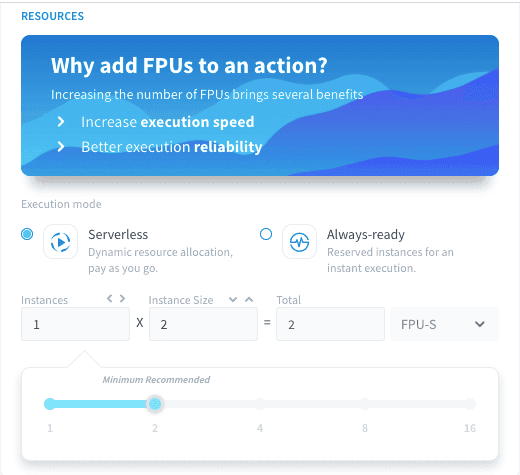
There are two execution modes available in the Preferences page:
- Serverless: computing resources deployed on the fly.
- Always-up: dedicated instances always running to swiftly execute your jobs whenever you want. For PySpark actions, this mode is in beta.
Serverless
By default, every job you run on the Platform is executed with the Serverless mode. An execution environment is deployed when you start the job execution and it is undeployed when this execution is done.
You will be billed for:
- The computing resources used to perform the task.
In the Serverless mode, your execution environment is up only during the task execution because, once the task is done, it is automatically killed.
Always-up
For PySpark actions, the Always-up mode is in beta: instabilities may occur.
When you activate the Always-up mode, a dedicated computing environment is deployed for the respective action/workflow/environment. It will stay deployed until you set the Execution mode back to Serverless so you won't need to wait for its deployment every time you run the respective job.
You will be billed for:
- The computing resources used in the time during which the execution environment was up (this includes the time taken to perform the jobs).
With the Always-up mode, your execution environment will NOT be automatically undeployed once job execution is done. You have to set the Execution Mode back to Serverless to kill it.
If you edit the configuration of an action/workflow set in Always-up mode, it will be updated in a full blue-green way: the deployment will wait until all current pending tasks are complete before gracefully shutting down for the update.
It is recommended to use the Always-up execution mode on environments rather than individual actions/workflows, in order to re-use the resources for multiple workloads.
Resource scaling
You can find out all about how to scale your computing power in the dedicated article below.
Learn how to scale your jobs resources
Parallelization options
Segmentation
This parameter is not available for Custom PySpark actions.
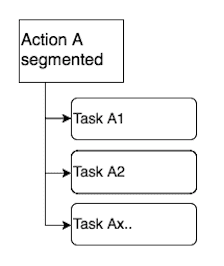
The segmentation options allow you to define how a job will be broken down in multiple tasks based on specific criteria. Once split, the workload of the job can then be distributed across multiple workers in parallel (parallel computing).
Among most common usage, segmentation allows you to:
- Apply a specific treatment filter to a column;
- Accelerate action run time by parallelizing the processing on multiple workers in parallel and relieving the workload on data source connectors;
- In a workflow planned daily for instance, not to ingest all of the historical data each time you run the load action but filter on only the last day(s).
Concurrent executions
This option allows the action/workflow to be executed multiple times at the same time (instead of returning an error if an execution is triggered while one is already happening).
In Serverless mode, each concurrent execution will use the allocated computing power for the job.
In Always-up mode, multiple concurrent executions are distributed across the available workers in parallel (parallel computing).
Multiple concurrent executions can only be triggered via API, not by GUI.
Development language
This is only available in workflows (and Custom actions' configuration page).
This option lets you specify which language version to use for the overall workflow. By default, a workflow will use the latest of all the versions it contains.
Go further
For training or technical assistance implementing our solutions, contact your sales representative or visit our Professional Services page to request a quote and have your project analysed by our experts.
Ask questions, give your feedback and interact directly with the team building the Data Platform on the dedicated Discord channel.
If you need support with your OVHcloud services, create a request in our Help Centre.
Join our community of users.