

Organize tables into Lakehouse Manager datasets
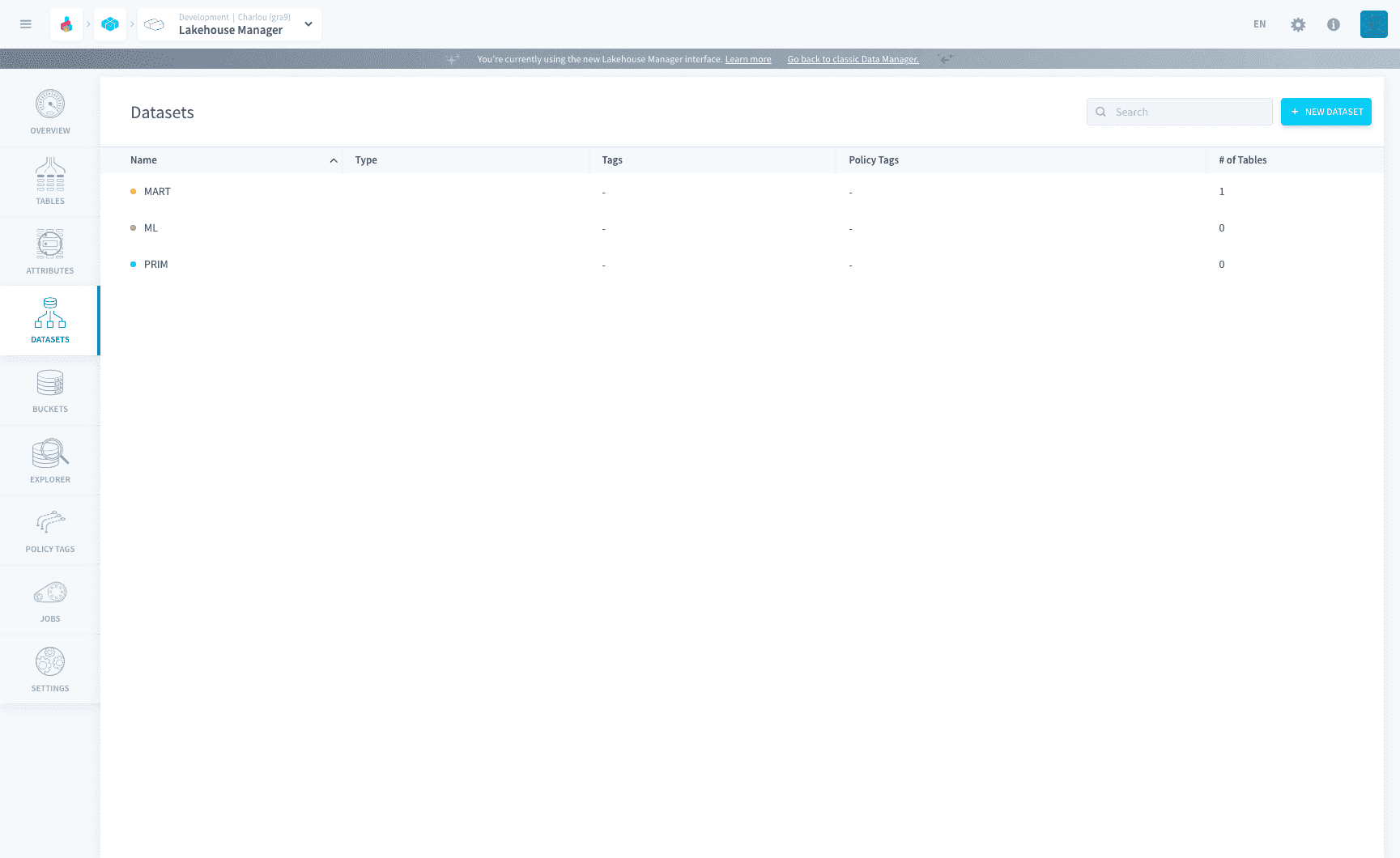
Datasets are logical groupings of tables sharing default parameters, in Standard or External form
Objective
Datasets are logical groupings of tables, which allow them to share some default parameters.the Platform supports Standard as well as External Datasets to manage your tables.
By default you will be given one standard dataset named default_dataset. This standard dataset will be using the Lakehouse Manager Engine which is based on Apache Iceberg.
Once you create a dataset, there is a waiting period of 60 seconds before it can be used for queries.
Datasets
Datasets were designed with the mindset of encouraging users to manage the parameters of a table at a group/dataset level. You can Edit, Duplicate and Delete datasets from the list view.
Standard Dataset
The Lakehouse Manager does the dual role of being the data management service but also the storage engine for the standard dataset. You can learn more about this engine by clicking on the discover link during the creation of a dataset.
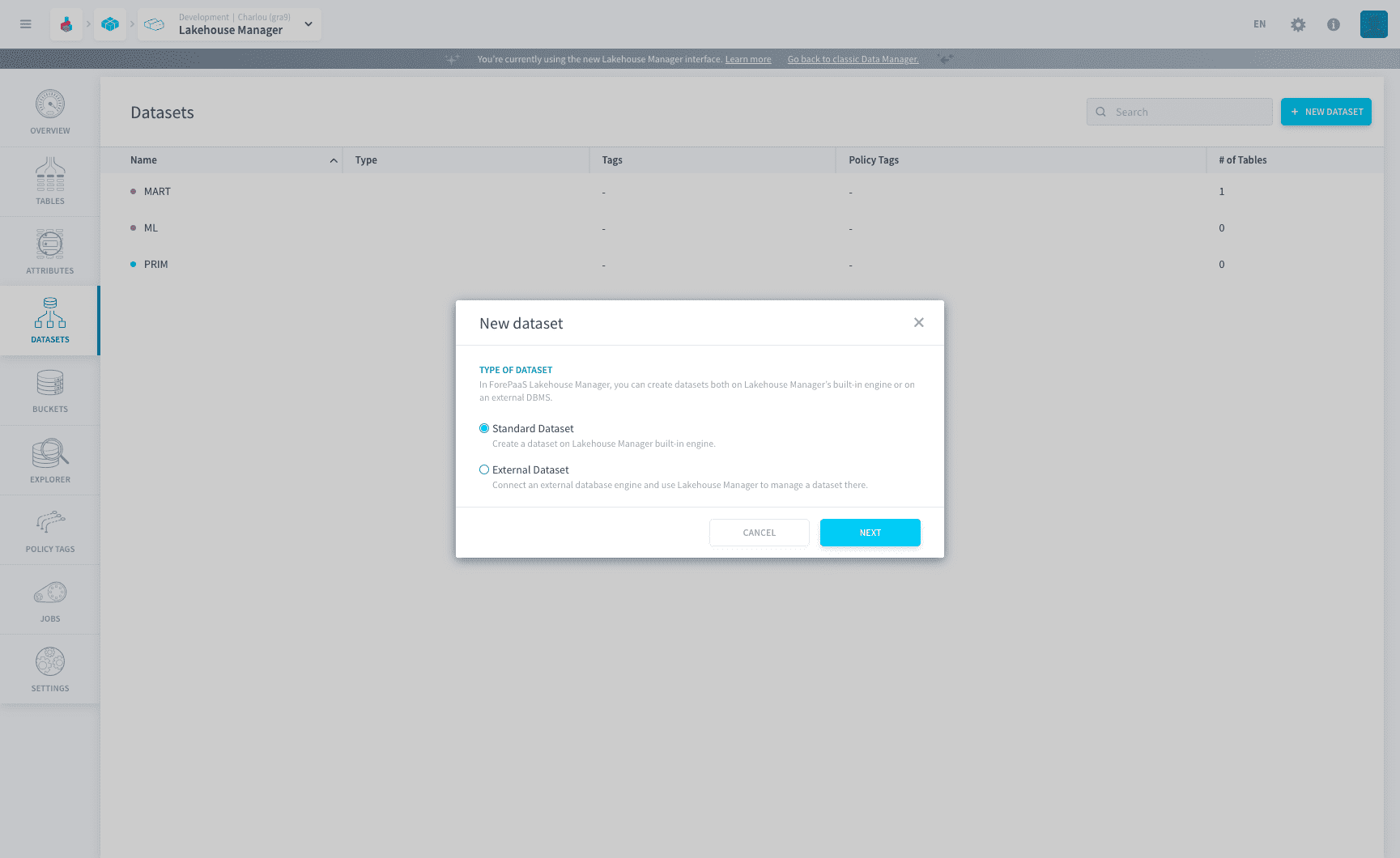
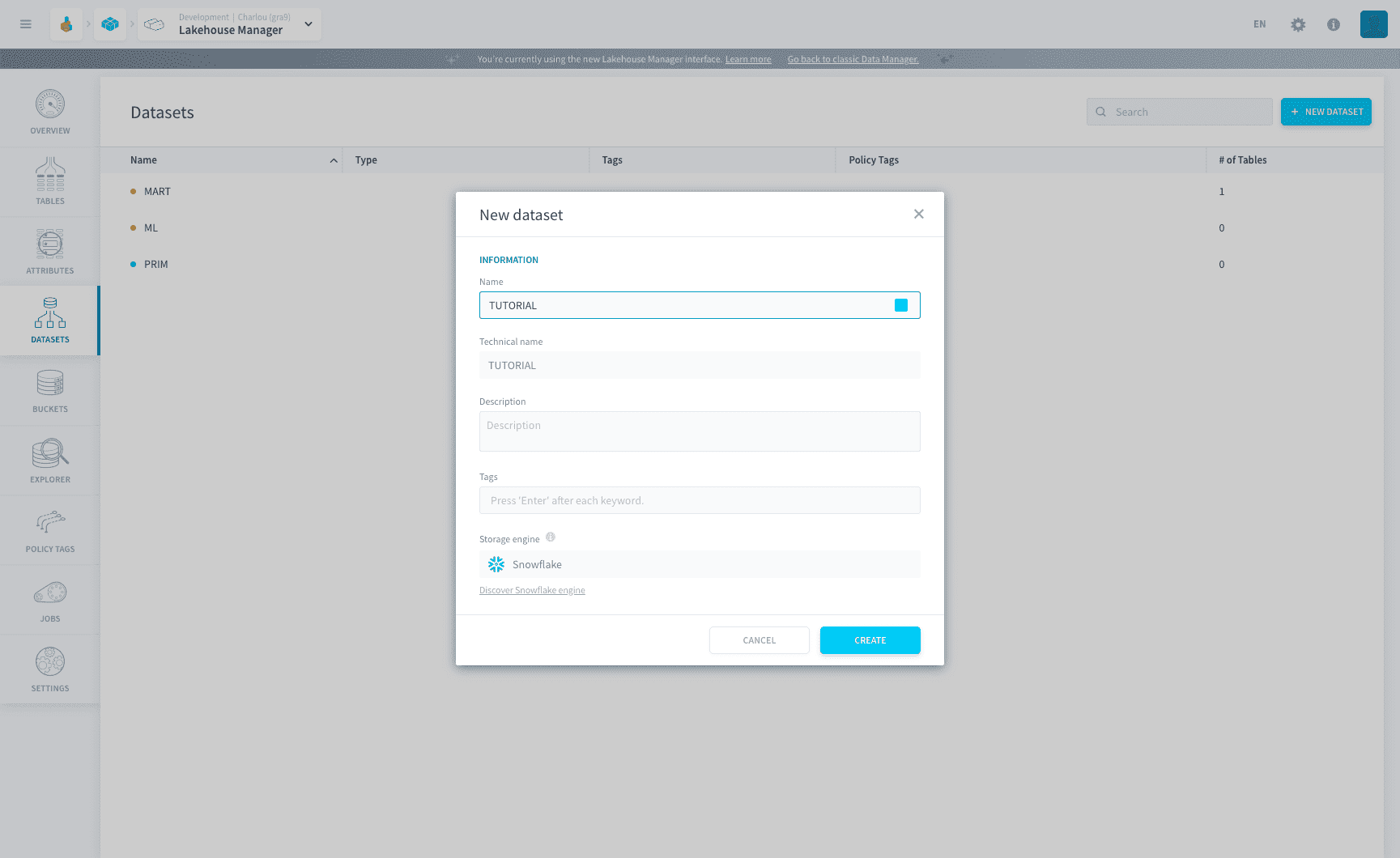
Click on the New Dataset button to start creating a new dataset, then select standard dataset. Fill in all the required dataset fields and click Create.
How data is stored
The Lakehouse Manager separates the logical organisation of your data from where the bytes actually live. Three concepts are easy to confuse, so it helps to keep them apart:
- Datasets: a logical envelope that groups tables together. A dataset does not store any data itself.
- Tables: the physical objects, stored in Apache Iceberg and managed by the Lakehouse Manager.
- Buckets: S31-compatible object storage for unstructured files, independent from the Lakehouse. See Buckets.
A dataset is therefore not a bucket: it is a logical grouping of tables.
Because a dataset only holds metadata, sharing or moving a dataset never copies data: it changes what the Lakehouse points to. See Cross-project sharing.
Dataset Management
The configuration page shows all the information you need to know about your dataset. You can edit the description and the tags for your datasets, you can also view the data residency policies - storage engine used and data residency location.
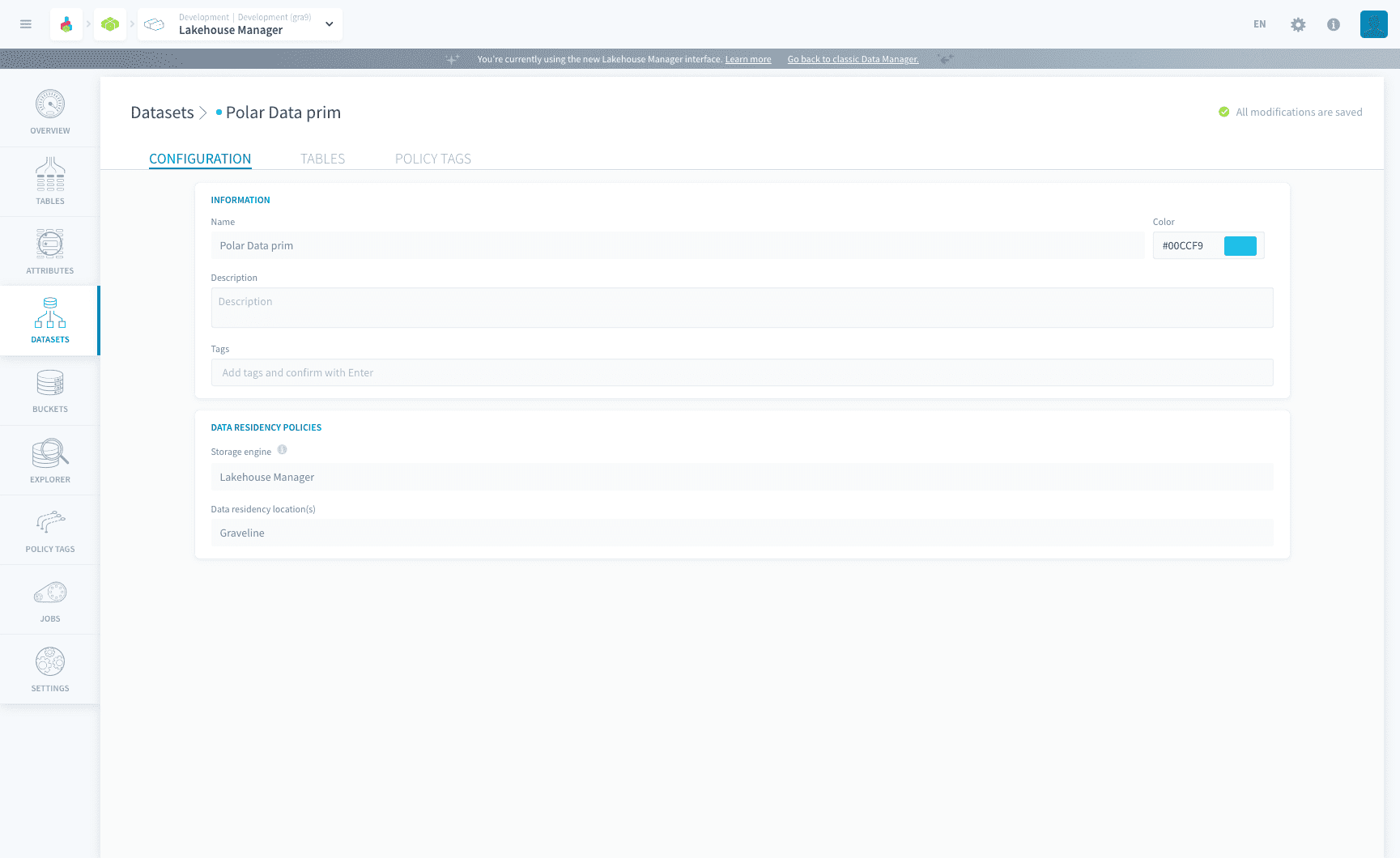
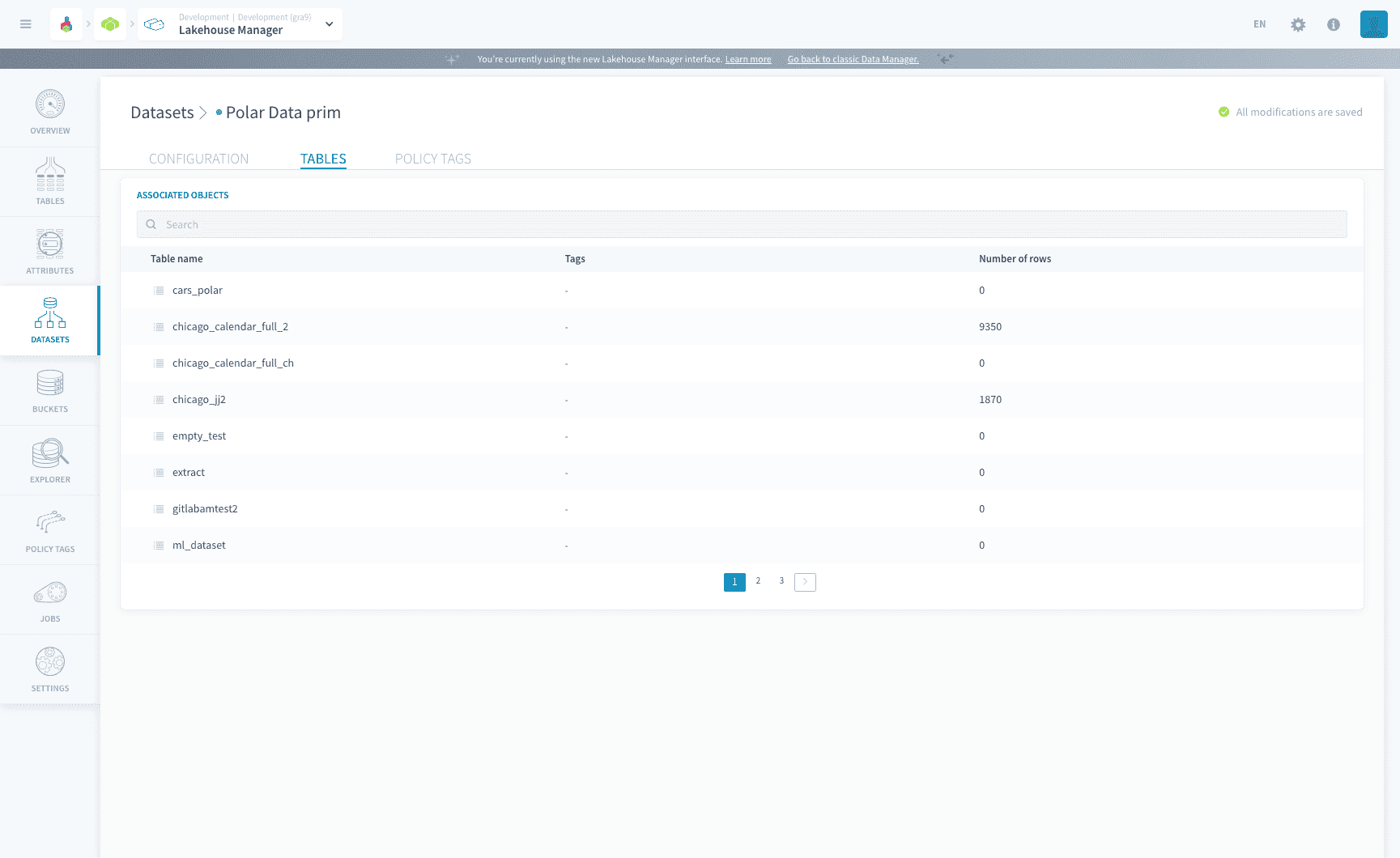
In the tables tab, you can view all the associated tables that are a part of the dataset. It is important to remember that this is only a view, and you cannot edit any of the tables from this menu.
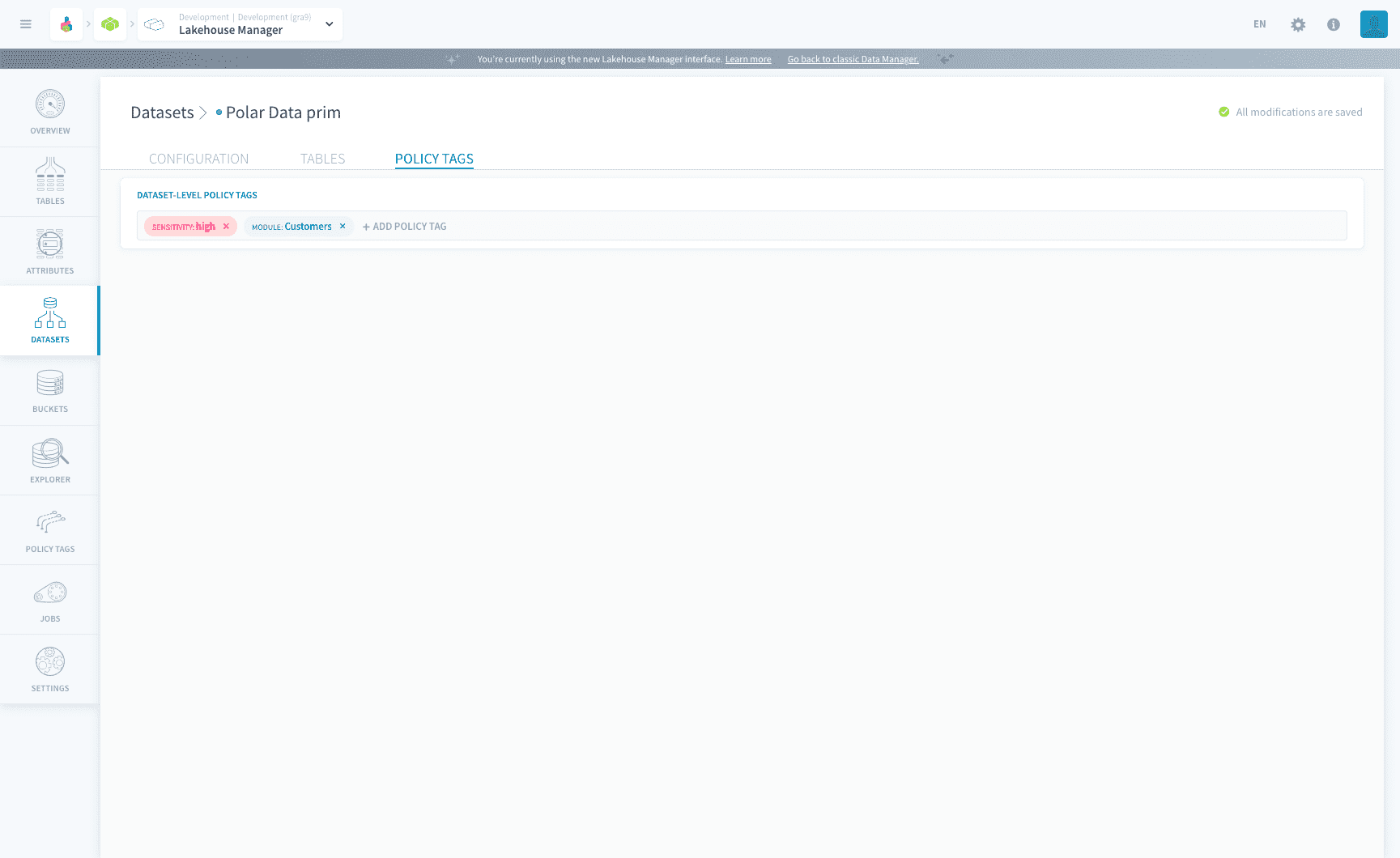
The policy tags menu allows you assign dataset wide policy tags, which will be further applied to all the tables part of the dataset. You can choose from the available policy tags, or even create policy tags on spot. Here is the step-by-step guide to binding policy tags.
Organising your data: the medallion approach
The Data Platform does not prescribe a Bronze / Silver / Gold ("medallion") architecture: you are free to model your lakehouse the way that fits your use case. By default, a dataset is provisioned for you (default_dataset).
That said, managing medallion layers with datasets is a valid pattern and works naturally with the rest of the platform. A typical pipeline looks like this:
- Bronze: raw data, ingested through Connectors.
- Silver: cleaned, validated and deduplicated by Data Processing Engine actions.
- Gold: enriched, joined and aggregated by Data Processing Engine actions, ready for consumption in the Analytics Manager or your BI tool.
Each layer is a dataset; the transformations between layers are actions orchestrated in a workflow.
Cross-project sharing (beta)
This feature is currently in beta. Please report any issues you run into.
By default, every project on the Data Platform is fully isolated: there is no implicit way to reach a dataset from another project. Cross-project sharing lets the owner of a dataset expose it, from the source project, to one or more receiving projects in a controlled way, without breaking the existing security boundaries.
What sharing does, and does not, do
- Sharing happens at the dataset level, between projects within the same organization. You cannot share with another organization.
- A shared dataset is a singleton, not a copy. Reads, writes, builds, and use in notebooks and custom actions apply to the same underlying data on both the source side and the receiving side.
- For now, sharing is full: the entire dataset is exposed to the receiving project.
- Isolation between unrelated projects stays strictly enforced.
Permissions and roles
Sharing is managed from the source project.
- A shared dataset is exposed in READ & WRITE.
- The LM & AM Editor role is required to share a dataset or to remove an existing share.
Access to a shared dataset is always evaluated in the context of the receiving project, not the source project. When user B in project B reads a dataset shared from project A, the platform asks "does user B have access to this dataset in project B?", never "in project A". Since user B does not exist in project A, that second question would always return false. Your access rules therefore stay anchored in the receiving project.
A finer-grained Advanced Data Access Control module is under study for more granular permissions on shared objects.
Share a dataset
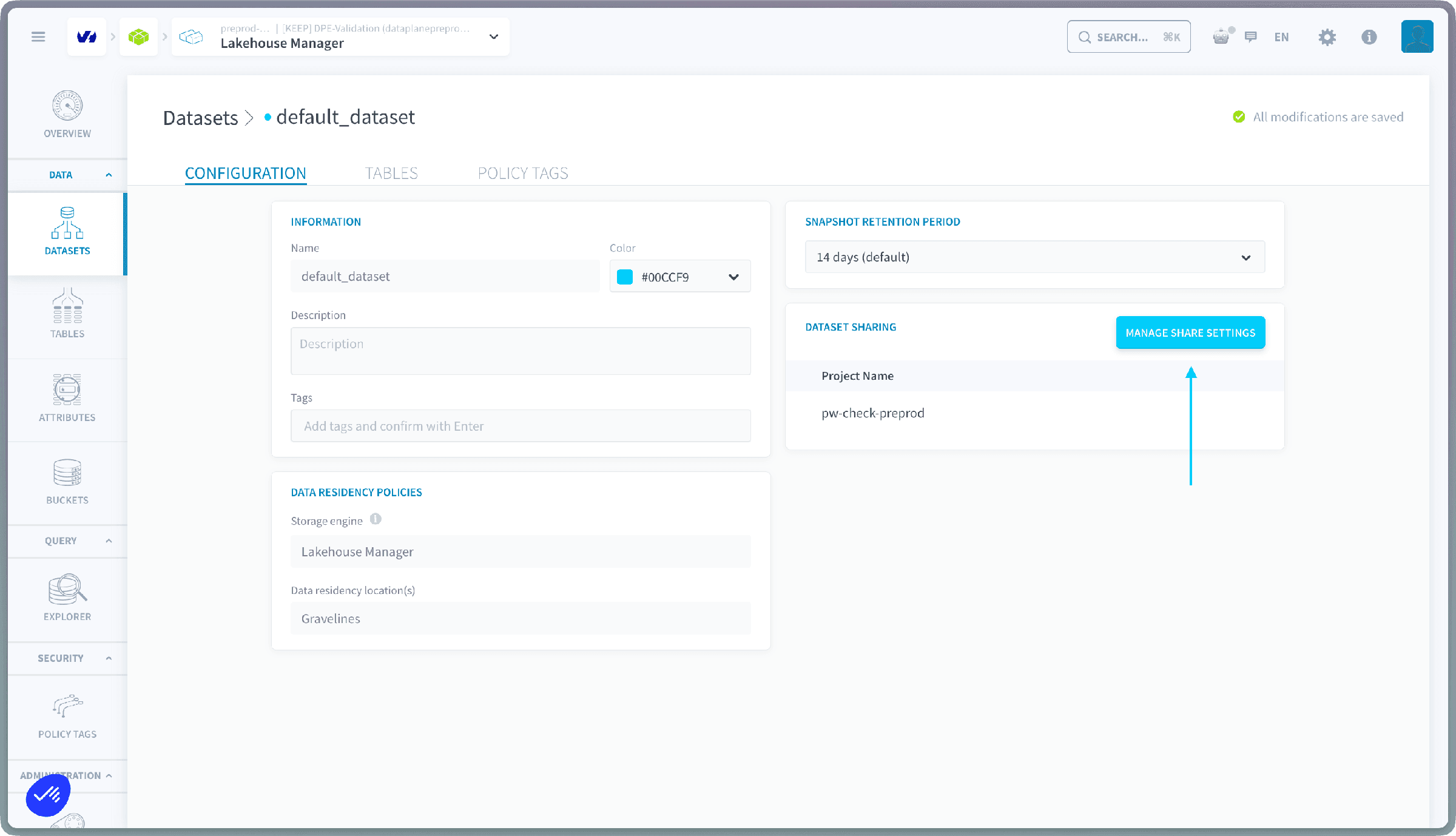
- From the source project, open the dataset you want to share and go to its Configuration tab.
- Click Manage share settings.
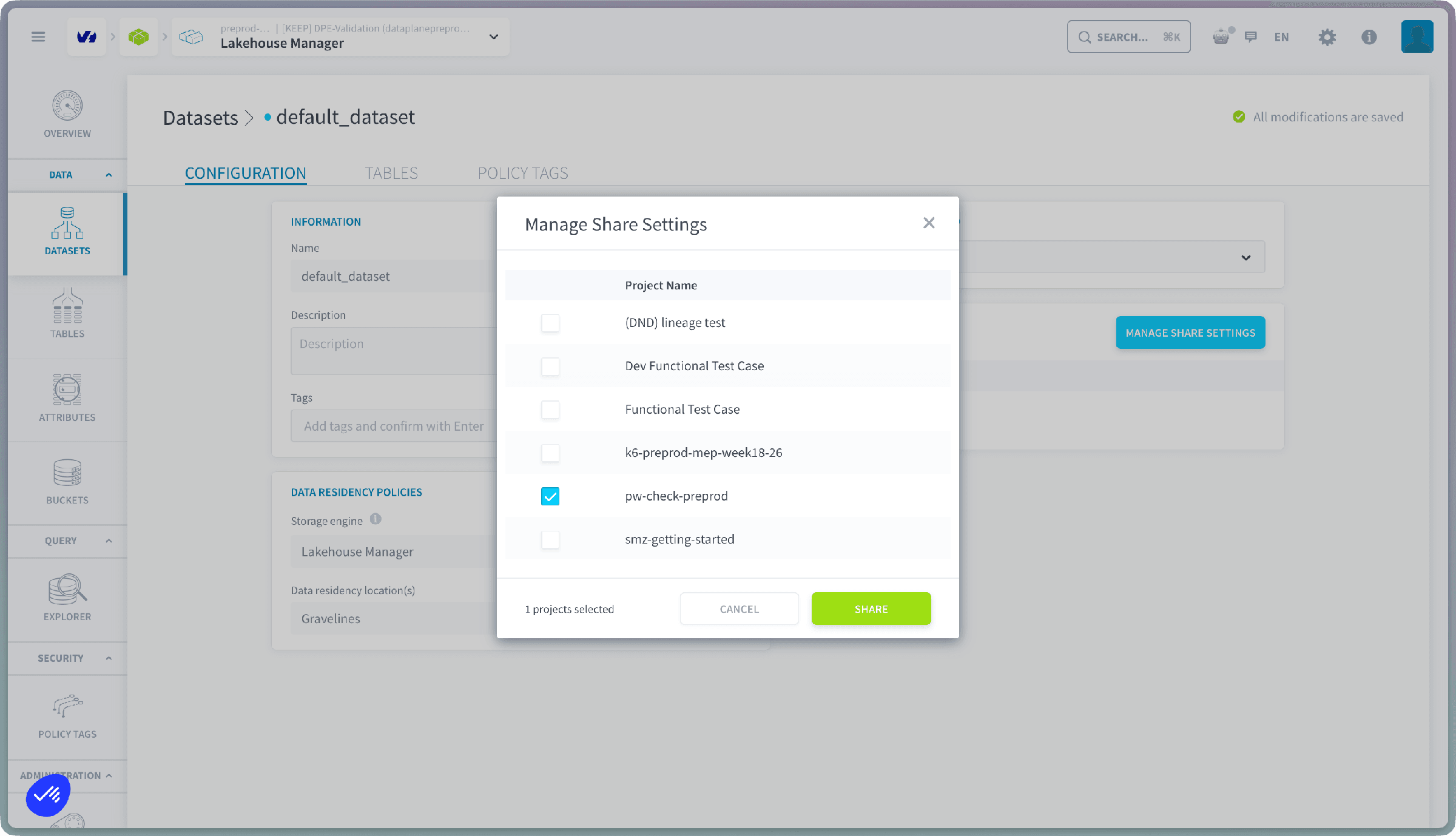
- Select one or more projects from the available list of projects in your organization, then confirm.
- You will receive an email confirming that the dataset has been shared.
The source project shows usage information for each project the dataset has been shared with, so you can keep track of who is consuming the shared data.
On the receiving project
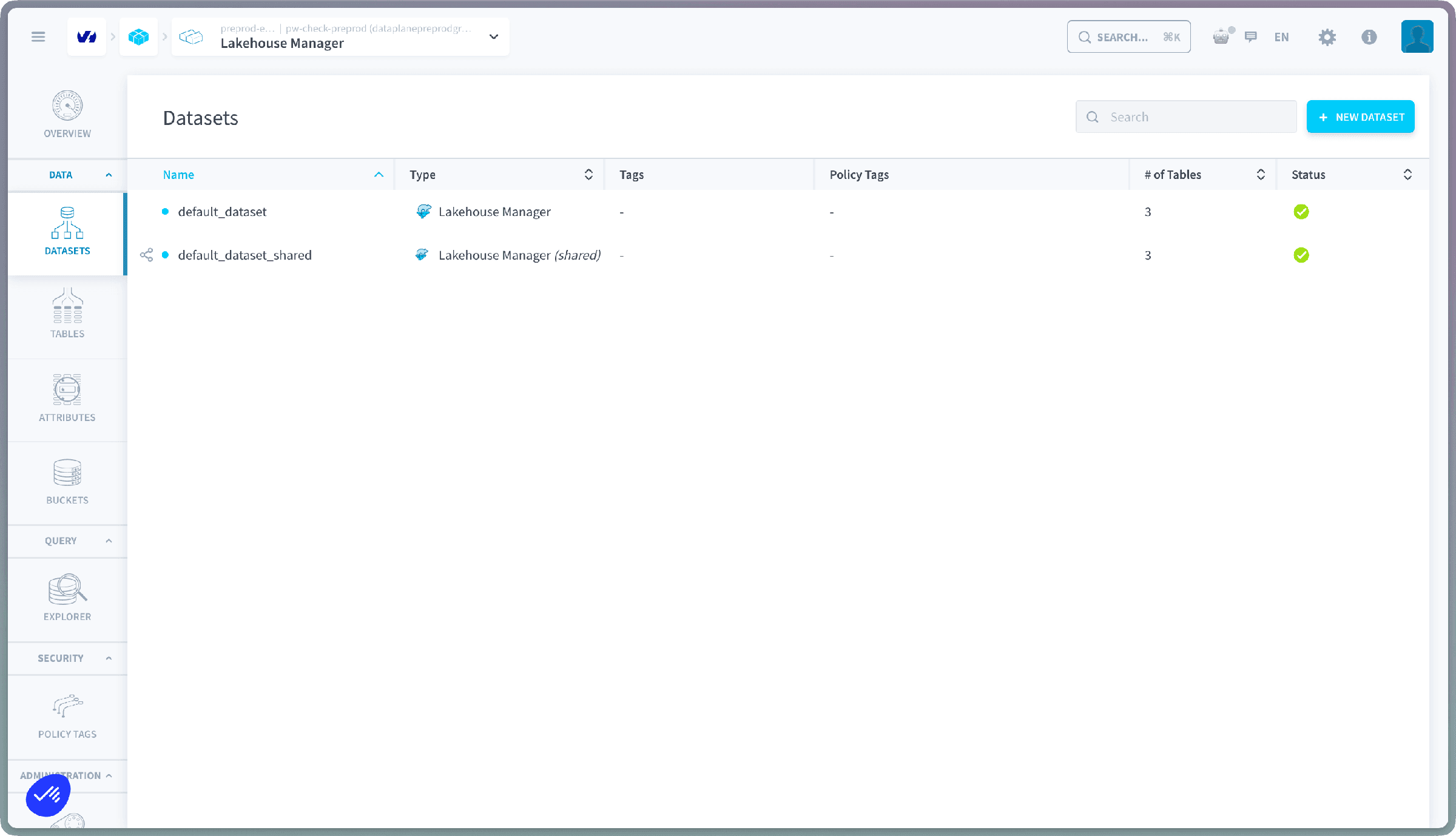
Shared datasets appear in the Datasets menu of the receiving project's Lakehouse Manager, alongside the project's own datasets. They are flagged with a shared icon and the type Lakehouse Manager (shared).
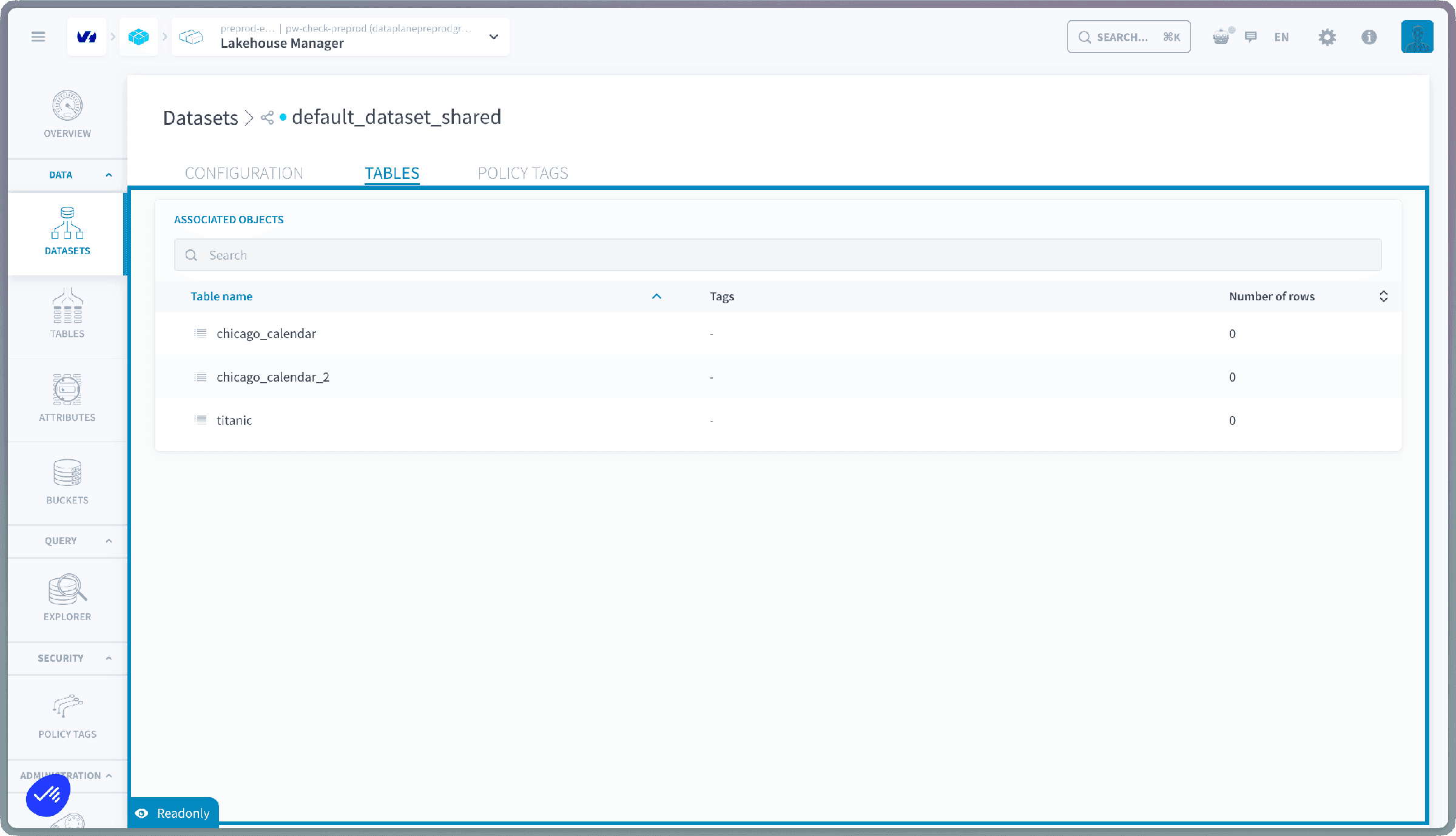
Opening a shared dataset shows its details in read-only mode: the dataset configuration and table structure stay managed from the source project. The associated tables can be previewed by clicking the preview icon.
The shared dataset can be used as a source in Connectors and in Trino, so users of the receiving project work with its data exactly as they would with a dedicated dataset.
In the Explorer
Inside the Explorer, use the list by dataset option to find a new Shared Datasets category. All tables coming from datasets shared with this project are listed here.
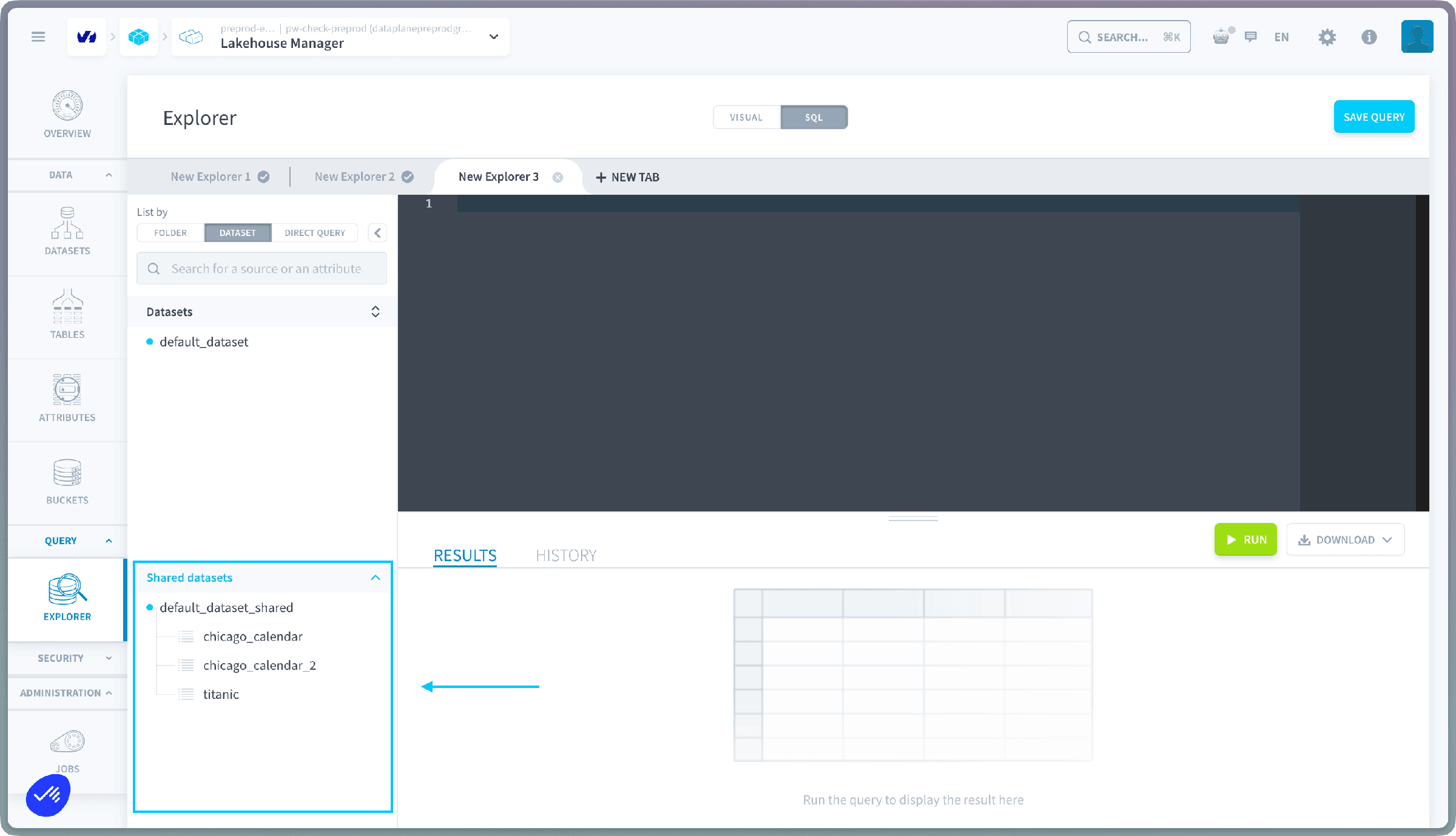
Shared dataset tables can only be queried using the SQL editor. Visual builder support is not available yet.
Go further
For training or technical assistance implementing our solutions, contact your sales representative or visit our Professional Services page to request a quote and have your project analysed by our experts.
Ask questions, give your feedback and interact directly with the team building the Data Platform on the dedicated Discord channel.
If you need support with your OVHcloud services, create a request in our Help Centre.
Join our community of users.
1: S3 is a trademark of Amazon Technologies, Inc. OVHcloud's service is not sponsored by, endorsed by, or otherwise affiliated with Amazon Technologies, Inc.