

Export Table to Source Action
This action facilitates moving processed or raw data from your managed Lakehouse environment into external databases or other systems supported by
Objective
The Export Table to Source action allows you to export one or more tables from your Lakehouse Manager directly to a compatible Connectors source. This action facilitates moving processed or raw data from your managed Lakehouse environment into external databases or other systems supported by Connectors connectors.
Configure an Export Table to Source action
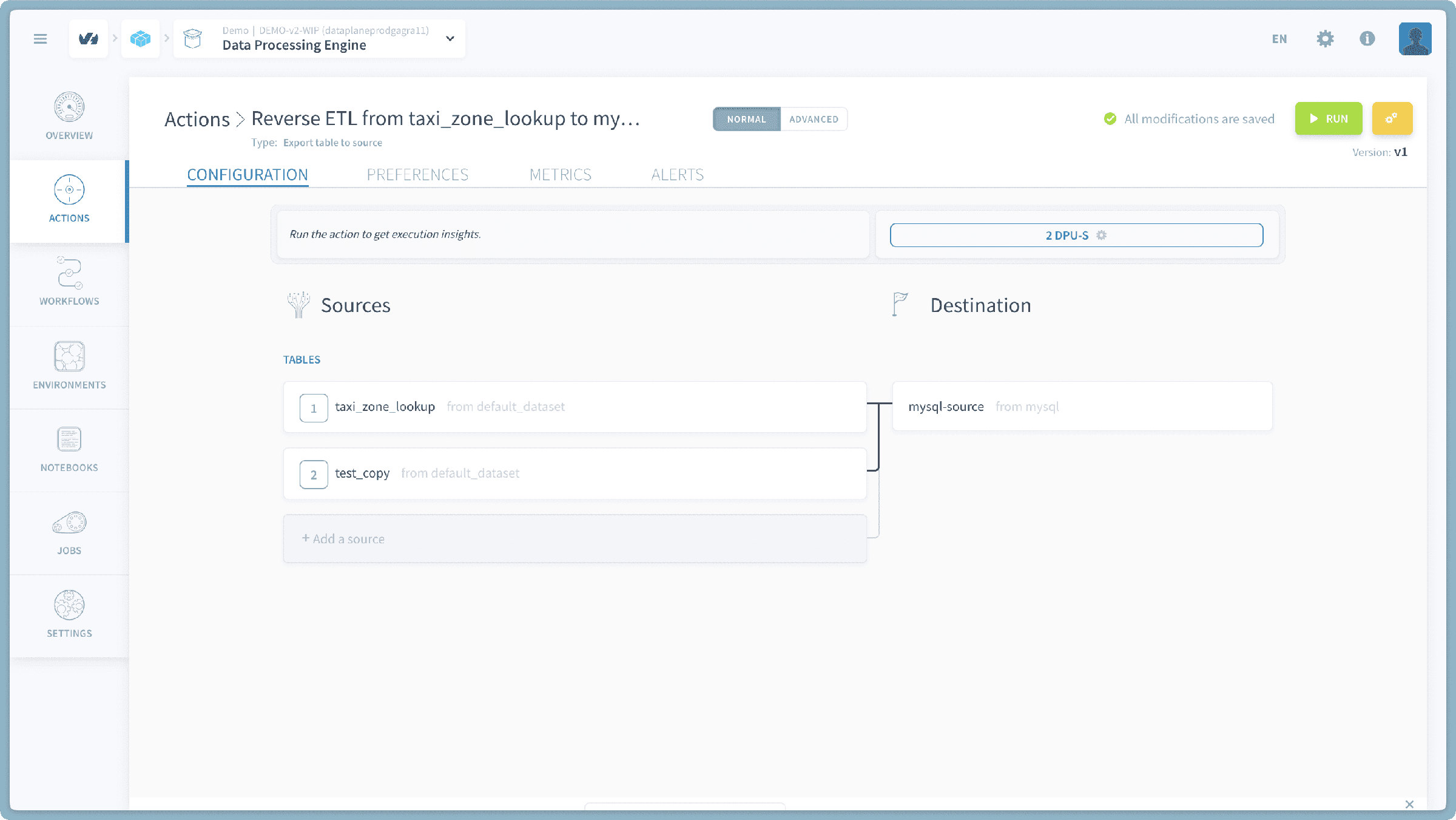
To create a new Export Table to Source action, follow these steps within the Data Processing Engine (DPE):
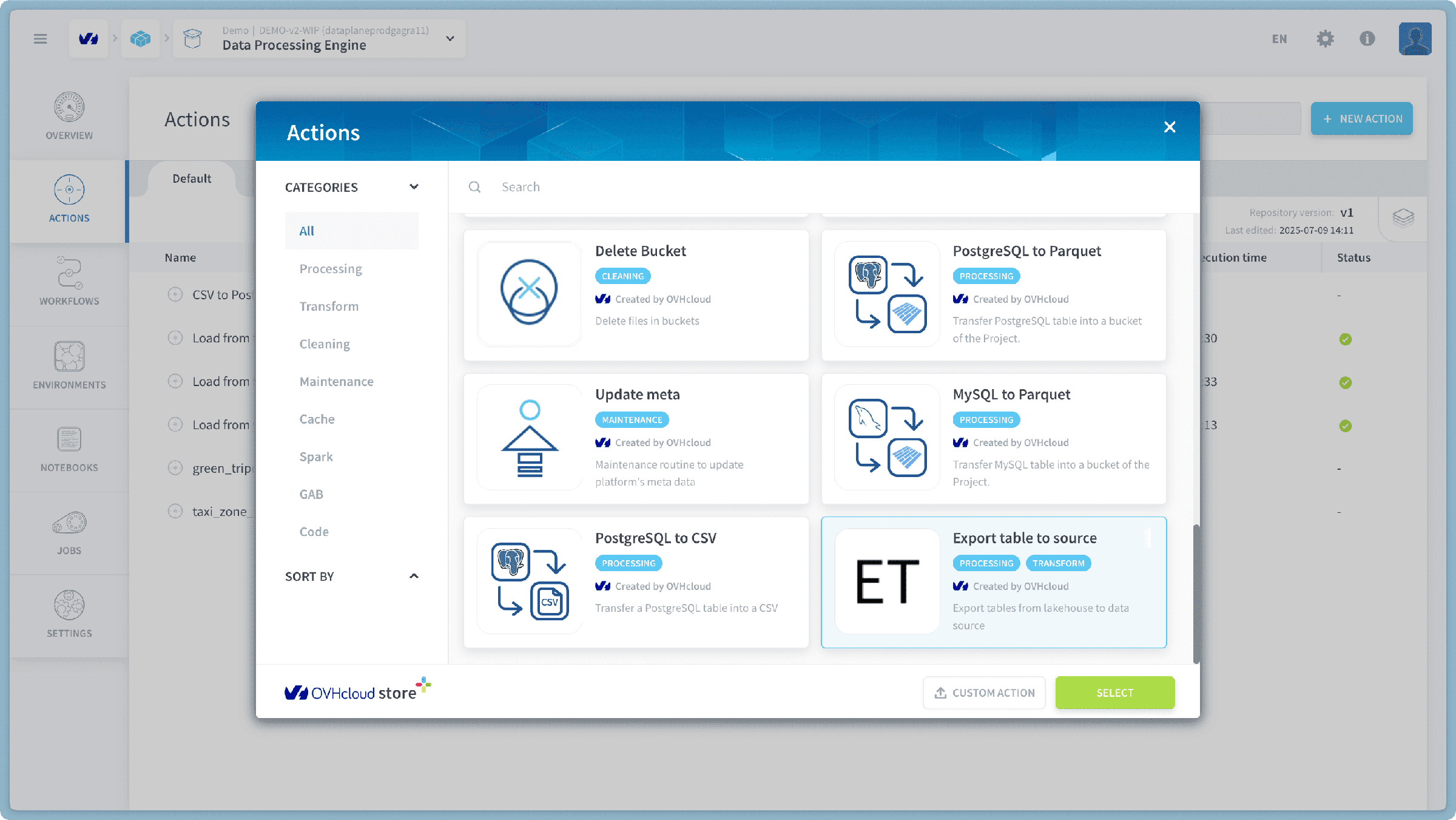
- Navigate to the Action tab within the Data Processing Engine (DPE) interface.
- Click on the "New Action" button.
- From the list of available actions, select "Export Table to Source".
Choose Tables for Export
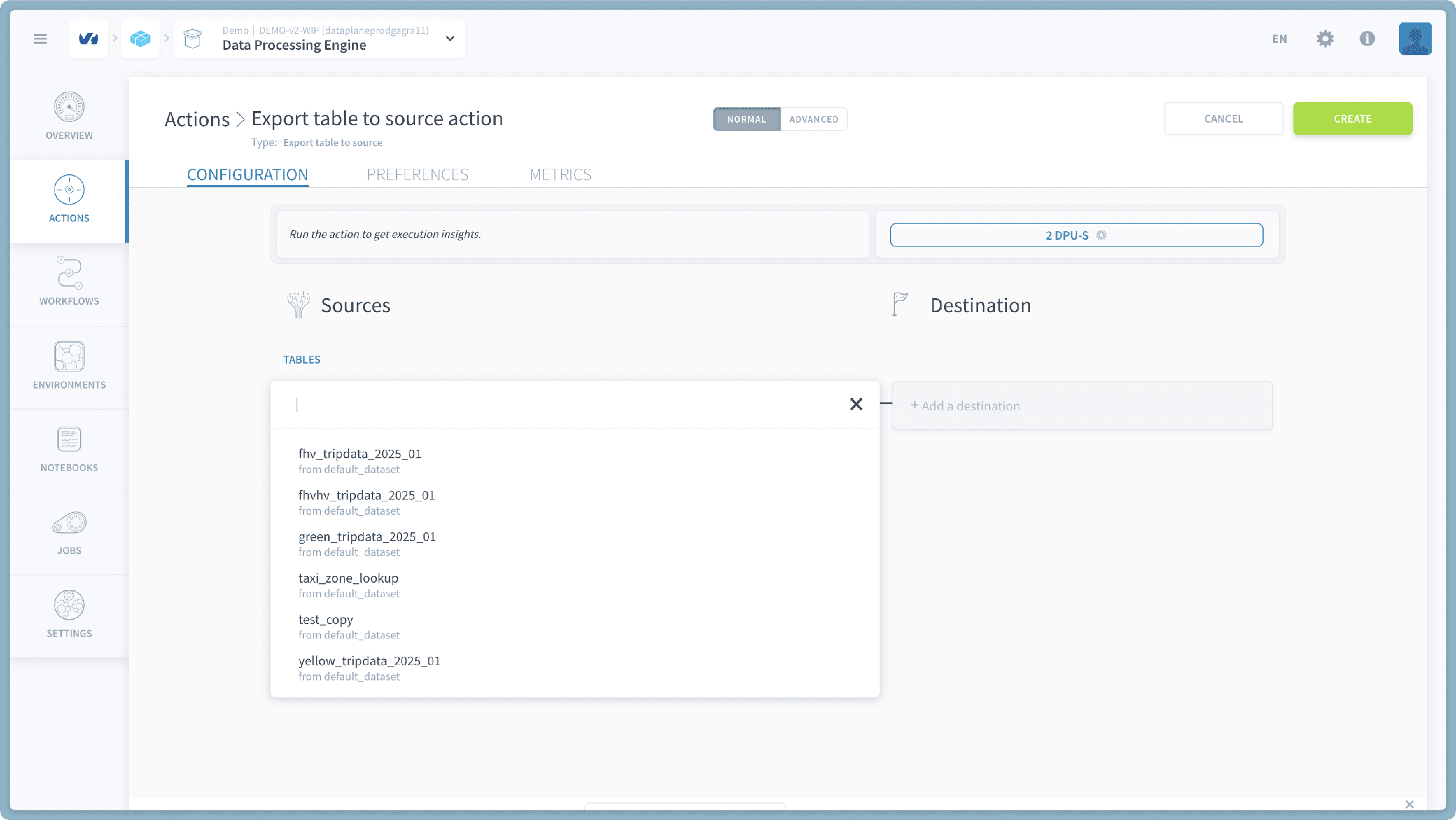
First, you need to select the tables from your Lakehouse Manager that you wish to export.
- A list of available tables from your Lakehouse Manager will be displayed.
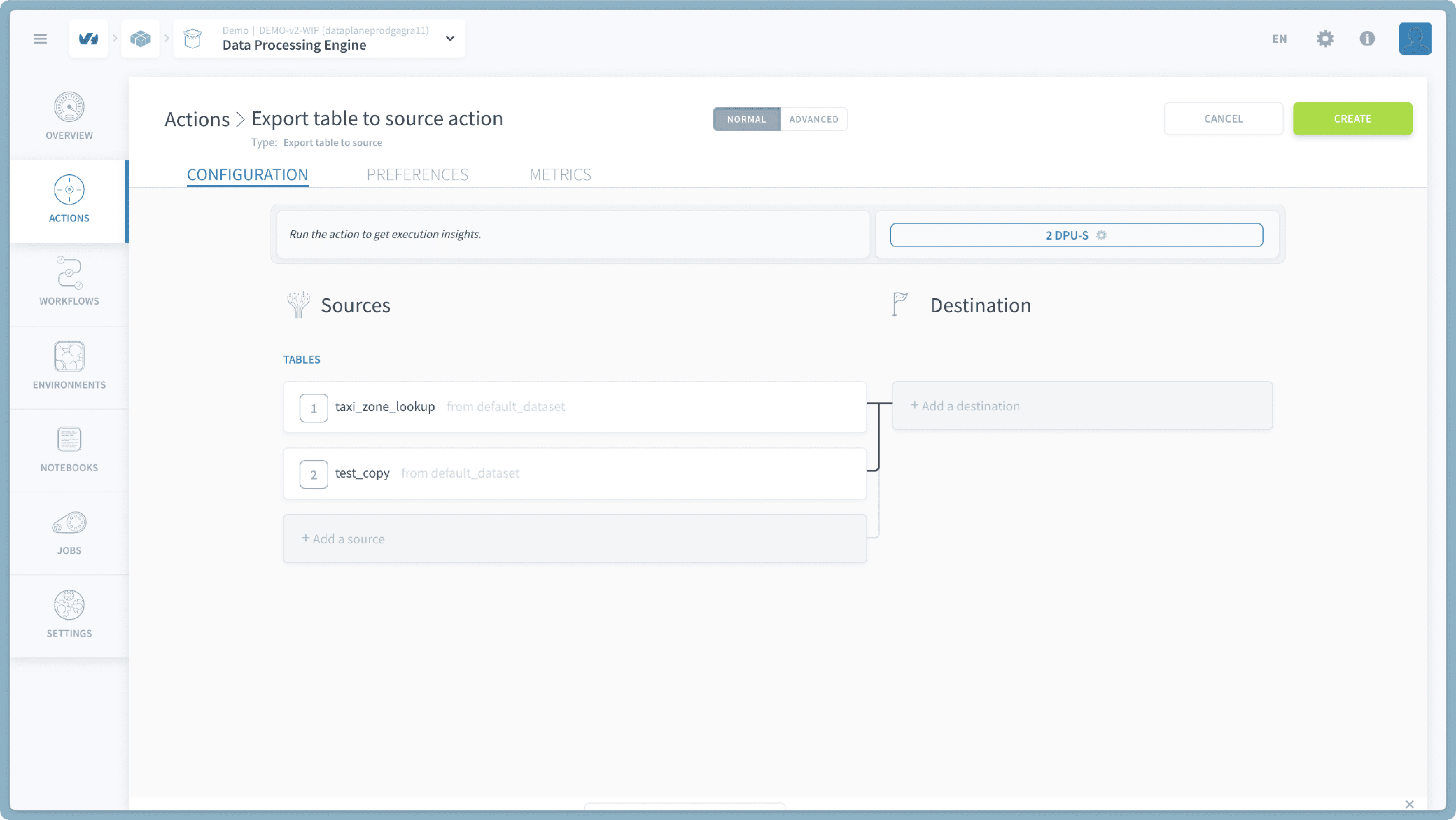
- You can select one or multiple tables from this list for export. Simply click on the table names to highlight them for selection.
Select Destination Source
Next, you will define the external source where the selected tables will be exported.
- A dropdown or list will appear, showing available compatible sources from your Connectors.
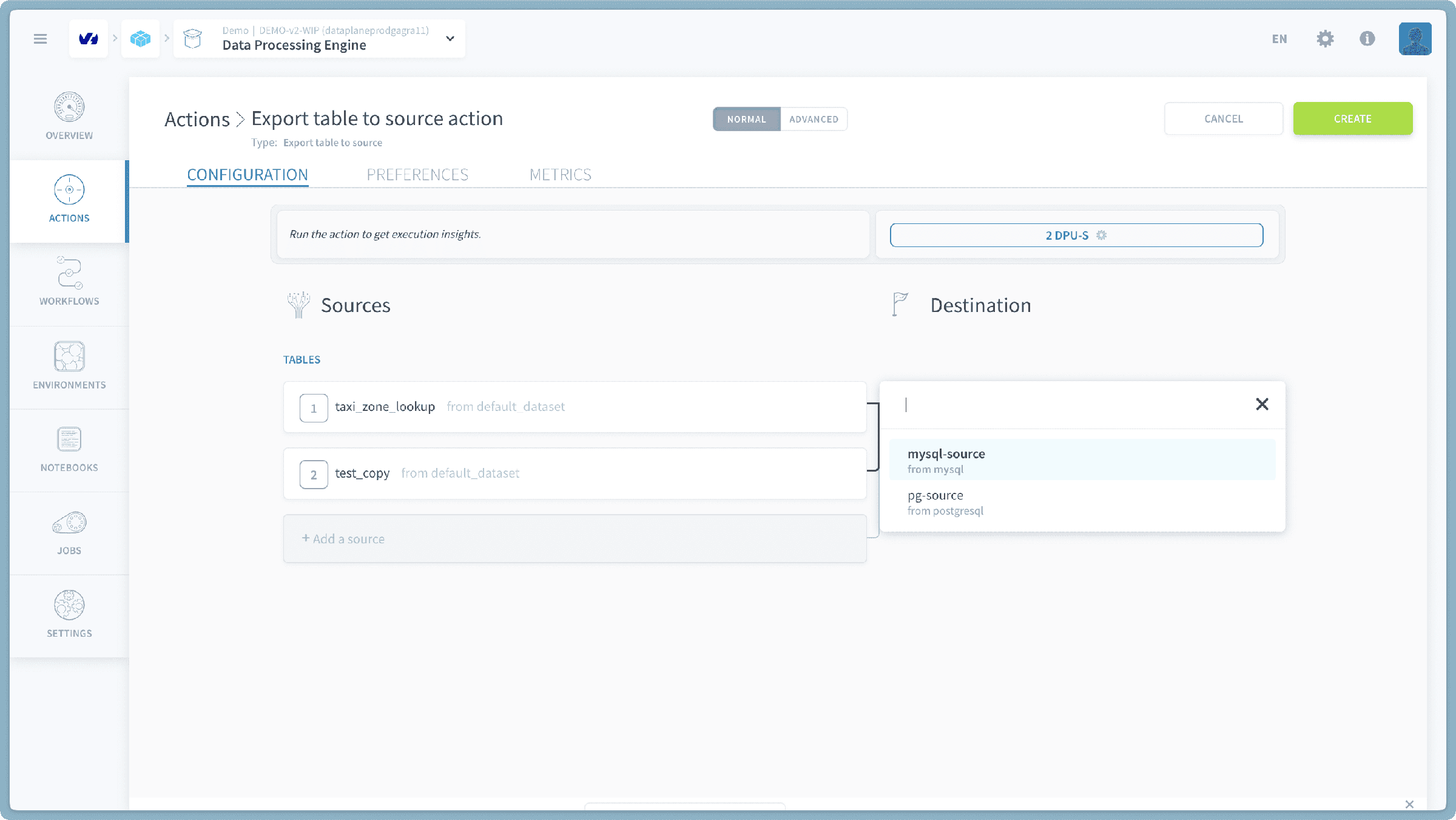
- Compatibility Note: Currently, this action supports Connectors sources of type database and protocols.
- Important: If no destinations are shown, it means you have not yet connected any compatible database or protocol sources in your Connectors. Please ensure you have configured at least one such source before attempting to use this action.
- Select the desired destination source from the list.
- click confirm and run.
Important Note on Export Table to Source: The Export Table to Source action might fail if the destination database you are exporting to has a configuration requiring primary keys for tables being created or inserted. For example, some database systems or specific table settings (like REQUIRE PRIMARY KEY in certain MySQL/MariaDB setups or stricter NoSQL configurations) might enforce this.
By default, tables within the Lakehouse Manager do not inherently have primary keys defined. If your destination database requires a primary key and the incoming table schema does not provide one, the export operation will fail. To successfully export to such databases, you may need to adjust the destination database's configuration to temporarily or permanently relax the primary key requirement.
Verify Your Export
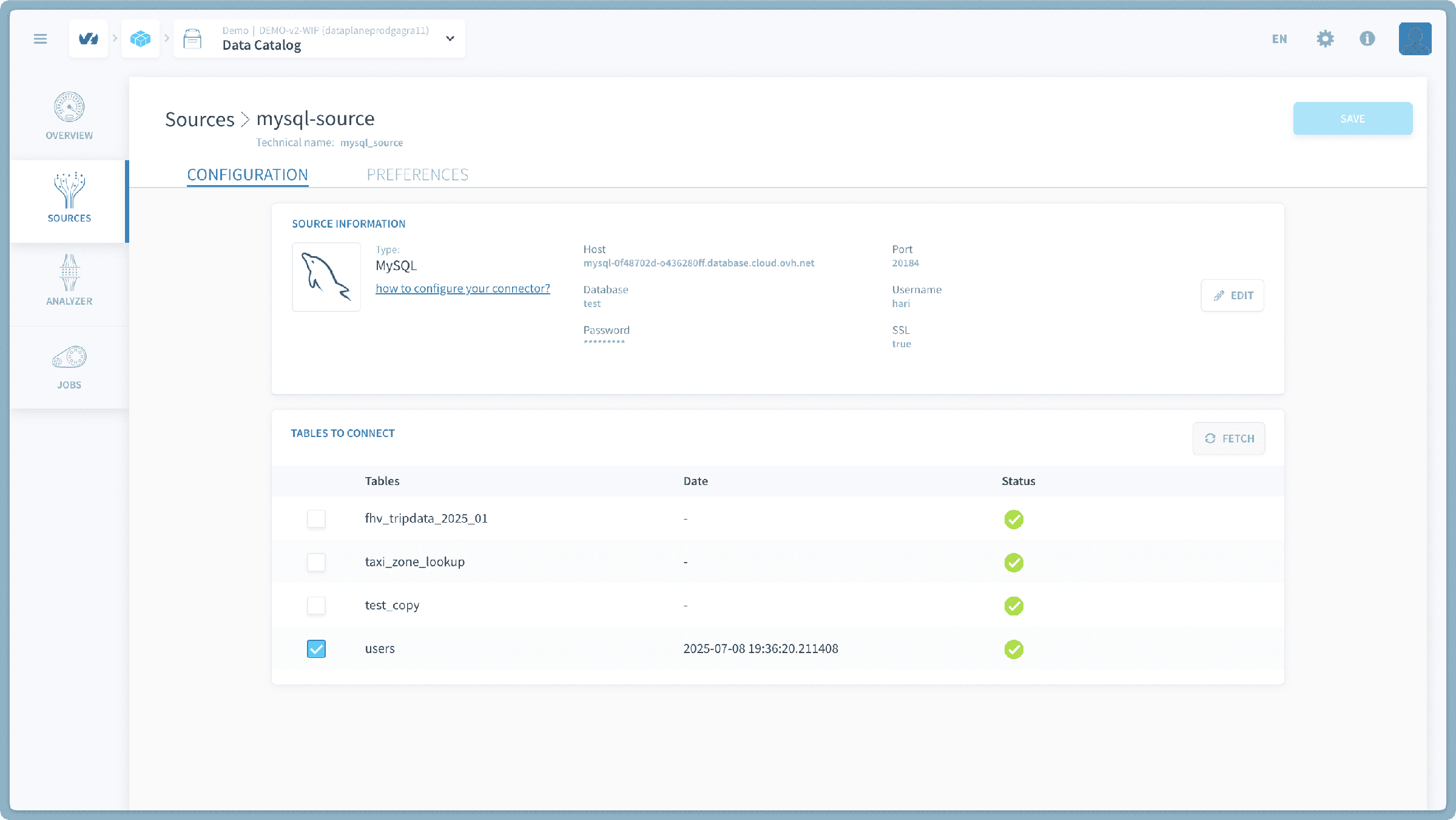
After the Export Table to Source action completes successfully, you can verify the export by connecting to your chosen destination database or system (e.g., using a SQL client for a database) and checking for the presence of the newly exported tables and their data. You can even check the connectors source to check for the update.
Go further
For training or technical assistance implementing our solutions, contact your sales representative or visit our Professional Services page to request a quote and have your project analysed by our experts.
Ask questions, give your feedback and interact directly with the team building the Data Platform on the dedicated Discord channel.
If you need support with your OVHcloud services, create a request in our Help Centre.
Join our community of users.