

Manage organization authentication and access
Manage authentication requirements and resource access for the members of your organization
Objective
The Organization IAM is where you can manage all authentication requirements for members of your organization as well as their level of access to the organization's resources.
In the Organization IAM you will be able to:
- Set-up authentication providers to enable single-sign-on to your Data Platform Organization via external solutions.
- Enforce multi-factor authentication (MFA)
- Manage Organization members access rights to the Organization-level resources and settings.
You can access this service from the sidebar, as shown in the picture below:
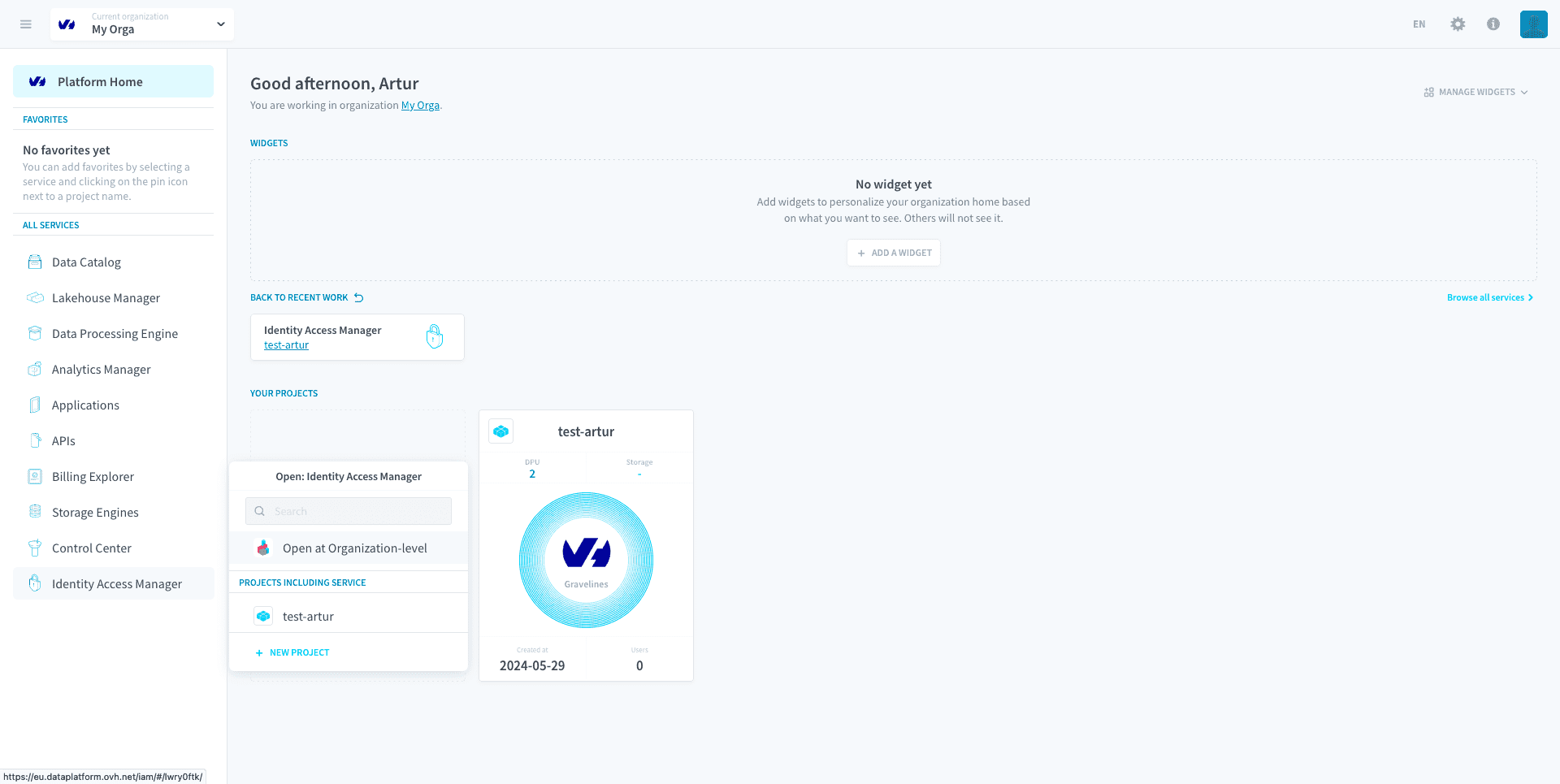
Resources managed by the Organization IAM
When using the Organization IAM, you will create roles and groups with permissions to access the following resources:
- Billing Settings
- Control Center organization-level resources (alerts, logs, panels, consumers, etc)
- Organization IAM users, roles and groups
- Organization's Projects deployed services and admins
Link between Project IAM and Organization IAM
While the Organization IAM provides manages access to projects within the organization, it does not allow management of access-rights of the resources within a project. In other words, the Organization IAM provides IT admins with a high-level access-rights management of the projects.
Below are the project-related permissions in the Organization IAM:
- Projects | Project | Admin: special permission that makes user become admin of the Project's IAM.
- Projects | Project | List: ability to view a list of existing projects in the organization and their basic information.
- Projects | Project | Get: ability to view basic information about a project
- Projects | Project | Create: ability to create a project.
- Projects | Project | Update: ability to update services inside a project.
- Projects | Project | Delete: ability to delete a project.
Note that the Project Admin permission is the only permission to overlap between both IAMs. A user that has the Project Admin permission in the Organization IAM has the Admin permission in the underlying Project IAM(s).
Other Organization IAM permissions
Beyond the Project permissions, the access-rights to the following resources are managed in the Organization IAM via read, write and delete permissions:
- Organisation IAM
- Users
- Roles
- Groups
- Authentication Settings
- Control Center (organization-level)
- Monitoring
- Alert
- Job
- Logs
The only exception to this rule are the datasets whose permissions work slightly differently:
- Create: Create a dataset
- Read: See the dataset(s) of the organization
- Update: Change the amount of DPU allocated to the dataset(s)
- Delete: Delete the dataset(s)
Authentication Settings
In the Authentication Settings tab, you can set-up & configure additional login requirements for all the users in the organization. To enforce security you can for instance delegate authentication to your third-party enterprise Single-Sign-On provider and require all users to verify their credentials on it to access the platform. Additionally, you can require all users to use multi-factor authentication to use projects or even allow users from a given email domain to request to join the organization.
Users, Groups and Roles
The Organisation IAM uses the same role-based access-rights control system of the Project IAM: permissions are granted by giving users roles and adding them to groups.
Learn more about Users, Groups and Roles
Accept or deny user requests to join your organization
It is possible for people with the same email domain as any existing member in an organization to request to join this organization when they first sign up. Admins of the organization will have to manually accept the person into the organization after they requested to join.
To manage requests, click on the Users tab. At the top of the list of users in your organization, you will see all the people that have requested to join.
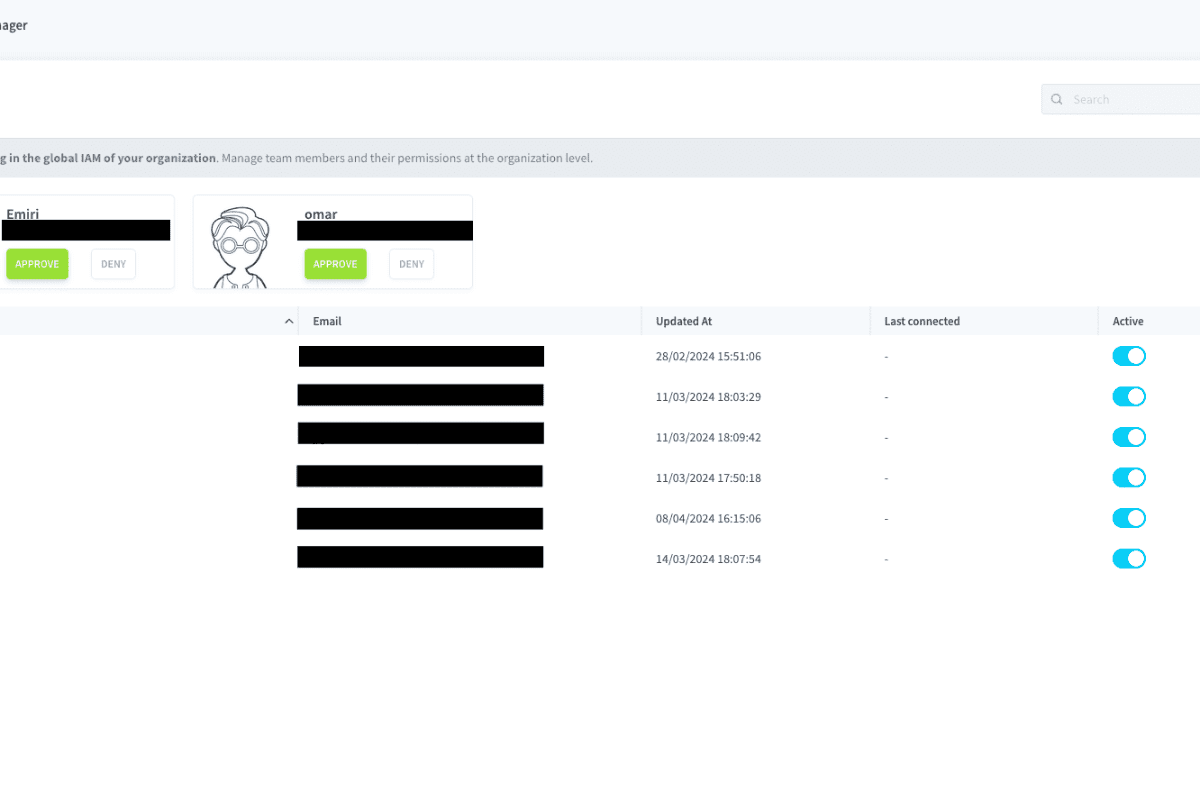
You can accept or deny their request from here. If you accept, they will be added in your organization as simple users with no permission.
Go further
For training or technical assistance implementing our solutions, contact your sales representative or visit our Professional Services page to request a quote and have your project analysed by our experts.
Ask questions, give your feedback and interact directly with the team building the Data Platform on the dedicated Discord channel.
If you need support with your OVHcloud services, create a request in our Help Centre.
Join our community of users.