

Notebooks
This page describes the Machine Learning Manager, a service of the ForePaaS Legacy Platform that is not available on OVHcloud Data Platform. See the current documentation.
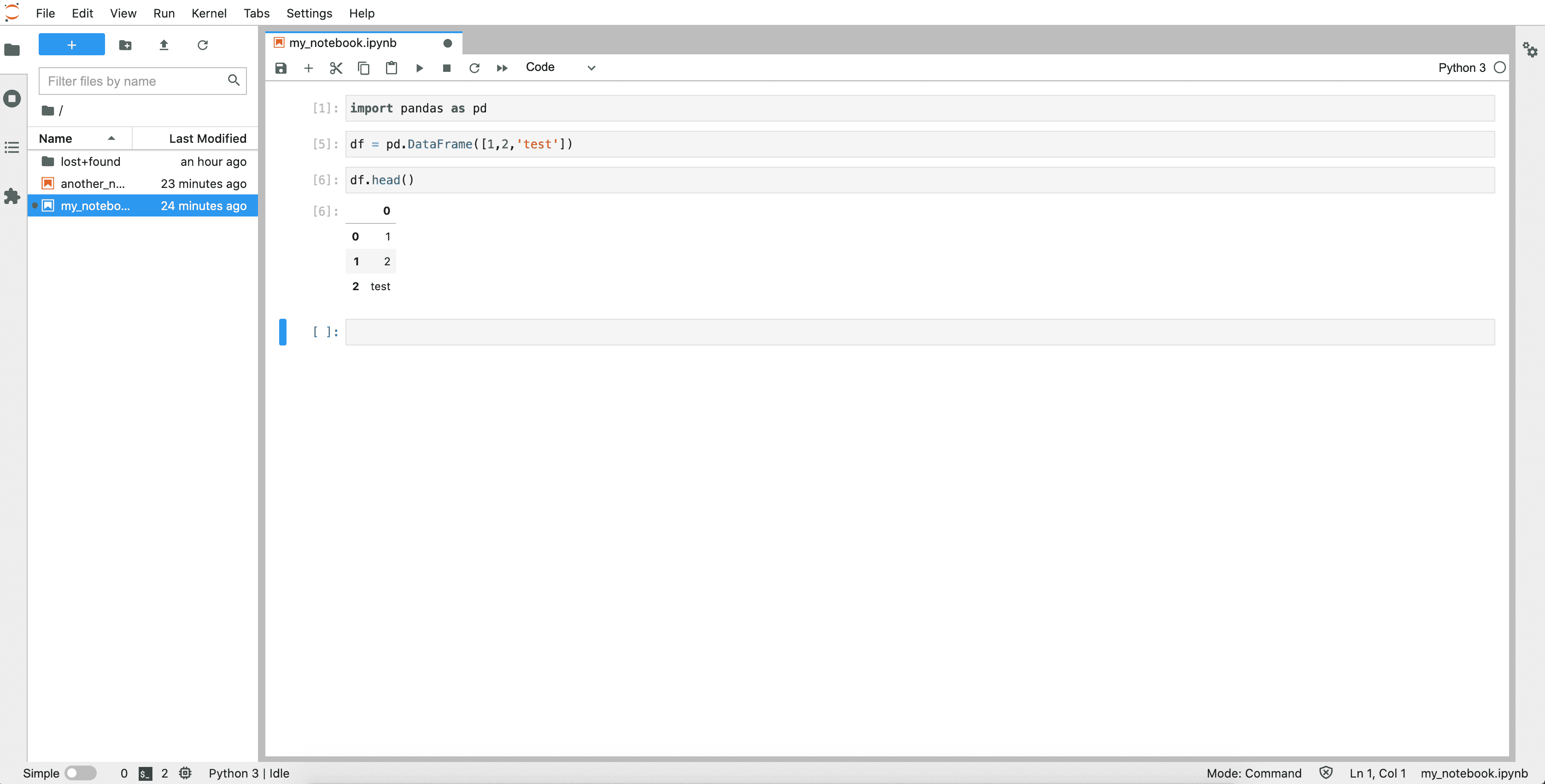
Notebooks are a built-in integration of Jupyter Notebooks on ForePaaS. Coming with pre-loaded packages for data science, they allow you to perform non-real-time interactive statistical analysis and data visualization. Notebooks are highly connected to the rest of your Project, making it possible to read/write data in the Data Manager thanks to our SDK or convert your notebook code into a Data Processing Engine action or a Machine Learning Manager pipeline.
- Create and delete notebooks
- Open a notebook
- Edit the settings of a notebook
- Export a notebook into ForePaaS
Create and delete notebooks
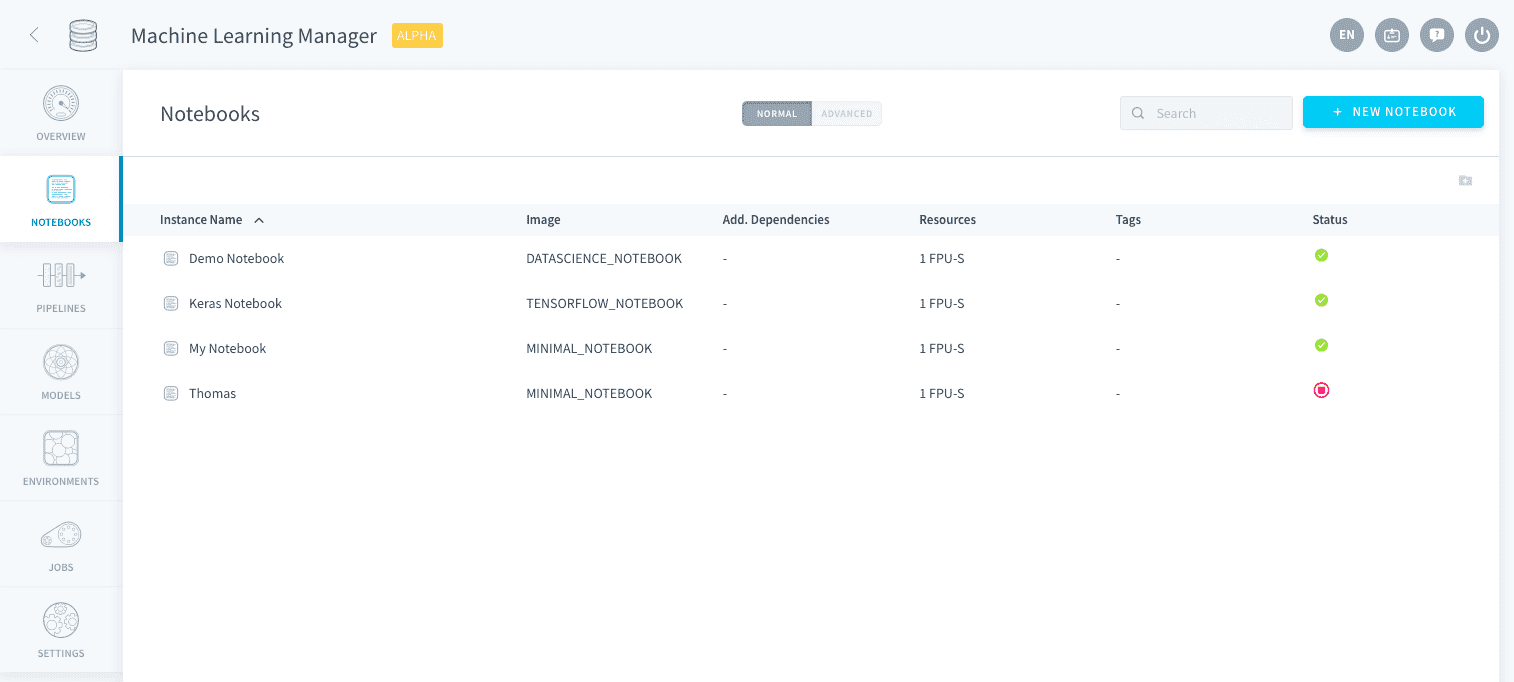
You can manage your notebook instances in the corresponding tab in the Machine Learning Manager. A notebook instance is a Jupyter environment with specific resources and dependencies.
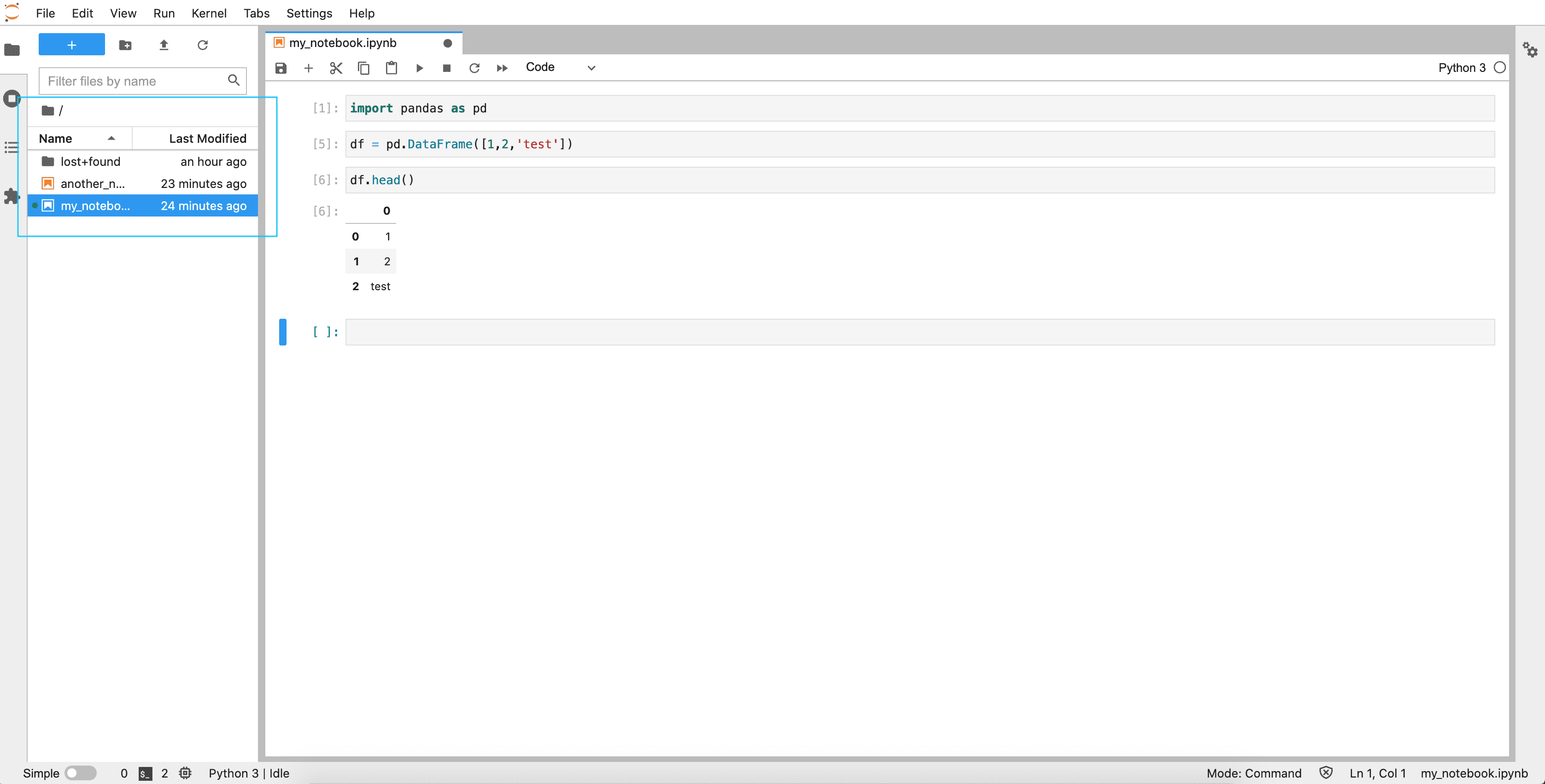
A notebook instance can contain several notebook documents, i.e. .ipynb files, which you can manage directly from the JupyterLab interface.
From the Notebooks home page, you can create, work on, delete and edit the settings of all your notebooks.
On the ForePaaS Platform, the word notebook is used to talk about notebook instances.
Learn how to create a notebook
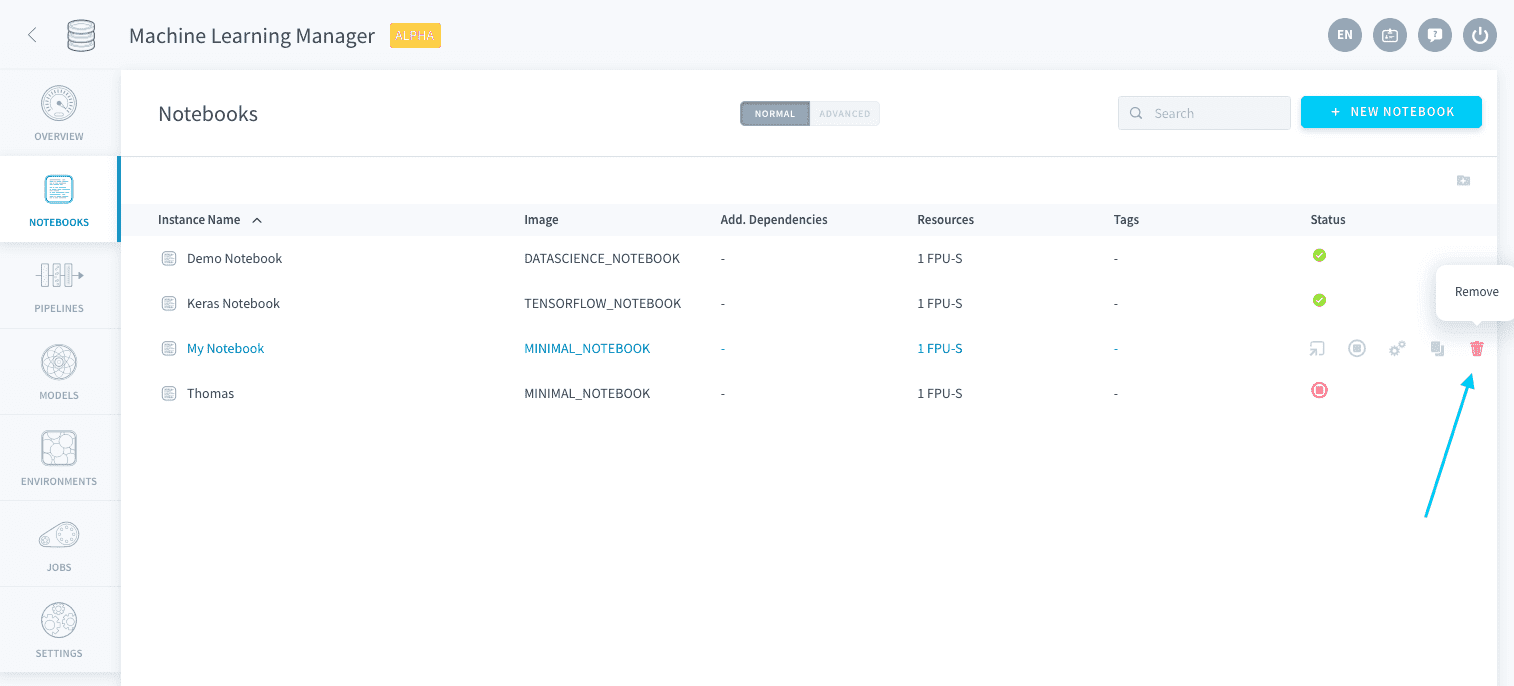
You can delete a notebook by clicking on the 🗑️ icon. Deleted notebooks cannot be recovered.
Open a notebook
Notebook instances are automatically turned on when you open them.
The notebook instance will consume all assigned DPU for the duration it is turned on.
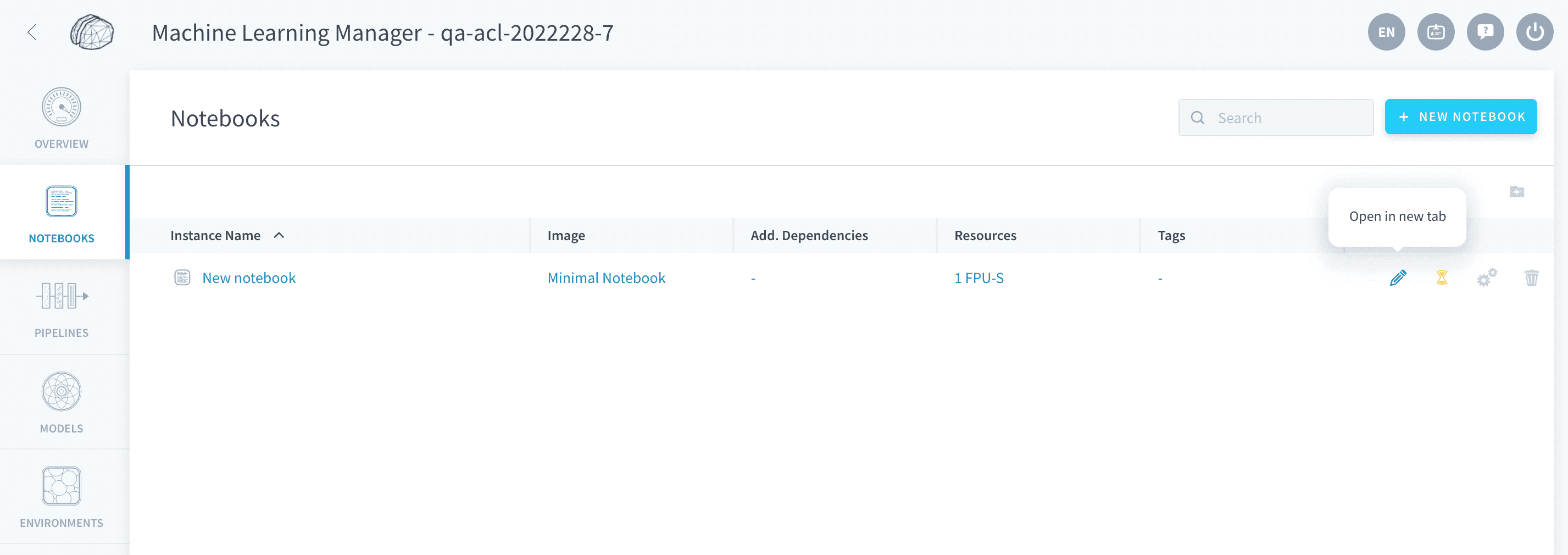
You can manually turn off a notebook by clicking on the Stop button when it is active.
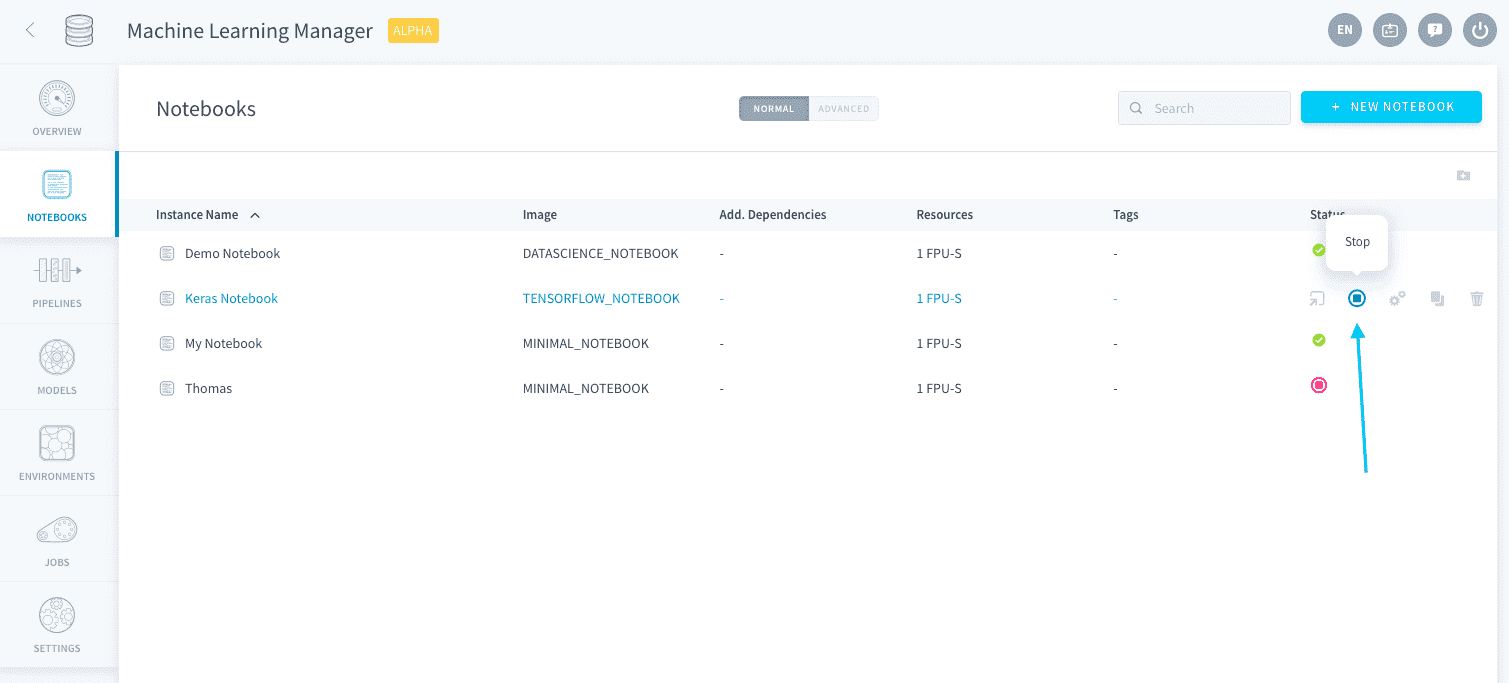
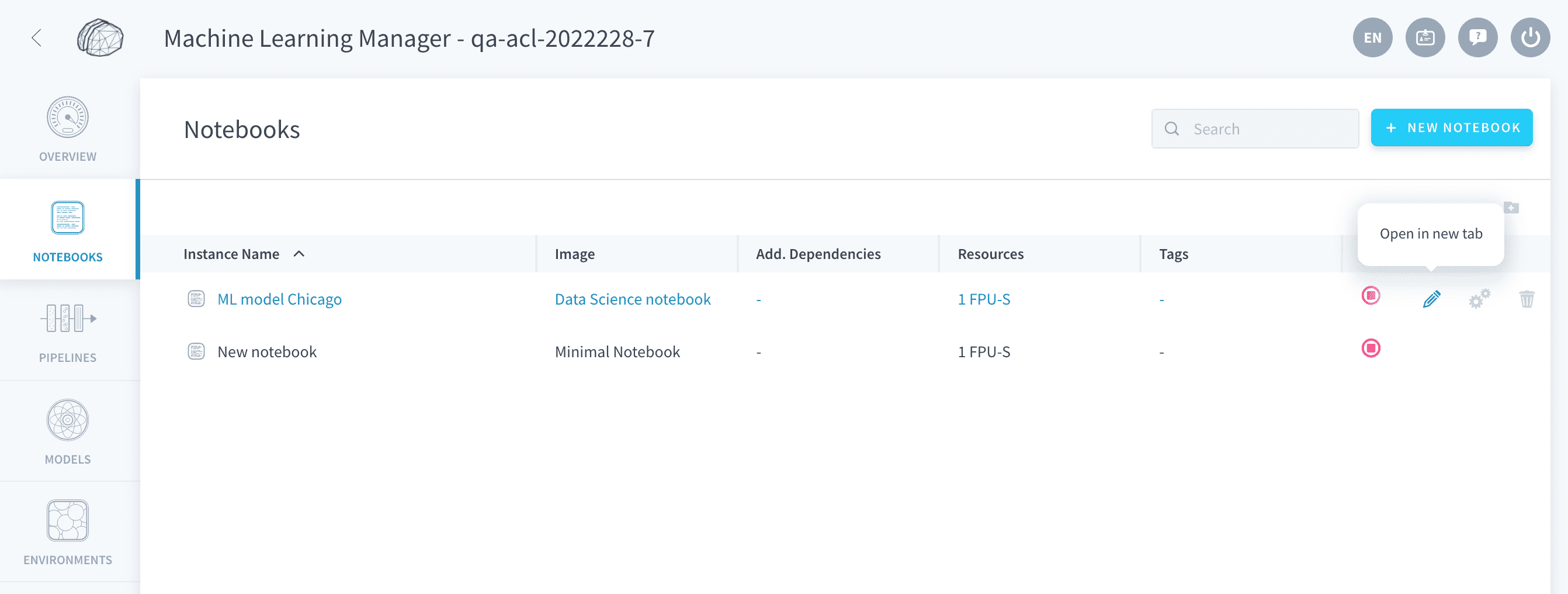
To open a notebook, double click on it, or press the button shown below. This will open the notebook in a new JupyterLab window.
The JupyterLab interface allows you to work on your notebooks with all the features provided by Jupyter, such as having multiple .ipynb files open at the same time, keyboard shortcuts, download and export options, and much more.
Use the ForePaaS SDK to easily interact with the rest of your Project, typically to import/process/export data from and to your Data Manager tables.
Edit the settings of a notebook
To edit the settings of a notebook, click on the gears icon.
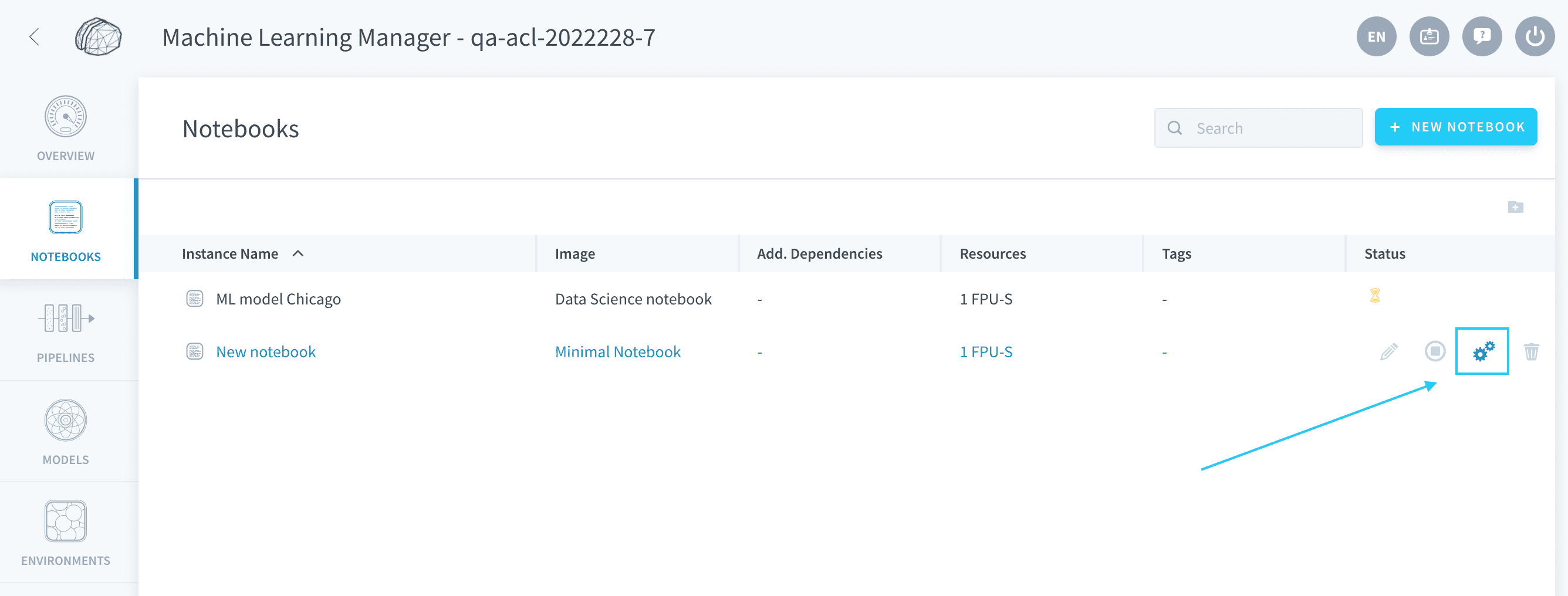
You can edit the following options:
Edit dependencies
You can edit the packages and dependencies of your notebook environment, including the Python version. The notebook will have to be restarted for any modification to be applied.
All notebooks have an instance image, which comes with some default packages and Python 3.9. You can specify additional dependencies by clicking on the Add button in the Dependencies panel.
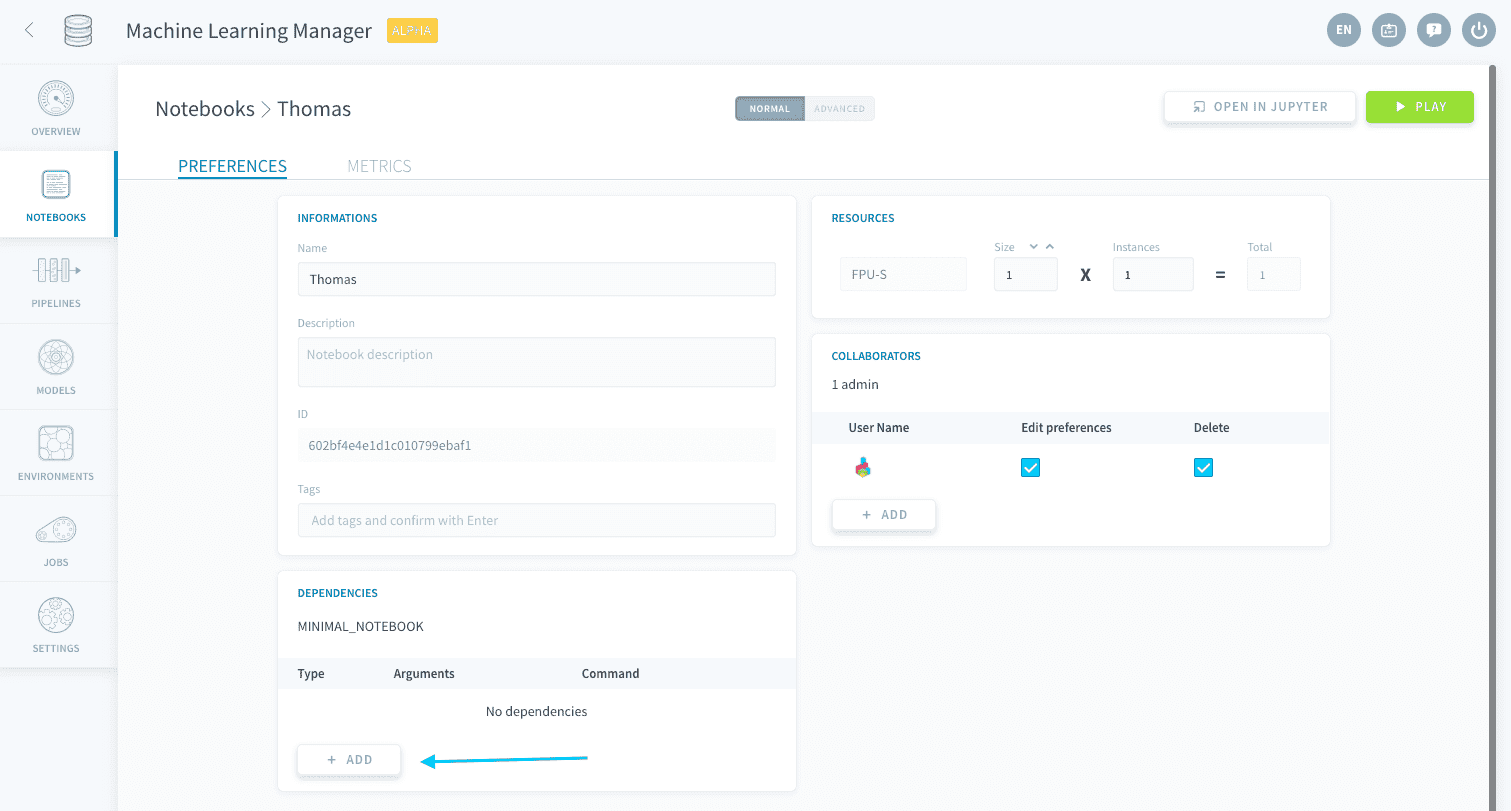
Simply choose the type of dependency and enter the name of the package to install in the server, then press Enter.
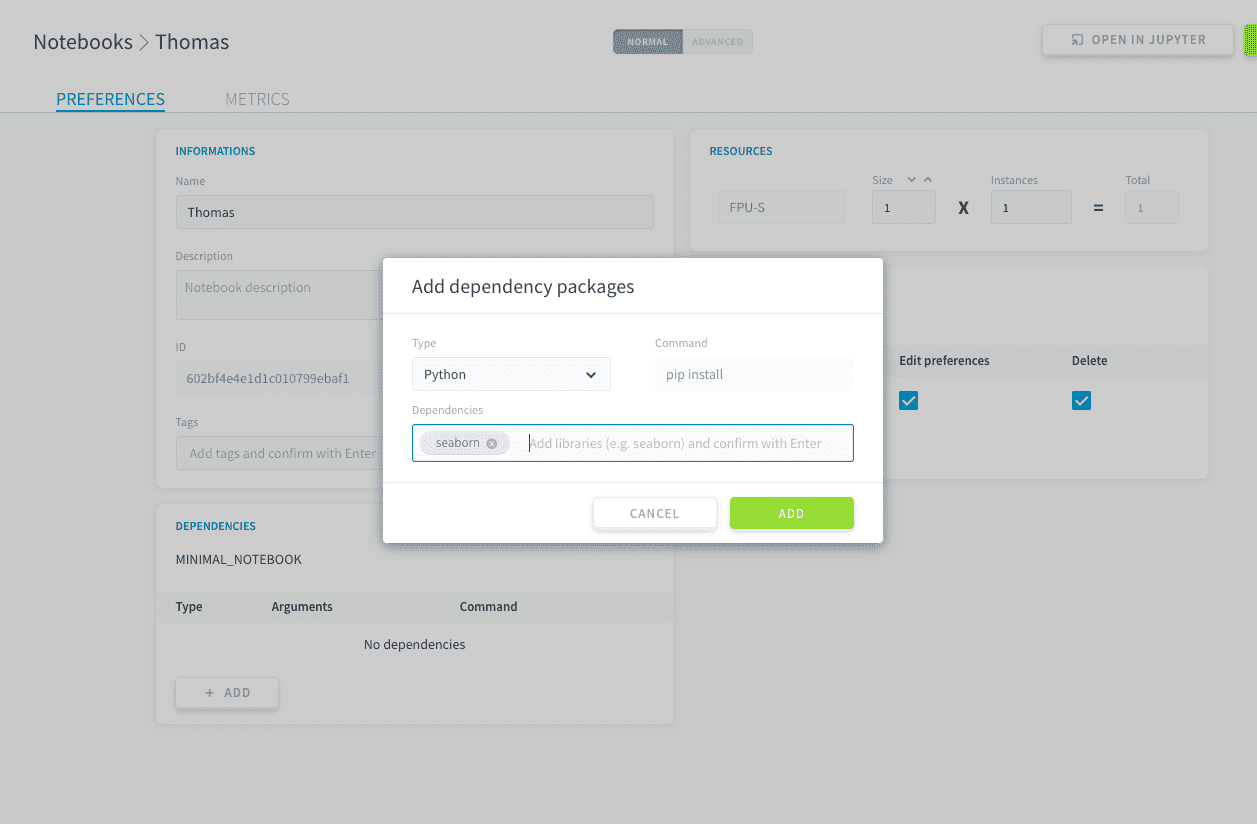
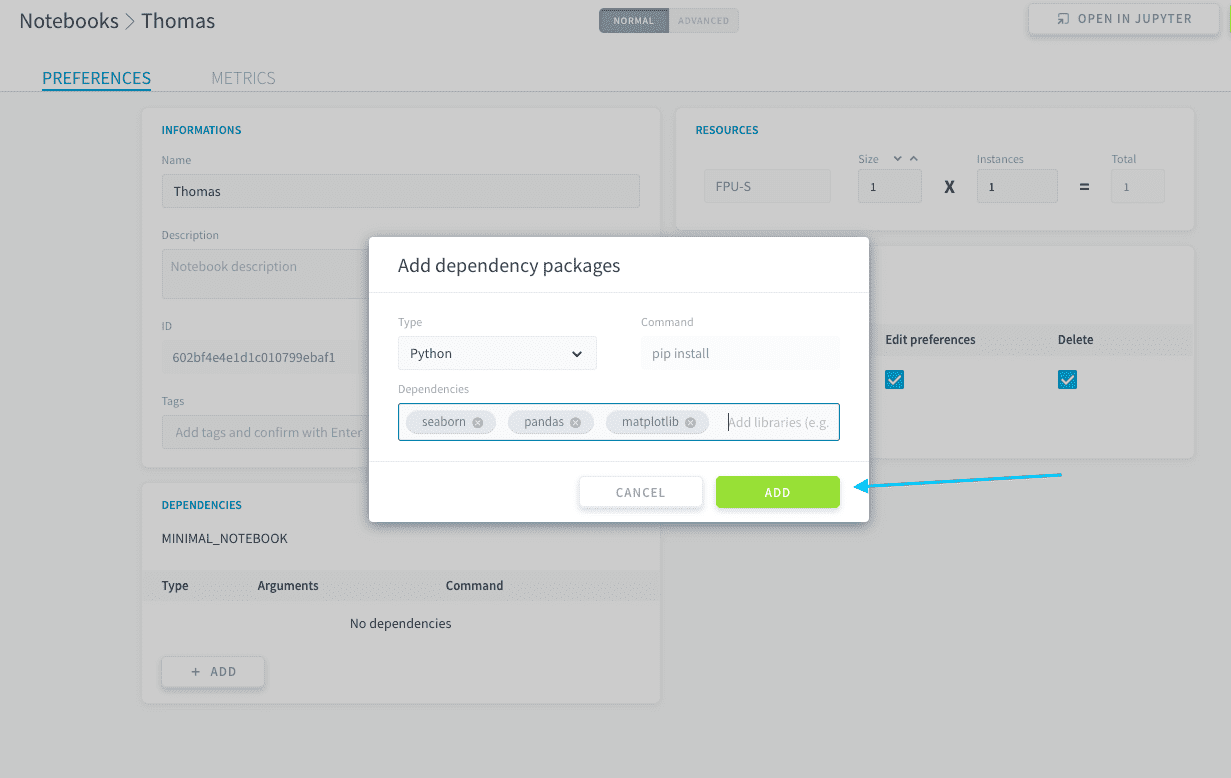
You can add several packages at once by pressing Enter every time, like tags.
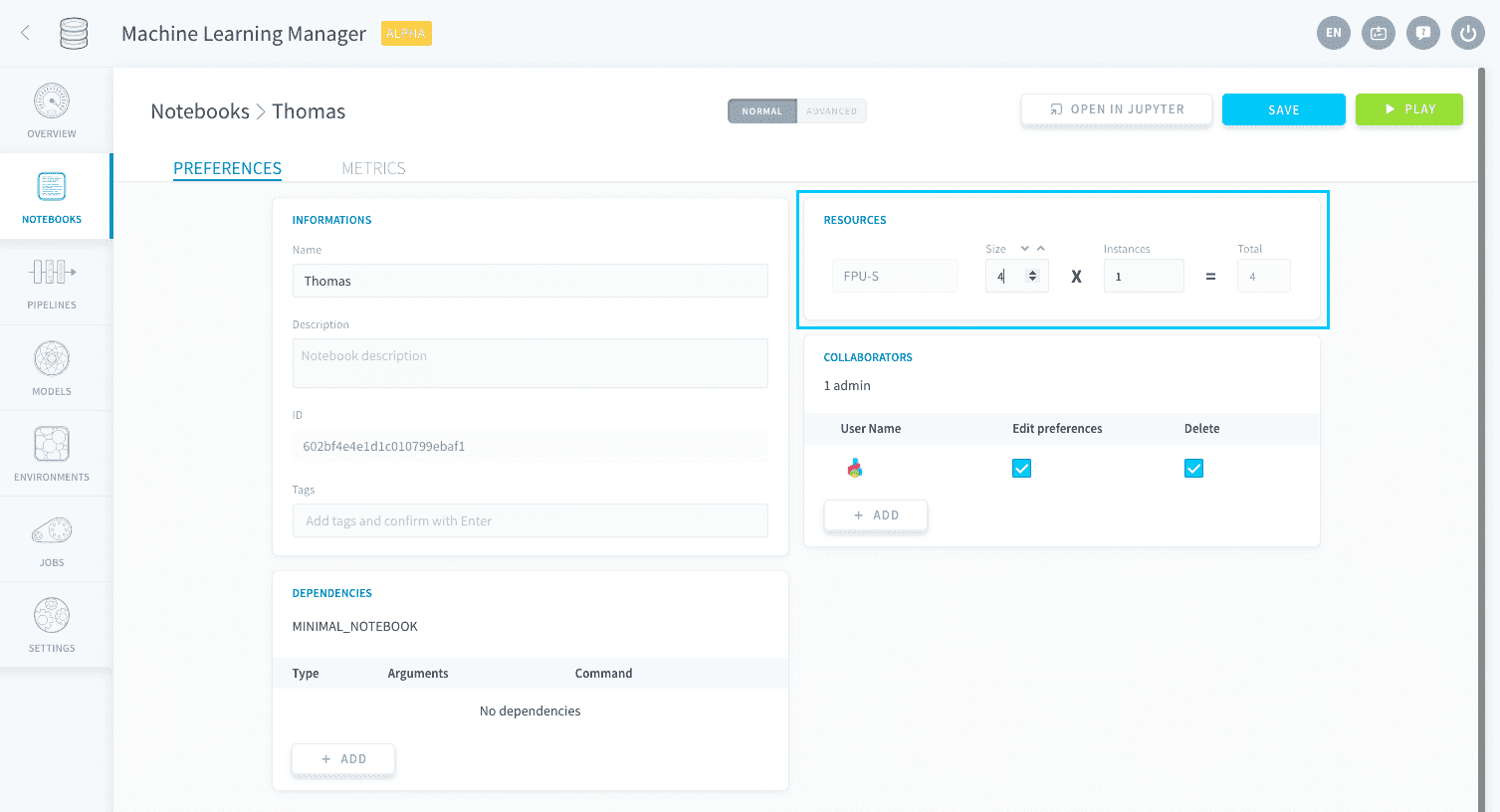
Edit resources
This is where you can edit the resources you want your notebook to use. The notebook will have to be restarted for any modification to be applied.
Export a notebook into ForePaaS
You can also export the entirety of the notebook's content to an object in ForePaaS. This will export all the code in your cells as it is and will turn any markdown cells into comments.
Notebook exporting is only available with Python version 3.9.7. Please select that version on the notebook's settings, otherwise you won't be able to export your notebook.
There are three options regarding where to export your notebook to:
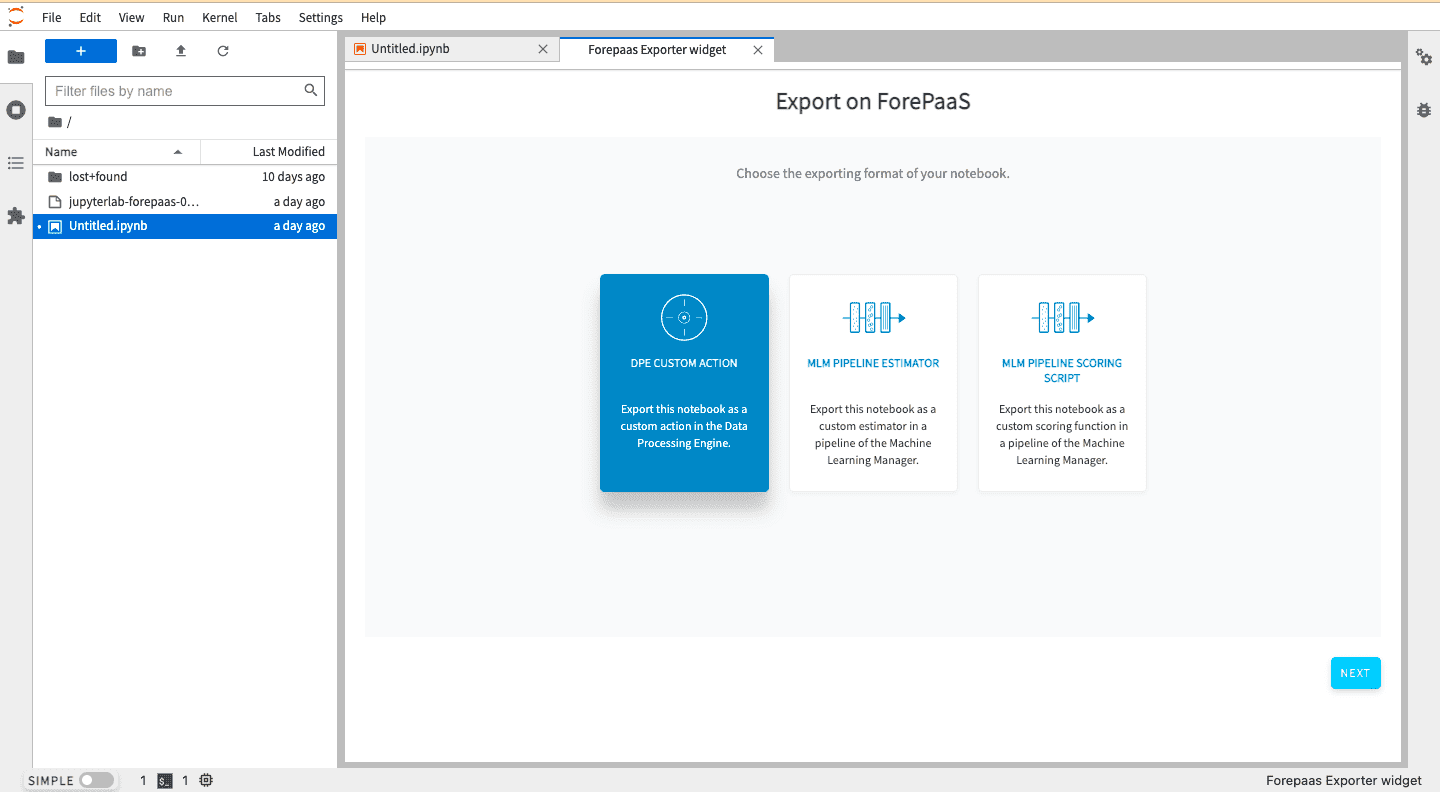
- Custom Action, in the Data Processing Engine.
- Custom Estimator, in the Machine Learning Manager.
- Custom Scoring Function, in the Machine Learning Manager.
To export your notebook, open it and click on File and then on ForePaaS export.
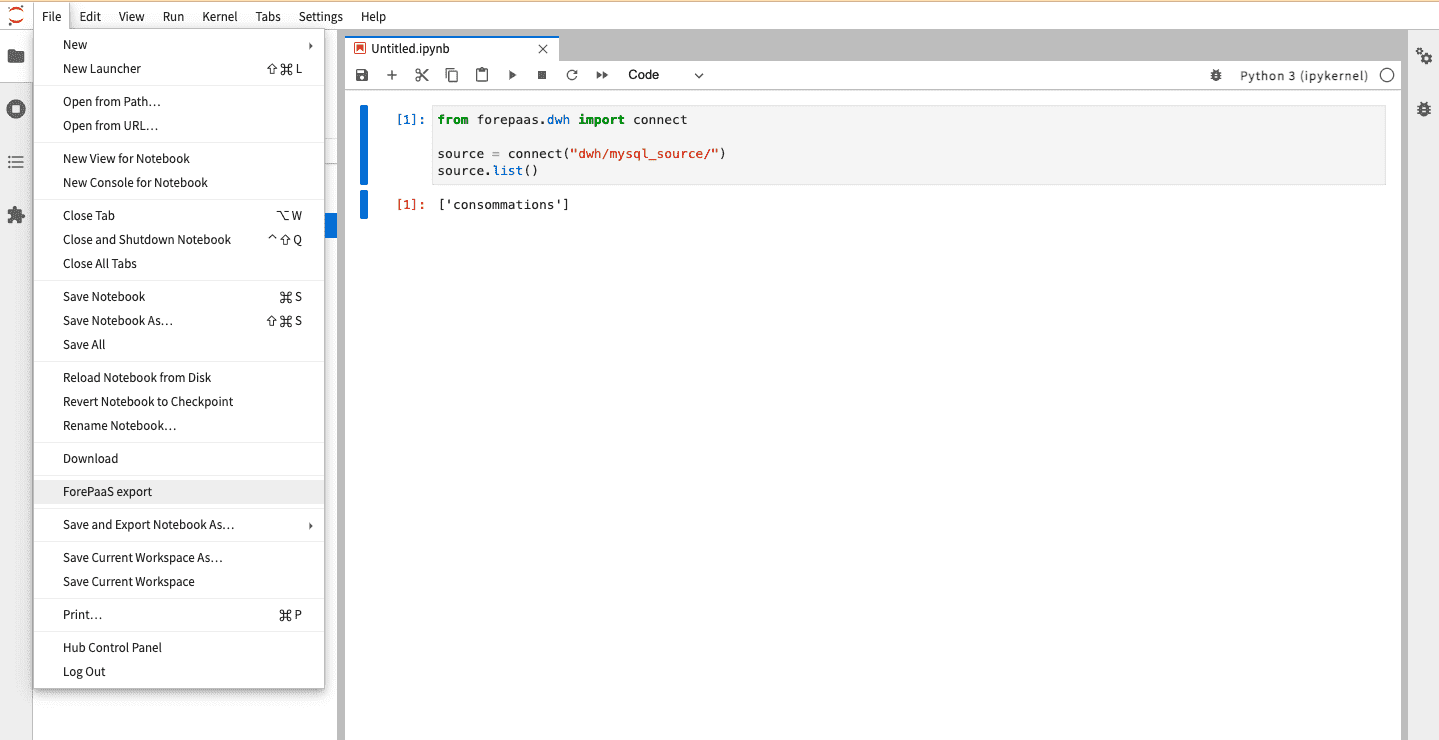
This will open an export widget allowing you to choose between the three export options. Choose your preferred option and click on Next.
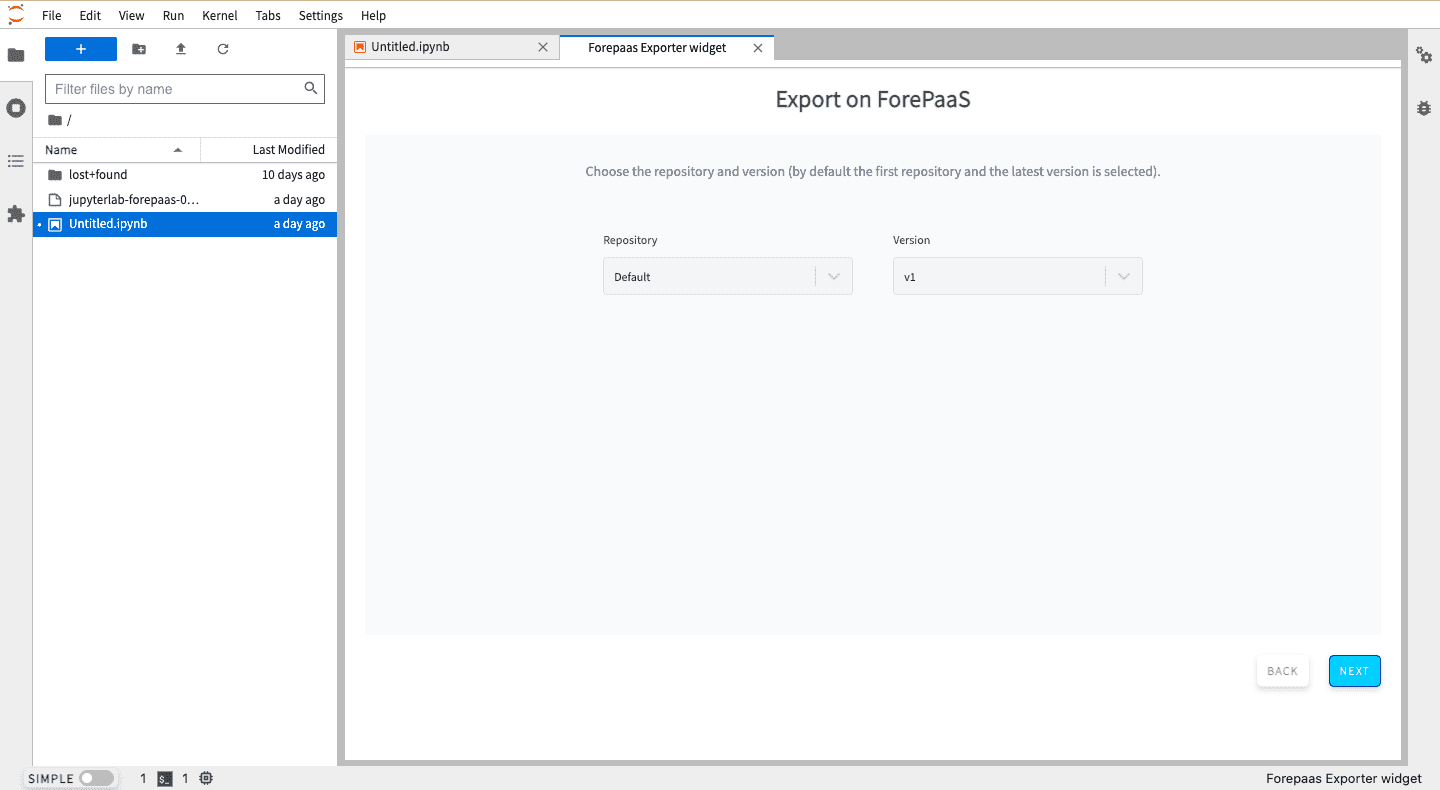
Choose the repository and the repository version where to export the notebook. If are not familiar with repositories, simply leave it at the Default repository with version v1.
Then, you will be required to decide if you want to export to an existing object or create a new one. If you create a new one, you also have to choose the name and the framework to be used.
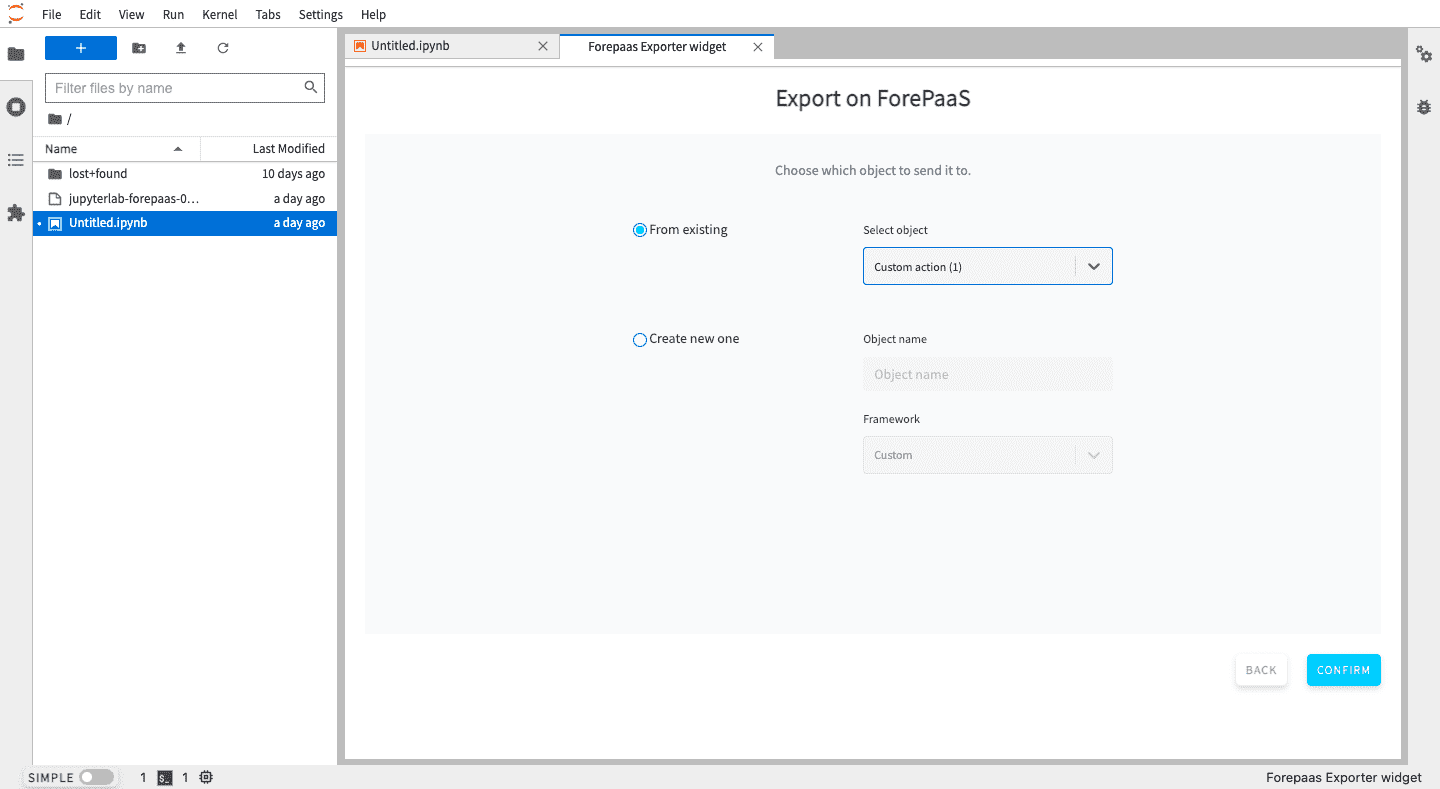
Finally, click on confirm to export the notebook.
Go further
If you need training or technical assistance to implement our solutions, contact your sales representative or click on this link to get a quote and ask our Professional Services experts for a custom analysis of your project.
Ask questions, give your feedback and interact directly with the team building the Data Platform on the dedicated Discord channel.
If you need support with your OVHcloud services, create a request in our Help Centre.
Join our community of users.