

Filter job execution with the data perimeter
When executing a data processing job, when you reach large volumes of data to process, you may need to filter the execution of an action
Objective
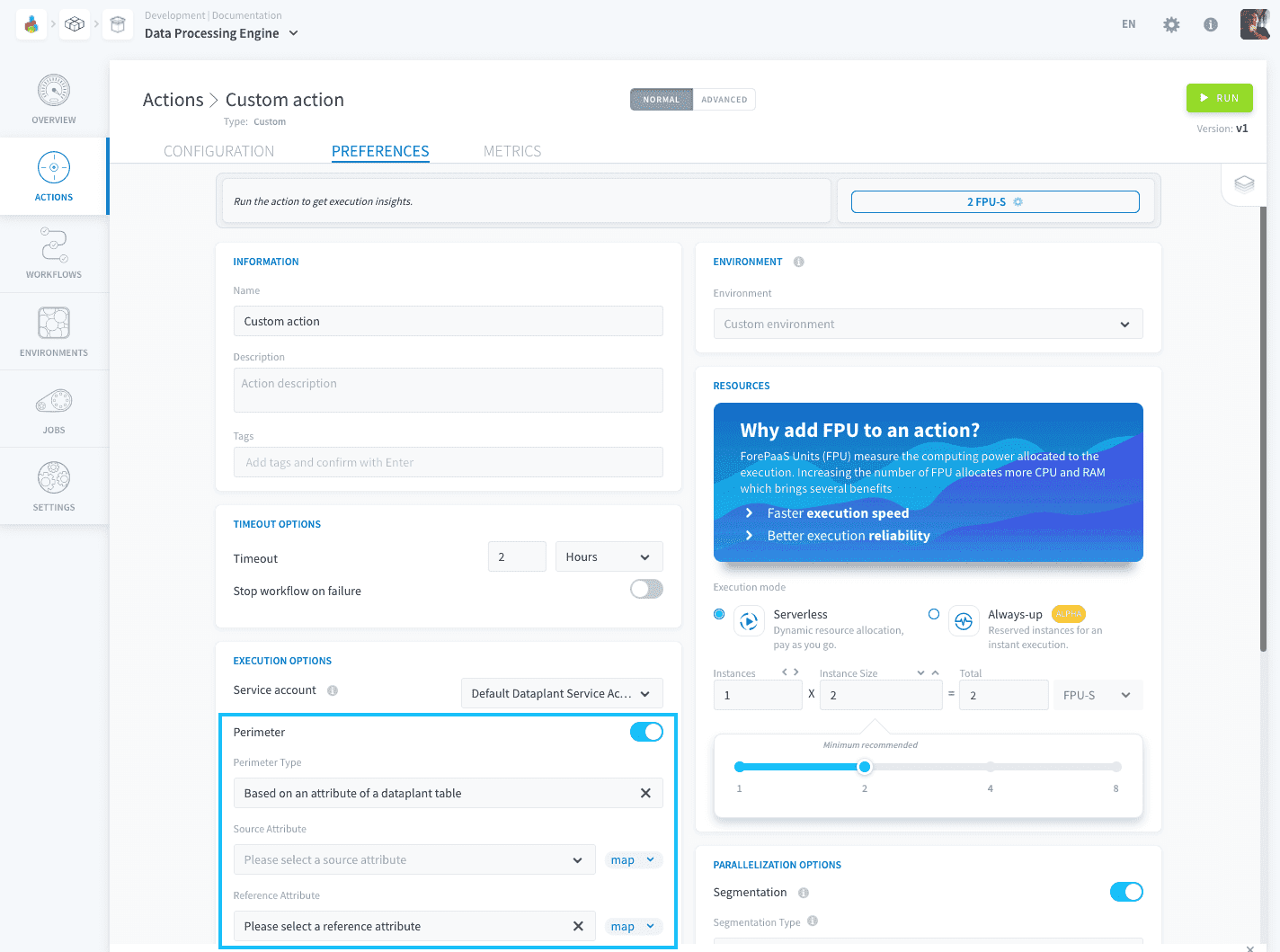
When executing a data processing job, when you reach large volumes of data to process, you may need to filter the execution of an action. The perimeter allows you to define a field on which to filter the scope of the data to be processed by the action.
1. Based on an attribute of a Project table
If you want to filter an action against a list of data present in the column of a table from the Lakehouse Manager, for example:
| Reference Table | Source Table | Destination Table |
|---|---|---|
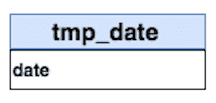 | 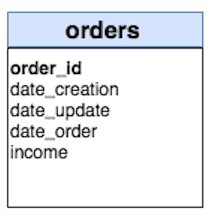 | 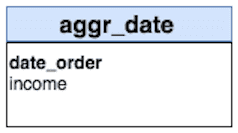 |
You want to aggregate the data of the "income" attribute contained in the source tab "orders" in the destination table "aggr_date" grouped by "date_order". The tmp_date table contains a list of dates to aggregate from 2019-01-01 to 2019-01-03.
By activating this perimeter mode, this will create a pre-stage automatically which aims to constitute the list of perimeter values contained in the table tmp_date, attribute date, and will filter the action between all the values found.
Compatibility
This perimeter option is only compatible with the following actions and sources:
Configuration
To configure this perimeter option select Based on an attribute of a Project table in the "Perimeter Type" dropdown.
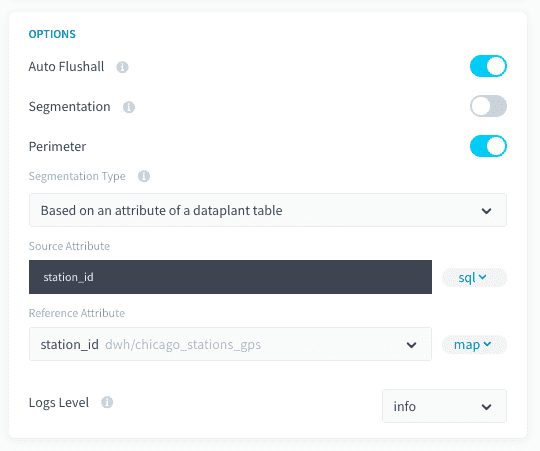
If you are using the advanced mode interface, you will need to add the following fields to your action JSON configuration:
2. Based on a predefined set of values
This mode lets you enter a list of values to filter a source/table attribute on.
Compatibility
This perimeter option is only compatible with the following actions and sources:
Configuration
To configure this perimeter option select Based on predefined set in the "Perimeter Type" dropdown.
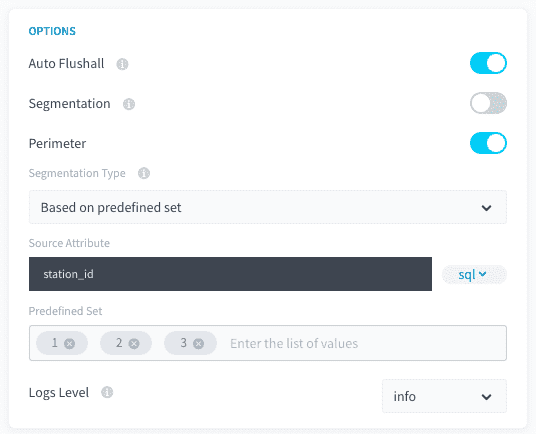
If you are using the advanced mode interface, you will need to add the following fields to your action JSON configuration:
3. Based on the date perimeter of the workflow
If your source data has a date attribute, it is possible to filter the processing of your action against the dates set in your workflow.
Compatibility
This perimeter option is only compatible with the following actions and sources:
Configuration
To configure this perimeter option select Based on the date perimeter of the workflow in the "Perimeter Type" dropdown.
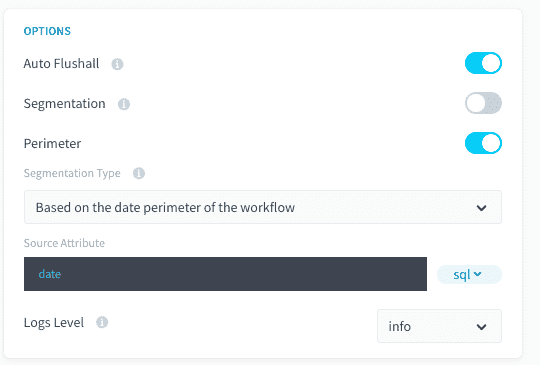
You must switch to advanced mode to configure this option. You simply need to add the following fields to your action JSON configuration:
Check-out more detail about our Segmentation and Perimeter options for DPE action in the Additional Remarks articles of the DPE Action settings. Segmentation and perimeter vocabulary
Go further
For training or technical assistance implementing our solutions, contact your sales representative or visit our Professional Services page to request a quote and have your project analysed by our experts.
Ask questions, give your feedback and interact directly with the team building the Data Platform on the dedicated Discord channel.
If you need support with your OVHcloud services, create a request in our Help Centre.
Join our community of users.