

Export or import a Project's configuration
It is possible to export and/or import your Projects' configurations for each component
Objective
It is possible to export and/or import your Projects' configurations for each component. Configurations are a bundle of files (usually JSON & code files) that contain all the information about how a certain component was set up in your Project. This is particularly useful when you're trying to reuse a set of actions or queries from one Project to another.
Getting a temporary access token
To run all import and export scripts you will need a temporary access token.
To get an access token easily, start by logging-in to the platform via the interface, and open any component, like here the Data Processing Engine. Right-click on your screen and select Inspect.
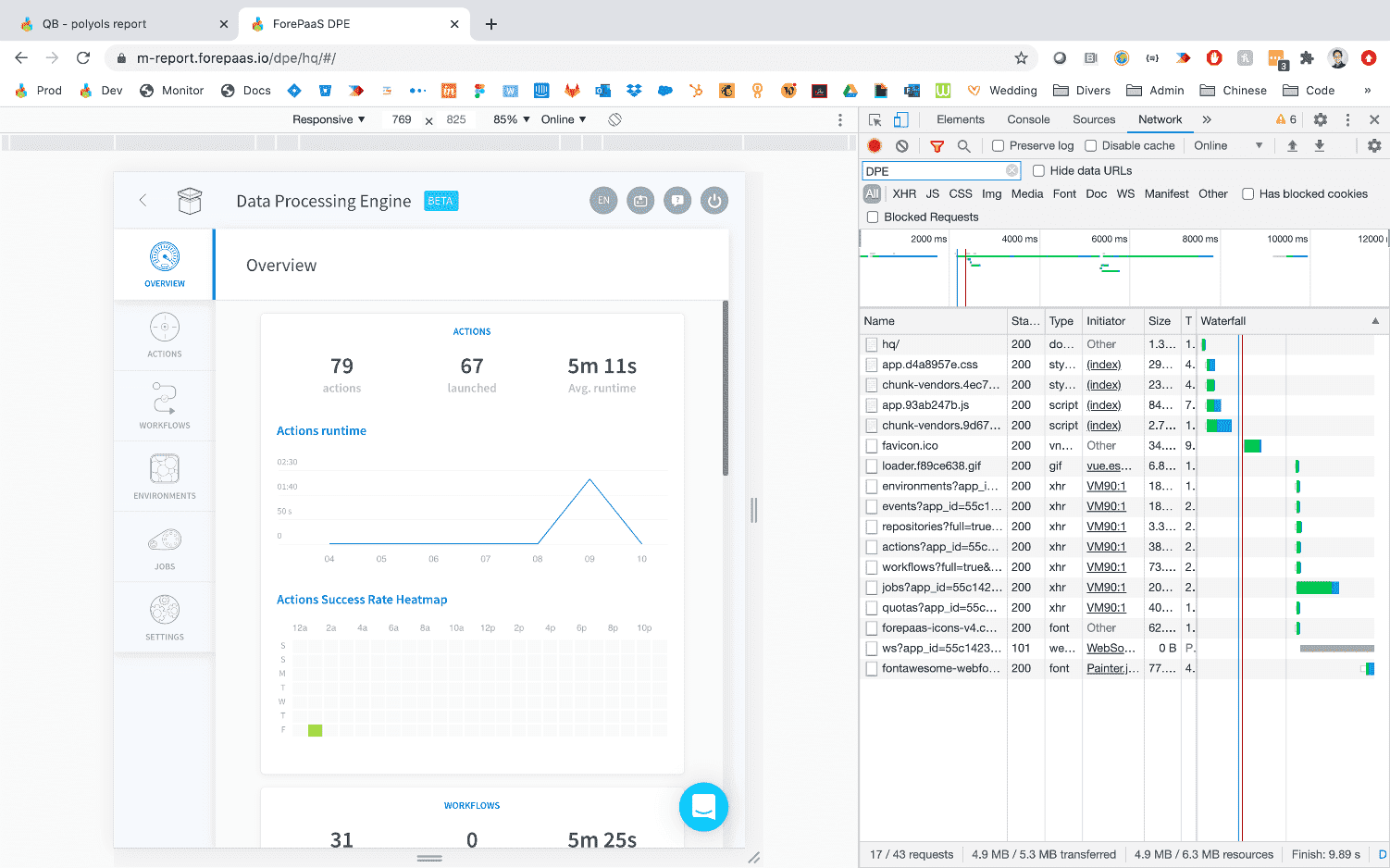
This will open your browser’s console window: navigate to the Network tab. If no calls are visible, simply press F5 or refresh your page. You should see a list of calls available like in the screenshot above.
Right-click on the one starting with “workflows” or “actions”, navigate to the option Copy and select Copy as cURL. You have now copied a cURL call which already contains your secret access token to your clipboard.
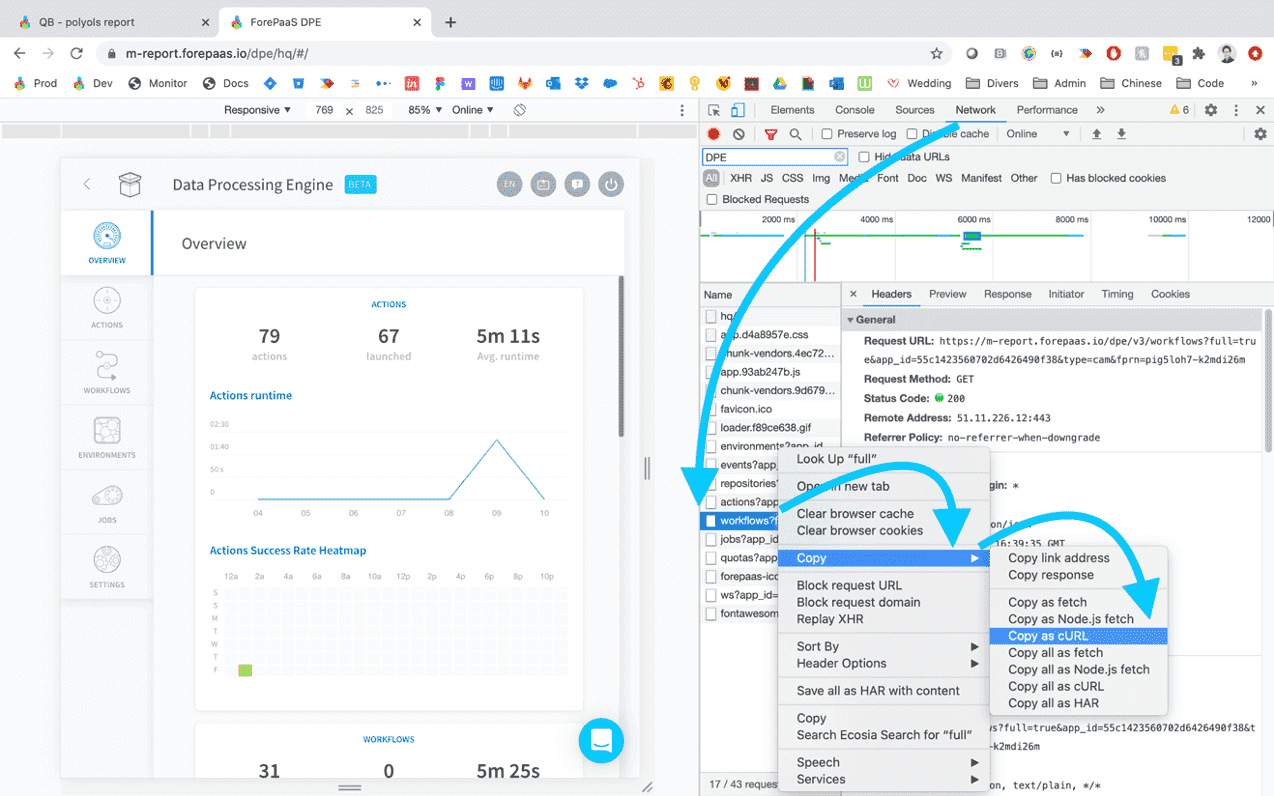
Now open Insomnia and paste the cURL inside the main header at the top of the window (on the right side of the Insomnia title next to the Get dropdown button):
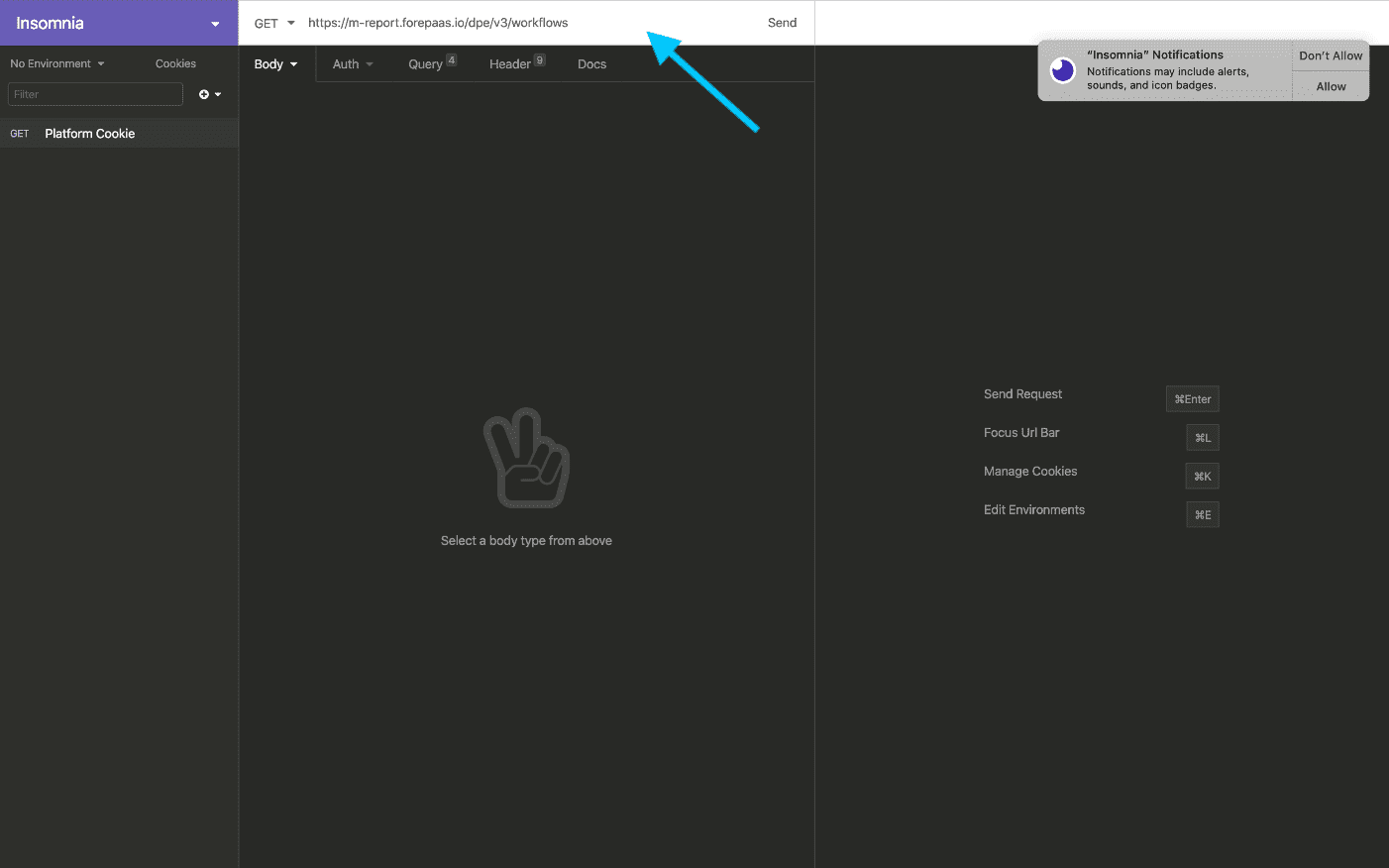
When you copy-paste the cURL, Insomnia will automatically detect all the parameters of the call and fill the form for you. The only thing left for you to do is simply to change the main API call, instead of the one that you’ve just copy-pasted, and keeping the same list of Header parameters.
How to export/import a configuration with an API call
This section will demonstrate how to use an API call to export or import the configuration of a specific component in your Project.
The detailed list of calls per component is available in the next section.
As a general rule make sure to:
- use a GET method when doing an Export call
- use a POST method when doing an Import call
The following example will go through the whole procedure to export and then import the configuration for the Data Processing Engine.
How to export a configuration
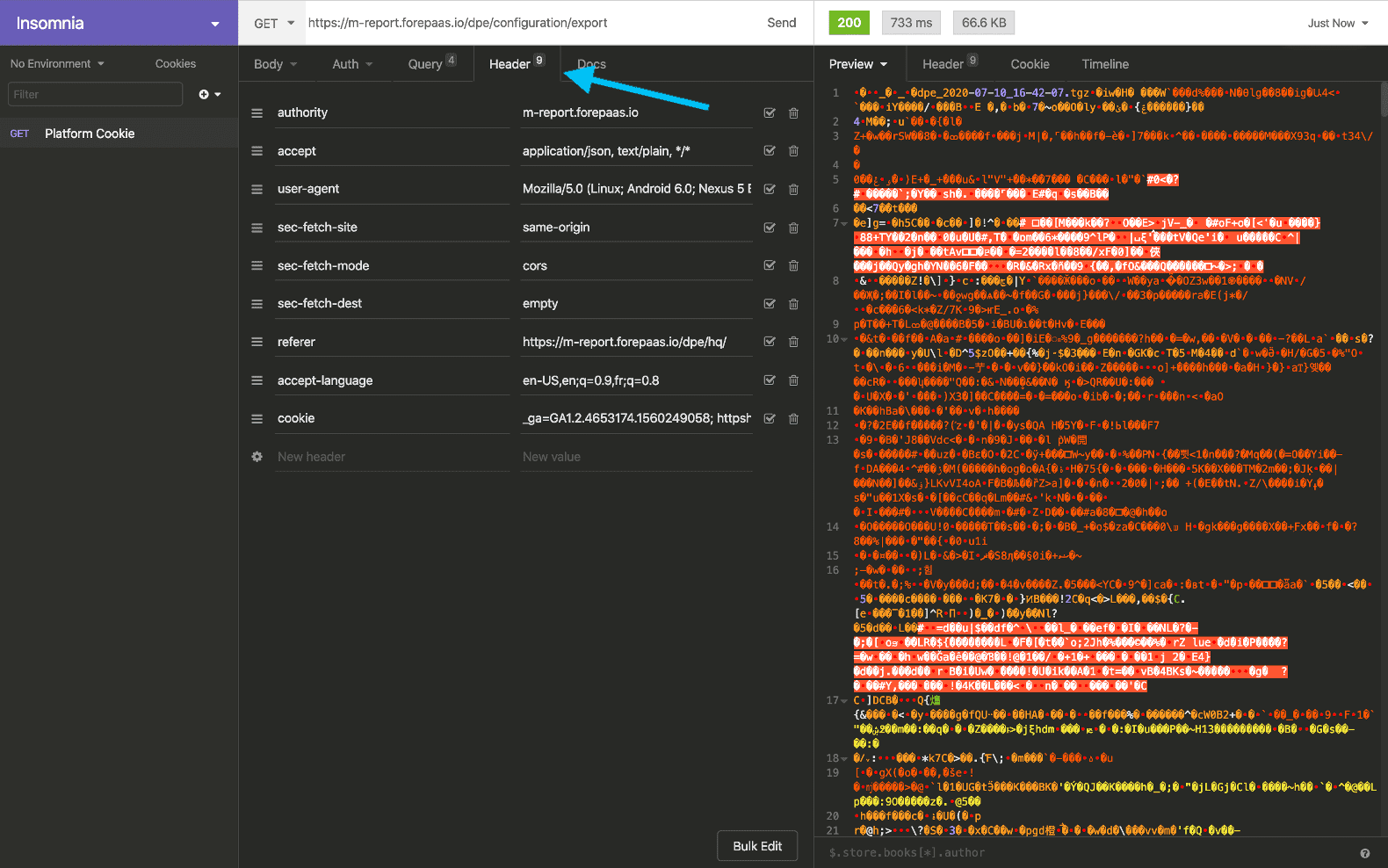
First, export the configuration by copy-pasting the corresponding URL, change to GET and click on Send.
If the call is successful you will see on the right side the TGZ file in the return response which you can download on your local machine. You can see on the screenshot below that the TGZ (tar gzipped) file is not readable because its compressed.
How to import a configuration
Now, let's import the same TGZ file which contains the Data Processing Engine's configuration. Change the GET method to POST and change the Body type to Multipart Form like shown on the screenshot below.
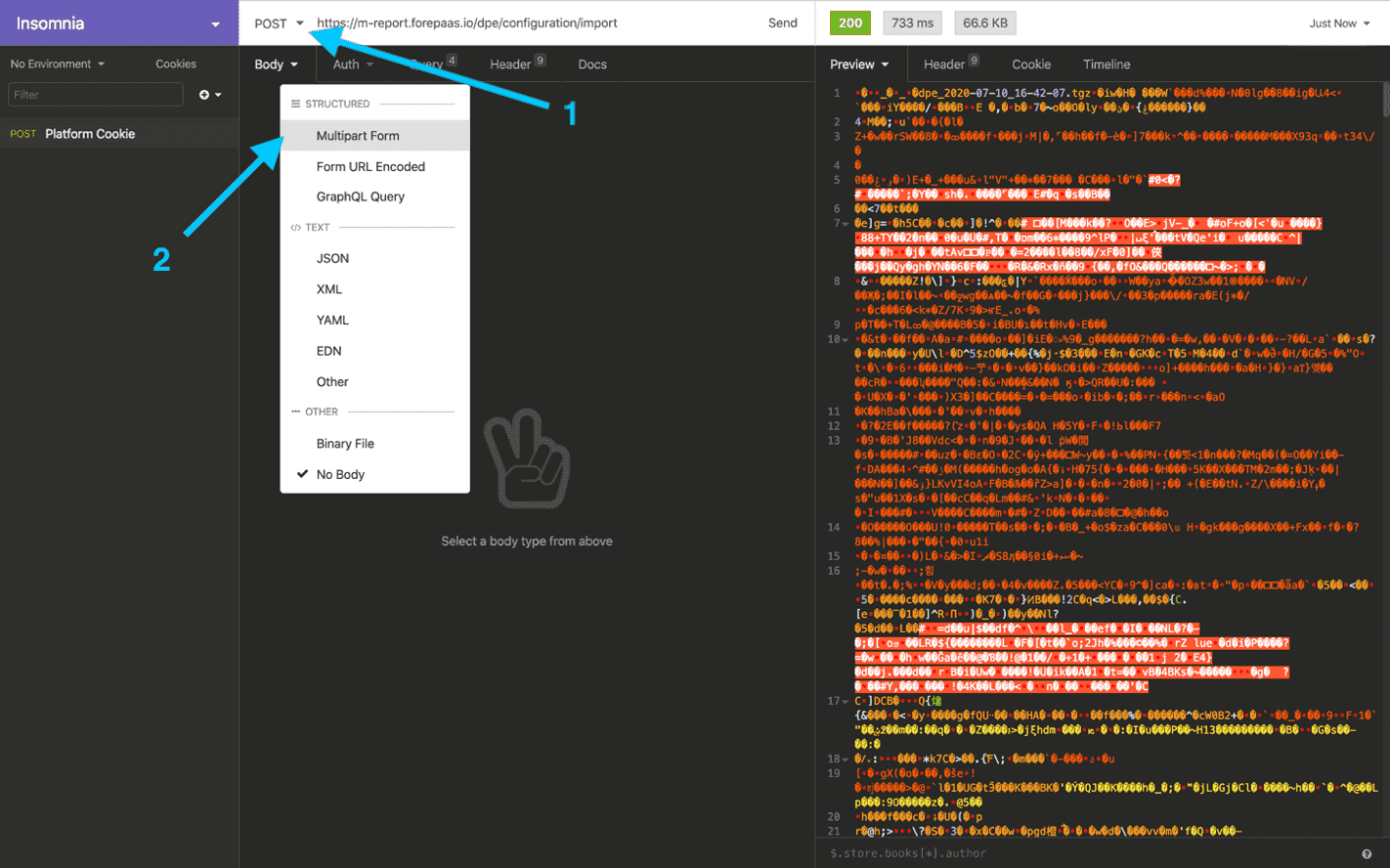
By choosing the Multipart Form you have the option to add parameters in the body and in particular load the TGZ file that you exported earlier as part of the request.
In the first input, type in archive, and on the dropdown arrow next to value select the File option. This will let you select directly a file from your computer to load.
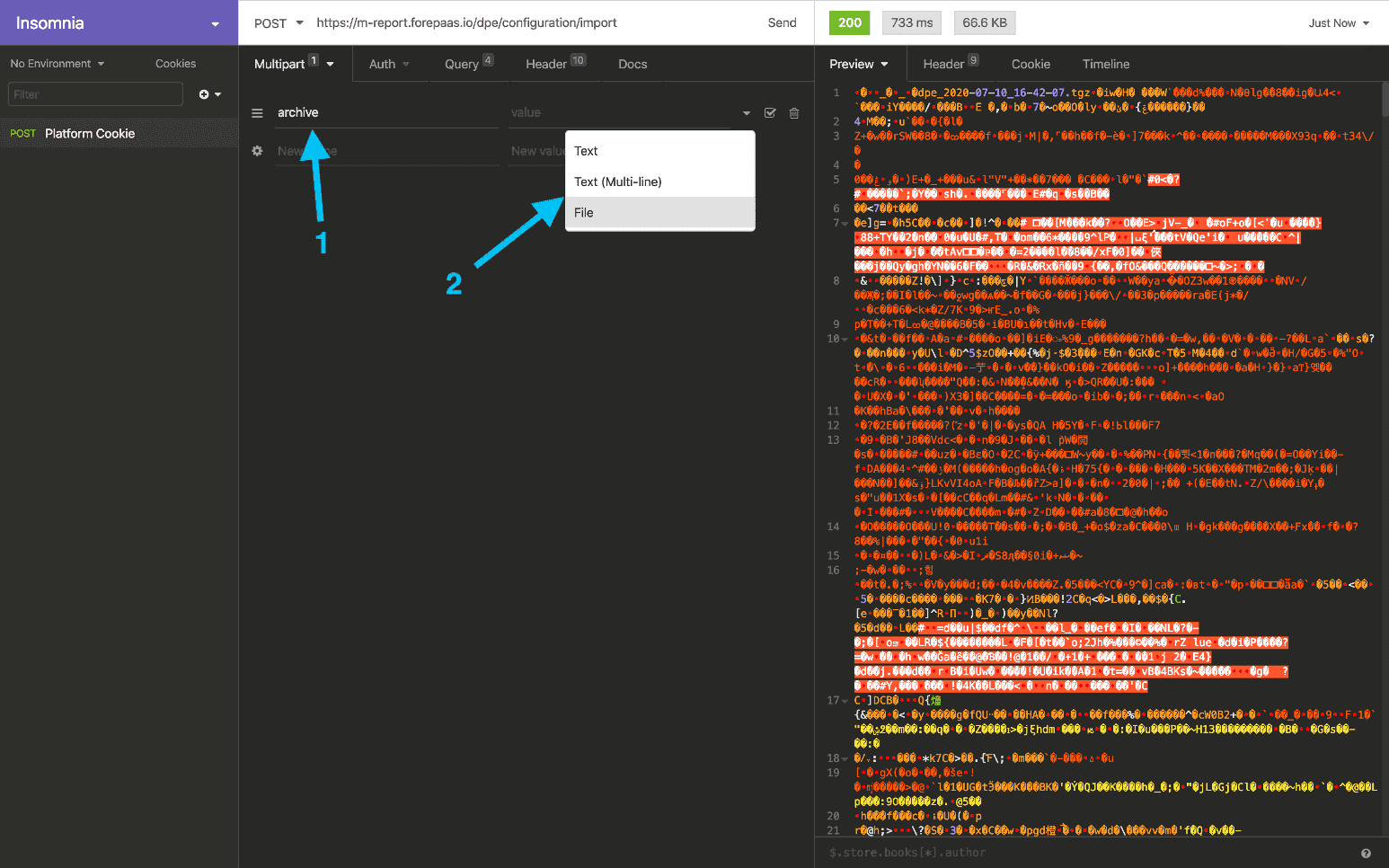
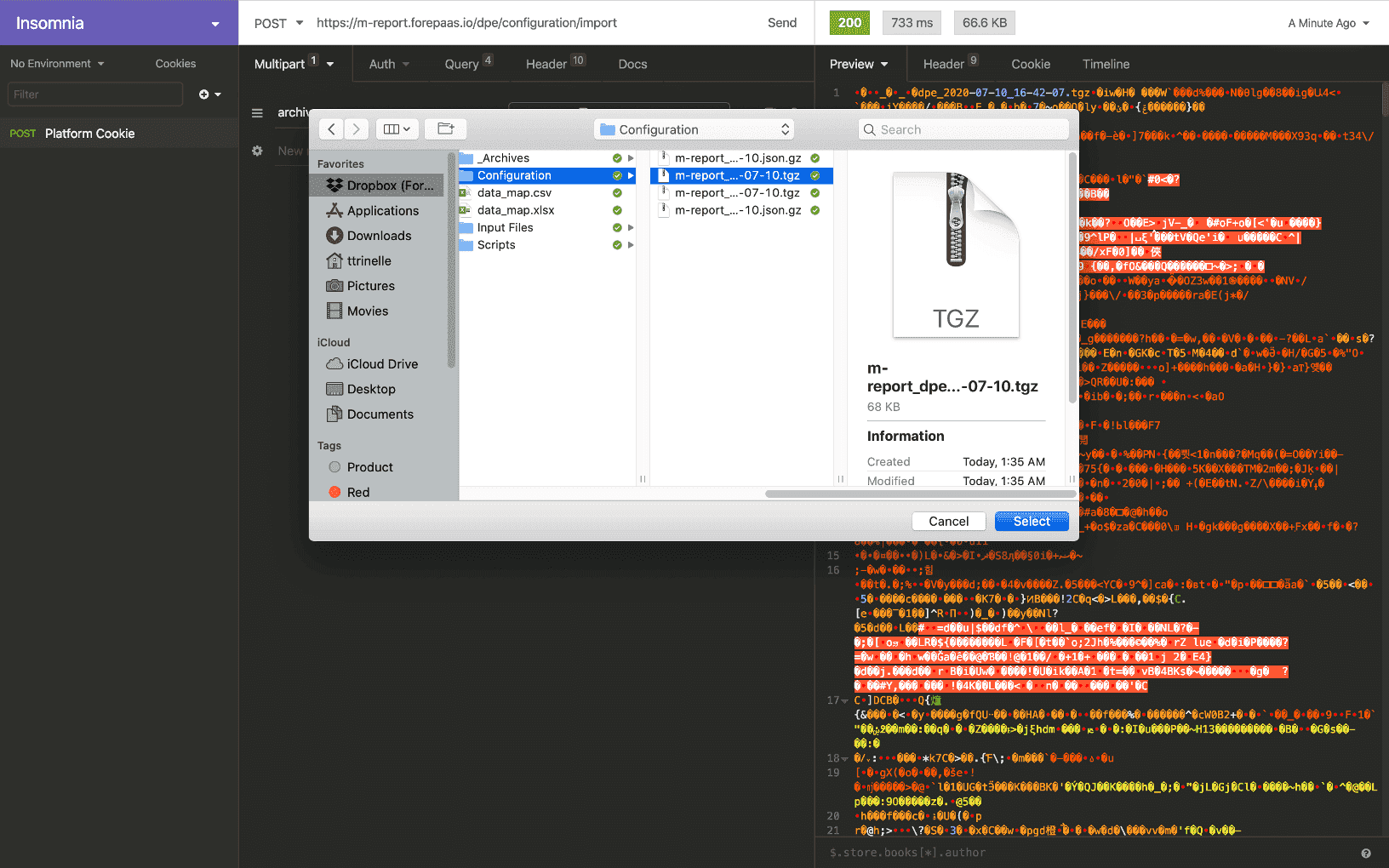
Select the TGZ file you want to load into your Project:
Press Send
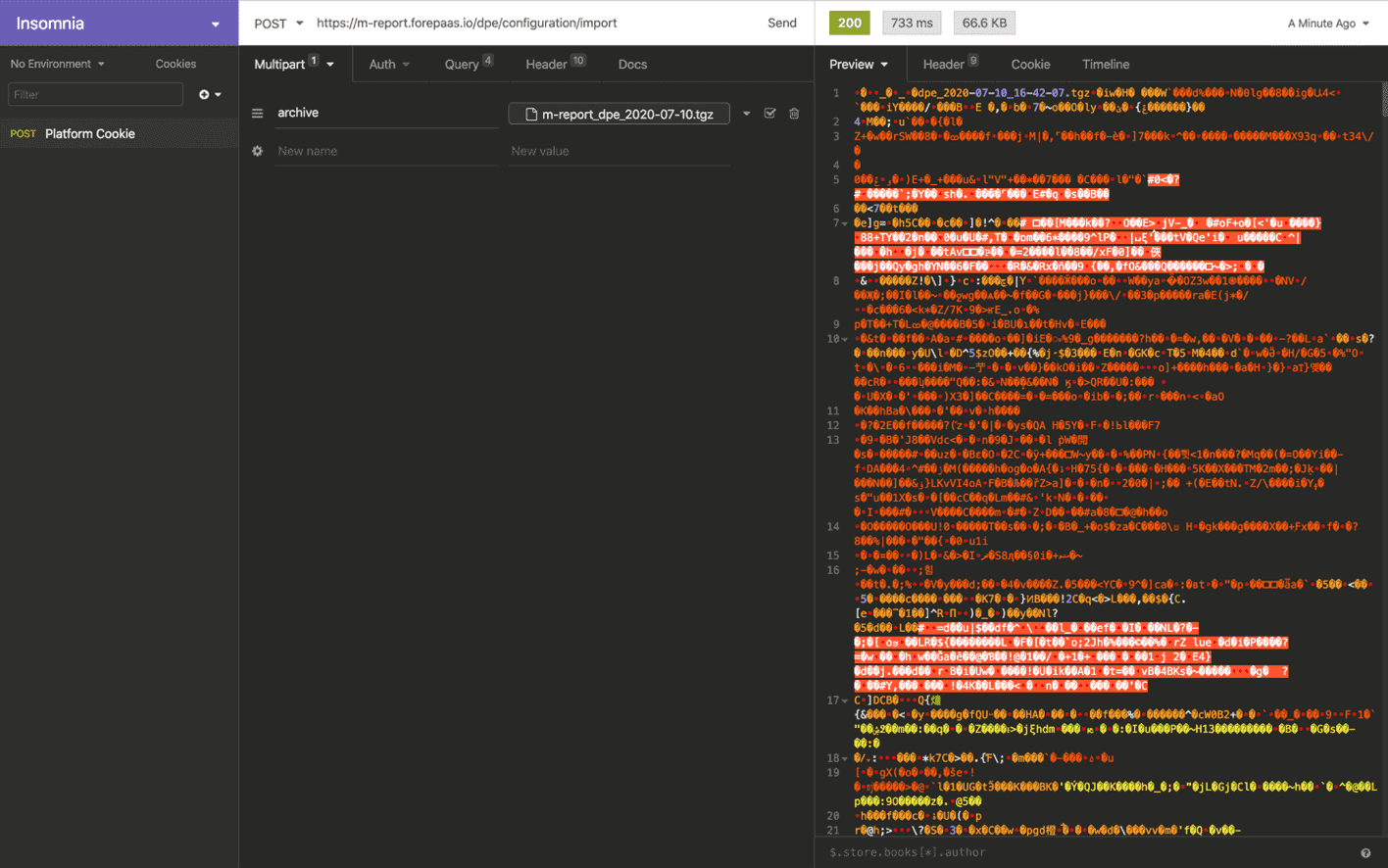
That’s it! Now refresh your Project page and you should see all the component configuration updated.
Export/Import API calls per component
Here are listed the various API calls to export/import the configuration of each component in your Project.
As a general rule, make sure to:
- use a GET method when doing an Export call
- use a POST method when doing an Import call
Don't forget to change datademo with your Project name and access token with its actual value. You can find the slugified version of your Project name in the Control Center.
Connectors and Lakehouse Manager
Export
Import
Data Processing Engine
Export
Query parameters:
It is also possible to call /dpe/v3/configuration/export as POST and pass parameters in a JSON object. This is useful for filters and notebook_data when the URL becomes too long or for security reasons.
Import
Query Parameters:
Body parameters
Notebook Manager (Standalone Export/Import)
For exporting and importing notebooks specifically, you can also use the Notebook Manager's dedicated endpoint. This endpoint currently does not support filters like the main DPE export.
Export
(This endpoint only supports the notebook_data query parameters like the main DPE export.)
Import
(Import parameters (sourceType, sourceParam, response) are the same as for the main DPE import endpoint.)
Analytics Manager
Export
Import
Identity Access Manager - IAM
Export
The response is a complete JSON of all configurations of the IAM (format .json).
It is possible to select subsets of the configuration using filters[] in the Query parameters.
Import
Please make caution when importing IAM configuration as it will: reset Project's private key, reset current sessions, all passwords (using Project Auth Provider), and all API Key / Secret Key.
This will remove existing configurations, applications, users, groups, etc. This is done on the basis of the configuration imported, so it may concern only a configuration subset selected when exporting.
The JSON to import is directly in the Body part.
Go further
For training or technical assistance implementing our solutions, contact your sales representative or visit our Professional Services page to request a quote and have your project analysed by our experts.
Ask questions, give your feedback and interact directly with the team building the Data Platform on the dedicated Discord channel.
If you need support with your OVHcloud services, create a request in our Help Centre.
Join our community of users.